Seisware
Follow these steps to monitor Seisware licenses with OpenLM. The Seisware license server writes every license check-out and check-in to a CSV log. OpenLM Broker reads that log on the license server machine and reports each session to OpenLM SLM.
Requirements
Before starting, make sure you have:
- OpenLM SLM installed on a machine in your organization, or a Software License Management Cloud (SLMC) account.
- OpenLM Broker v22.4.15.656 or higher, installed on the Seisware license server machine and reporting to OpenLM SLM. Earlier Broker versions do not list Seisware as a license manager type.
- The path of the Seisware license log on that machine. See How OpenLM interfaces with Seisware for how to recognize the file.
Monitoring capabilities
The current monitoring capabilities for Seisware through OpenLM Broker are:
| LM Type in the Broker | Commands | Logs | Quantity | Expiration date | Denied | Borrowing | Allocations | Report resolution |
|---|---|---|---|---|---|---|---|---|
| Seisware | No | Yes | No | No | No | No | No | Start time to the second, end time to the minute |
For each check-out and check-in, Broker reports:
- Feature name: always
SeisWare. Broker reports all Seisware usage as 1 feature, whichever module the log names. - Username: the
Usercolumn. - Workstation: the
Machinecolumn. - Start and end time: the
Timecolumn of theOUTrow and of theINrow. - Vendor: always
SeisWare.
The Seisware license log holds no license totals or expiration dates. OpenLM therefore reports Seisware usage without a license total. The log can hold DENIED rows, but Broker doesn't read them, so denials aren't reported. Borrowed licenses and license allocations are not available.
How OpenLM interfaces with Seisware
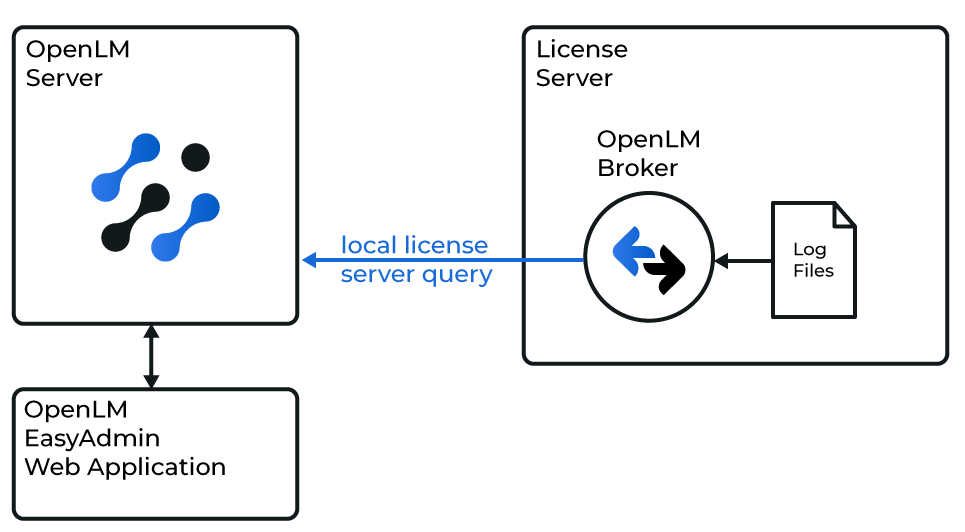 How OpenLM collects Seisware usage
Broker runs on the Seisware license server machine, reads the license log there, and sends the license data to OpenLM SLM.
-
Log file: The Seisware license log is a CSV file, for example
LicenseLog.csv, whose first row names the columns. Seisware writes 1 of 2 layouts. The later layout adds aComponentcolumn with the module name, for exampleCoreorGeophysics:Status,User,Machine,MacID,Time,Elapsed,ID,InUse,Version,Description,Note1,Note2,Note3,ComponentOUT,jdoe,WS-1001,00-11-22-33-44-55,2026-10-19 08:12:40,0:00:00,10452,1,9.02,,,,,CoreIN,jdoe,WS-1001,00-11-22-33-44-55,2026-10-19 11:47:05,3:34:25,10452,0,9.02,,,,,CoreBroker reads the
OUTandINrows, and from them only theUser,Machine,Time, andIDcolumns. It ignores every other row, includingSTARTUPandDENIED, and every other column, includingComponent,InUse, andVersion. -
Sessions: Broker matches each
INrow to itsOUTrow by theIDcolumn. In the later layout, a user who opens several modules gets 1OUTrow per module, all with the same ID. Broker reports them as 1 license in use, and ends the session at the firstINrow with that ID. -
First read: When Broker starts, it reads the whole log file to find the licenses that are checked out at that moment. From then on it reports each new
OUTandINrow. Broker does not upload earlier usage history. -
Commands: None run on a schedule. Broker does not connect to the Seisware license server, so the port that you enter in Broker only identifies the license server in OpenLM.
OpenLM Broker configuration
Install OpenLM Broker on the Seisware license server machine and confirm that it reports to OpenLM SLM before starting these steps.
-
Open a browser on the Seisware license server machine and go to the Broker web UI at http://localhost:5090/.
-
On the License Managers page, check Host.
OpenLM lists the license server under this host name, and the field holds the host for every license manager on the page, not for Seisware alone. If the field is empty, enter the host name of the license server machine and select the save icon next to the field.
-
Go to License Managers → Add License Manager.
-
From LM Type, select Seisware.
-
In Port, enter a port that no other license manager on this Broker uses, for example
30433, and select Add.Broker does not connect to this port. It only identifies the license server in OpenLM. Broker refuses a port that another license manager already uses.
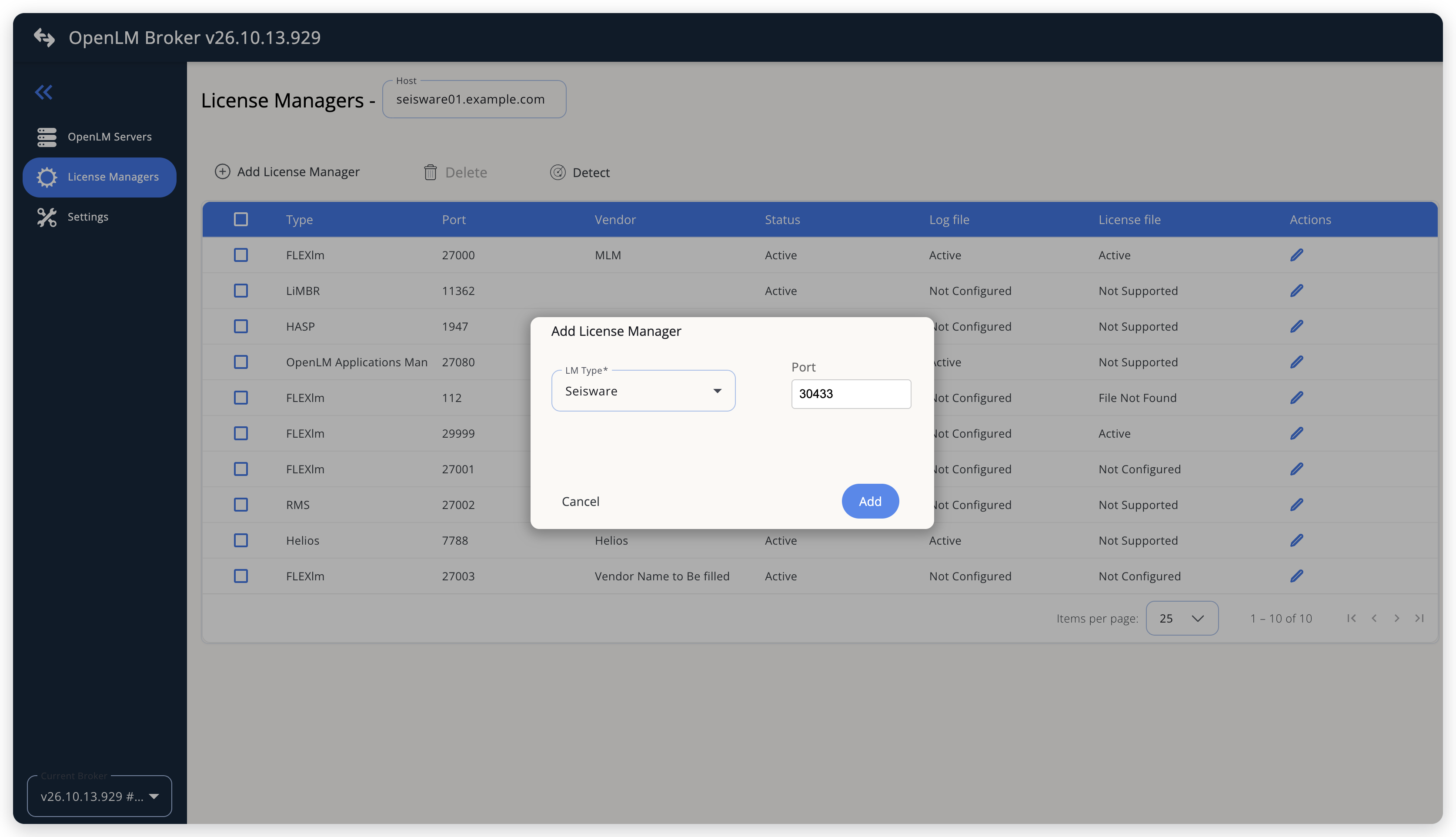 Add Seisware as a license manager
-
On the Vendors tab, select Add Vendor, enter
SeisWare, and select Continue.Broker reports every Seisware session with the vendor
SeisWare, so use that name. The new vendor appears in the list after you switch to another tab and back. -
On the Log Files tab, select Add Log File, and fill in the dialog:
- Log Type: Seisware Log, the only type for Seisware, which Broker selects for you.
- Log Name: a name for the log, for example
Seisware license log, in place of the suggestedlog. - Log Path: the full path of the Seisware license log. Select the search icon next to the field to browse to it.
- Vendor:
SeisWare, the vendor that you added on the Vendors tab. Broker selects it when it is the only vendor.
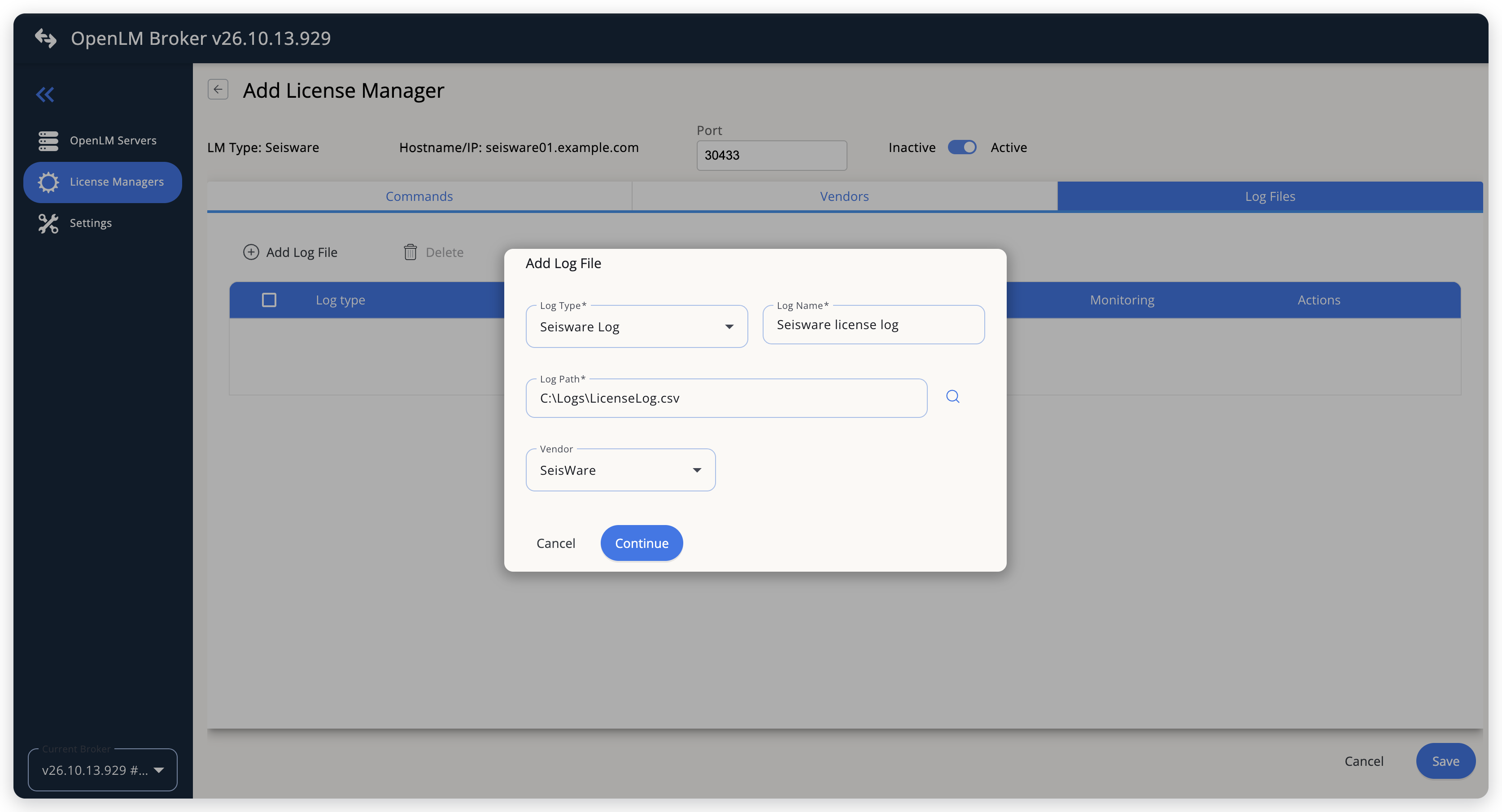 Point Broker at the Seisware license log
-
Select Continue, then select Save.
OpenLM SLM configuration
Automatic configuration through EasyAdmin
If the preceding steps are complete, Broker reads the log every 10 seconds, by default, and reports Seisware to OpenLM SLM. Approve the license server in EasyAdmin:
-
Open EasyAdmin (
http://<Server IP>:5015) and go to Start → Widgets → License Manager - Servers. -
Select the There are N servers pending approval link at the top of the widget.
The Administration - License Manager Servers window opens, with the pending entries at the top of the list.
-
Find the pending Seisware entry, with the host name and the port that you configured in Broker, and select the edit icon at the end of its row.
Broker reports the LM type Seisware, which OpenLM SLM knows, so its Type is Seisware, not OpenLM Generic.
-
Optionally rename the connection in Display name, confirm the Host Name and Port, and select APPROVE.
Manual configuration through EasyAdmin
If automatic configuration fails:
-
Go to Start → Administration → License Manager Servers.
-
Select Add LM.
-
In Display name, enter a name for the connection, for example
Seisware. -
From Type, select Seisware.
Use Broker turns on.
-
In the row under Host Name, Port, and Time Zone, enter the host name and the port exactly as configured in Broker for Seisware, and select a time zone.
-
Select SAVE.
Verify your configuration
- Open EasyAdmin in your browser.
- Go to Start → Widgets → License Manager - Servers.
- Confirm that the Seisware license server shows the Status Up to date.
- Go to Start → Reports → License Activity, select Include Current Activity, and select Apply. Confirm that each check-out appears with its username, workstation, and start time.
Troubleshooting
If Seisware never appears as pending in EasyAdmin, confirm that the Broker reports to OpenLM SLM: other license managers on the same Broker update in EasyAdmin.
If the license server is approved but shows no usage, check these points:
- Log Path points at the Seisware license log, the CSV file whose rows start with
OUTandIN. - The license manager type in Broker is Seisware, and the log file type is Seisware Log.
If the Broker log shows No session found for followed by a number, an IN row arrived for an ID whose session had already ended. That is expected for the later layout, where each module on the same ID writes its own IN row. The Broker log is in the logs folder of the Broker installation.
Known limitations
- Broker does not report license totals, expiration dates, denied requests, borrowed licenses, or license allocations, and does not upload usage history. Usage in OpenLM starts when you configure the license manager.
- All Seisware modules arrive as 1 feature,
SeisWare. OpenLM doesn't show which module a user opened. - Broker reports rows that share an ID as 1 license in use, and ends the session at the first
INrow with that ID, even while other modules on that ID are still checked out. - An
OUTrow that never gets a matchingINrow keeps its session in use in OpenLM, also after Broker or the license server restarts. Broker ignores theSTARTUProws and rebuilds the open sessions from the whole log file each time it starts. - Broker does not check whether the Seisware license server is running. OpenLM shows the license server as up while Broker reports it.
The documentation team might draft this page using a large language model. A technical writer reviews every page and verifies it against the product before publishing it. A human makes the final decision.