Sentinel SuperPro
Follow these steps to configure OpenLM to monitor license usage and retrieve statistics from the Sentinel SuperPro license manager.
Requirements
Before starting, make sure you have:
- OpenLM Server v2.x or higher installed on a machine in your organization or an OpenLM Cloud (SLMC) account
- OpenLM Broker v21.8.25 or higher installed on the same machine as Sentinel SuperPro
Monitoring capabilities
The current monitoring capabilities available for Sentinel SuperPro through OpenLM Broker are:
| Feature | Resolution | License totals | License usage | Denials reporting | Borrowed license reporting | Expiration date reporting | Multiple server redundancy |
|---|---|---|---|---|---|---|---|
| Support | By minute | ✔ | ✔ | ❌ | ❌ | ✔ | ❌ |
Using the Broker component also provides:
- Buffered communication to OpenLM Server
- Ability to remotely start/stop the license manager service
OpenLM Broker configuration
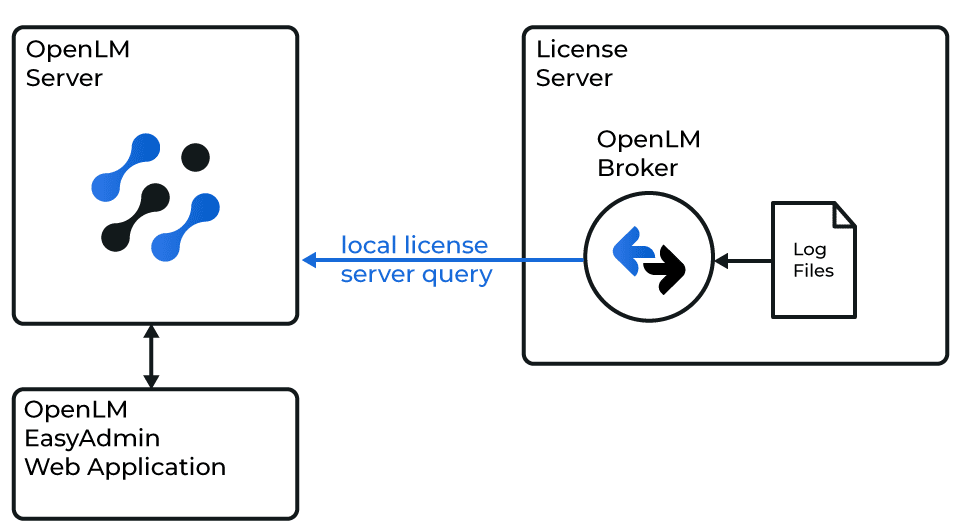
Diagram of how OpenLM interfaces with the Sentinel SuperPro license manager
note
Install and configure OpenLM Broker on the same machine as Sentinel SuperPro before proceeding.
Automatic configuration
- In the Broker configuration tool, select Detect in the bottom-right corner.
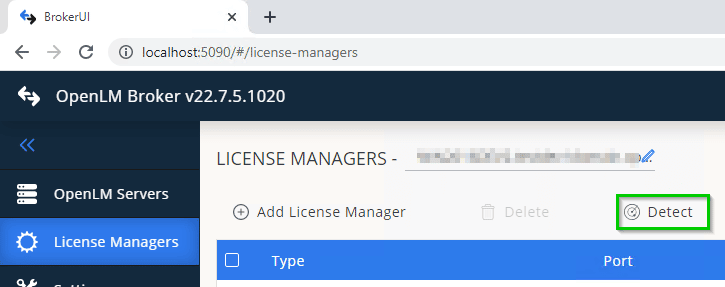
- If the Sentinel SuperPro process or service is running, Broker will auto-configure all required settings.
- To verify, go to the Commands tab of the added license manager and select Execute. The output should be valid without
"Failed to execute command"errors.
Manual configuration
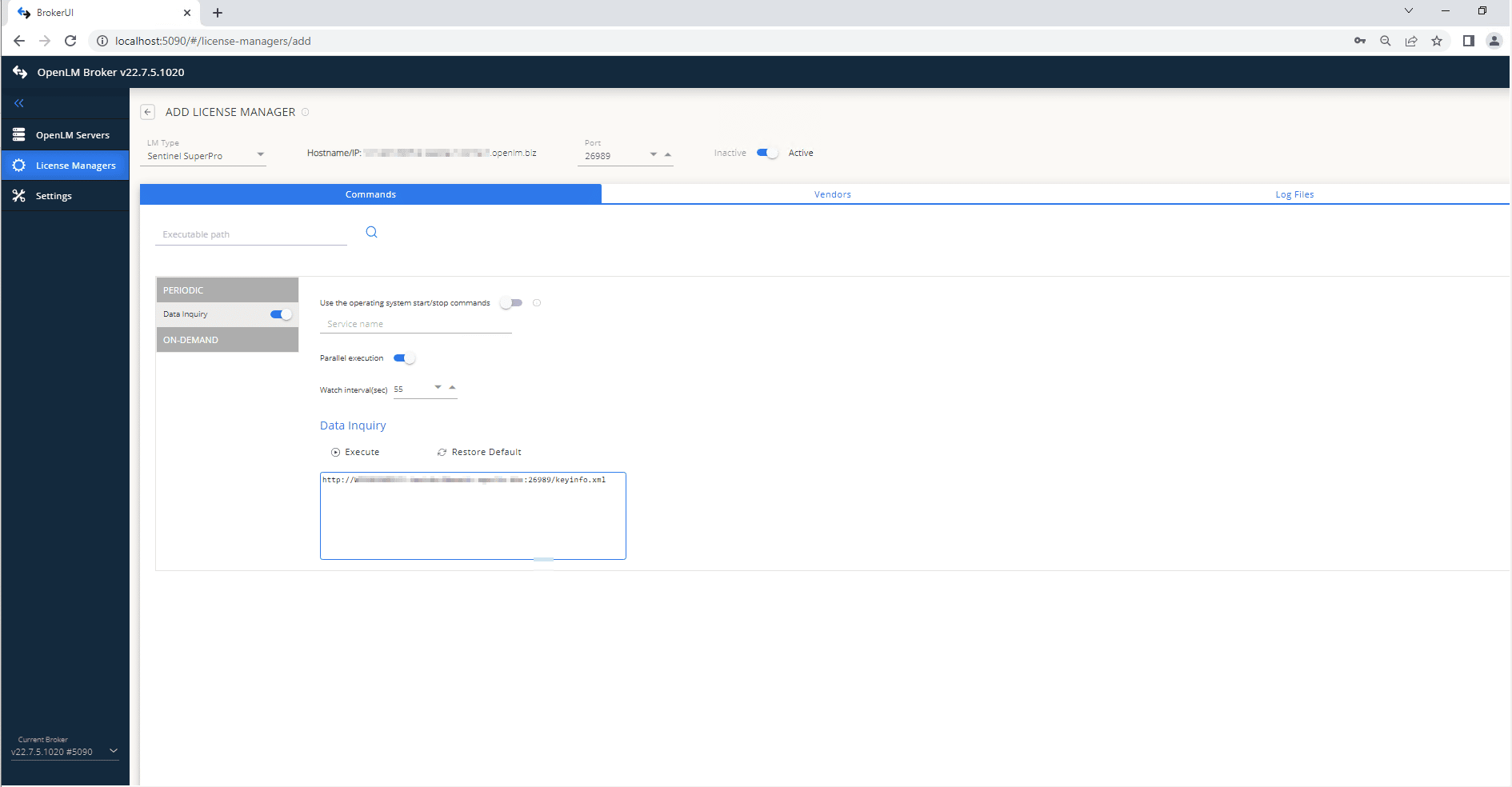
- Access the Broker web UI on the machine where Sentinel SuperPro is installed.
- Go to License Managers → Add License Manager.
- Enter the port number and select Sentinel SuperPro from the LM Type dropdown. Select Add.
- In the Commands tab, ensure the Data Inquiry command path is correct.
- Go to the Vendors tab → Add Vendor, enter Sentinel SuperPro, and select Continue.
- Select Save.

OpenLM Server configuration
Automatic configuration through EasyAdmin
If Broker is reporting correctly, approve the configuration in EasyAdmin:
- Open EasyAdmin (Start → Widgets → License Manager - Servers).
- Select There are x servers pending approval.
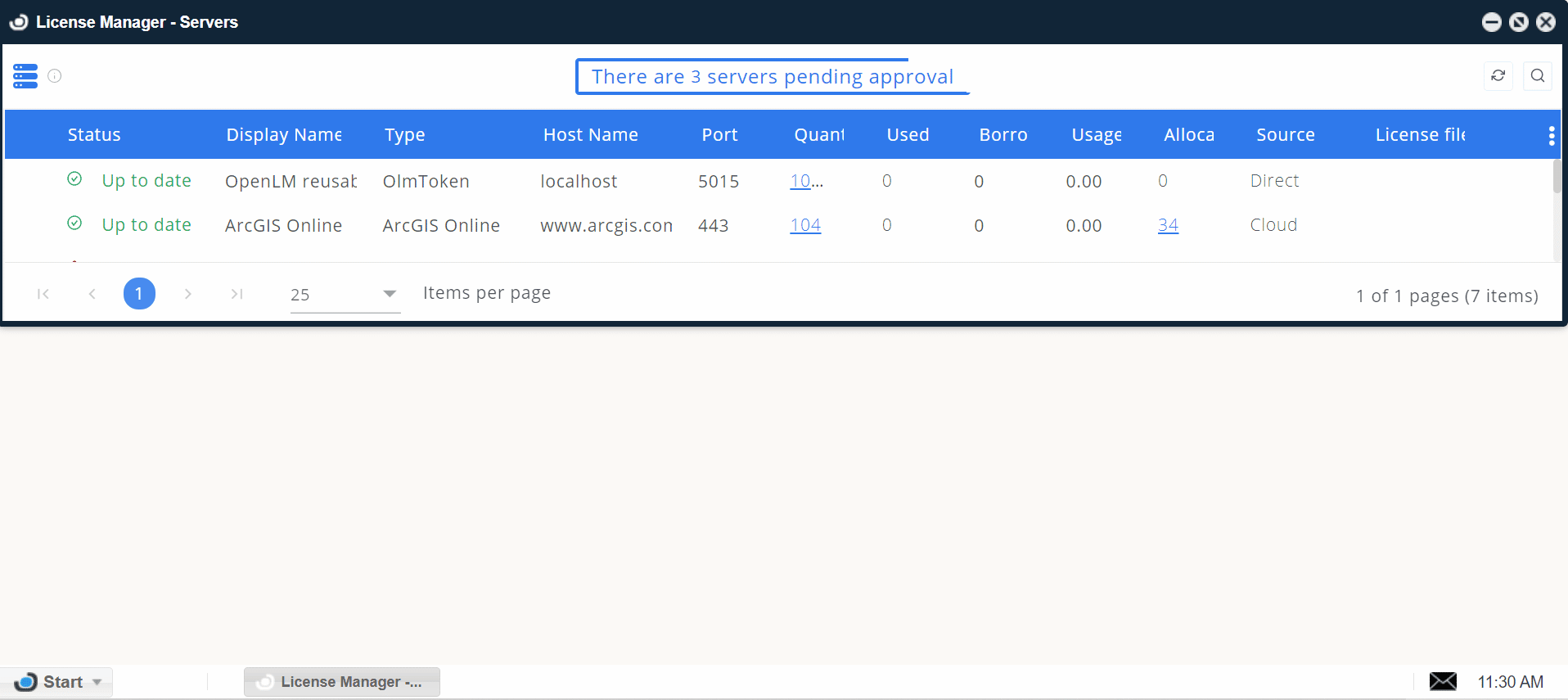
- Double-click the Sentinel SuperPro entry (type will be OpenLM Generic).
- Verify the Host Name, Port, and Time Zone, then select Approve.
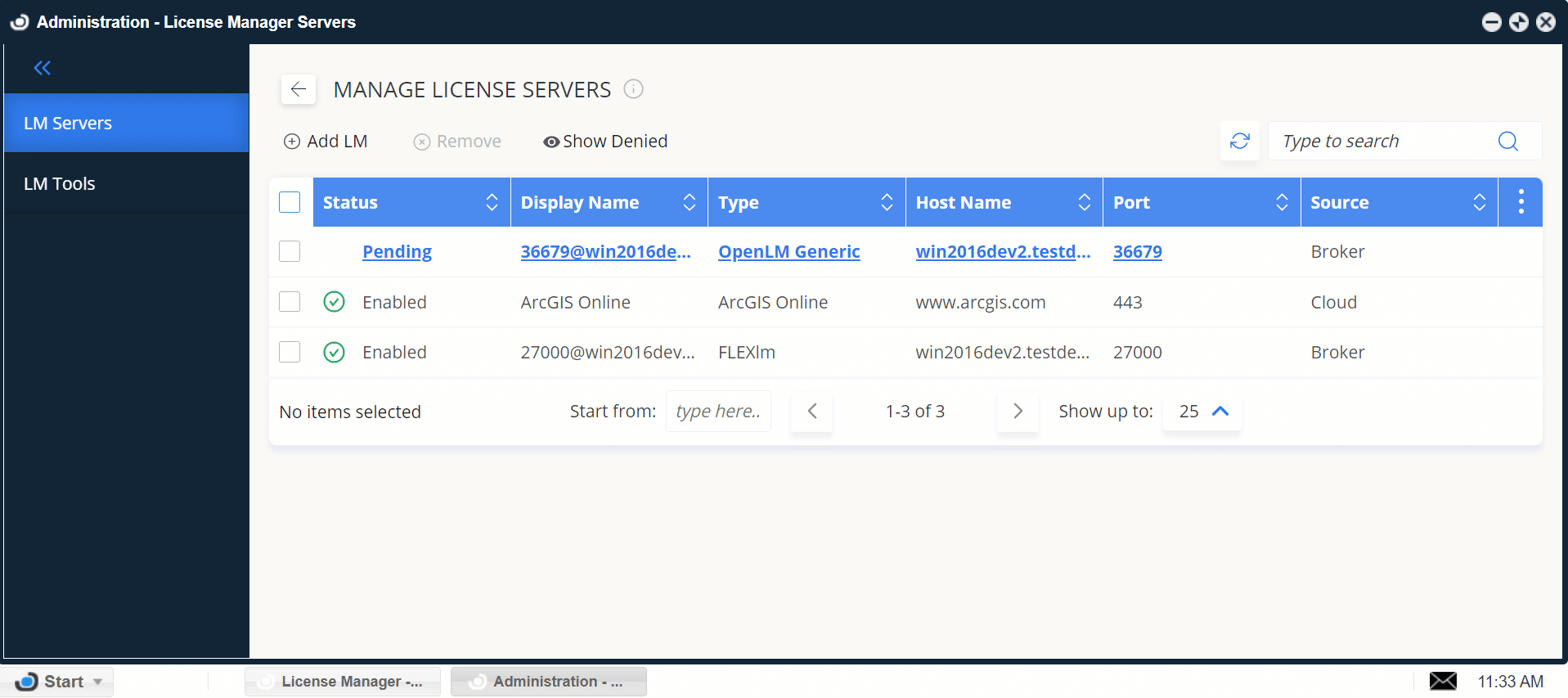
Verify your configuration
- Open EasyAdmin.
- Go to Start → Widgets → License Manager - Servers.
- Confirm the Sentinel SuperPro license manager appears in the list with a green status circle.
note
It may take up to 3 minutes for a new connection to display as active.