Sparx Pro
Follow these steps to monitor Sparx Pro licenses with OpenLM. Sparx Pro is the OpenLM name for the Floating License Server built into Sparx Systems Pro Cloud Server, which serves Enterprise Architect floating licenses from a server on your network. Despite its name, Pro Cloud Server runs on your own server, not in a cloud. OpenLM Broker reads the Pro Cloud Server log on that server and reports each check-out and check-in to OpenLM SLM.
If your Enterprise Architect licenses come from the Sparx Systems Keystore service, which writes ssksLog.log, follow Sparx instead.
Requirements
Before starting, make sure you have:
- OpenLM SLM installed on a machine in your organization, or a Software License Management Cloud (SLMC) account.
- OpenLM Broker v22.2.7.1557 or higher, installed on the Pro Cloud Server machine and reporting to OpenLM SLM. Earlier Broker versions do not list Sparx Pro as a license manager type. Use v23.2.6.1138 or higher, so that Broker finishes reading a log file when Pro Cloud Server starts a new one.
- Enterprise Architect floating licenses served by the Floating License Server of Pro Cloud Server.
- Access to the Pro Cloud Server machine, to check its logging settings and find its log folder.
Monitoring capabilities
The current monitoring capabilities for Sparx Pro through OpenLM Broker are:
| LM Type in the Broker | Commands | Logs | Quantity | Expiration date | Denied | Borrowing | Allocations | Report resolution |
|---|---|---|---|---|---|---|---|---|
| Sparx Pro | No | Yes | No | No | No | No | No | Seconds |
For each check-out and check-in, Broker reports:
- Feature name: the Enterprise Architect edition in the
productfield, for exampleEA Corporate Edition. - Username: the username after the backslash in the
userfield. - Workstation: the computer name before the backslash in the
userfield. - Start and end time: the time of the check-out and check-in lines, to the second.
- Vendor: the vendor that you select for the log file.
The Pro Cloud Server log holds no license totals, expiration dates, or denied requests. OpenLM therefore reports Sparx Pro usage without a license total, and denials, borrowed licenses, and license allocations are not available.
How OpenLM interfaces with Sparx Pro
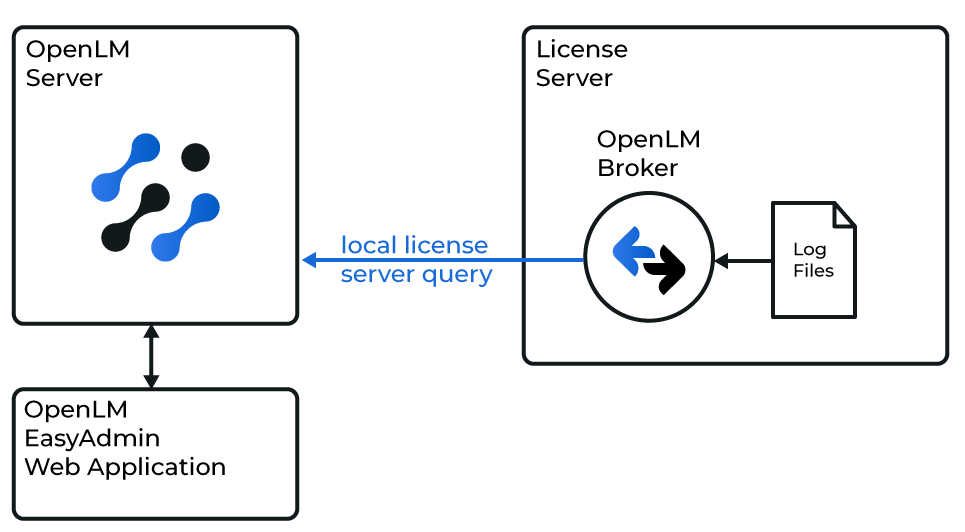 How OpenLM collects Sparx Pro usage
Broker runs on the Pro Cloud Server machine, reads the Pro Cloud Server log there, and sends the license data to OpenLM SLM.
-
Log file: Broker reads
SSProCloudServerLog-1.log, the current Pro Cloud Server log, in theLogsfolder of the Pro Cloud Server service. It reads 2 kinds of line:2026-10-19 08:12:40 [INFO]: FLS - CHECKOUT SUCCESS, group=EA-Corporate key=XXXX-XXXX-XXXX-XXXX product=EA Corporate Edition user=WS-1001\jdoe, 2026-10-20 08:12:402026-10-19 11:47:05 [INFO]: FLS - CHECKIN SUCCESS, group=EA-Corporate key=XXXX-XXXX-XXXX-XXXX product=EA Corporate EditionBroker ignores every other line, including
FLS - REASSERT EXTEND, which records a client renewing its license, and the hourly[AUDIT]report. -
Sessions: Broker matches each check-in to its check-out by the license key. A key serves 1 user at a time, so a new check-out of the same key replaces the previous session.
-
First read: When you add the log file, Broker reads the current log once to find the licenses that are checked out at that moment. From then on it reports each new check-out and check-in. Broker does not upload earlier usage history.
-
Rolled files: When Pro Cloud Server starts a new log file, Broker finishes reading the previous file before it continues with the new one, as long as Watch files by pattern is off.
-
Commands: None run on a schedule. Broker does not connect to Pro Cloud Server, so the port that you enter in Broker only identifies the license server in OpenLM.
Prepare the Pro Cloud Server log
Broker sees only what Pro Cloud Server writes to its log, so check the logging settings first. Pro Cloud Server writes the check-out and check-in lines at the INFO level and starts a new log file when the current one reaches its maximum size.
-
On the Pro Cloud Server machine, open the
SSProCloud.configfile in a text editor that you run as administrator.The file is in the
Servicefolder of the Pro Cloud Server installation, for exampleC:\Program Files\Sparx Systems\Pro Cloud Server\Service\SSProCloud.config. Older 32-bit installations useC:\Program Files (x86)\Sparx Systems\Pro Cloud Server\Service. -
Check
LOGGING_LEVEL.INFOorSYSTEM, the default, writes the lines that Broker reads.DEBUGandTRACEalso write them, but they add so many other lines that the log fills up and rolls over far more often.OFF,FATAL, andWARNINGdo not write them at all. -
Raise
LOGGING_FILESIZEso that 1 log file covers several days of check-outs, for example10485760for 10 MB.The value is in bytes, and the default is
1048576, which is 1 MB. Broker reads only the current file when it starts, so a larger file keeps more open sessions in view. See Known limitations. -
Save the file, and restart the Sparx Systems Professional Cloud service in Windows Services.
Pro Cloud Server reads the file only when it starts. A log level that you change in the Pro Cloud Server Configuration Client applies without a restart.
-
Note the log folder.
The first lines of every log file list it under Folders, as Logging. The default is
C:\Program Files\Sparx Systems\Pro Cloud Server\Service\Logs. -
Open
SSProCloudServerLog-1.login that folder, and search forFLS - CHECKOUT SUCCESS.If no line matches, no floating license has been checked out since the log started, or the log level is lower than
INFO.
For the full list of Pro Cloud Server settings, see Pro Cloud Server Configuration in the Sparx Systems user guide.
OpenLM Broker configuration
Install OpenLM Broker on the Pro Cloud Server machine and confirm that it reports to OpenLM SLM before starting these steps.
-
Open a browser on the Pro Cloud Server machine and go to the Broker web UI at http://localhost:5090/.
-
On the License Managers page, check Host.
OpenLM lists the license server under this host name, and the field holds the host for every license manager on the page, not for Sparx Pro alone. If the field is empty, enter the host name of the Pro Cloud Server machine and select the save icon next to the field.
-
Go to License Managers → Add License Manager.
-
From LM Type, select Sparx Pro, not Sparx.
-
In Port, enter the port that Enterprise Architect uses to reach Pro Cloud Server, and select Add.
The defaults are
1804for HTTP and1805for HTTPS in Pro Cloud Server 5.0 or higher, and804and805in earlier versions. Broker does not connect to this port, so any port that no other license manager on this Broker uses works. Broker refuses a port that another license manager already uses.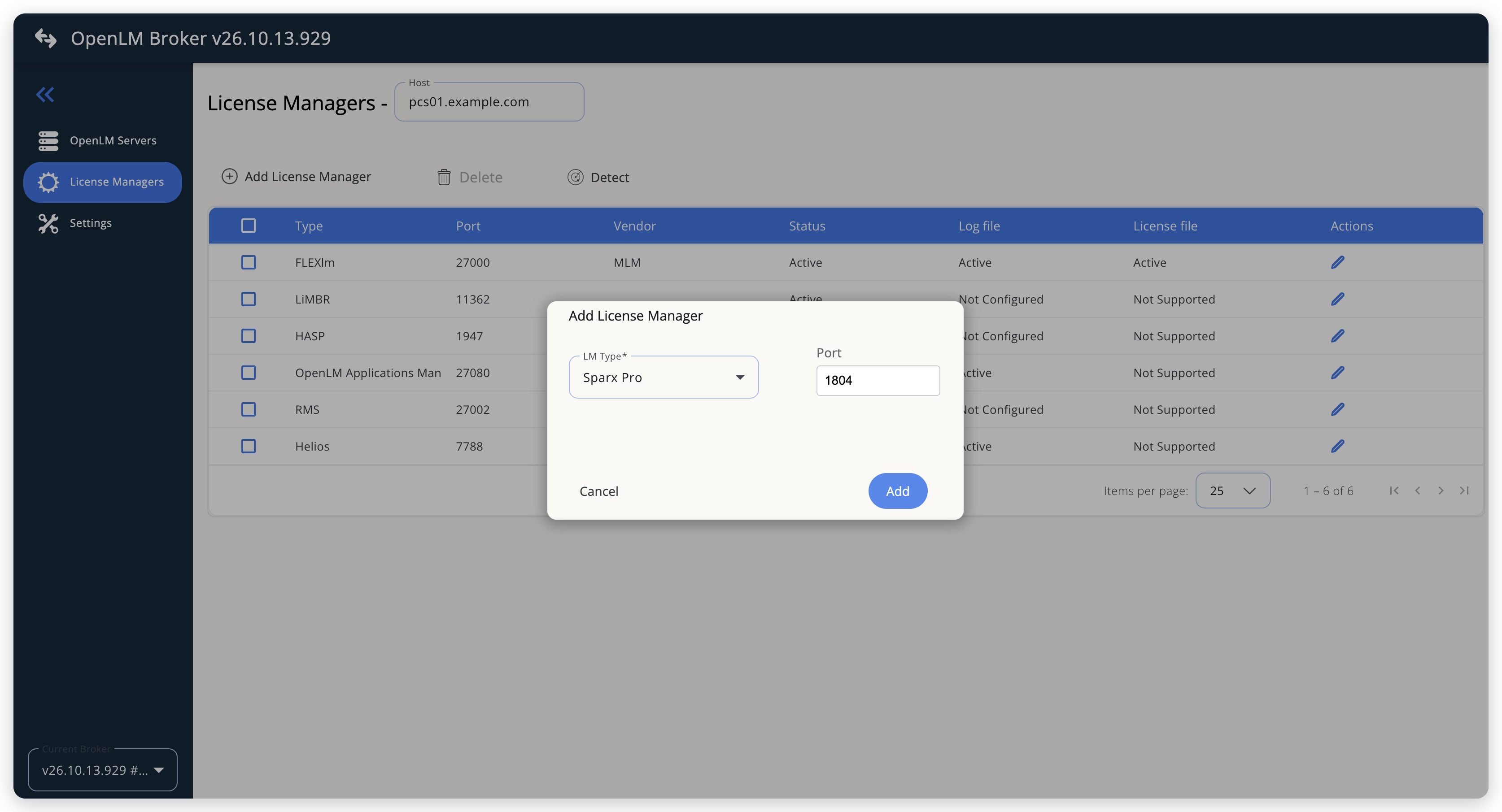 Add Sparx Pro as a license manager
-
On the Commands tab, check Service name.
Broker fills it with
Sparx System Keystore Service, the service of the older Keystore, and turns on Use the operating system start/stop commands. Set Service name toSparx Systems Professional Cloud, so that a start or stop command from OpenLM acts on Pro Cloud Server, or turn the option off. -
On the Vendors tab, select Add Vendor, enter the vendor name that you want OpenLM to show, for example
Sparx Systems, and select Continue.The new vendor appears in the list after you switch to another tab and back.
-
On the Log Files tab, select Add Log File, and fill in the dialog:
- Log Type: SSKS Log, the only type for Sparx Pro.
- Log Name: a name for the log, for example
Pro Cloud Server log. - Log Path: the full path of
SSProCloudServerLog-1.log, for exampleC:\Program Files\Sparx Systems\Pro Cloud Server\Service\Logs\SSProCloudServerLog-1.log. Select the search icon next to the field to browse to it. - Vendor: the vendor that you added on the Vendors tab.
- Under Advanced, set Encoding to UTF-8. Pro Cloud Server writes its log in UTF-8, and Broker suggests the default encoding of the Windows machine instead.
- Under Advanced, leave Watch files by pattern off. Broker finishes reading a rolled log file only while this option is off.
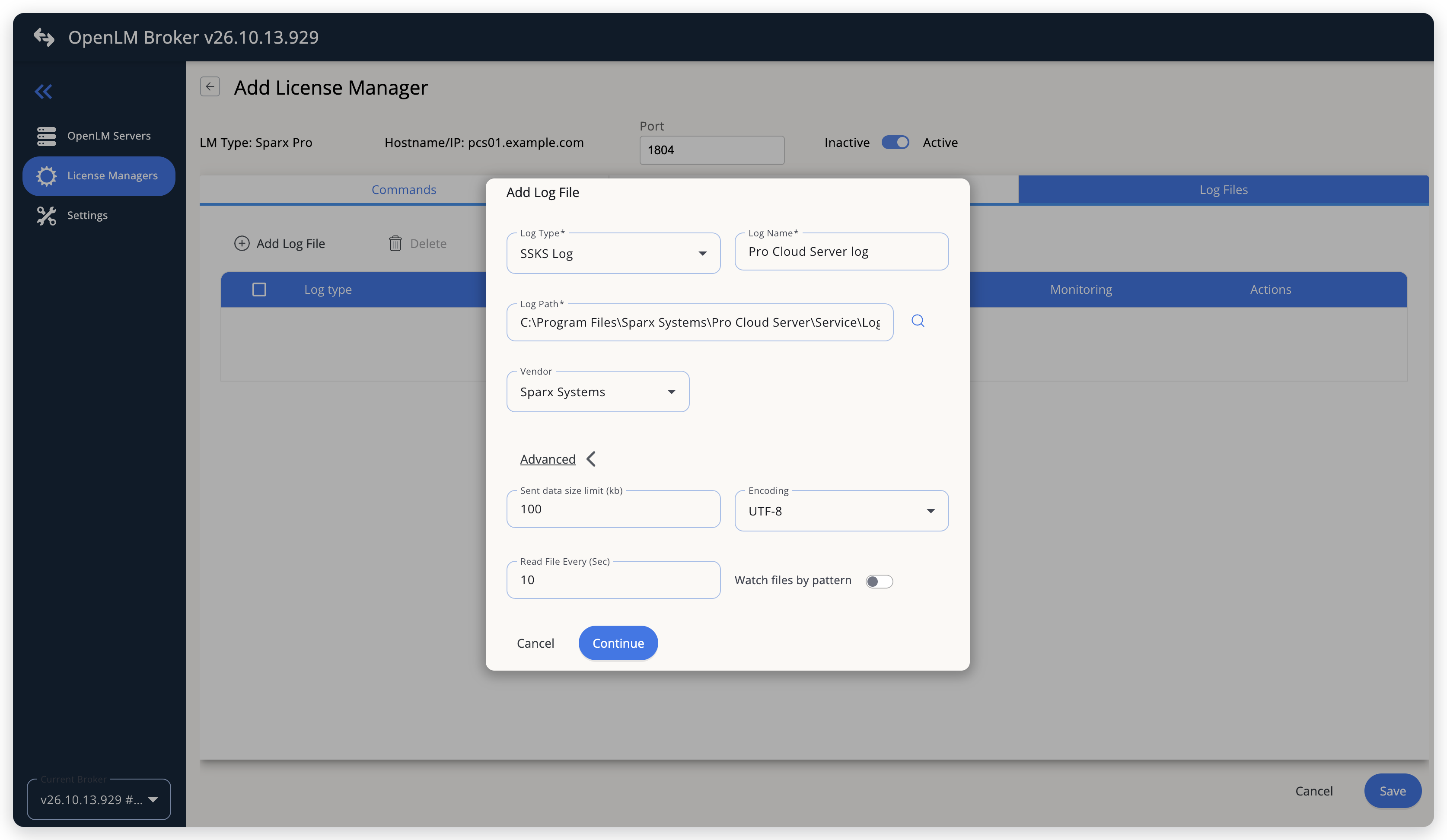 Point Broker at the current Pro Cloud Server log
-
Select Continue, then select Save.
OpenLM SLM configuration
Automatic configuration through EasyAdmin
If the preceding steps are complete, Broker reads the log every 10 seconds, by default, and reports Sparx Pro to OpenLM SLM. Approve the license server in EasyAdmin:
-
Open EasyAdmin (
http://<Server IP>:5015) and go to Start → Widgets → License Manager - Servers. -
Select the There are N servers pending approval link at the top of the widget.
The Administration - License Manager Servers window opens, with the pending entries at the top of the list.
-
Find the pending Sparx Pro entry, with the host name and the port that you configured in Broker, and select the edit icon at the end of its row.
Broker reports the LM type Sparx Pro, which OpenLM SLM knows, so its Type is Sparx Pro, not OpenLM Generic.
-
Optionally rename the connection in Display name, confirm the Host Name and Port, and select APPROVE.
Manual configuration through EasyAdmin
If automatic configuration fails:
-
Go to Start → Administration → License Manager Servers.
-
Select Add LM.
-
In Display name, enter a name for the connection, for example
Sparx Pro. -
From Type, select Sparx Pro.
Use Broker turns on.
-
In the row under Host Name, Port, and Time Zone, enter the host name and the port exactly as configured in Broker for Sparx Pro, and select a time zone.
-
Select SAVE.
Verify your configuration
- Open EasyAdmin in your browser.
- Go to Start → Widgets → License Manager - Servers.
- Confirm that the Sparx Pro license server shows the Status Up to date.
- Go to Start → Widgets → Feature Usage Status and confirm that each Enterprise Architect edition appears after its first check-out, with the number of licenses in use in Used.
- Go to Start → Reports → License Activity, select Include Current Activity, and select Apply. Confirm that each check-out appears with its username and workstation.
Troubleshooting
If Sparx Pro never appears as pending in EasyAdmin, confirm that the Broker reports to OpenLM SLM: other license managers on the same Broker update in EasyAdmin.
If the license server is approved but shows no usage, check these points:
- Log Path points at
SSProCloudServerLog-1.log, the current file, and not at a rolled file such asSSProCloudServerLog-2.log. - The log holds
FLS - CHECKOUT SUCCESSlines. If it does not, setLOGGING_LEVELas described in Prepare the Pro Cloud Server log. - Enterprise Architect gets its license from Pro Cloud Server. Licenses from the Keystore service appear in
ssksLog.logand need the Sparx type.
If usernames arrive with garbled characters, set Encoding to UTF-8 for the log file, under Advanced.
If OpenLM shows fewer licenses in use than Pro Cloud Server shortly after Broker restarts, Broker has not seen the check-outs that happened before the current log file started. See Known limitations.
The Broker log holds the detail, in the logs folder of the Broker installation.
Known limitations
- Broker does not report license totals, expiration dates, denied requests, borrowed licenses, or license allocations, and does not upload usage history. Usage in OpenLM starts when you configure the license manager.
- When Broker starts, it rebuilds the open sessions from the current log file only. Licenses checked out before that file started are missing from OpenLM until they are checked in and out again. A larger
LOGGING_FILESIZEand theINFOorSYSTEMlog level keep more history in the current file. - Broker reads only the check-out and check-in lines. A license that Pro Cloud Server frees without a check-in line stays in use in OpenLM until the same license key is checked out or checked in again.
- Broker finishes reading a rolled log file only while Watch files by pattern is off.
- Broker does not check whether Pro Cloud Server is running. OpenLM shows the license server as up while Broker reports it.
- Broker reads the log on the machine where it runs. Install a Broker on each Pro Cloud Server machine that you want to monitor.
- Multiple server redundancy is not available. Leave Is Triad Configuration unchecked in EasyAdmin.
The documentation team might draft this page using a large language model. A technical writer reviews every page and verifies it against the product before publishing it. A human makes the final decision.