Tebis
Follow these steps to monitor Tebis floating licenses with OpenLM. The Tebis license server comes with a command-line utility, TebisFLU (tebisflu), that writes a status report of every licensed feature and every open session. OpenLM Broker runs TebisFLU on a schedule, reads the report, and reports the features and sessions to OpenLM SLM. The report prints dates in the regional format of the license server, so you also tell Broker which date format to expect.
Requirements
Before starting, make sure you have:
- OpenLM SLM installed on a machine in your organization, or a Software License Management Cloud (SLMC) account.
- OpenLM Broker v26.3.2.1352 or higher, installed on the Tebis license server machine, or on a machine that has TebisFLU and reaches the license server, and reporting to OpenLM SLM. Broker lists Tebis as a license manager type from v22.4.15.656. Before v26.3.2.1352, a date format that uses
ttfor AM and PM stops the Tebis license manager from starting, so reports with a 12-hour clock need v26.3.2.1352 or higher. - The folder that holds
tebisflu.exe, theprogramfolder of the TebisFLU installation, for exampleC:\Program Files\Tebis_AG\TebisFLU V4.1 R8\program. The folder name carries the TebisFLU version, so check it on the machine. - The port that the Tebis license server listens on. TebisFLU uses
64200when no port is given.
Monitoring capabilities
The current monitoring capabilities for Tebis through OpenLM Broker are:
| LM Type in the Broker | Commands | Logs | Quantity | Expiration date | Denied | Borrowing | Allocations | Report resolution |
|---|---|---|---|---|---|---|---|---|
| Tebis | Yes | No | Yes | Yes | No | No | No | Start time by second, end time by minute |
For each feature in the report, Broker reports:
- Feature name: the feature code, for example
12345678-MOD-ADD-CAM7. - Version: the feature version from the same line, for example
V4.1R10. - Total: the number in
N license(s)at the end of the feature line. - Expiration date: the date after
stops working at, or afterendet amin a German report. - Vendor:
Tebis, unless you add a different vendor on the Vendors tab.
For each session under a feature, Broker reports:
- Username and Workstation: TebisFLU writes the session as
domain\user@workstation:id. Broker drops the domain and the number after the colon. - Start time: the date and time after
started, or aftergestartetin a German report, to the second. - End time: the first data inquiry that no longer finds the session, which runs every 55 seconds by default.
Denied requests, borrowed licenses, and license allocations are not available for Tebis.
How OpenLM interfaces with Tebis
Broker sends the license data to OpenLM SLM. The status report comes from TebisFLU, which Broker runs on every data inquiry.
-
Command: Data Inquiry only. Its command line has 2 parts, separated by a semicolon, which Broker always runs one after the other:
"tebisflu" -st tebis-tg01.example.com:64200 -o tebis64200.txt;cmd /c type tebis64200.txtThe first part asks the license server at the host and port for its status report and saves it to
tebis<port>.txt, in the working folder of the Broker service. The second part prints that file, and Broker reads the output. On a Linux Broker, the second part isbash -c cat tebis<port>.txt. -
Report: Broker reads 2 kinds of line and ignores the report header, which names the host, the user, and the server version:
Feature 12345678-001 V4.1R10, stops working at 6/30/2027, 9 license(s)User DOMAIN\jdoe@WS-1001:27900 V4.1R09, started 10/19/2026 9:41:07 AM, in use -
Status: Tebis has no status command. OpenLM shows the license server as up while the data inquiry succeeds.
-
License file and log files: None. Broker does not read a Tebis license file or log.
OpenLM Broker configuration
Install OpenLM Broker and confirm that it reports to OpenLM SLM before starting these steps.
-
Open a browser on the Broker machine and go to the Broker web UI at http://localhost:5090/.
-
On the License Managers page, check Host.
OpenLM lists the license server under this host name, and Broker passes it to
tebisflu -st. The field holds the host for every license manager on the page, not for Tebis alone.- If the field is empty, enter the host name of the Tebis license server and select the save icon next to the field.
- If it names a different machine, leave it as it is, and enter the license server's host in the command line in step 7 instead.
-
Go to License Managers → Add License Manager.
-
From LM Type, select Tebis.
-
In Port, enter the port of the Tebis license server,
64200unless the server uses another port, and select Add.Broker refuses a port that another license manager on this Broker already uses.
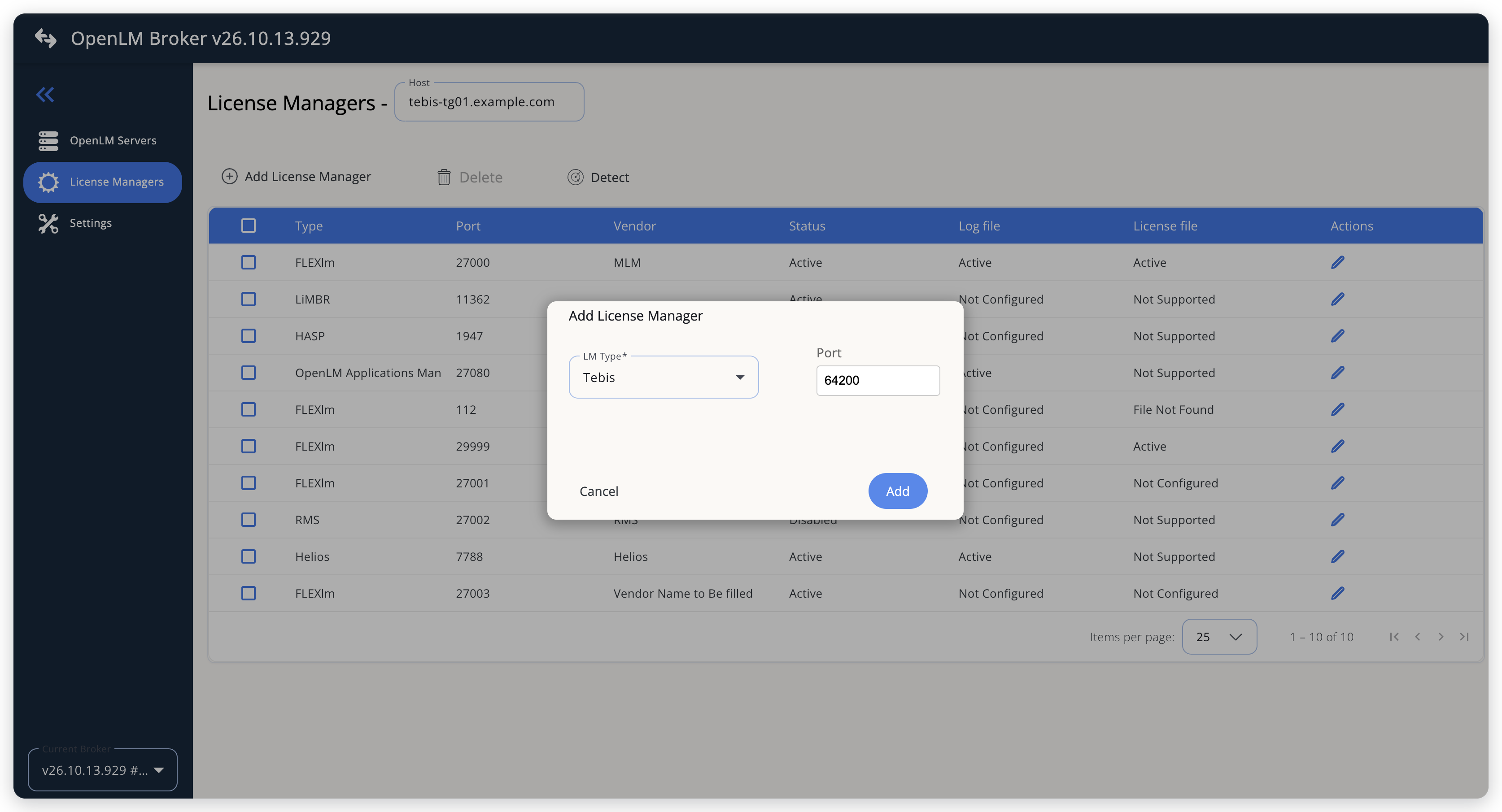 Add Tebis as a license manager
-
On the Commands tab, in Executable path, enter the folder that holds
tebisflu.exe, for exampleC:\Program Files\Tebis_AG\TebisFLU V4.1 R8\program.Broker puts this folder in front of
tebisfluonly when it builds the command line, which happens on Add and on Restore Default. The command line that already exists does not change, so the next step adds the folder there too. -
Select the Data Inquiry command, and in the large text box put the same folder in front of
tebisflu, inside the quotes:"C:\Program Files\Tebis_AG\TebisFLU V4.1 R8\program\tebisflu" -st tebis-tg01.example.com:64200 -o tebis64200.txt;cmd /c type tebis64200.txtIf the license server runs on another host than the one in Host, replace the host after
-stwith the license server's host name. The file name after-ocan stay as it is.Leave Parallel execution as it is. Broker runs the 2 parts of the Tebis command one after the other whatever the toggle shows, because the second part needs the file that the first one writes.
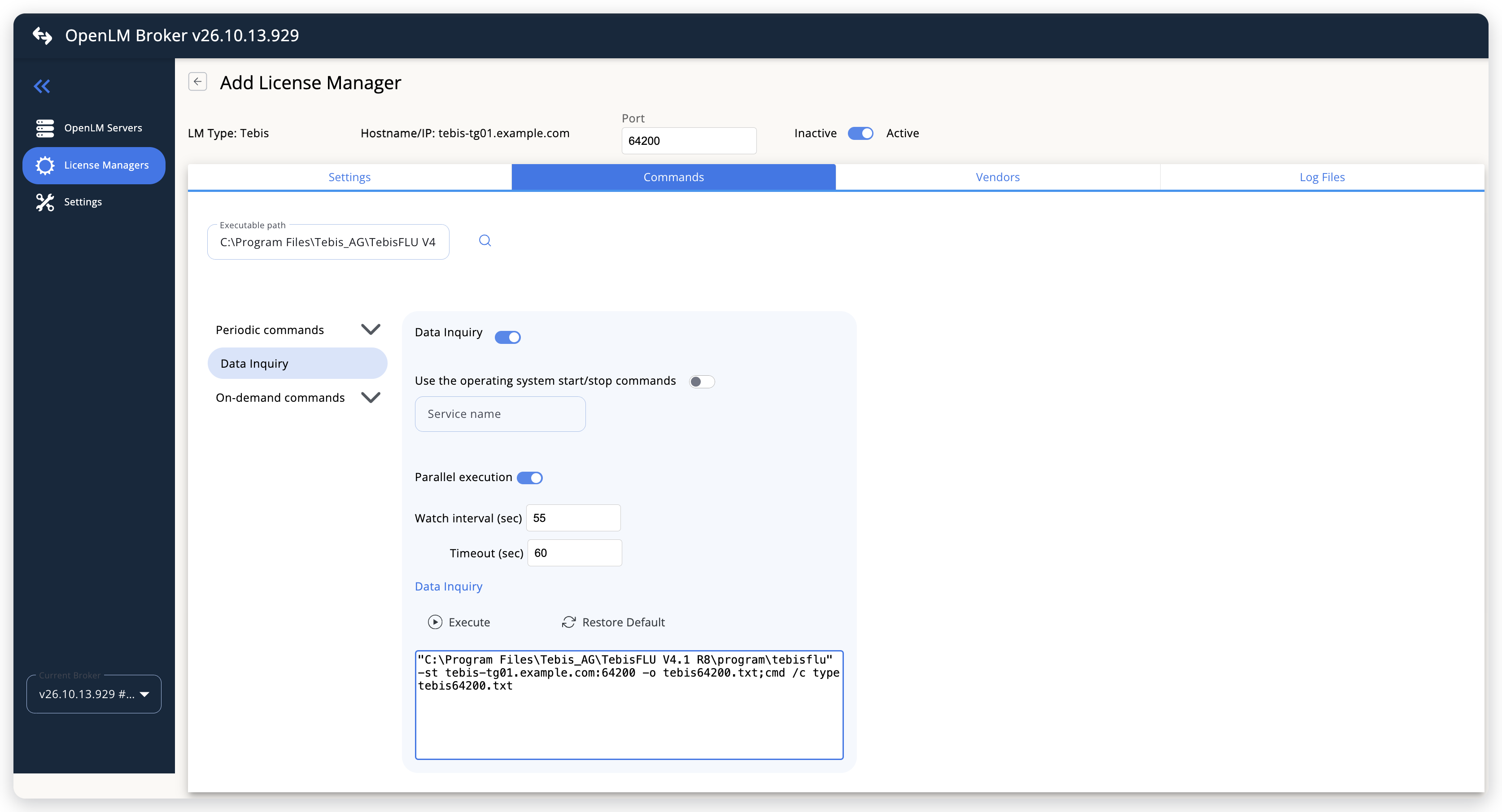 The Data Inquiry command with the TebisFLU folder in front of tebisflu
-
Leave Watch interval (sec) at 55 seconds, or set the polling interval that you want. Timeout (sec), 60 seconds by default, limits how long Broker waits for TebisFLU to finish.
-
Leave the Vendors and Log Files tabs empty. Add a vendor only if you want OpenLM to show a vendor name other than
Tebis. -
Set the date format on the Settings tab, as described in Set the date format, then select Save.
Set the date format
Broker reads the expiration date on every feature line and the start time on every session line with the format in Date format. TebisFLU prints dates in the regional format of the license server, so the format varies from one site to another. When the format does not match, the data inquiry fails, and Tebis reports no data at all.
-
Read the report once to see the format that TebisFLU prints.
On the Broker machine, open a command prompt in the TebisFLU
programfolder, runtebisflu -st <host>:<port> -o <file>, and open the file. Feature lines carry a date, and session lines carry a date and a time, as in How OpenLM interfaces with Tebis. -
In the Broker web UI, open the Tebis license manager and go to the Settings tab.
-
In Date format, enter the format of the session line, with both the date and the time part. Select the arrow in the field to pick a preset instead of typing.
These examples show how a report's dates map to a format:
Report prints Date format 6/30/2027and10/19/2026 9:41:07 AMM/d/yyyy h:mm:ss tt06/30/2027and10/19/2026 09:41:07MM/dd/yyyy HH:mm:ss30.06.2027and19.10.2026 09:41:07dd.MM.yyyy HH:mm:ssAlways include the time part. Broker applies only the part before the first space to the feature lines, and a format without a space stops the license manager from starting. When Date format is empty, Broker uses
MM/dd/yyyy HH:mm:ss, ordd.MM.yyyy HH:mm:sswhen the system language of the Broker machine is German.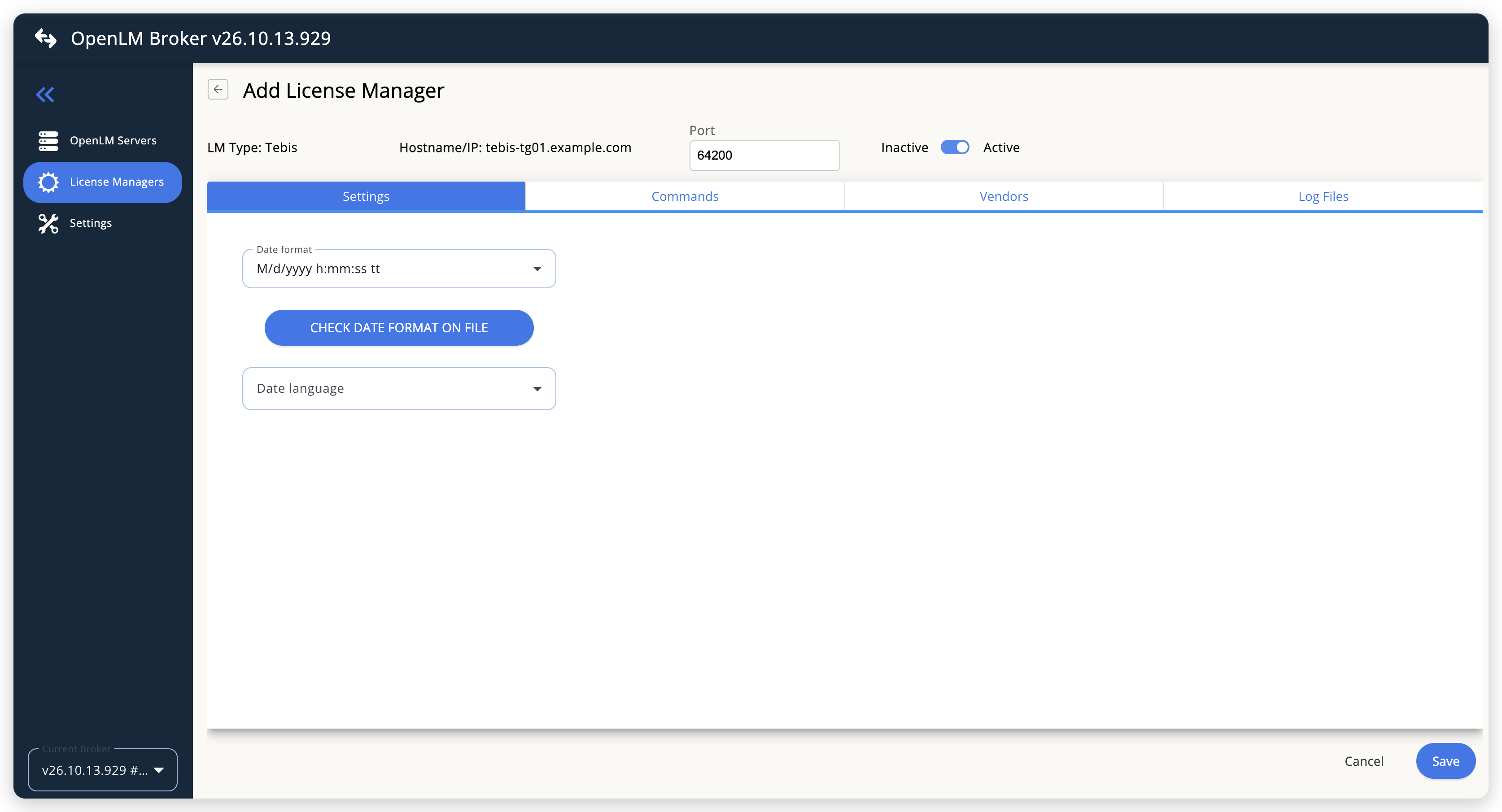 Set the date format that the TebisFLU report uses
-
Leave Date language empty. Tebis prints dates as numbers, so no month names need translating.
-
After you save, reopen the license manager and select CHECK DATE FORMAT ON FILE.
Broker runs the data inquiry, takes the start time of the first session in the report, and shows it with
OK - this date matches the configured date format.orWARNING - this date does not match the configured date format.. Broker refuses the check on a license manager that has never been saved, withNeed to save first in order to check date format. When nobody holds a license, the check showsNo active sessions found. Run it again while a session is open.
OpenLM SLM configuration
Automatic configuration through EasyAdmin
If the preceding steps are complete, Broker runs the Data Inquiry command and reports Tebis to OpenLM SLM. Approve the license server in EasyAdmin:
-
Open EasyAdmin (
http://<Server IP>:5015) and go to Start → Widgets → License Manager - Servers. -
Select the There are N servers pending approval link at the top of the widget.
The Administration - License Manager Servers window opens, with the pending entries at the top of the list.
-
Find the pending Tebis entry, with the host name and the port that you configured in Broker, and select the edit icon at the end of its row.
Broker reports the LM type Tebis, which OpenLM SLM knows, so its Type is Tebis, not OpenLM Generic.
-
Optionally rename the connection in Display name, confirm the Host Name and Port, and select APPROVE.
Manual configuration through EasyAdmin
If automatic configuration fails:
-
Go to Start → Administration → License Manager Servers.
-
Select Add LM.
-
In Display name, enter a name for the connection, for example
Tebis. -
From Type, select Tebis.
Use Broker turns on.
-
In the row under Host Name, Port, and Time Zone, enter the host name and the port exactly as configured in Broker for Tebis, and select a time zone.
-
Select SAVE.
Verify your configuration
- Open EasyAdmin in your browser.
- Go to Start → Widgets → License Manager - Servers.
- Confirm that the Tebis license server shows the Status Up to date.
- Go to Start → Widgets → Feature Usage Status and confirm that each Tebis feature appears with its total in Quantity.
- Go to Start → Reports → License Activity, select Include Current Activity, and select Apply. Confirm that each session appears with its username and workstation.
Troubleshooting
If Tebis never appears as pending in EasyAdmin, confirm that the Broker reports to OpenLM SLM: other license managers on the same Broker update in EasyAdmin.
If the license server shows no features or no usage, read port-<port>-Tebis.log in the logs folder of the Broker installation, and compare it with this list:
Command result transformation failed, followed byjava.time.format.DateTimeParseExceptionand the date in quotes — the report's dates do not match Date format. Set the format as described in Set the date format.Unknown pattern letter: twhen Broker starts, and the license manager never runs — Broker is older than v26.3.2.1352, and the format usestt. Upgrade Broker, or writeainstead oftt.- The license manager never runs after you changed Date format — the format has no space between the date and the time part. Enter a format with both parts.
tebisfluis not recognized or not found — the command line has no folder in front oftebisflu, or the folder is wrong. Put the TebisFLUprogramfolder in front oftebisflu, as in step 7 of OpenLM Broker configuration.- The output holds the report header but no
Featurelines — the host or port after-stis wrong, or nothing is licensed on that server. Run the sametebisflu -stcommand in a command prompt on the Broker machine.
Known limitations
- Broker does not report denied requests, borrowed licenses, or license allocations, and does not upload usage history. Usage in OpenLM starts when you configure the license manager.
- Broker reads the current report, not a log. It sees only the sessions that are open when the data inquiry runs, so it can miss a session shorter than the watch interval, and an end time is accurate to the watch interval.
- One date format applies to the whole report. If the format changes, for example after the license server moves to a machine with other regional settings, update Date format to match.
- Multiple server redundancy is not available. Leave Is Triad Configuration unchecked in EasyAdmin.
The documentation team might draft this page using a large language model. A technical writer reviews every page and verifies it against the product before publishing it. A human makes the final decision.