Tweak
Follow these steps to monitor Tweak licenses with OpenLM. Tweak is the OpenLM name for the Tweak License Server, tlm_server, which serves floating licenses for RV and RVIO from Tweak Software. OpenLM Broker runs on the license server machine. It asks tlm_server for its status about once a minute, reads the tlm_server log for each check-out and check-in, and reports both to OpenLM SLM.
Autodesk, which publishes the RV documentation, states that RV licenses from a GTO standalone or floating license file are still supported but no longer distributed.
Requirements
Before starting, make sure you have:
- OpenLM SLM installed on a machine in your organization, or a Software License Management Cloud (SLMC) account.
- OpenLM Broker v22.2.7.1557 or higher, installed on the machine that runs
tlm_serverand reporting to OpenLM SLM. Earlier Broker versions do not list Tweak as a license manager type. tlm_serverrunning with a log file, which means started with the-logoption. See Prepare the Tweak License Server.- Access to the license server machine, to find the
tlm_serverexecutable and its log file.
Monitoring capabilities
The current monitoring capabilities for Tweak through OpenLM Broker are:
| LM Type in the Broker | Commands | Logs | Quantity | Expiration date | Denied | Borrowing | Allocations | Report resolution |
|---|---|---|---|---|---|---|---|---|
| Tweak | Yes | Yes | Yes | Yes | No | No | No | Seconds |
From the status command, Broker reports for each license in the license file:
- Feature name: the licensed package, for example
rvsoloorrvio. - Total and in use: the seat count of the license and the number of seats in use.
- Expiration date: the maintenance expiration date, the
maint expiresvalue, not the date the license itself expires. - Current users: each user who holds a seat, with the check-out time.
From the log, Broker reports each check-out and check-in:
- Feature name: the package in the request, for example
rvsolo. - Username: the part before
@in the client address. - Workstation: the part after
@, which is the IP address of the client in thetlm_serverlog. - Start and end time: the time of the
APPROVEDandRELEASEDlines, to the second. - Vendor: the vendor that you select for the log file.
Broker does not report denied requests, borrowed licenses, or license allocations for Tweak.
How OpenLM interfaces with Tweak
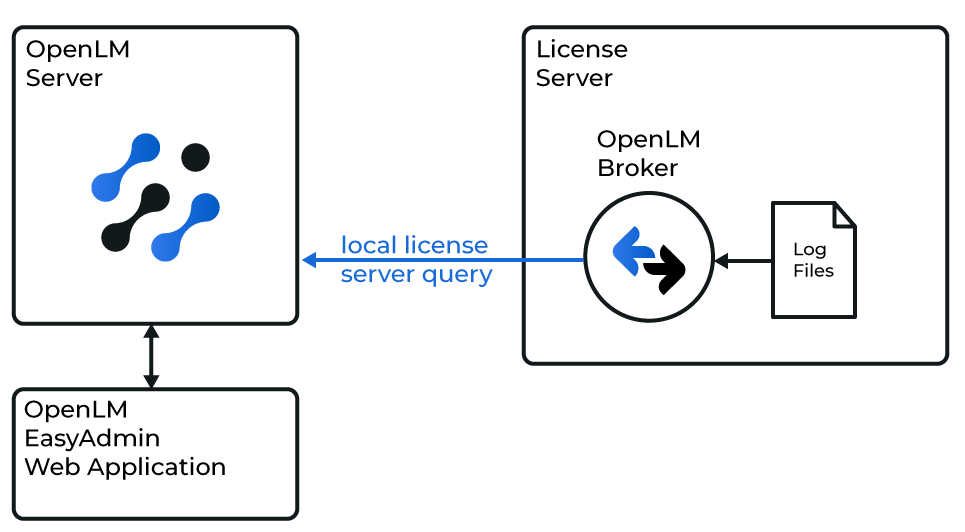 How OpenLM collects Tweak usage
Broker runs on the license server machine. It collects data in 2 ways and sends it to OpenLM SLM.
-
Status command: Every 55 seconds, Broker runs
tlm_server -s -h <host> -p <port>and reads its output:tlm_server running on host 'tlm01' port 5436Version: 2.6.0License 1: rvsolo *.*.* :: 2 in use, 3 available, 5 total, maint expires Sat Jun 16 12:13:00 2027-> jdoe@10.0.12.41 checked out at Mon Oct 19 08:12:40 2026-> asmith@10.0.12.57 checked out at Mon Oct 19 09:30:05 2026Each
Licenseline becomes a feature with its totals and maintenance expiration date, and each->line under it becomes a user who holds a seat. -
Log file: Broker reads the log that
tlm_serverwrites with the-logoption, every 10 seconds by default. It reads 2 kinds of line:APPROVED (lic #1, 2/5 remaining) request for rvsolo 6.2.6 from jdoe@10.0.12.41 at Mon Oct 19 08:12:40 2026RELEASED rvsolo *.*.* from jdoe@10.0.12.41 at Mon Oct 19 11:47:05 2026APPROVEDis a check-out andRELEASEDis a check-in. Broker ignores every other line, includingREJECTEDrequests. -
First read: When you add the log file, Broker starts at the end of the file and reports each new check-out and check-in from then on. It does not upload earlier usage history. The status command shows the users who already hold a seat.
Prepare the Tweak License Server
Broker needs 2 things from the license server: the full path of the tlm_server executable, for the status command, and a log file that tlm_server writes to. tlm_server writes a log file only when it starts with the -log option. Without that option, it prints its activity to the console, where Broker cannot read it.
-
On the license server machine, find how
tlm_serverstarts.- Windows: the vendor installs
tlm_server.exeas a service with the Non-Sucking Service Manager (NSSM), for exampleC:\Program Files (x86)\tlm_server-win32-x86-2.6.0\bin\tlm_server.exe. The service arguments hold-logand-f. - Linux: the
start_tlmserver_init.shscript holds the command line. The vendor package installs to/usr/local/tweakunless you changed it.
- Windows: the vendor installs
-
Check that the command line has
-logfollowed by a file name, for example-log "C:\Program Files (x86)\tlm_server-win32-x86-2.6.0\tlm_server.log".If it does not, add the option and restart
tlm_server. The argument is a file, not a folder, andtlm_servercreates it if it does not exist. -
Note the port.
The default is
5436, and on Windowstlm_servercan only use5436. The-poption sets another port on Linux. -
In a command prompt on the license server machine, run the status command with the full path of
tlm_server, for example:"C:\Program Files (x86)\tlm_server-win32-x86-2.6.0\bin\tlm_server.exe" -s -h localhost -p 5436The output lists each license as in How OpenLM interfaces with Tweak. Check that each
Licenseline ends withmaint expiresand a date in the formSat Jun 16 12:13:00 2027. Broker cannot read the status output otherwise. See Known limitations. -
Open the log file and search for
APPROVED.If no line matches, no RV client has checked out a license since the log started.
For the command-line options and service setup, see Tweak License Server (tlm_server) Version 2.6 in the Autodesk ShotGrid documentation.
OpenLM Broker configuration
Install OpenLM Broker on the license server machine and confirm that it reports to OpenLM SLM before starting these steps.
-
Open a browser on the license server machine and go to the Broker web UI at http://localhost:5090/.
-
On the License Managers page, check Host.
OpenLM lists the license server under this host name, and the field holds the host for every license manager on the page, not for Tweak alone. If the field is empty, enter the host name of the license server machine and select the save icon next to the field.
-
Go to License Managers → Add License Manager.
-
From LM Type, select Tweak.
-
In Port, enter the port of
tlm_server, usually5436, and select Add.Broker refuses a port that another license manager on this Broker already uses.
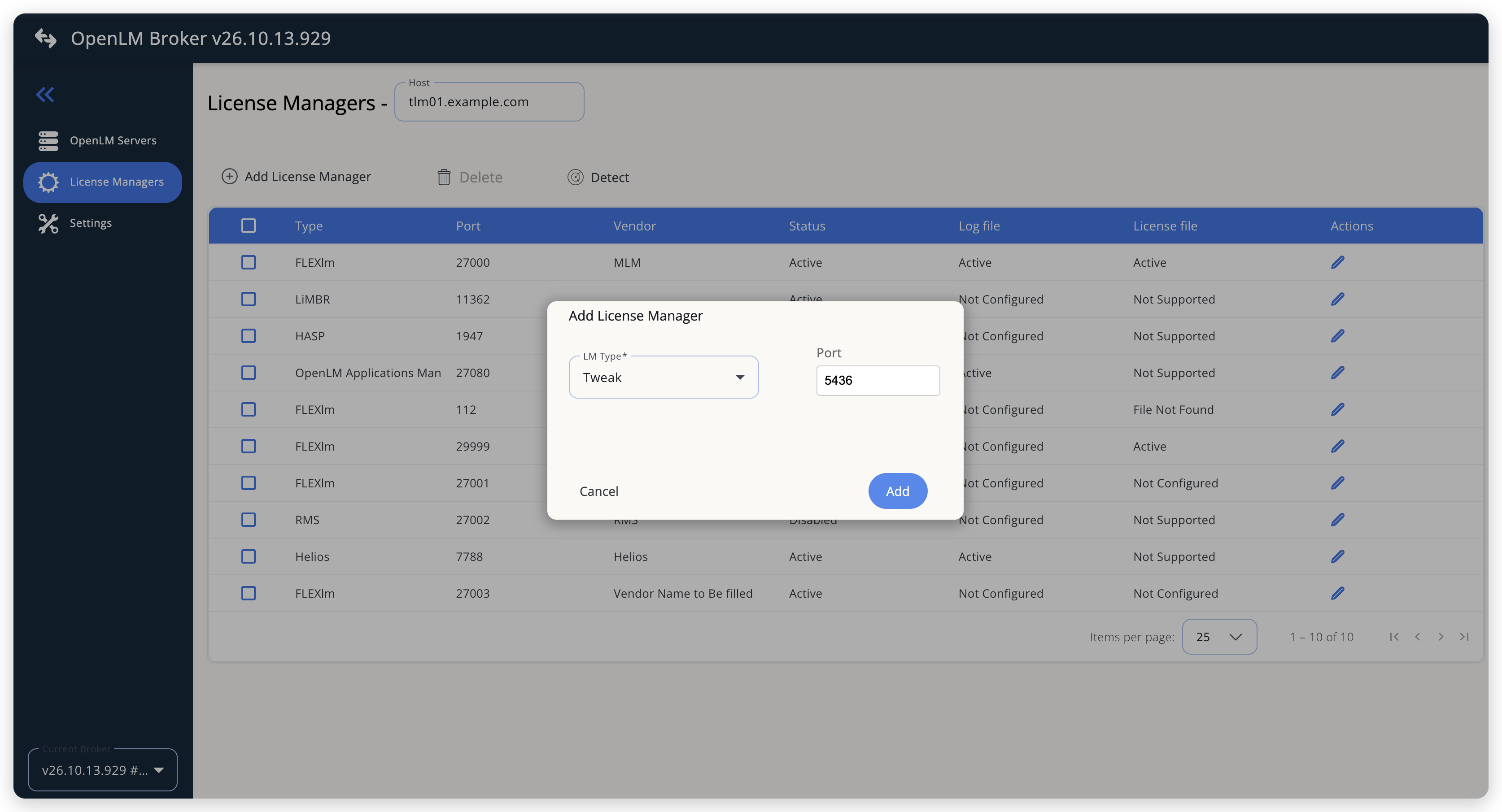 Add Tweak as a license manager
-
On the Commands tab, leave Executable path empty.
When Executable path changes, Broker replaces both commands with its default when you save, and the default does not run. The full path goes into the commands instead.
-
Replace the Status command, under On-demand commands, with the full path of
tlm_serverand the status options, for example:"C:\Program Files (x86)\tlm_server-win32-x86-2.6.0\bin\tlm_server.exe" -s -h tlm01.example.com -p 5436Broker pre-fills
"tlm_server" -s -h <host> -p <port>" -m, which fails: it has an extra quotation mark after the port, andtlm_serverhas no-moption. Keep the quotation marks around a path that contains spaces. -
Select Data Inquiry, under Periodic commands, and replace its command with the same text.
Data Inquiry is the command that runs every 55 seconds and sends usage to OpenLM SLM. The pre-filled text has the same fault as the Status command.
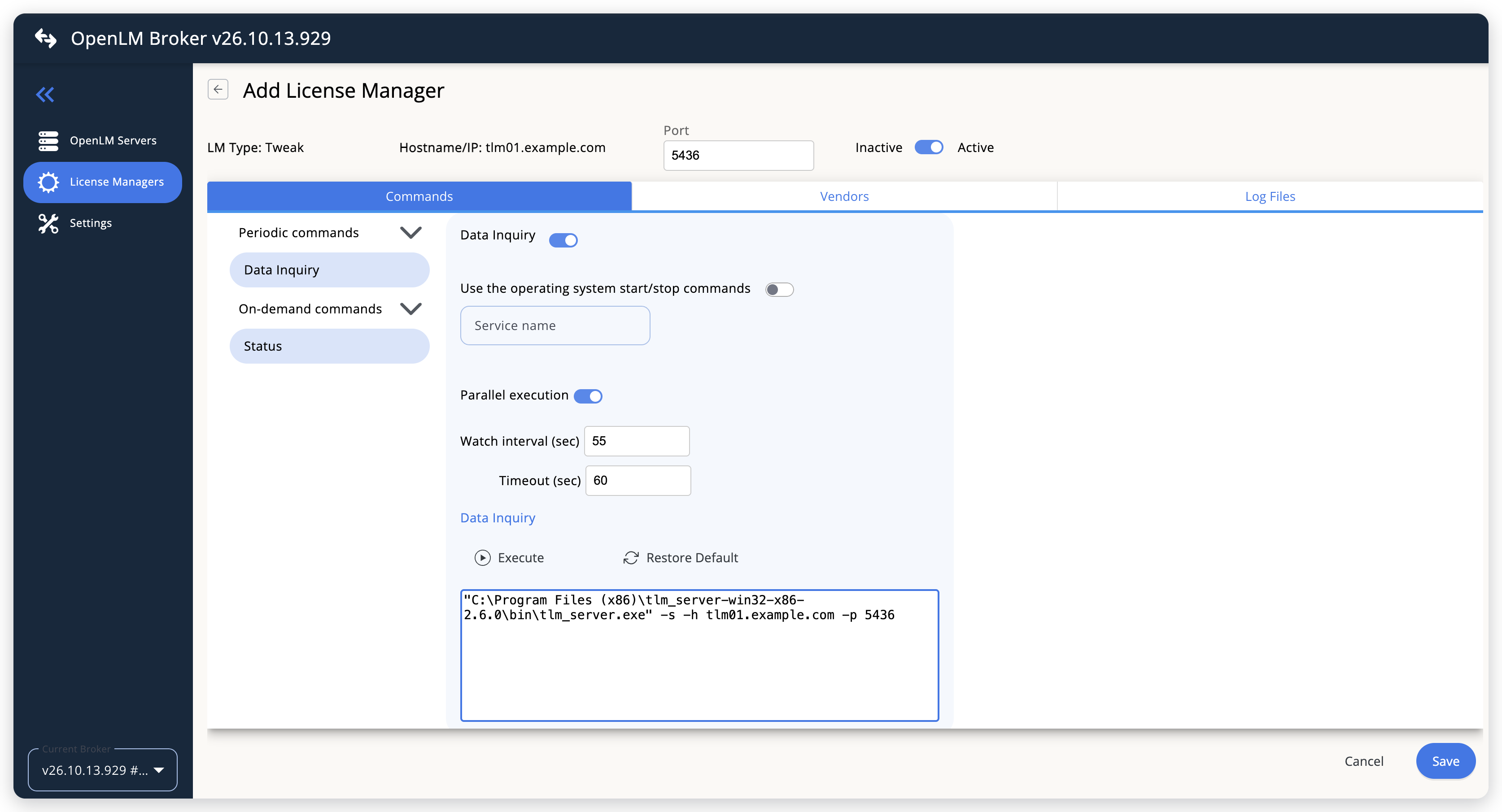 Correct the Data Inquiry and Status commands
-
On the Vendors tab, select Add Vendor, enter
ShotGrid, and select Continue.The new vendor appears in the list after you switch to another tab and back. Broker labels the status data with the first vendor on this tab, and with
ShotGridwhen the tab is empty, so the same vendor on the log file keeps both sources together. -
On the Log Files tab, select Add Log File, and fill in the dialog:
- Log Type: Tweak LM log, the only type for Tweak.
- Log Name: a name for the log, for example
tlm_server log. - Log Path: the full path of the file after
-log, for exampleC:\Program Files (x86)\tlm_server-win32-x86-2.6.0\tlm_server.log. Select the search icon next to the field to browse to it. - Vendor: ShotGrid, the vendor that you added on the Vendors tab.
- Under Advanced, keep the defaults.
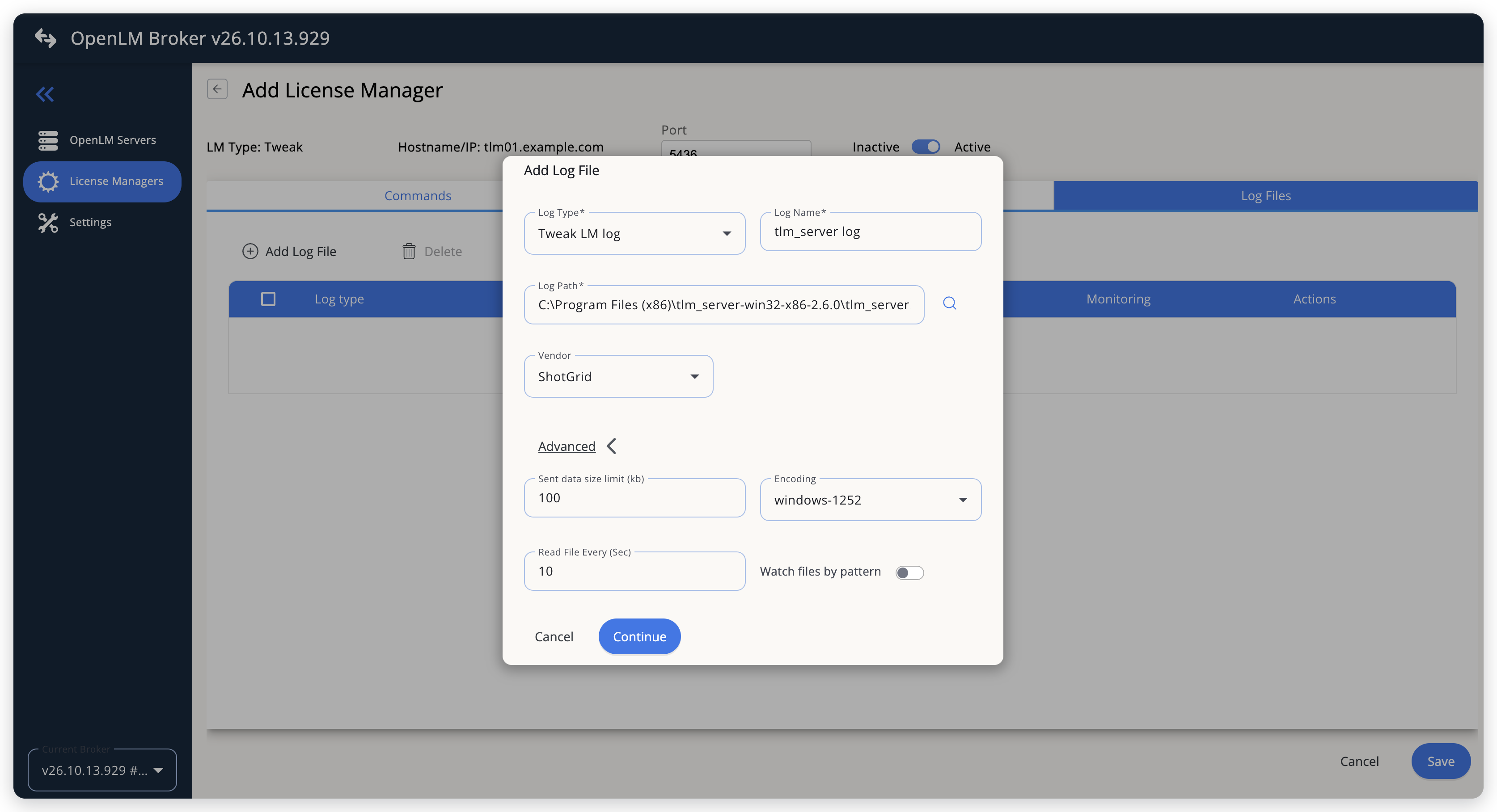 Point Broker at the tlm_server log
-
Select Continue, then select Save.
OpenLM SLM configuration
Automatic configuration through EasyAdmin
If the preceding steps are complete, Broker runs the status command and reads the log, and reports Tweak to OpenLM SLM. Approve the license server in EasyAdmin:
-
Open EasyAdmin (
http://<Server IP>:5015) and go to Start → Widgets → License Manager - Servers. -
Select the There are N servers pending approval link at the top of the widget.
The Administration - License Manager Servers window opens, with the pending entries at the top of the list.
-
Find the pending Tweak entry, with the host name and the port that you configured in Broker, and select the edit icon at the end of its row.
Broker reports the LM type Tweak, which OpenLM SLM knows, so its Type is Tweak, not OpenLM Generic.
-
Optionally rename the connection in Display name, confirm the Host Name and Port, and select APPROVE.
Manual configuration through EasyAdmin
If automatic configuration fails:
-
Go to Start → Administration → License Manager Servers.
-
Select Add LM.
-
In Display name, enter a name for the connection, for example
Tweak. -
From Type, select Tweak.
Use Broker turns on.
-
In the row under Host Name, Port, and Time Zone, enter the host name and the port exactly as configured in Broker for Tweak, and select a time zone.
-
Select SAVE.
Verify your configuration
- Open EasyAdmin in your browser.
- Go to Start → Widgets → License Manager - Servers.
- Confirm that the Tweak license server shows the Status Up to date.
- Go to Start → Widgets → Feature Usage Status and confirm that each package, such as
rvsolo, appears with its total seats in Quantity and the number in use in Used. - Go to Start → Reports → License Activity, select Include Current Activity, and select Apply. Confirm that each check-out appears with its username and the client IP address as the workstation.
Troubleshooting
If Tweak never appears as pending in EasyAdmin, confirm that the Broker reports to OpenLM SLM: other license managers on the same Broker update in EasyAdmin.
If the license server shows no totals or expiration dates, the status command fails. The Broker log, in the logs folder of the Broker installation, names the reason:
Unbalanced quotes: the command still has the pre-filled extra quotation mark. Correct both commands as described in OpenLM Broker configuration.Command result transformation failed:tlm_serverran, but Broker cannot read its output. Check theLicenselines as described in Prepare the Tweak License Server.- The commands changed back to the default after a save: Executable path is not empty. Clear it, then correct both commands again.
If the license server shows totals but no check-outs or check-ins, check these points:
- Log Path points at the file after
-login thetlm_servercommand line. - The log holds
APPROVEDlines. If it does not, no client has checked out a license sincetlm_serverstarted writing the log.
Known limitations
- Broker reads the status output only when every
Licenseline ends withmaint expiresand a date in the formSat Jun 16 12:13:00 2027. A license without a maintenance date, or with a date in another form such as15-Oct-2027, makes the whole status command fail. OpenLM then gets no totals or expiration dates, and check-outs and check-ins come from the log alone. - The expiration date in OpenLM is the maintenance expiration date. Broker does not report the date the license itself expires.
- Broker does not report denied requests. It ignores the
REJECTEDlines in the log.tlm_serveralso writes them during normal operation, because RV asks for the least expensive license type first. - Broker does not report borrowed licenses or license allocations, and does not upload usage history. Usage in OpenLM starts when you configure the license manager.
- The workstation in OpenLM is the part of the client address after
@, which is an IP address in thetlm_serverlog. - Broker reads the log on the machine where it runs. Install a Broker on each
tlm_servermachine that you want to monitor, including the fallback servers that your RV client license lists. - Each
tlm_serveris a separate license server in OpenLM, including the fallback servers that an RV client license lists. Leave Is Triad Configuration unchecked in EasyAdmin.
The documentation team might draft this page using a large language model. A technical writer reviews every page and verifies it against the product before publishing it. A human makes the final decision.