VastoLM
Follow these steps to monitor VastoLM licenses with OpenLM. VastoLM is the license manager that VASTO.Lab uses to license its software, such as Vasto.FILL, from a license server on your network. OpenLM Broker runs vlmdiag, the diagnostic utility that ships with VastoLM, on a schedule and reports license totals, the licenses in use, and the users who hold them to OpenLM SLM. Broker runs on the license server machine and reads the VastoLM server on that machine.
Requirements
Before starting, make sure you have:
- OpenLM SLM v25.x or higher installed on a machine in your organization, or a Software License Management Cloud (SLMC) account.
- OpenLM Broker v26.10.13.929 or higher, installed on the VastoLM license server machine and reporting to OpenLM SLM. Earlier Broker versions do not list VastoLM as a license manager type.
- Access to the license server machine, to find the VastoLM port and the folder that holds
vlmdiag.exe.
Monitoring capabilities
The current monitoring capabilities for VastoLM through OpenLM Broker are:
| LM Type in the Broker | Commands | Logs | Quantity | Expiration date | Denied | Borrowing | Allocations | Report resolution |
|---|---|---|---|---|---|---|---|---|
| VastoLM | Yes (vlmdiag) | No | Yes | Yes | No | No | No | Seconds |
On every data inquiry, Broker reports:
- Feature name: the name of each licensed feature, for example
Vasto.FILL. - Total: the Total Licenses Issued of the feature.
- In use: the Total Licenses in Use of the feature.
- Expiration date: the Valid Until date of the feature, converted from the license server's local time to UTC.
- Username: the user of each checkout.
- Workstation: the Client Hostname of each checkout.
- Start time: the Checkout Time of each checkout, converted to UTC.
- Vendor: Broker reports
VASTO.Labunless you add a different vendor on the Vendors tab.
License denials, borrowed licenses, and license allocations are not available for VastoLM. vlmdiag does not report denied license requests.
How OpenLM interfaces with VastoLM
When you configure a VastoLM port, Broker fills in only the settings in this list. The remaining license manager settings stay empty:
-
Commands:
statusanddata_inquiry, which the Broker UI shows as Status and Data Inquiry. Both run vlmdiag from the Executable path of the license manager, against the VastoLM port:"{$path}vlmdiag" {$port} -s"{$path}vlmdiag" {$port} -a- Status (
-s): Broker reports the license server as up only while the output sayslmgrd StatusRunning. A suspended VastoLM server grants no new licenses, so Broker reports it as down. - Data Inquiry (
-a): lists the server, every licensed feature with its totals and expiration date, and a checkout record for each license in use.
vlmdiag connects to the VastoLM server on the same machine, which is why Broker runs on the license server.
- Status (
-
License file: None. Broker does not read the VastoLM license configuration file.
-
Log file: None. Broker does not read the VastoLM log (
vastolicense.log), and the Log Files tab stays empty. -
Polling: The data inquiry runs every 55 seconds by default. Checkouts that start and end between 2 runs do not reach OpenLM.
The data inquiry reads output like this example:
Assumed: server running on localhost

Server Hostname       vlm01
Server Port           26765
lmgrd Status          Running
lmgrd Version         VASTO.Lab LAN/NODELOCK License Manager (R55)

Feature Name          Vasto.FILL
Total Licenses Issued 10
Total Licenses in Use 1
Valid Until           08-mar-2027 23:59:59 (Server time)

Username              jdoe
Client Hostname       WS-1001
Application PID       4120
Checkout Time         30-sep-2026 08:59:22 (Server time)
Find the VastoLM port and vlmdiag
Broker needs the port that VastoLM listens on and the folder that holds vlmdiag.exe.
-
On the license server, open the VastoLM installation folder.
vlmdiag.exeis in itsintel_64subfolder, next tovlm.exe, for exampleC:\Vasto.LM\intel_64\. -
In the same folder, open the license configuration file in a text editor.
The file is
license.confunless your VastoLM uses a different name, set asCONFIGFILEinvlm-service.cmd. The port is thePORTvalue:# Editable parametersPORT 26765 -
Open a command prompt in the
intel_64folder, and run vlmdiag with that port:vlmdiag 26765 -aThe output lists the server and its features, as in the example in How OpenLM interfaces with VastoLM.
There is no connection to 26765@127.0.0.1: VastoLM is not running on this machine, or it listens on a different port.- The vlmdiag usage text instead of a feature list: your VastoLM release does not support the
-aoption. Broker was built for VastoLM R55, so ask VASTO.Lab for a current release.
OpenLM Broker configuration
Install OpenLM Broker on the VastoLM license server and confirm that it reports to OpenLM SLM before starting these steps.
-
Open a browser on the license server and go to the Broker web UI at http://localhost:5090/.
-
On the License Managers page, check Host.
OpenLM lists the license server under this host name, and the field holds the host for every license manager on the page, not for VastoLM alone. If the field is empty, enter the license server's host name and select the save icon next to the field.
-
Go to License Managers → Add License Manager.
-
From LM Type, select VastoLM.
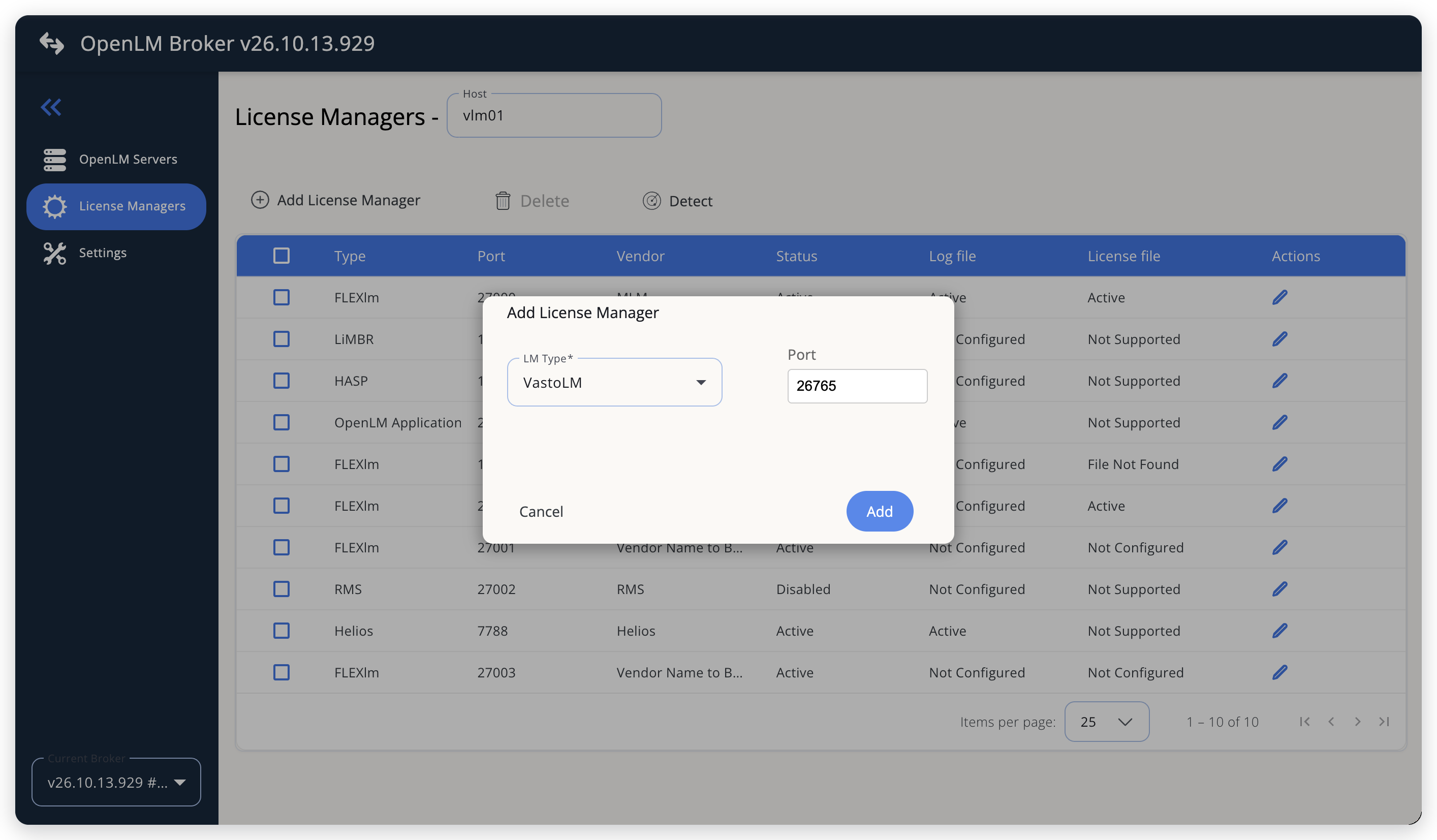 Add VastoLM as a license manager
-
Enter the VastoLM port, the
PORTvalue from the license configuration file, and select Add. -
On the Commands tab, enter the folder that holds
vlmdiag.exein Executable path, for exampleC:\Vasto.LM\intel_64\, or select the search icon next to the field to browse to it. The command lines show this path after you save.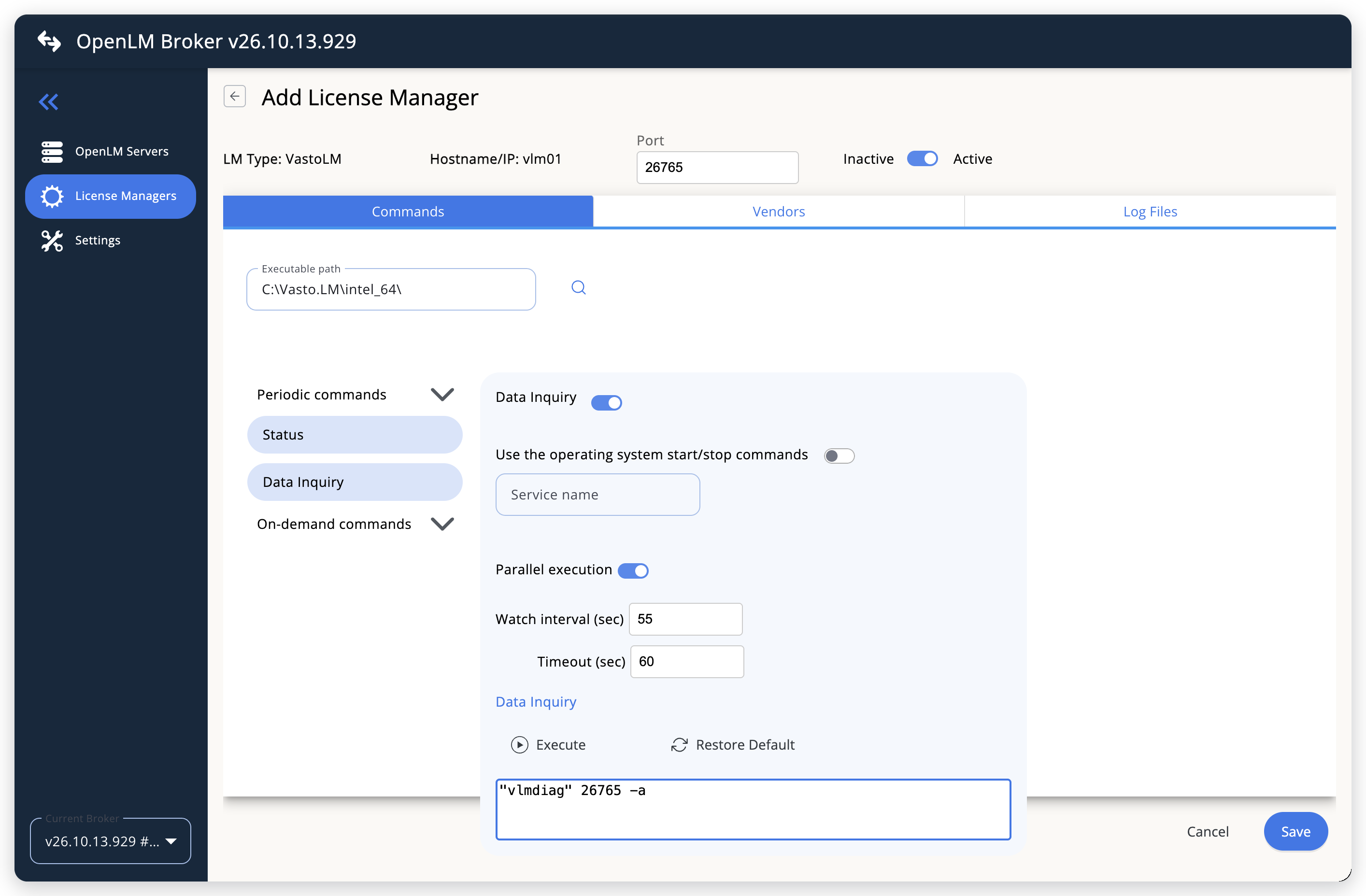 The Executable path and the default Data Inquiry
-
Under Periodic commands, select Status and then Data Inquiry, and keep their default command lines.
-
Leave Watch interval (sec) at 55 seconds, or set the polling interval you want. Timeout (sec), 60 seconds by default, limits how long Broker waits for vlmdiag to answer.
-
Leave the Vendors and Log Files tabs empty. Add a vendor only if you want OpenLM to show a vendor name other than
VASTO.Lab. -
Select Save.
-
Reopen the VastoLM license manager from the License Managers list, go to the Commands tab, select Data Inquiry, and select Execute to test it.
A successful test returns the license server XML, with a feature for each VastoLM feature and a user entry for each checkout. Broker refuses Execute on a license manager that you have never saved, and answers
Need to save first in order to execute command.
OpenLM SLM configuration
Automatic configuration through EasyAdmin
If the preceding steps are complete, Broker sends VastoLM data to OpenLM SLM on the next periodic data inquiry. Execute only tests the command inside the Broker UI and sends nothing to OpenLM SLM. Approve the license server in EasyAdmin:
-
Open EasyAdmin (
http://<Server IP>:5015) and go to Start → Widgets → License Manager - Servers. -
Select the There are N servers pending approval link at the top of the widget.
The Administration - License Manager Servers window opens, with the pending entries at the top of the list.
-
Find the pending VastoLM entry, with the host name and the port you configured in Broker, and select the edit icon at the end of its row.
Broker reports VastoLM with the OpenLM Generic protocol, so its Type is OpenLM Generic.
-
Optionally rename the connection in Display name, confirm the Host Name and Port, and select APPROVE.
Manual configuration through EasyAdmin
If automatic configuration fails:
-
Go to Start → Administration → License Manager Servers.
-
Select Add LM.
-
In Display name, enter a name for the connection, for example
VastoLM. -
From Type, select OpenLM Generic.
Use Broker turns on.
-
In the row under Host Name, Port, and Time Zone, enter the host name and the port exactly as configured in Broker for VastoLM, and select a time zone.
-
Select SAVE.
Verify your configuration
- Open EasyAdmin in your browser.
- Go to Start → Widgets → License Manager - Servers.
- Confirm that the VastoLM license server shows the Status Up to date.
- Go to Start → Widgets → Feature Usage Status and confirm that the VastoLM features appear with their totals in Quantity and the number of licenses in use in Used. Compare the numbers with the output of
vlmdiag <port> -aon the license server. - Go to Start → Reports → License Activity, select Include Current Activity, and select Apply. Confirm that each checkout appears with its username and workstation.
Troubleshooting
If VastoLM never appears as pending in EasyAdmin, confirm that the Broker reports to OpenLM SLM: other license managers on the same Broker update in EasyAdmin.
If the Broker reports and VastoLM appears with no features, go back to the Commands tab in the Broker UI, select Data Inquiry, and select Execute. Compare the result with this list:
There is no connection to <port>@127.0.0.1— VastoLM is not running on the Broker machine, or the license manager's port is not thePORTvalue of the license configuration file. Correct the port, or start VastoLM.- An error that the system cannot find the file — Executable path does not point at the folder that holds
vlmdiag.exe. Set it to theintel_64folder of the VastoLM installation. - The vlmdiag usage text — your VastoLM release does not support the
-aoption. See Find the VastoLM port and vlmdiag.
If features arrive but the license server shows as down, VastoLM is suspended. vlmdiag <port> -a then shows a lmgrd Status other than Running. Resume VastoLM as described in the VastoLM user guide (VLM_Local_for_Windows.pdf, section 4.3) that comes with VastoLM.
The Broker log holds the detail, in the logs folder of the Broker installation. A manual Execute writes to broker-service.log, and the periodic commands write to port-<port>-VastoLM.log.
Known limitations
- Broker does not report license denials, borrowed licenses, or license allocations, and does not upload usage history. Usage in OpenLM starts when you configure the license manager.
- Broker reads the VastoLM server on the machine where Broker runs. Install a Broker on each VastoLM license server that you want to monitor.
- Broker reads the current state of the license server, not a log, so it sees only the checkouts that are open when the data inquiry runs. Broker can miss a checkout shorter than the watch interval.
- Broker converts Valid Until and Checkout Time from the license server's local time with the time zone of the Broker machine, which is the license server itself.
- Broker was built for the vlmdiag output of VastoLM R55.
- Broker monitors VastoLM license servers on your network. VASTO.Lab's online licensing, served from VASTO.Lab's own servers, is not covered.
- Multiple server redundancy is not available. Leave Is Triad Configuration unchecked in EasyAdmin.
The documentation team might draft this page using a large language model. A technical writer reviews every page and verifies it against the product before publishing it. A human makes the final decision.