Applications Manager installation on Linux
OpenLM Applications Manager is a Java application that monitors and controls the use of any software in the organization regardless of the licensing scheme in effect. This document details the steps for installing the OpenLM Applications Manager.
The main features of the Applications Manager are as follows:
- Obtains information from the Workstation Agent regarding active processes and software launches on the end-user workstation
- Allows Workstation Agents to launch software according to specific rules and configurations
The Applications Manager interacts with the Workstation Agent which is a lightweight component that is installed on the end-user's workstation. It has the following features:
- Monitors processes that are running on the workstation
- Intercepts and reports software launch events
- Intervenes in the execution of specific processes on the workstation by running actions as defined by an administrator
The Applications Manager also adds management capabilities to applications that are not managed by a license manager or in cases where the license manager lacks advanced management capabilities.
In situations where workstation licenses cannot be managed directly by a license manager (for example, single licenses or named licenses), the OpenLM Applications Manager provides the ability to monitor software usage. This permits OpenLM to simultaneously monitor software controlled by a license manager along with software that supports stand-alone licenses.
Installing Applications Manager
- Obtain the distribution package from the download page (tar.gz).
- Unzip the package in Linux Console:
sudo tar -zxvf <Tar.Gz PackageFile>

- Change directory to the installation folder.
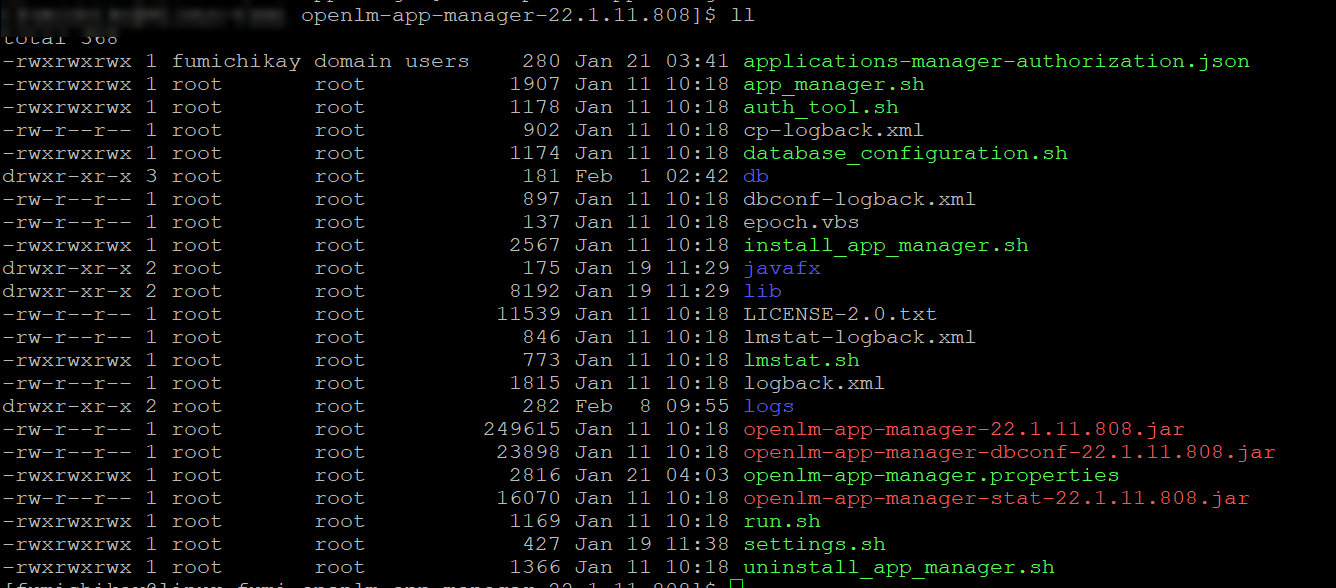
- Set JAVA_HOME path in settings.sh

- Install Applications Manager:
sudo ./app_manager.sh install
To uninstall it later, use:
sudo ./appmanager.sh uninstall
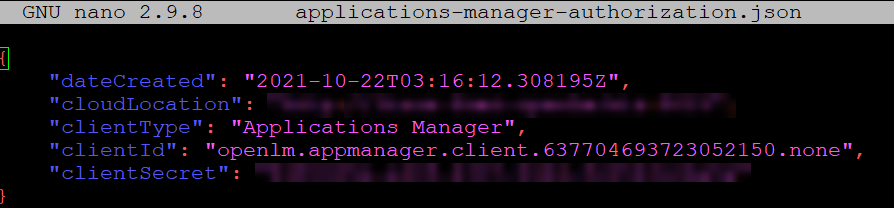
- If you are using Identity Service Security Mode, you need to import the authorization JSON file. Change the folder permissions if necessary.
sudo chmod 777 <FolderName>
sudo ./auth_tool.sh applications-manager-authorization.json
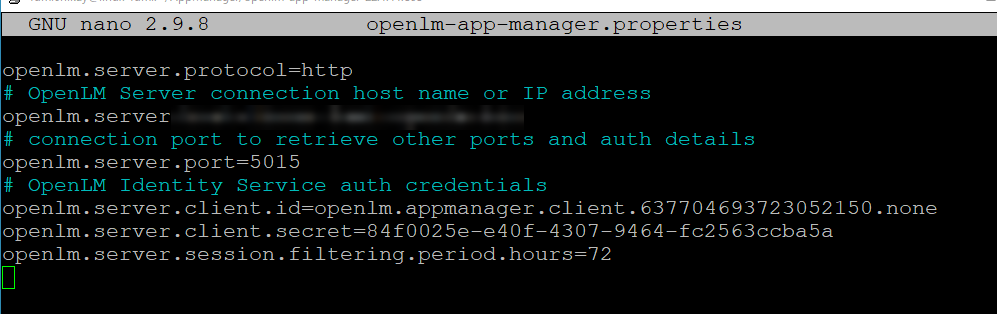
- If the import in step 6 doesn't add the Client ID and Secret Key to openlm-app-manager.properties, add them manually in the file.
- Restart Applications Manager Service.
sudo ./app_manager.sh start
sudo ./app_manager.sh stop
sudo ./app_manager.sh restart
Upgrade
Stop the running service and back up settings.sh, then remove the installation folder. Overwrite the installed settings.sh with the backup.
Uninstall
Stop the running service and remove the installation folder.
The documentation team might draft this page using a large language model. A technical writer reviews every page and verifies it against the product before publishing it. A human makes the final decision.