Installing 2 instances of Applications Manager in parallel
The following document describes how to install 2 different instances of Applications Manager in parallel on the same Windows machine.
General overview of the procedure
Installation of parallel Applications Manager entails the following:
- Setting up 2 different ports (for example 27080 and 27081) for each Applications Manager on OpenLM Workstation Agent and Broker;
- Creation of a new folder, copying contents of existing Applications Manager settings, and adjusting them.
Setting up the Applications Manager application
- Set up a machine with Applications Manager up and running.
- Stop the Applications Manager Service.
- Create a new folder named OpenLM App Manager2 in C:Program Files OpenLM.
- Copy contents of C:Program Files OpenLMOpenLM App Manager to C:Program Files OpenLMOpenLM App Manager2.
- Open Openlm-app-manager.properties file in the OpenLM App Manager2 folder.
- Set the port=27081.
- Ensure that all other settings are correct in this file.
- Save this file.
- Rename OpenLMLicenseManager.exe to OpenLMLicenseManager2.exe in Bin folder.
- Rename OpenLMLicenseManager_x86.exe to OpenLMLicenseManager2.exe.
- Edit Uninstall Service.bat file in the same folder to "OpenLMLicenseManager2_x86.exe" //DS//OpenLMLicenseManager2
- Install Service.bat file in the same folder Bin should look like the one below. Changes made to the original file are highlighted in bold:
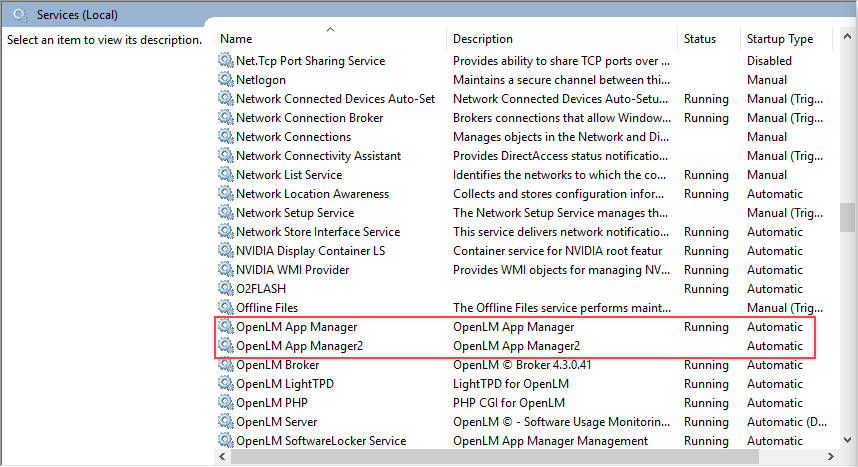
@SET LOG_DIR="%~dp0..logs" "OpenLMLicenseManager2.exe" //IS//OpenLMLicenseManager2 -DisplayName="OpenLM App Manager2"^ -Description="OpenLM App Manager2"^ -Install="%~dp0OpenLMLicenseManager2.exe"^ -Jvm="C:Program FilesOpenLMOpenLM App Manager2jrebinserverjvm.dll" -StartMode=jvm -StopMode=jvm -Startup=auto -Classpath=openlm-app-manager-1.8.3.jar^ -StartClass=com.openlm.shadowlm.Main -StartMethod=start^ -JvmOptions=-Djava.net.preferIPv4Stack=true;-Dlog4j.configuration=file:log4j.properties;-Dopenlm.log.dir=%LOG_DIR%^ -StopClass=com.openlm.shadowlm.Main -StopMethod=stop^ -StdOutput=auto -StdError=auto -StartPath "%~dp0.."^ -LogPath=%LOG_DIR% -LogPrefix=openlm-app-manager - Double select OpenLMLicenseManager2.exe and set it to proper Java Runtime Environment.10. Now run the InstallService.bat file and verify if a new Service OpenLM App Manager2 was created in Windows Services.
- Open lmstat.bat file in the OpenLM App Manager 2 folder and set port=27080 to port=27081 (port number is set as example. The port should be the same as in step 5**).**
- After these steps there will be 2 parallel instances of Applications Manager with the same database. Delete the existing database for the newly added Applications Manager.
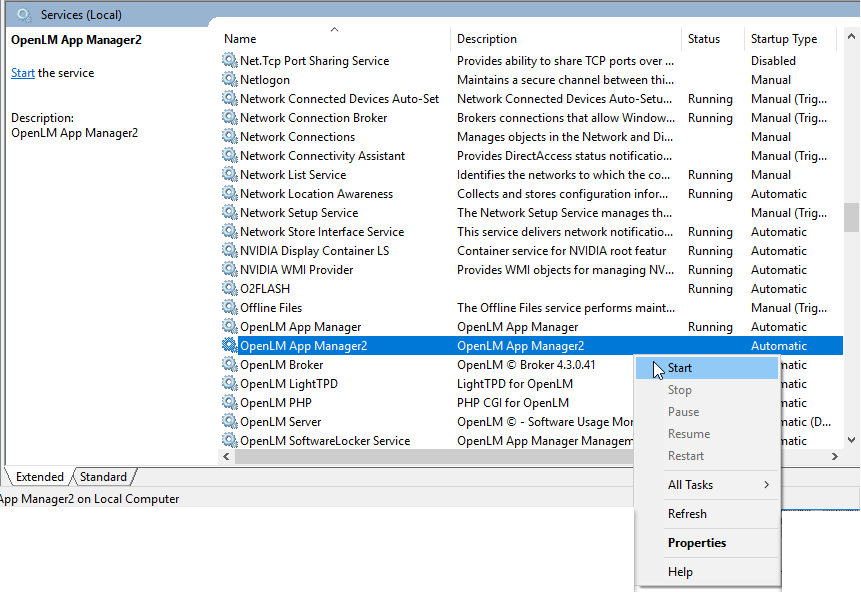
- Go to Windows Services and start OpenLM App Manager and OpenLM App Manager2 services.
Setting up OpenLM Broker
- Open the Broker.
- Add a new Applications Manager License Manager port 27081.
Note: You will also have to copy the License file from the original AppManager (C:Program Files OpenLMOpenLM App Managerlicense) into new AppManager...license folder. - Go to Commands menu under Port 27081 and set path for commands to C:Program Files OpenLMOpenLM App Manager2 in both commands menus:
- Select the Update button to save changes.
- Set log file path under Log Files menu to C:Program Files OpenLMOpenLM App Manager2logslm-log.log:
- Select Apply button and then Restart Broker.
- Select on the status command for added port 27081.
- Select Execute button.
- Ensure that you get successful response in the form:
<SERVER name="..." port="27081" request_time_utc="..." server_status="ok"/> - In case you get a similar error message contact OpenLM support:
Setting up license server
- Run the OpenLM SLM configuration tool from Windows Start menu, select License Servers menu and select Add Server:
- Select OpenLM Applications Manager type from drop-down menu.
- Type in the same Hostname and Port as Host Name/IP and port in OpenLM Broker application and insert Port 27081 (as example).
- Select Apply button and restart now.
Viewing 2 Applications Managers in the OpenLM User Interface
- Before viewing 2 instances of Applications Manager, go to Windows Services and start the services OpenLM App Manager and OpenLM App Manager2
- Then go to OpenLM User Interface ->Start->Administration and select OpenLM Applications Manager:
- In the opened window there are 2 parallel Applications Managers in the left part of the screen: