OpenLM Identity Service installation guide
Prerequisites
- A dedicated empty database for Identity Service according to system requirements.
Introduction
The Identity Service is a secured solution that manages the authentication for all the OpenLM products. It uses the industry-standard OAuth 2.0 and it serves to log a user right away. Also, make sure to consult the OpenLM System requirements.
Installation
Below is a short guide on how to install and configure the Identity Service:
- On the OpenLM website, obtain the OpenLM Identity Service. Launch it to trigger the installation process:
- Read carefully the terms and conditions. If compliant, check the box to accept then select Next.
- If you want to install the Identity Service in a different location, select Change and navigate to the destination folder of your selecting.
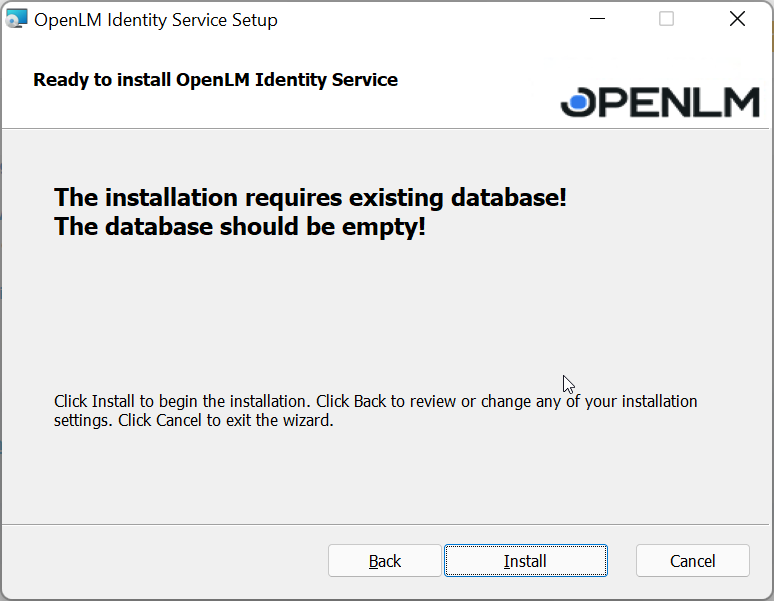
- The Identity Service requires an empty database. Make sure you have one before continuing with the installation then select Install:
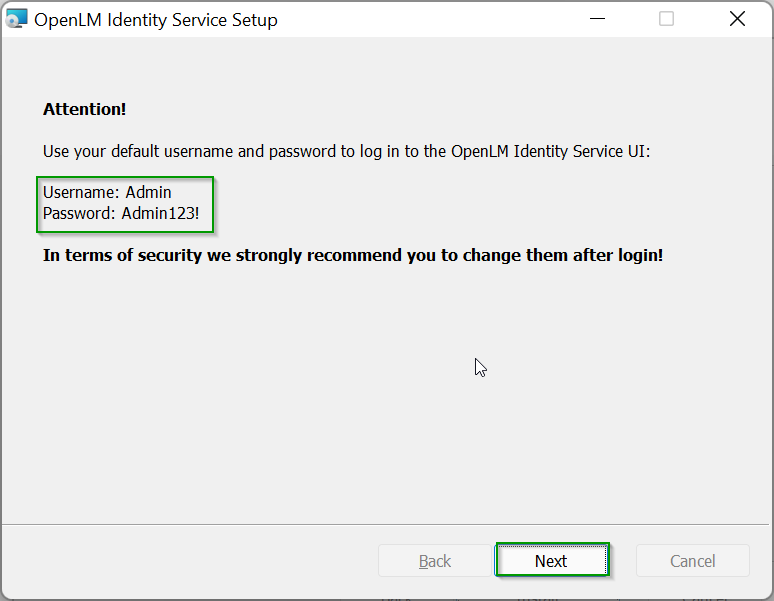
- The next prompt will disclose the temporary username and password. We strongly recommend changing them right away. Select Nextto continue:
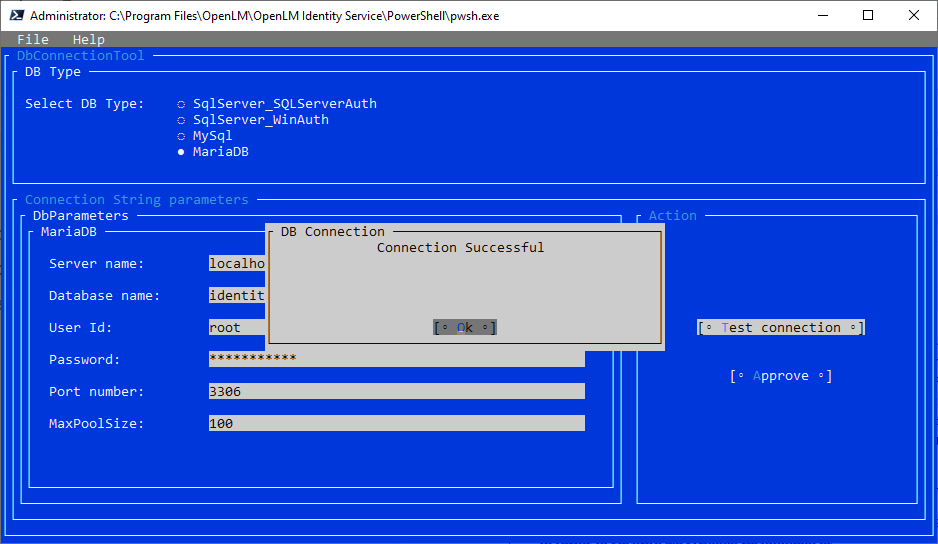
- Immediately after you will be directed to the database configuration tool prompt. Type in all the required details. Test the connection. If successful, select Approve.
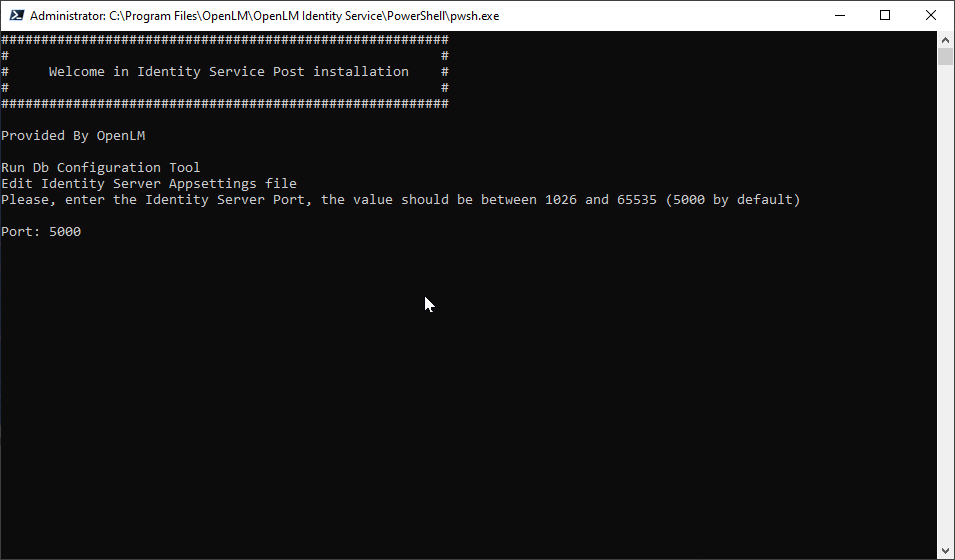
- In the next prompt declare the port number then select Enter. The default is 5000: Note: Do not use a port number that is occupied by other applications. If you are not sure, use the default 5000.
CMD Command to check if the port availability500: netstat -a -n -o | find "5000"
- In the next steps, the database will be created and the Identity Service configured:
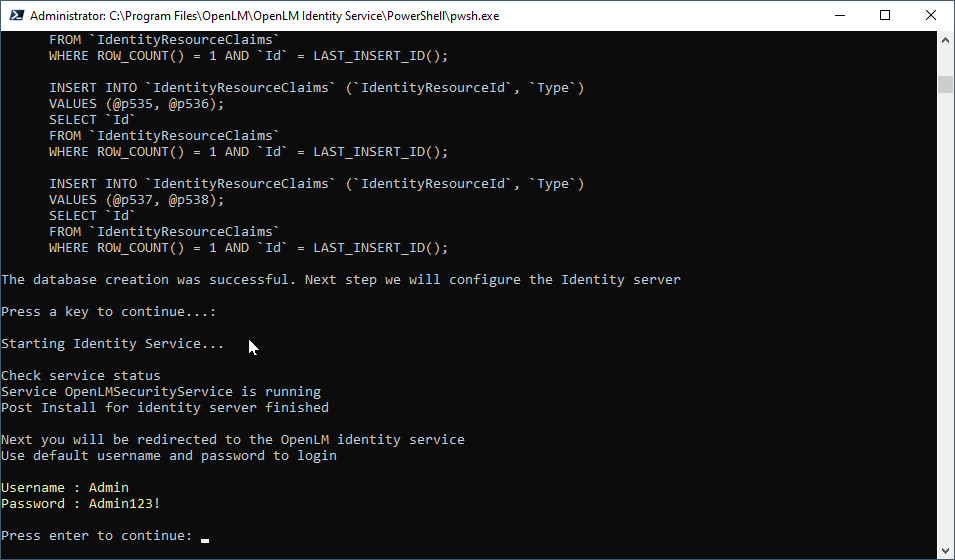
- When the configuration is completed, press Enter.
- Select the Finishbutton. You will be redirected to the OpenLM Identity Service UI. Sign in with the provided default credentials:
Login: Admin
Password: Admin123!
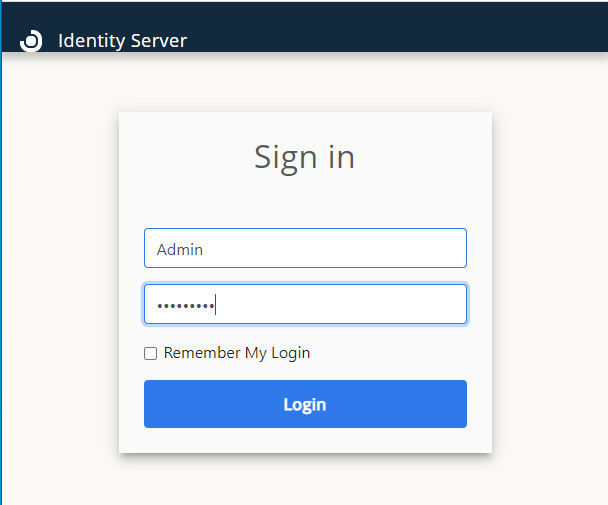
- Change the temporary password. Type in a new reliable password, confirm it then select theChangebutton:
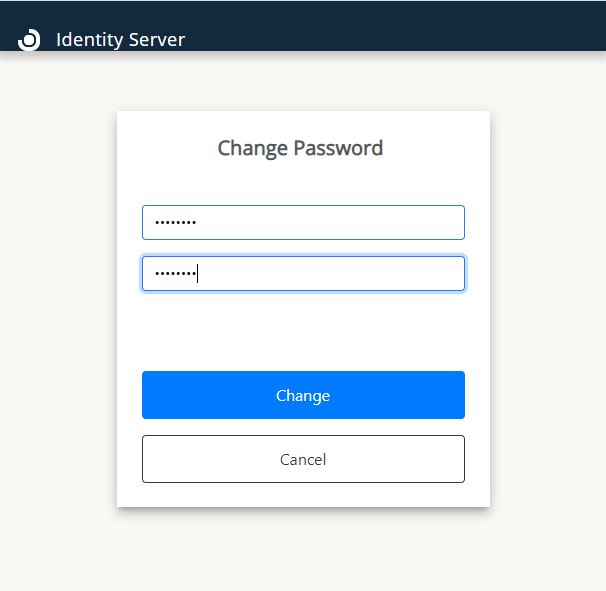
- Once the password has been changed, you will be redirected to the login page. Use your new credentials to access the Identity Service account. Consult this guide for the recommended Identity Service configuration.