Compliance
Overview
Use Compliance to monitor license usage compliance based on geographical rules. You can define license usage policies tied to specific countries or regions. It reports any non compliant usage based on user's geographical location.
Prerequisites
- Activate Compliance in Products.
- To view compliance reports, ensure that license manager for which you're creating rules sends data to OpenLM through:
- Broker (for licenses)
- Workstation Agent (for tracking compliance of processes, executables, or web services)
Settings
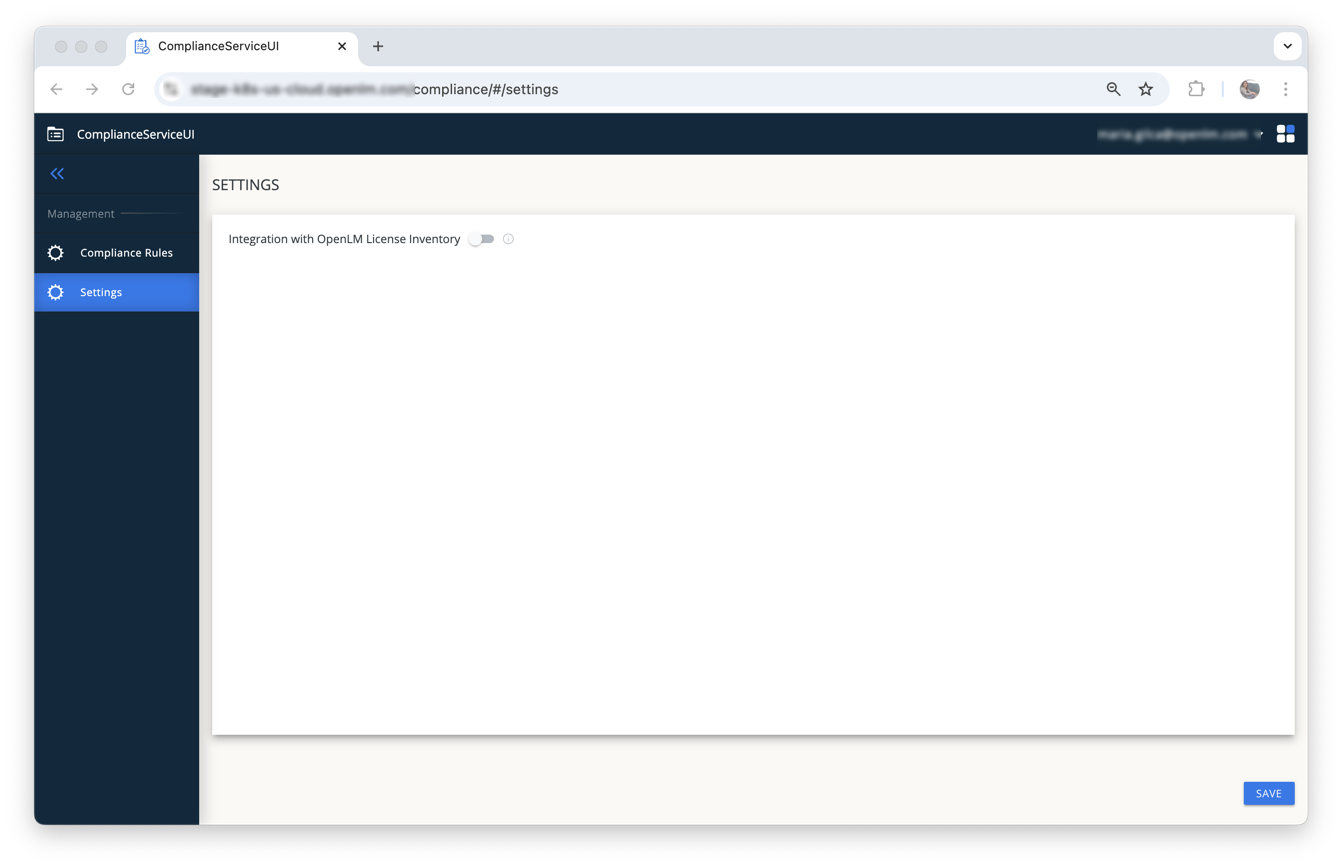
In Settings panel, you can integrate your OpenLM license inventory with Compliance.
- When integration is On, you can select features directly from your license inventory.
- When integration is Off, you must manually enter licensing details for each feature.
Important: Activate inventory integration to prevent mismatches between Compliance Service and your license inventory.
Compliance rules
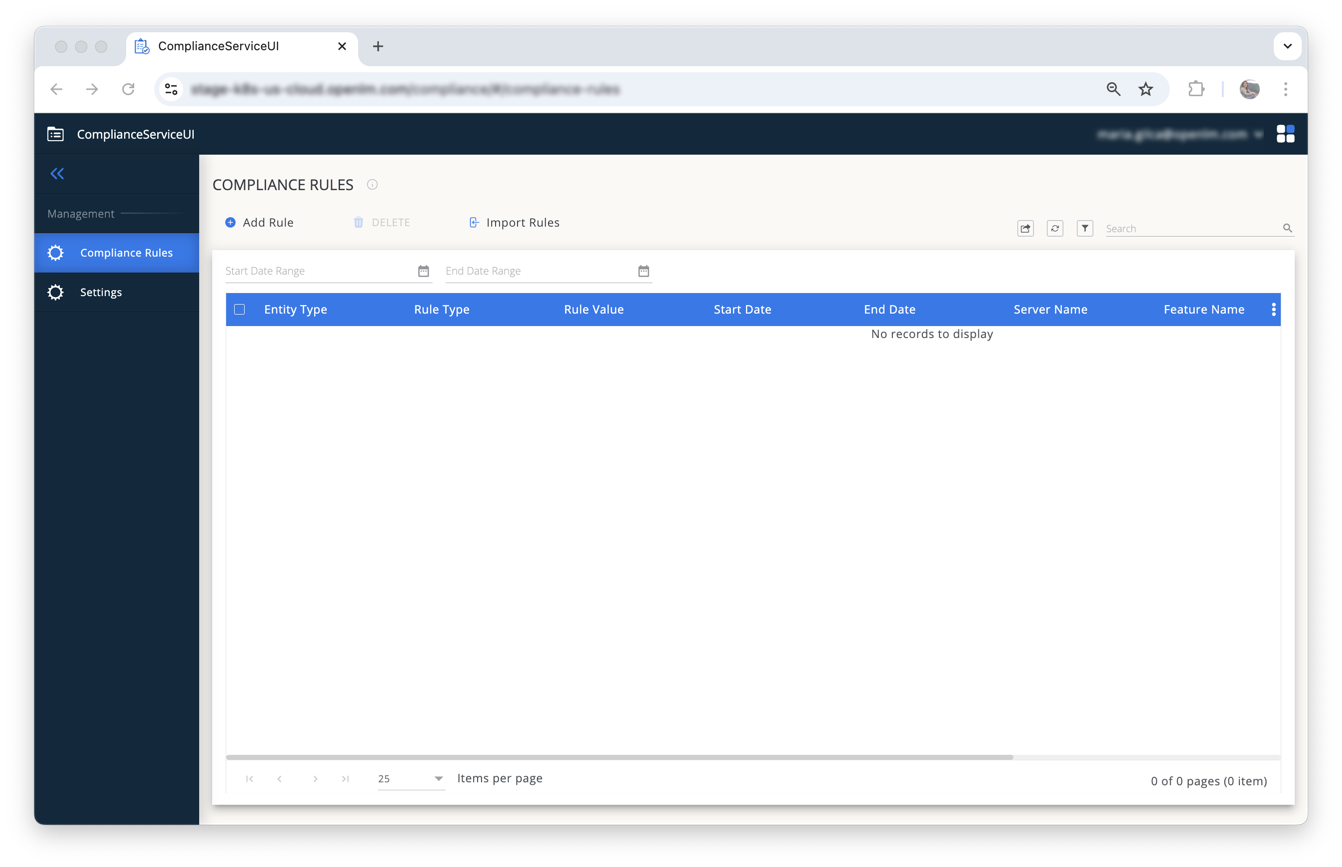
Use Compliance Rules panel to manage your compliance rules:
- Add Rule: Create a new compliance rule.
- Delete: Remove existing compliance rules.
- Import Rules: Import previously exported compliance rules (CSV).
Add a new rule
To add a new compliance rule:
- Select Add Rule in Compliance Rules panel.
- In the General panel, define these parameters:
- Entity Type: Select User or Machine to build reports based on user or host machine location.
- Rule Type: Select Country, Region, or Global:
- Global: The system considers all users or machines compliant at all times.
- Country/Region: Specify a country or region in Rule Value.
- Start Date/Time and End Date/Time: Set the period when this rule is valid.

- Select the Feature parameters tab:
- If you activate integration, SELECT FEATURES and select an applicable feature from inventory. Use filter option to refine your search.
- You can select only 1 feature per rule. Create separate rules for multiple features.
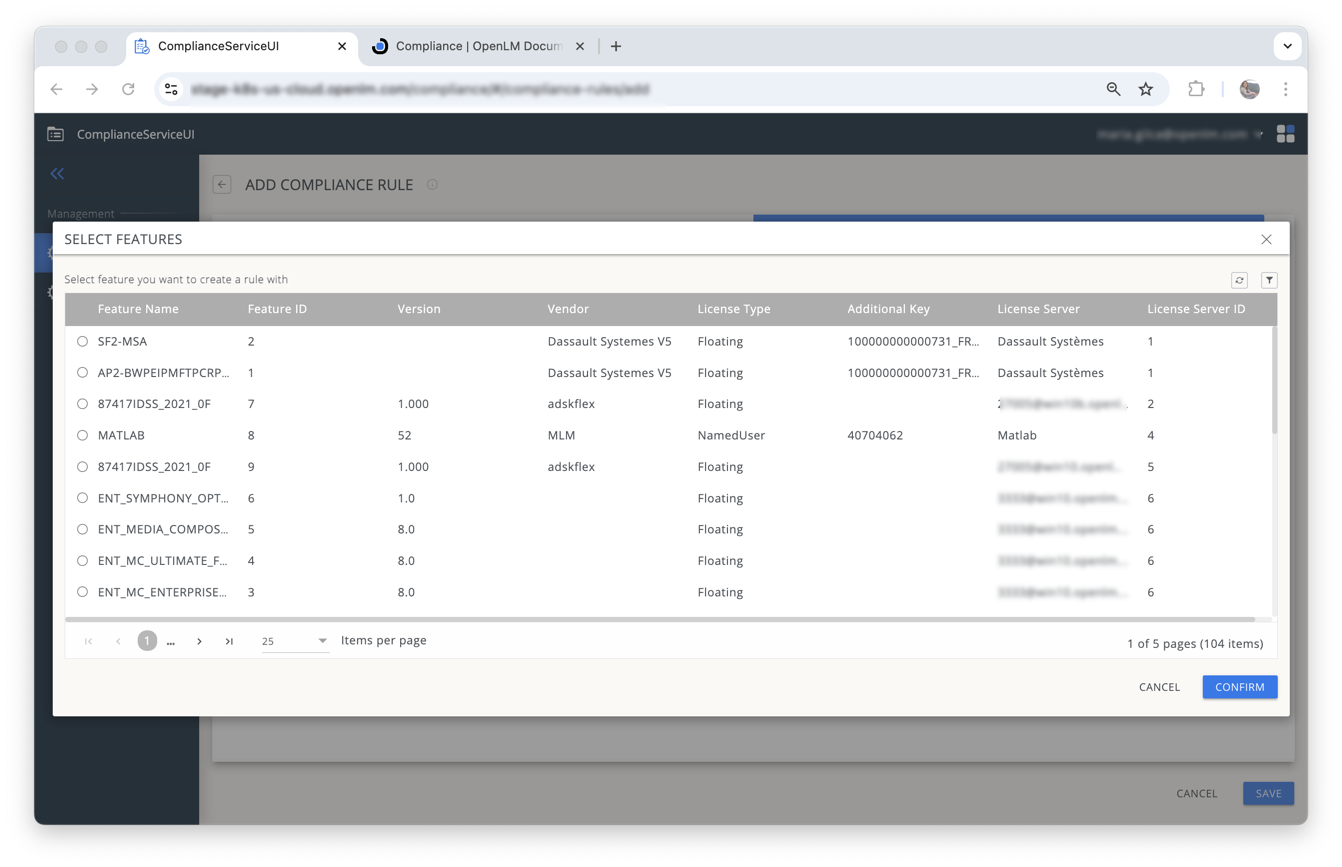
- If you deactivate inventory integration, manually enter required feature parameters.
- Validate these parameters by selecting Check feature in OpenLM license inventory.
- If parameters match, you receive a confirmation message.
- If there's a mismatch, you receive an error message. Review and correct parameters accordingly.
For compliance data report, go to Compliance Report in Reporting section.