Sync OpenLM data to ServiceNow SAM Pro
Use this guide to connect OpenLM Platform to ServiceNow Software Asset Management Professional, SAM Pro. You sync engineering license usage and denial data so you can review it in ServiceNow.
After you complete this topic, you can connect OpenLM to ServiceNow, set synchronization options, and confirm that SAM Pro reports use OpenLM data.
How the integration works
You use the integration to send OpenLM usage data to ServiceNow so SAM Pro can report on license usage and compliance.
Purpose and benefits
The integration helps you do the following:
- Review engineering license usage and denial trends in SAM Pro.
- Compare publisher compliance with actual usage from OpenLM.
- Keep core license metrics in one place, ServiceNow SAM Pro.
Components you need
You need these components to send OpenLM data to ServiceNow:
- OpenLM Connector, activated in OpenLM Platform.
- OpenLM Adapter Integration, installed on a server from the ServiceNow marketplace.
Configure the integration
Complete the tasks in this section to connect and sync data.
Confirm prerequisites
Before you start, make sure the following requirements are met:
- ServiceNow SAM Pro is installed and configured on your ServiceNow instance.
- The ServiceNow team has enabled the SAM Pro target tables, such as Engineering Application Usage.
- You have the ServiceNow instance URL and credentials.
- If you use Open Authorization, OAuth, you have the OAuth client ID and client secret.
Connect ServiceNow in OpenLM
Use the ServiceNow Connector in OpenLM to set up the connection.
- In OpenLM Platform, confirm that ServiceNow Connector is active.
- If ServiceNow Connector is not active, contact your sales agent to enable it.
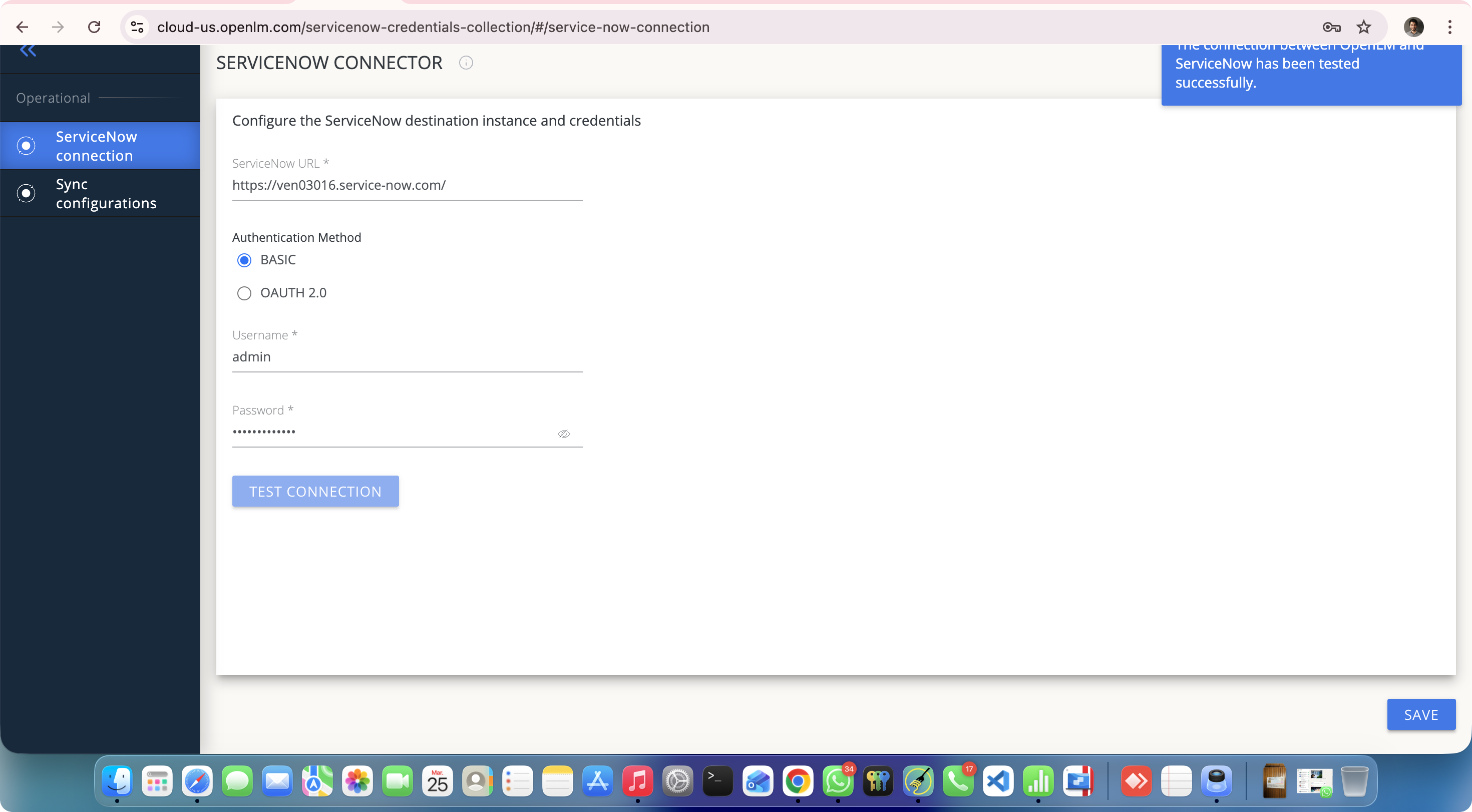
- In the main menu, select ServiceNow Connector.
- On the ServiceNow connection tab, enter your ServiceNow instance URL.
- Select an authentication method.
- Enter your ServiceNow username and password.
- If you use Open Authorization, OAuth, enter the OAuth client ID and client secret.
- Select Test Connection.
- Select Save.
Set synchronization options
Configure how often OpenLM sends data to ServiceNow.
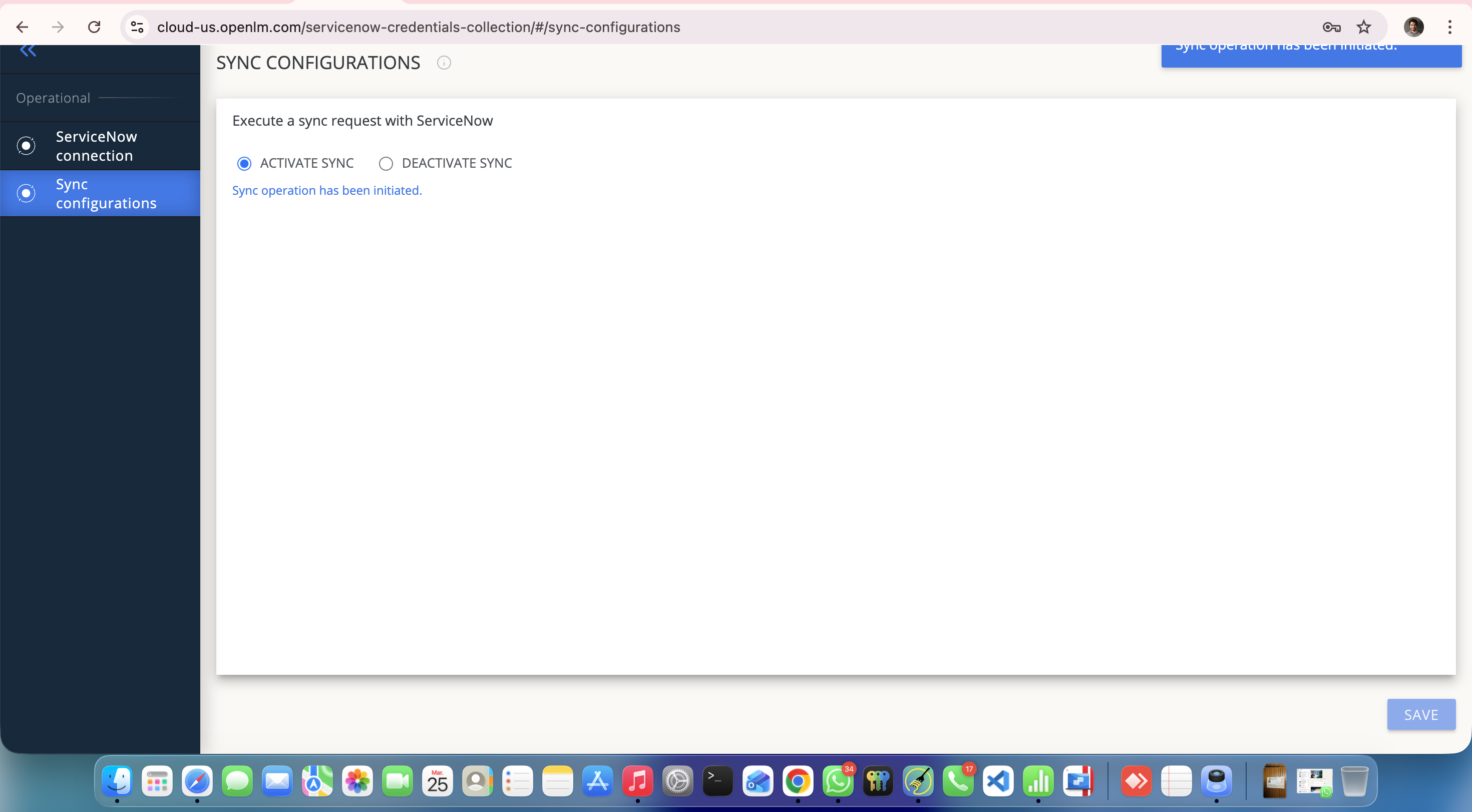
- In the Sync configurations tab, set the time zone.
- Select the sync frequency, daily or weekly.
- Select Activate Sync.
- Select Save.
- Select Sync Now to run a manual sync.
Review data that syncs
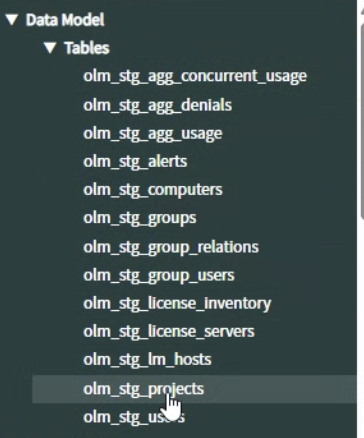
OpenLM sends data to 13 staging tables in ServiceNow. The data includes the following categories:
- Usage
- Denials
- Aggregated usage
- Alerts
- Computers
- Groups
- User information
- License
- Inventory
- Server information
- Hosts
- Projects
- Users
Understand how data reaches SAM Pro
Use this two-step flow to know where to validate data in ServiceNow.
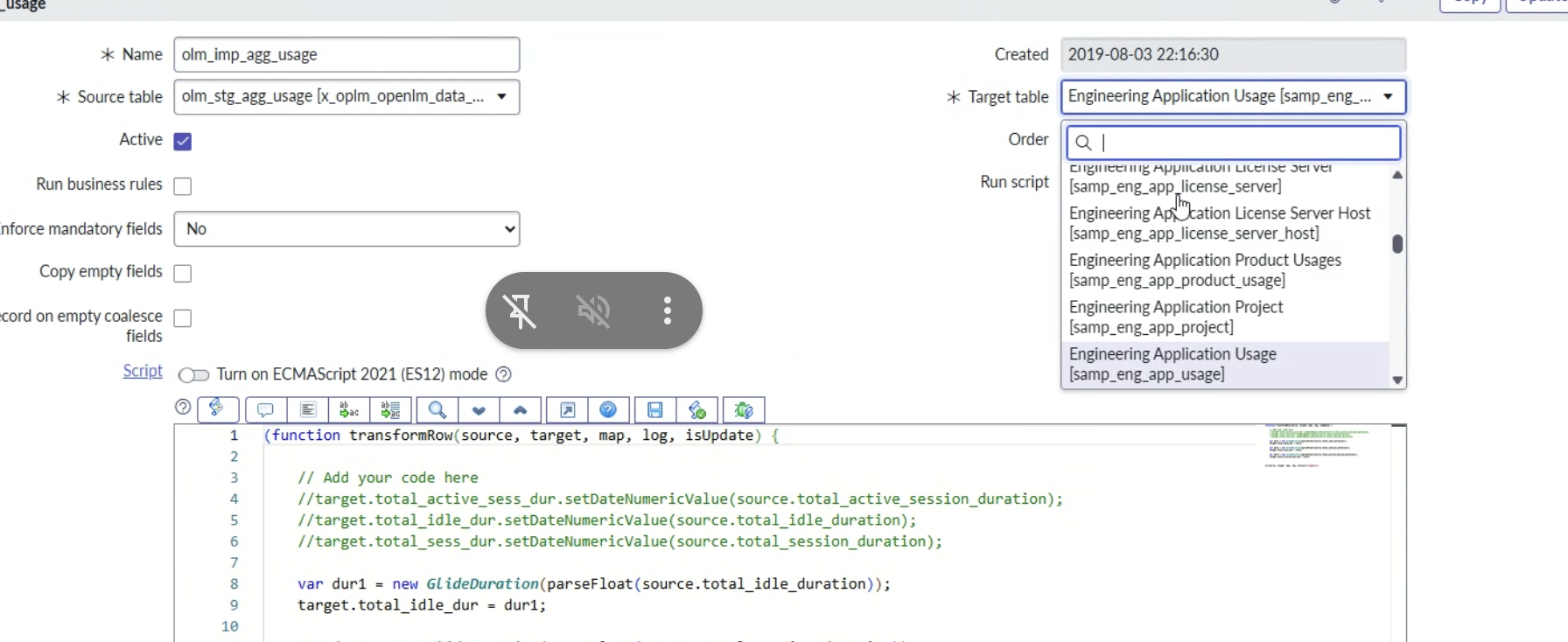
- OpenLM pushes data into staging tables created by OpenLM Adapter Integration in your ServiceNow instance.
- ServiceNow SAM Pro transforms the staging data into target tables, for example Engineering Application Usage, and uses those tables in reports and dashboards.
Verify the integration
After you configure sync, verify that SAM Pro is using OpenLM data.
- Select Sync Now to run a manual sync.
- If you do not run a manual sync, wait for the scheduled sync run.
- In ServiceNow, confirm that OpenLM staging tables contain new records.
- Confirm that SAM Pro target tables, such as Engineering Application Usage, contain the transformed data.
- In ServiceNow Software Asset Workspace, review reports and dashboards to confirm that usage and compliance metrics reflect OpenLM data.