Optimal Configuration for Applications Manager
The following document describes the optimal hardware configuration required for running the OpenLM Applications Manager on your server.
Our recommendations are as follows:
- VM network controller should be available for each network card
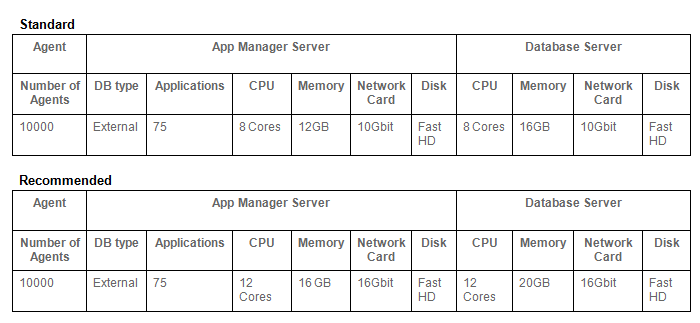
- For compilers that perform multiple checkout/checkin operations per second, we recommend a hardware specification that is 25%-50% higher than the ones specified in the table at the end of this document.
For example:
- VM Administrators should ensure that the hosting server is capable of accommodating the required resources.
- When seeing low performance in DB queries, check disk queue.
- We strongly recommend placing the DB in the same Data Center as the OpenLM SLM.
- See recommendations for MS SQL Server below.
- For MySQL we provide a sample configuration file for Windows (my.ini) & Linux (my.cnf) that should be revised by your DBA.
Best practices for using MySQL
- Use the latest 5.7/8 MySQL release.
- To fully use the system's resources, MySQL requires its configuration file (my.cnf/my.ini) to be set with the correct values. Otherwise MySQL will not take advantage of the hosting machine's resources. We recommend some settings - see our suggestions for configuration files archived in a .zip format according to your system size:
4GB_2Cores_Windows
Best practices for using MS SQL Server
-
Customers need to apply a maintenance plan consisting of:
-
Periodic Statistics Update
-
Periodic Rebuild or Reorganization of IndexesDBAs need to apply company maintenance policy also for OpenLM DB. In the case where one does not exist, a public package can be applied.
-
Recommended memory allocation for MSSQL Server running (almost) exclusively on a Windows machine should not exceed 80% of total machine memory.
-
OpenLM database should have is_read_committed_snapshot_on parameter set.
To check if it is set:
SELECT is_read_committed_snapshot_on FROM sys.databases WHERE name= ‘YourDatabase'
To set:
DECLARE @sqlCommand varchar(1000)
DECLARE @db_name varchar(50)
SET @db_name = ‘YourDatabase'
SET @sqlCommand = ‘ALTER DATABASE ‘ + @db_name + ‘ SET ALLOW_SNAPSHOT_ISOLATION ON ‘
EXEC (@sqlCommand)
SET @sqlCommand = ‘ALTER DATABASE ‘ + @db_name + ‘ SET SINGLE_USER WITH ROLLBACK IMMEDIATE ‘
EXEC (@sqlCommand)
SET @sqlCommand = ‘ALTER DATABASE ‘ + @db_name + ‘ SET READ_COMMITTED_SNAPSHOT ON ‘
EXEC (@sqlCommand)
SET @sqlCommand = ‘ALTER DATABASE ‘ + @db_name + ‘ SET MULTI_USER ‘
EXEC (@sqlCommand)
- For better performance we recommend installing tempdb, databases and log files on separate logical (and in some cases - even physical) disks. A solid installation would have:
- 1- disk for tempdb Data (ssd configuration is recommended)
- 1- disk for system DBs (msdb, model, master)
- 1- disk for all logs (including tempdb logs)
- 1- disk for all DBs Data
-
tempdb has a critical role, having all parameters, temporary tables and running sorts and aggregations. Number of tempdb data files is recommended to be the same as number of processors - up to 8 (more will have no effect or a negative effect on performance).
-
Autogrowth units of database files is set by default to a percentage, which is dangerous. A good practice would be to use MB units, based on a predicted growth multiplied by record size. In any case, setting alerts on disk size is recommended.
-
Set the log size upfront.
-
A regular backup program is recommended to be able to resume after crashes and to control the growth of log files. Shrinking a database is bad practice and is not recommended.
| Agent | App Manager Server | Database Server | ||||||||
| Number of Agents | DB type | Applications | CPU | Memory | Network Card | Disk | CPU | Memory | Network Card | Disk |
| 3000 | Internal | 10 | 4 Cores | 4GB | 1Gbit | Fast HD | - | - | - | - |
| 10000 | External | 75 | 8 Cores | 12GB | 10Gbit | Fast HD | 8 Cores | 16GB | 10Gbit | Fast HD |
| 15000 | External | 75 | 8 Cores | 16GB | 10Gbit | Fast HD | 8 Cores | 16GB | 10Gbit | Fast HD |