Setting up SSL for OpenLM SLM and Identity Service
This is a quick guide to setting up the SSL connection for the OpenLM SLM and Identity Service v2x.
Important:
- The certificates used for the SLM must also be installed and present in the Trusted Certificate Store of the machine with the component connecting to the OpenLM SLM.
- Once the server's SSL is activated, all components that connect to it must update their hostname/IP to use the HTTPS protocol. As with the SLM configuration, ensure the exact FQDN is used when specifying the host.
- A self-signed certificate has been used for demonstration purposes. We strongly advise using a Certificate with a digital signature from a Certificate Authority (CA).
Setting up SSL for Identity Service
- Go to C**:\Program Files\OpenLM\OpenLM IdentityService\SecurityService\cert**and place here the certificate with a digital signature from a certificate authority (CA).
Attention. Do not delete any existing certificates. - Open the appsettings.json file at C:\Program Files\OpenLM\OpenLM Identity Service\SecurityServicewith a convenient text editor and administrator privileges.
- Locate the Settings node and change the "IssuerUri" parameter from HTTP to HTTPS:
},
  "Settings": {
    "UseDb": true,
    "IssuerUri": "https://FQDN:5000",
    "DbType": "MariaDB"
  },
- Edit the Kestrel node. Provide the data for the certificate: path to the Certificate and password then change the URL parameter from HTTP to HTTPS:
  },
  "Kestrel": {
    "Endpoints": {
      "Http": {
        "Url": "https://FQDN Name:5000",
          "Certificate": {
          "Path": "./cert/cert.pfx",
          "Password": "Cert Password"
        }
      },
      "Https": {
        "Url": "http://*:5001"
   }
    }
  },
- Path - The path to the certificate file. Make sure the Windows paths use double backslashes instead of forward slashes.
- Password - the password for the private key of the certificate.
- Certificate Name - The certificate name should be 'cert.pfx'
Note: make sure the curly braces are properly closed at all times.
-
Save the changes.
-
Restart the Identity Service:
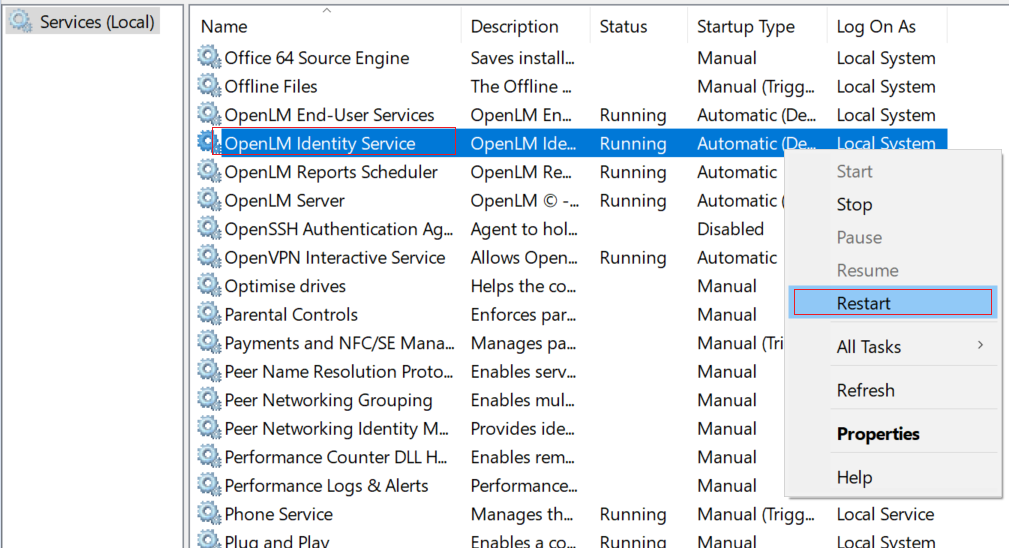
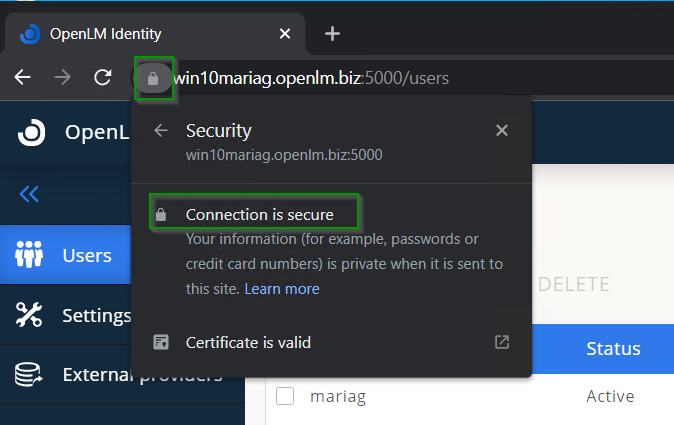
- To verify whether the SSL connection is successful, open up the Identity Service UI, type in the address bar the new address (HTTPS), and refresh the page. Select the "Lock" icon as portrayed below:
Setting up SSL for OpenLM SLM
-
Go to C:\Program Files\OpenLM\OpenLM Server\bin and create a folder called "Cert", then paste the certificate with a digital signature from a certificate authority (CA) to this folder.
-
Open up the appsettings.json located at C:\Program Files\OpenLM\OpenLM SLM\bin in a text editor with administrator privileges.
-
Locate and edit the Kestrel node configurations and update the URL for the Kestrel endpoint, i.e the full path to EasyAdmin: https://FQDN:port
},
  "Kestrel": {
    "Endpoints": {
      "Http": {
        "Url": "https://FQDN:5015"
      },
- Locate and edit the Certificates node. Provide the following details:
- Path - The path to the certificate file. Make sure the Windows paths use double backslashes instead of forward slashes.
- Password - the password for the private key of the certificate.
Note: make sure the curly braces are properly closed at all times.
},
    "Certificates": {
      "Default": {
        "Path": "./cert/cert.pfx",
        "Password": "12345"
      }
    },
- Locate the "Auth" node and edit the "Authority" line with the updated Identity Service URL (HTTPS)
},
  "Auth": {
    "EnableSecurity": true,
    "Authority": "https://hostnname:5000",
    "Audience": "openlm.server.api",
    "AuthProvider": "",
    "ClientId": "openlm.server.client",
    "ClientSecret": "c0936471-0f6a-44af-9078-99d150683cad",
    "ClientScope": "openlm.cloud.scope openlm.ugs.read.scope IdentityServerApi openlm.dss.scope openlm.etlmanager.scope",
    "TokenEndpoint": "/connect/token"
  }
}
-
Save the changes (Ctrl+S).
-
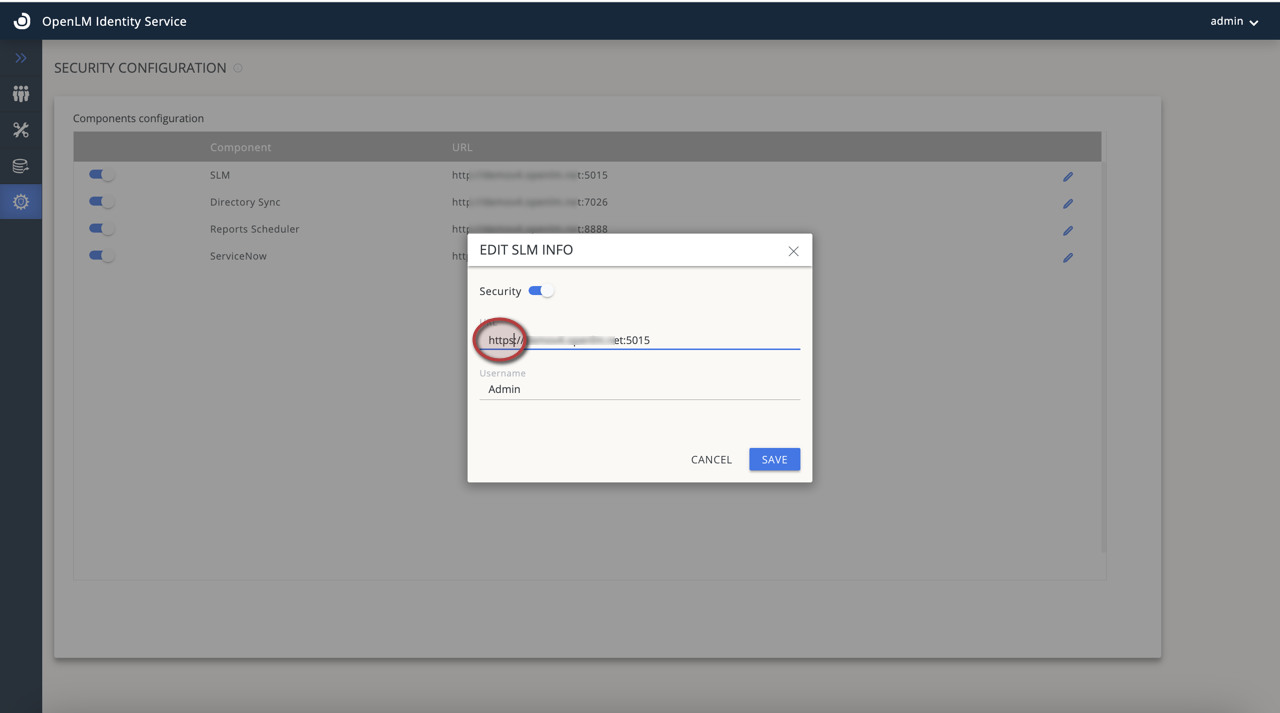
Now it is time to change the OpenLM SLM URL we have declared in the Identity Service Settings. Login to the Identity Service→Settings→Security Configuration tab and declare the updated Sever's (SLM) address (HTTPS) and select Save:
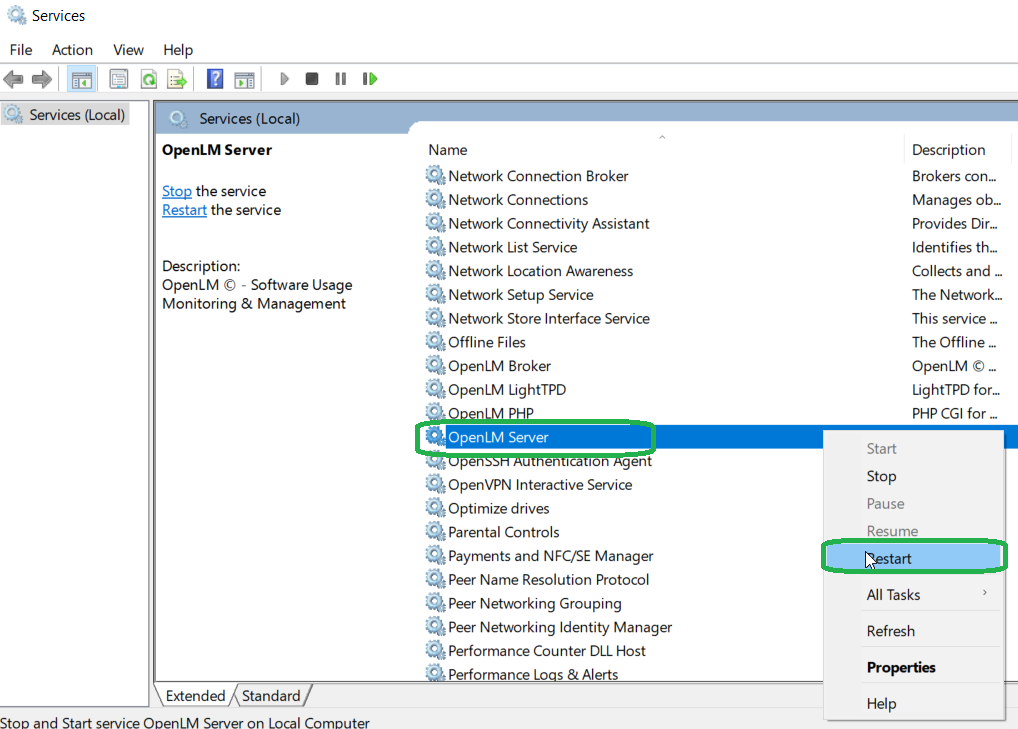
- Restart the Server Service.
- To verify the connection, type in the address bar the updated EasyAdmin address: https://FQDN:port
Turn on HTTPS request redirection (optional)
Supported version: OpenLM Server 24.1+
Starting with clean installations or upgrades of OpenLM software License Management (SLM) v24.1+, an additional parameter appears in appsettings.json (default path: C:\Program Files\OpenLM\OpenLM Server\bin). It controls automatic redirection of incoming HTTP requests to HTTPS:
"HTTPSRequestsRedirectionEnabled": false
By default, the system keeps redirection turned off (false). After you turn it on, any request that reaches the HTTP endpoint redirects (HTTP 301/302) to the HTTPS endpoint.
Turn on HTTPS redirection
- Open
appsettings.json(Administrator privileges required). - Change the parameter value to:
"HTTPSRequestsRedirectionEnabled": true,
- Add (or verify) an HTTPS Kestrel endpoint under the
Kestrel > Endpointsnode. Example:"Kestrel": {"Endpoints": {"Http": {"Url": "http://*:5015"},"Https": {"Url": "https://FQDN:5443","Certificate": {"Path": "./cert/cert.pfx","Password": "<certificate-password>"}}}} - Pick an HTTPS port different from the HTTP port and confirm no other service uses it (for example 443, 8443, 5443). Use any free port that matches firewall rules and is reachable by clients.
- Place the certificate file (
cert.pfx) underC:\Program Files\OpenLM\OpenLM Server\bin\Cert(or the path you specify) and confirm its password. - Save the file and restart OpenLM Server service.
Turn off HTTPS redirection
If you need to turn off automatic redirection:
- Set the parameter back to:
"HTTPSRequestsRedirectionEnabled": false,
- (Optional) Remove the
Httpsendpoint block you previously added. You must keep theHttpendpoint. Example of a minimal validKestrelsection:"Kestrel": {"Endpoints": {"Http": {"Url": "http://*:5015"}}} - Restart the OpenLM Server service.
Important notes
- Do not delete the
Httpendpoint. If it is missing the server does not start. - Keep an
Httpendpoint even when HTTPS and redirection are on. - After you turn on redirection, clients that use plain
http://redirect automatically. Still, update component configurations to use thehttps://URL directly. - Ensure the Identity Service URL (Authority) stays set to HTTPS as shown earlier in this guide.
- Firewall / reverse proxy: open the chosen HTTPS port and adjust any load balancer rules to forward HTTPS traffic correctly.
Verification
- Browse to the HTTP URL (for example,
http://FQDN:5015). You are automatically redirected to the HTTPS URL. - Confirm the browser shows a secure lock icon (certificate trusted). If not, check the certificate chain in the Windows Certificate Store and verify that intermediate and root certificates are present.
- Review OpenLM Server logs for any Kestrel binding errors related to the HTTPS port or certificate.
Troubleshooting
| Symptom | Possible cause | Action |
|---|---|---|
| Service fails to start | Missing Http endpoint | Re-add Http endpoint under Kestrel > Endpoints. |
| Browser not redirected | HTTPSRequestsRedirectionEnabled still false | Confirm value saved; restart service. |
| HTTPS port in use error | Port conflict with another service | Select a different free port; update config; restart. |
| Certificate error / untrusted | Using self-signed cert without CA trust | Install certificate chain on client machines or obtain CA-signed certificate. |
| 404 after redirect | Incorrect Https URL or reverse proxy misconfiguration | Verify Https endpoint URL and proxy forwarding rules. |