
OpenLM Docs
  • Home
  • Supported Software
  • Blog
  • Knowledge Base
  • Home
  • Supported Software
  • Blog
  • Knowledge Base
  • OpenLM System Architecture
  • Quick Start Guide: OpenLM – Engineering Software License
  • OpenLM SLM Installation Guide
    • Setting up SSL for OpenLM SLM and Identity Service
    • The OpenLM EasyAdmin User Interface
    • OpenLM Easy Admin User Interface Modules and Reports
      • OpenLM User Interface Reports  Samples
      • Named License Analysis (NNU) Report
      • License Denials Reporting
      • Determining license utilization efficiency
      • Historical license usage reports
    • OpenLM EasyAdmin User Interface - Administration
      • Products and Packages
      • Cleanup Manager module
      • Denials
      • Configuring the License Checkout Policy
      • OpenLM Server DNS resolving
      • OpenLM usability report files
      • How to change the OpenLM components' ports
  • OpenLM Identity Service Installation guide
    • OpenLM SLM and Identity Service Installation on Linux using RPM, DEB, and TAR Packages
    • Identity Service Configuration
      • Integration Between OKTA SSO and OpenLM
      • KeyCloak integration with OpenLM
      • Integration Between AD FS and OpenLM
      • Integration Between Azure Active Directory And OpenLM
  • OpenLM Broker Installation on Windows
    • OpenLM Broker Web UI
    • Installing OpenLM Broker on Unix / Linux
    • OpenLM Broker Configuration
    • OpenLM Broker Connectivity Through HTTP Proxy Server
    • Troubleshoot OpenLM Broker by EasyAdmin User Interface messages
  • OpenLM Applications Manager Installation Guide
    • Installing two instances of Applications Manager in parallel
    • Applications Manager Installation on Linux
    • HTTPS/SSL support for Applications Manager and Broker
    • OpenLM Applications Manager Configuration
    • Optimal Configuration for Applications Manager
    • OpenLM Applications Manager Database Configuration Tool
    • Configure Applications Manager to Track Actual Usage
  • Directory Sync Installation Guide
    • Directory Sync v2x Configuration
  • OpenLM Reports Scheduler Installation Guide
    • OpenLM Reports Scheduler Configuration
  • End-User Services & Workstation Agent Installation guide
    • Workstation Agent installation with Microsoft System Center Configuration Manager (SCCM)
    • The OpenLM Workstation Agent's interface - the Personal Dashboard
      • How to set up the Personal Dashboard authentication
      •  Personal Dashboard User authentication
    • OpenLM AutoCAD Plugin Installation Guide
    • URL Monitoring With OpenLM
  • OpenLM ServiceNOW Adapter Installation and Configuration
  • OpenLM Reporting Hub Installation Guide
    • OpenLM Reporting Hub Data Structure
    • OpenLM Reporting Hub and customized license reporting
    • OpenLM Reporting Hub vs Embedded Reports Comparison
    • OpenLM Reporting Hub Upgrade
  • OpenLM SLM Features
    • License Allocation Manager - Options File management Using OpenLM EasyAdmin User Interface
    • OpenLM Alerts Configuration
    • OpenLM Roles & Permissions
    • OpenLM Group Usage Configuration
      • Introducing Entities in OpenLM - Users, Groups, IP and Hosts
    • License harvesting (Manual method), and Monitoring Idle Application time
      • License Harvesting of Idle Applications (MATLAB, AutoCAD, ArcGIS, ArcGIS Pro, SOLIDWORKS, and CATIA) – Save and Close
        • License Harvesting of Idle FlexLM Applications
          • License retrieval of idle applications – Enhanced Workstation Agent procedures
    • OpenLM Actual Usage
    • OpenLM Project Usage
    • OpenLM Unmanaged Processes
  • Software License Management Cloud Registration and Configuration Guide (SLMC)
    • OpenLM Virtual License Manager: A Comprehensive Guide
    • LDAP Connector Configuration
    • OpenLM Cloud Logs uploader
  • API
  • What is?
    • What is BetaLM?
      • What is EasyCopy?
      • What is SEH-UTN Manager?
      • What is LS-DYNA ? - KB
      • What is ArcGIS Online?
      • What is EPLAN LM?
      • What is Autodesk Cloud?
      • What is FlexLM? What is FlexNet Publisher? Who is Flexera?
      • What is Intergraph SPLM?
      • What is DSLS ?
      • What is IBM Rational: FlexNet Token based licensing
      • What is NVIDIA License Manager?
      • What is Adobe Cloud?
      • What is Olicense?
      • What is Office 365?
      • What is Reprise RLM ? - KB
      • What is FlexLM License file format
      • What is ArcGIS Pro ? - KB
      • What is Sentinel HASP ? - KB
      • What is the difference between the FlexLM lmgrd and lmadmin license server managers - KB
      • What is LM-X?
      • What is License4J?
      • What is OpenText License Manager?
      • What is Sentinel RMS ? - KB
      • What is the Green Hills license manager ?
      • What is SlickEdit ?
      • What is the Altium License Manager?
        • What is the SolidNetwork License Manager (SNL)?
      • What is ProgeCAD?
      • What are Pitfalls in license utilization
      • What is Codemeter?
      • What is FlexNet Embedded?
      • What is MathLM?

License harvesting (Manual method), and Monitoring Idle Application time

764 views 2

Written by Maria Gilca
November 5, 2023

License managers may sometimes label licenses as occupied, when in fact they are idle and wasting limited company resources. System administrators can utilize the OpenLM EasyAdmin User Interface to identify such conditions and retrieve idle licenses either manually or automatically.

This document describes how to monitor application idle time and harvest idle licenses manually.

 Idle application

If the user has not been actively using the license, the idle period would be shown in the OpenLM EasyAdmin User Interface ‘Start’ → ‘Operational’ → “Currently consumed licenses” → “Recent App. Idle period” column. This information is sampled by the OpenLM Workstation  Agent module on each client workstation and propagated to the OpenLM SLM.


Setting a Process to License link

To obtain idle time information, follow the steps below

1. Make sure you have OpenLM Workstation Agent installed on the end user’s workstation.

2. Open the EasyAdmin interface: Windows Start → OpenLM → OpenLM EasyAdmin User Interface.

3. Click the EasyAdmin Start → Administration.

4. Select Process Features.

5. If the process you wish to monitor is not already on the list of processes, it will need to be added manually:

a. Click the Windows Start button.

b. Go to Task Manager  →  Processes tab. The Processes table window should appear.

c. Find the required process and copy its exact format name (case sensitive).

d. To add the new process to the currently managed processes’ list, click the  Add icon in the Process List frame, on the top right–hand side of the Process features window. The Add Process window will appear. For processes that already exist in the process list, select them and click Edit. An identical Edit process window will appear (see below).

e. Add features to the selected application. You can add features one at a time by clicking the Add + on the bottom-right corner of the Process features window, or all of them by clicking the Add All Vendor’s features +.

6. Configure the process window to monitor idle licenses:
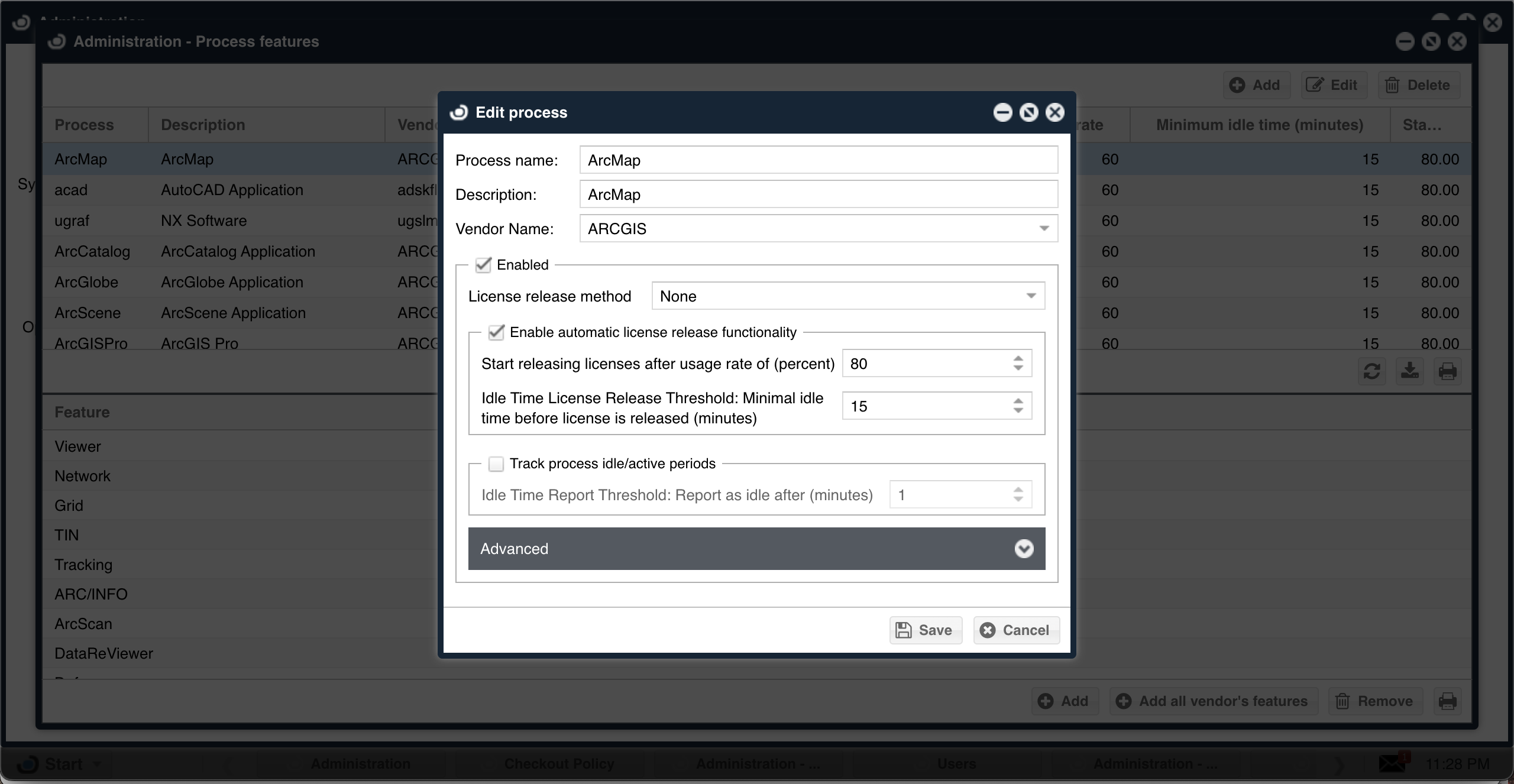
  • Type the “Process name” as obtained in item 5c (above), e.g: ArcMap.
  • Input a description of the managed process, and
  • The application’s Vendor name is exactly as appears in the license file. e.g.: ARCGIS
  • Check the Enabled box and the Track process idle/active periods box.
  • Set the System resource thresholds. These numbers indicate the thresholds under which a process is considered idle.
  • Set the Idle time report threshold. This is the minimum period before an inactive session is reported as idle.

After completing the process described above in paragraphs 1 through 6, the Workstation is set to monitor the managed process. For software suites like ArcGIS that use the same license for multiple applications (e.g. ArcMap, ArcCatalog, ArcGlobe), these steps will have to be repeated with the same idle time values for each application that you want to control.


Monitoring Idle time and retrieving licenses manually on the CCL window

To open the EasyAdmin Currently Consumed Licenses (CCL) Window: EasyAdmin Start →  Operational  →  Currently Consumed Licenses.

This window lists all currently active sessions. Using this window, Administrators can monitor individual workstations that run licensed applications. They can detect idle applications and shut them down with a mouse click. To do so, an OpenLM Workstation Agent module must be installed on each client workstation.


Workstation Idle Time

The end user’s workstation idle time is recorded and presented in the “Workstation Idle time” column.


Recent Application Idle Period

Records the recent idle time of a specific application.


Linger Time

A lingering license stays checked out for a specified period beyond its check-in or FlexEnabled application exit, whichever comes first.


Linger Due

The Linger Due is the actual time the license is returned to the pool to be claimed by another user.


View Idle times

Click the dark-shaded crescent moon icon for a graphic view of idle and active time as well as a list of idle periods.


License removal

Administrators have the option to manually remove a license from a specified workstation. This is done by highlighting the user row on the Active Products window and clicking the Remove License icon. Several constraints are specific to this feature:

  • The end user must have been inactive for a minimum period for this license to be retrieved. This value is set by default to 5 minutes in compliance with the FLEXlm license manager’s limitations.
  • If the license is not associated with any real product activity on the specified workstation (as happens when a license gets artificially “frozen” on a computer), then the license will be released and returned to the pool of available licenses.
  • If the worker is using the product, then re-obtaining a license would be automatically attempted. If this happens the license for that product and workstation will reappear on the active products screen, with a new handle number.
  • Manual License removal does not work for ArcGIS 10.


Closing Applications

To manually close an application on the workstation,  an administrator should highlight the relevant row, and click the Close Application icon.

This operation will retrieve the license back to the license pool, save the open project,  and the application itself will be shut down.

Some constraints are specific to this feature:

  • It requires a proper installation of the Workstation Agent module.
  • It works only on extension-enabled applications. At the time of writing this revision, these include MATLAB, AUTOCAD, ARCGIS, ARCGIS PRO, SOLIDWORKS, AND CATIA.


COMMON CONSTRAINTS

Several constraints are common to both the License Removal and Application Closure features. These are as follows:

  • These features are only applicable to the FLEXlm license manager.
  • A Workstation Agent module must be properly installed on each Client workstation.
  • Borrowed licenses (AKA “Linger licenses”) can not be retrieved via the EasyAdmin application.

Was this helpful?

2 Yes  No
Related Articles
  • API
  • OpenLM Cloud Logs uploader
  • KeyCloak integration with OpenLM
  • OpenLM Reporting Hub and customized license reporting
  • OpenLM Virtual License Manager: A Comprehensive Guide
  • LDAP Connector Configuration

Didn't find your answer? Contact Us

Leave A Comment Cancel reply

Previously
Introducing Entities in OpenLM – Users, Groups, IP and Hosts
Up Next
License Harvesting of Idle Applications (MATLAB, AutoCAD, ArcGIS, ArcGIS Pro, SOLIDWORKS, and CATIA) – Save and Close
OpenLM Learning
Search
  • About Us
  • Contact Us
Twitter Facebook-f Youtube Linkedin

Products

  • Software License Management (SLM)
  • Software License Management Cloud
  • OpenLM Academic Program
  • OpenLM License Allocation Manager
  • OneDirectorySync
  • Virtual License Manager – VLM
  • OpenLM Directory Sync
  • OpenLM Applications Manager
  • OpenLM Features
  • Software License Management (SLM)
  • Software License Management Cloud
  • OpenLM Academic Program
  • OpenLM License Allocation Manager
  • OneDirectorySync
  • Virtual License Manager – VLM
  • OpenLM Directory Sync
  • OpenLM Applications Manager
  • OpenLM Features

What We Support

  • CAD Manager Tools
  • Supported License Managers
  • Supported Software & Vendors
  • License Manager Hosted (LMH)
  • OpenLM for Autodesk – A practical guide
  • OpenLM Token-based licenses
  • What is Sentinel HASP
  • CAD Manager Tools
  • Supported License Managers
  • Supported Software & Vendors
  • License Manager Hosted (LMH)
  • OpenLM for Autodesk – A practical guide
  • OpenLM Token-based licenses
  • What is Sentinel HASP

Resources

  • Downloads
  • Knowledge Base
  • Release Notes
  • Blog
  • Case Studies
  • Testimonials
  • Developers
  • Free Trial
  • OpenLM End User License Agreement
  • OpenLM SaaS EULA privacy policy
  • Downloads
  • Knowledge Base
  • Release Notes
  • Blog
  • Case Studies
  • Testimonials
  • Developers
  • Free Trial
  • OpenLM End User License Agreement
  • OpenLM SaaS EULA privacy policy

Company

  • About OpenLM
  • Our Team
  • Careers
  • Contact Us
  • Partner with OpenLM
  • GSA Contact Holder
  • Press Release
  • About OpenLM
  • Our Team
  • Careers
  • Contact Us
  • Partner with OpenLM
  • GSA Contact Holder
  • Press Release

Copyright © 2024 OpenLM | 19266 Coastal Hwy Unit 4-520 Rehoboth Beach DE 19971