Autodesk Cloud
info
Two-factor authentication must be turned off to establish the connection.
For monitoring Autodesk Cloud, OpenLM connects directly to the Autodesk Cloud admin portal.
There are two ways to gather license usage:
- With Workstation Agent or AutoCAD Plugin: These communicate with OpenLM Applications Manager, which transmits usage data to OpenLM Server. This method provides detailed usage data.
- Without Applications Manager: Only license quantity data is gathered. To capture usage details, see the Applications Manager documentation.
Configure Autodesk Cloud in OpenLM
- Open EasyAdmin.
- Go to Start → Administration → License Manager Servers → Add LM.
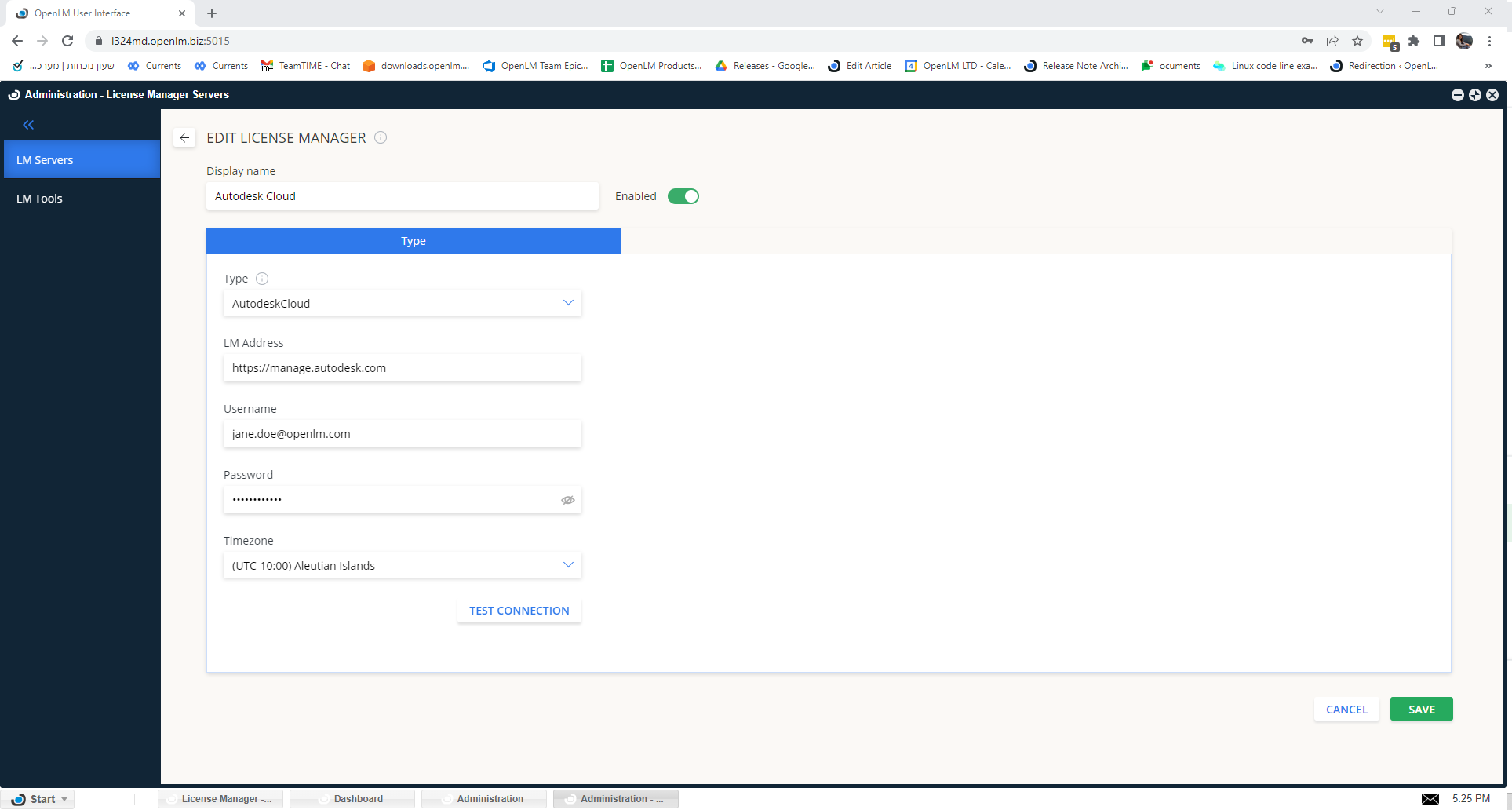
Adding Autodesk Cloud license manager in EasyAdmin - Enter a descriptive name in Display name.
- From the Type drop-down, select Autodesk Cloud. The LM address is filled automatically.
- Enter Autodesk Cloud Account admin credentials (username and password).
- Select the time zone of the license manager server.
- Click TEST Connection. A successful test looks like this:
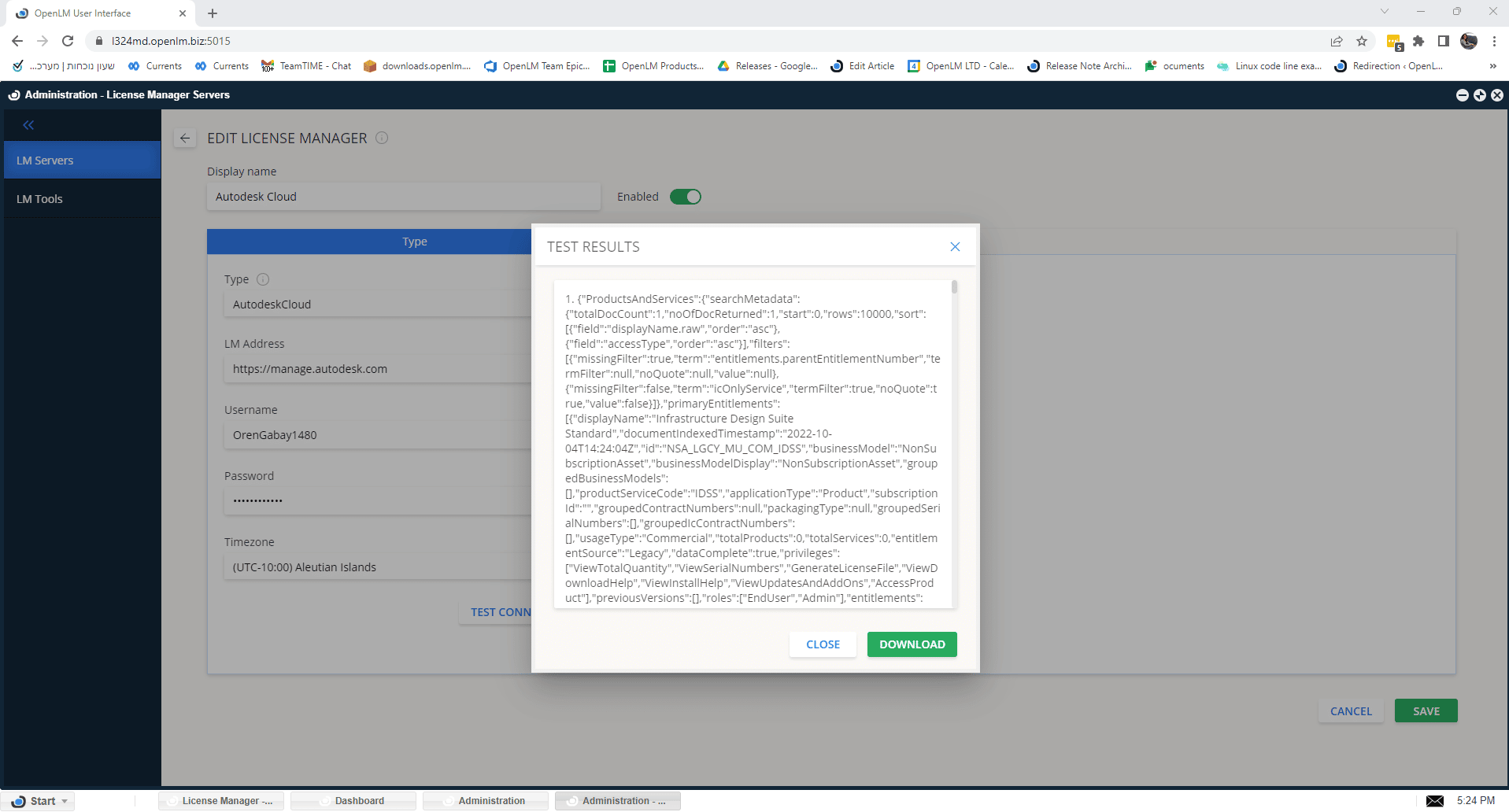
Successful Autodesk Cloud connection test - Click SAVE.
- Within minutes, usage and/or allocation data from Autodesk Cloud will appear in reports.