DSLS
Scope
OpenLM supports monitoring for many license managers.
This guide explains how to configure OpenLM to interface with Dassault Systèmes License Server (DSLS), monitor usage, and collect license statistics.
You can query DSLS in two ways:
- Query the license server directly from OpenLM Server. This method only provides usage information.
- Query the license server locally with OpenLM Broker and send data to OpenLM Server. This method provides more detail, such as denials and borrowed (offline) licenses.
Using OpenLM Broker is recommended for richer data and more reliable communication.
Interfacing DSLS with OpenLM Server only
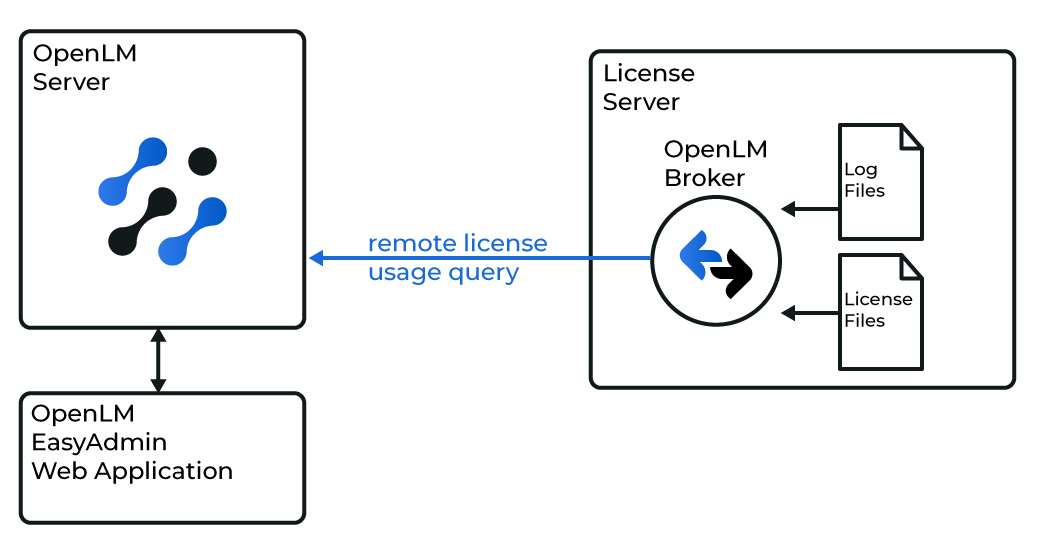
OpenLM Server interfacing directly with DSLS
Add a new DSLS server
- Open OpenLM Server. Go to Start → Administration → License Manager Servers.
The License Manager tab opens. - Select Add LM.
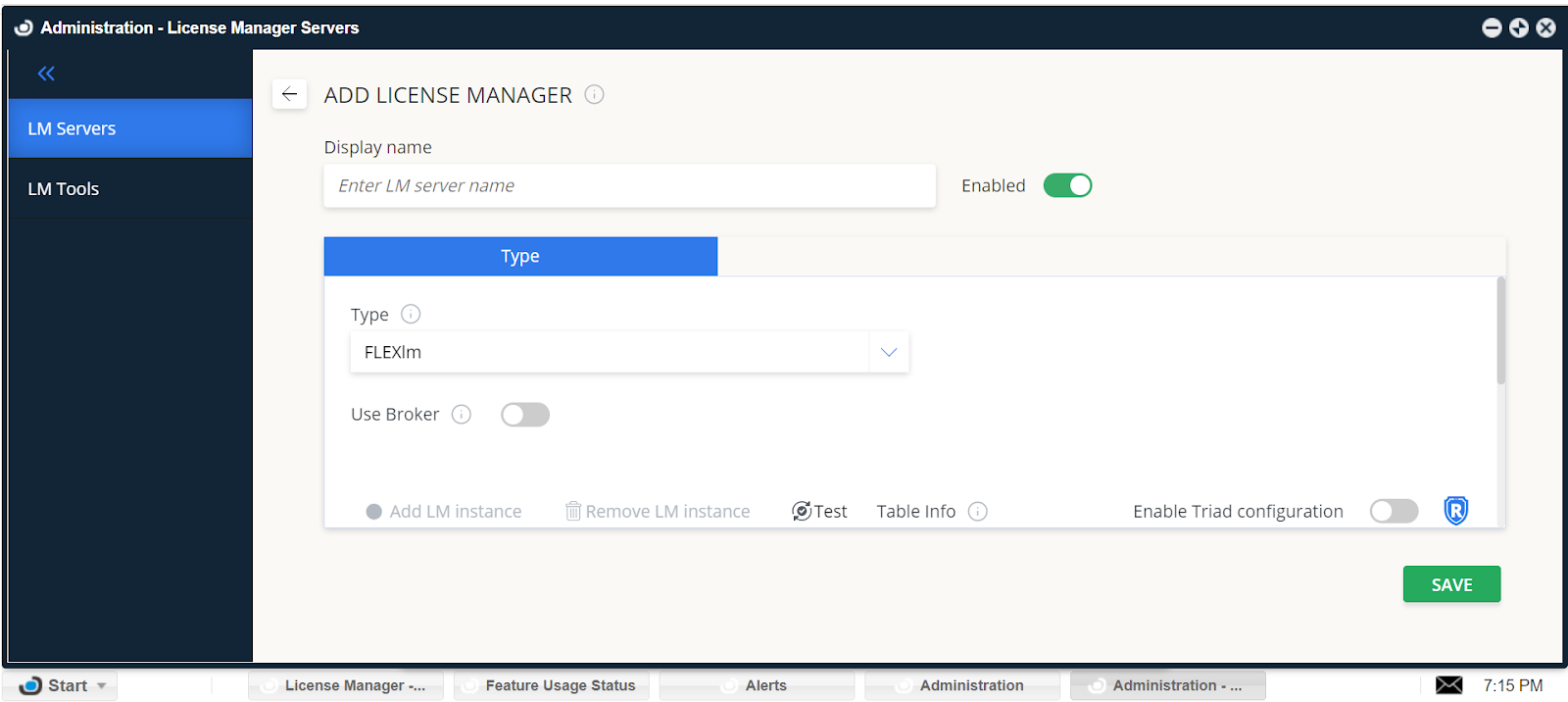
Adding DSLS server - Enter a Display Name (for example, DSLS).
- Select DSLS from the Type list.
- Toggle Use Broker:
- Checked (default): Queries data through Broker.
- Unchecked: Queries directly from Server. Use unchecked for Server-only mode.
- Enter a password if the DSLS server requires one.
- Enter Hostname and Port (for example,
L312MDand4084). - Set the Time Zone where the license server resides.
- Configure DSLS cluster structure:
- Checked: Monitor all servers in a redundant setup.
- Unchecked (default): Monitor only one DSLS server.
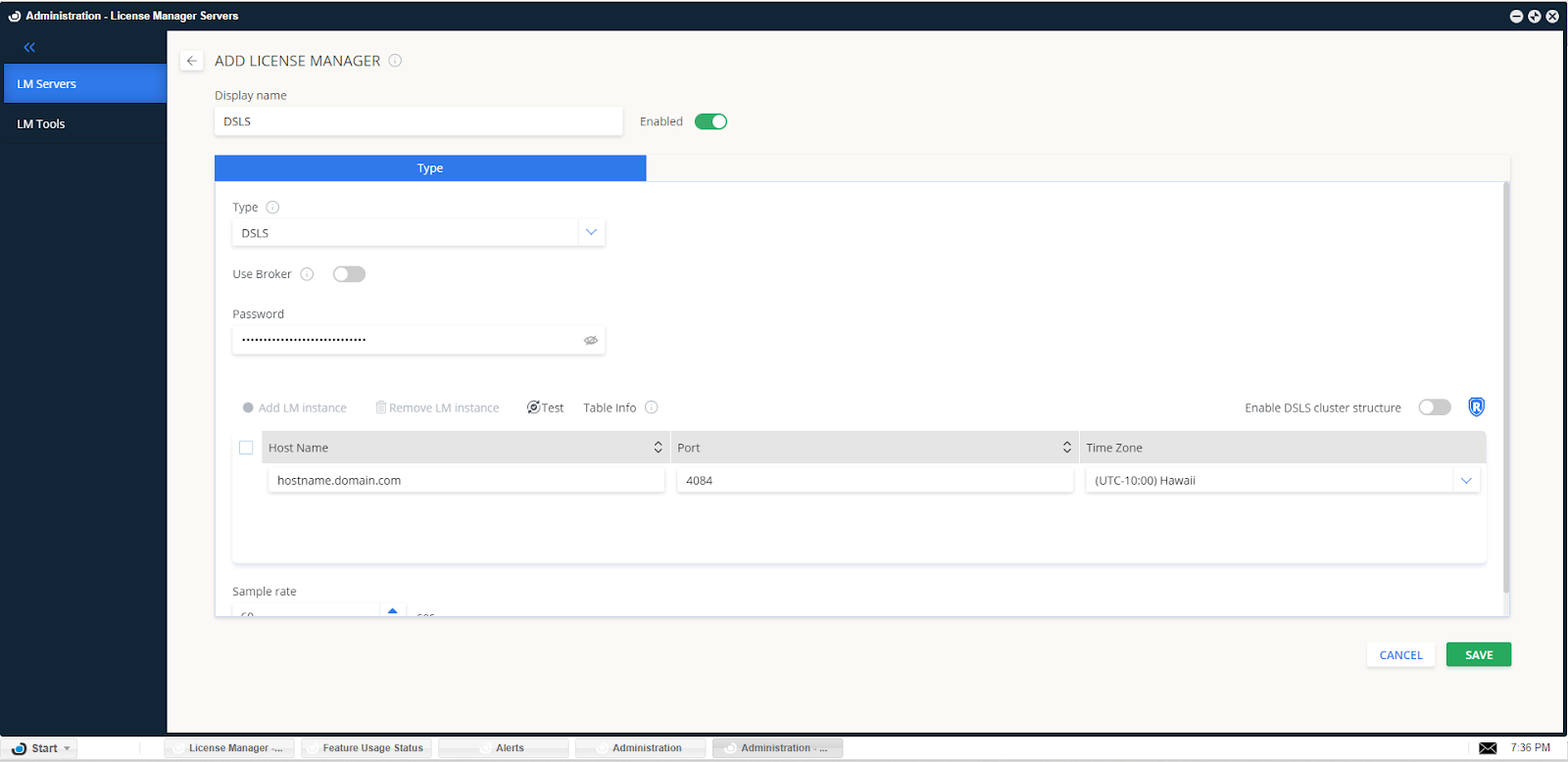
Cluster configuration options
- Select SAVE.
- Switch to LM Tools tab.
- Set LM Type → DSLS.
- Enter the path to the DSLS executable (for example,
C:\Program Files\Dassault Systemes\DS License Server\win_b64\code\bin). - Select SAVE.
Your OpenLM Server is now ready to query DSLS and display data in EasyAdmin.
Interfacing DSLS with OpenLM Server and Broker
Broker interface with DSLS
OpenLM Broker is optional but recommended. It should be installed on the DSLS server. Broker queries DSLS locally and forwards results to OpenLM Server, ensuring stable communication.
Broker provides:
- License usage reports
- Denied request details
- Borrowed license (offline) information
Configure Broker
- Install the latest Broker. See the Broker configuration guide.
- Open Broker web UI: http://localhost:5090/.
- Go to License Managers tab.
- Use Detect to find DSLS automatically.
If not detected, select Add License Manager, select DSLS, enter port, and select ADD.
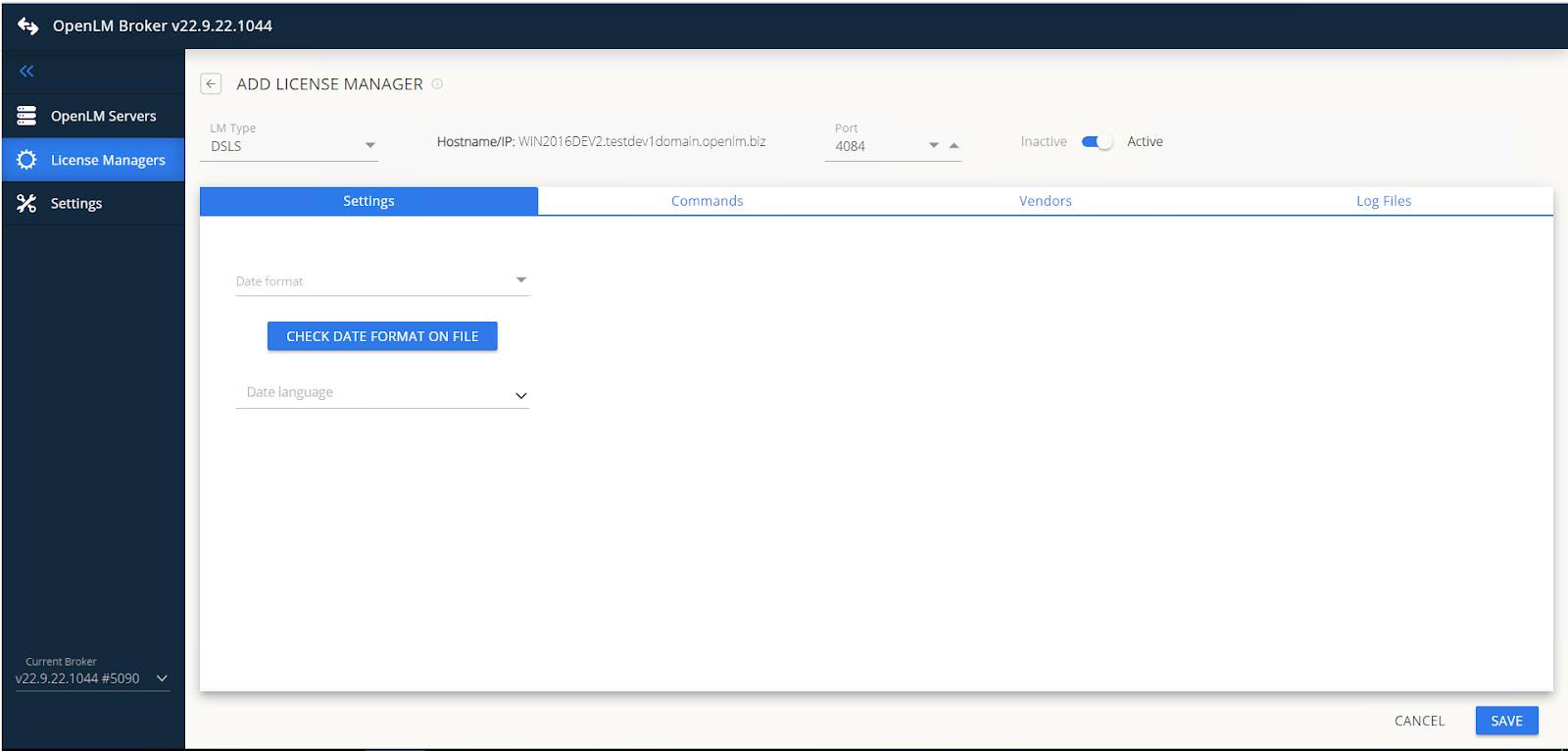
Adding DSLS in Broker - Match Date format and Language to the license file.
- Go to Commands tab → enter path to
DSLicSrv.exe. Run Execute to test.noteIf DSLS uses a password, add it in command syntax. Ensure a space before each semicolon.
- Go to Vendors tab → Add Vendor → Dassault Systemes.
- For multi-server setups, install Broker on each DSLS machine.
- Ensure
status,data_inquiry, anddenialcommands use localeen_US.
Configure DSLS log files
- Go to Log files tab → select Add Log File.
- Select type Other.
- Name the file (for example, DSLS log file).
- Enter or browse to the file path (for example,
C:\my_dsls_log.log). - Select vendor Dassault Systemes.
- If logs rotate, check Watch files by pattern.
Verify configuration in EasyAdmin
- Open EasyAdmin.
- Go to Start → Widgets → License Servers.
- Verify DSLS appears in the list. A green circle means active connection (may take a few minutes).
DSLS denials reports
In EasyAdmin, go to Start → Reports → Denials.
Denials are filtered for "true denials." Reports may be delayed until OpenLM confirms that a license was not granted afterward.
Your OpenLM system is now set up to monitor DSLS.