DSLS
概要
OpenLM は多くのライセンスマネージャーの監視に対応しています。
本ガイドでは、OpenLM を Dassault Systèmes License Server (DSLS) と連携し、使用状況の監視とライセンス統計の収集を行う方法を説明します。
DSLS を問い合わせる方法は 2 通りあります:
- OpenLM Server からライセンスサーバーを直接問い合わせる(使用状況のみ取得)。
- OpenLM Broker でローカルに問い合わせて OpenLM Server に送信する(拒否や借用ライセンスなど詳細も取得)。
ヒント
より豊富なデータと安定した通信のため、OpenLM Broker の使用を推奨します。
OpenLM Server のみで DSLS を連携
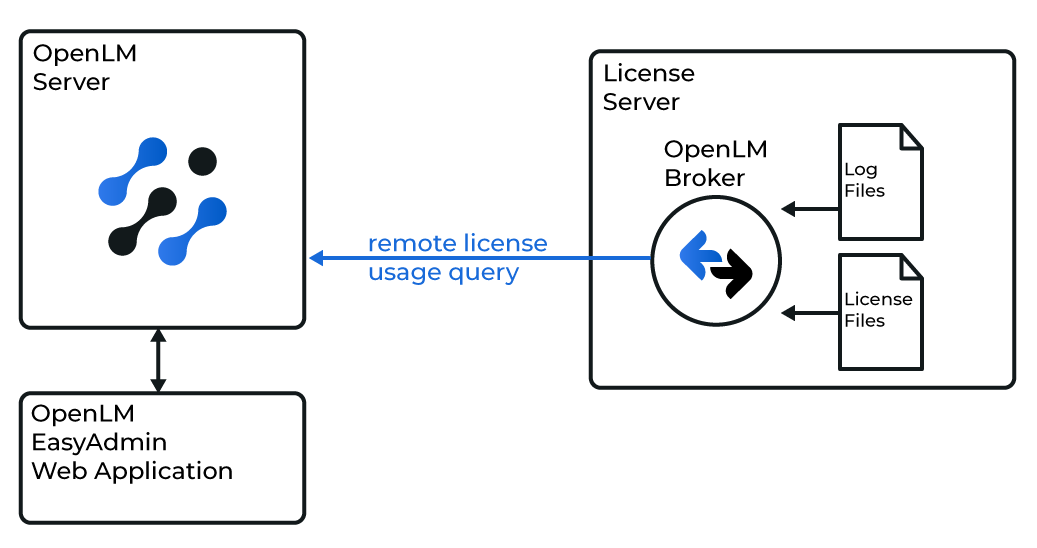
OpenLM Server が DSLS を直接問い合わせる構成
DSLS サーバーの追加
- OpenLM Server を開き、Start → Administration → License Manager Servers に移動します。
License Manager タブが開きます。 - Add LM をクリックします。
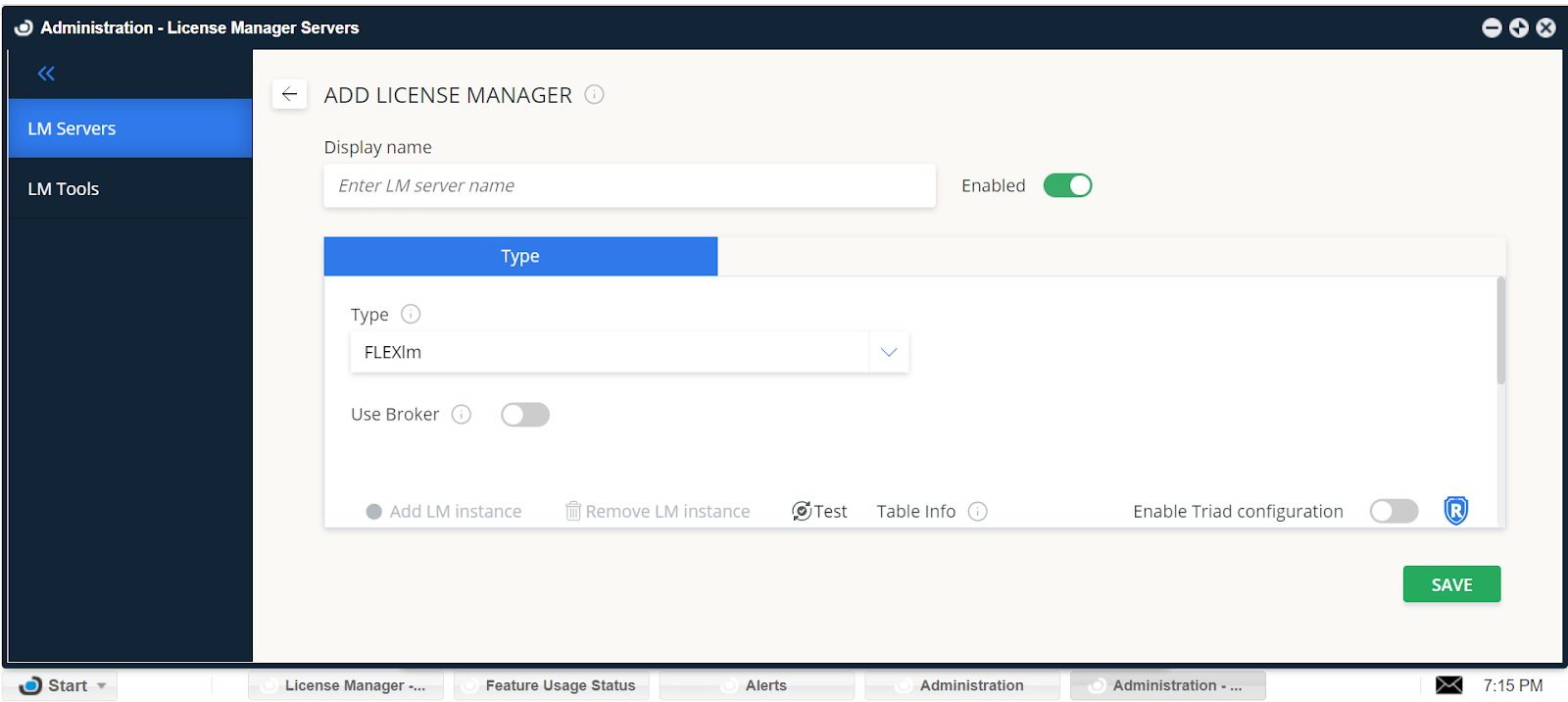
DSLS サーバーの追加 - Display Name に名前(例: DSLS)を入力します。
- Type から DSLS を選択します。
- Use Broker を切り替えます:
- チェックあり(既定): Broker 経由で問い合わせます。
- チェックなし: Server から直接問い合わせます(Server-only モード)。
- DSLS サーバーにパスワードが必要な場合は入力します。
- Hostname と Port を入力します(例:
L312MDと4084)。 - ライセンスサーバーの Time Zone を設定します。
- DSLS cluster structure を設定します:
- チェックあり: 冗長構成内のすべてのサーバーを監視。
- チェックなし(既定): 1 台の DSLS サーバーのみ監視。
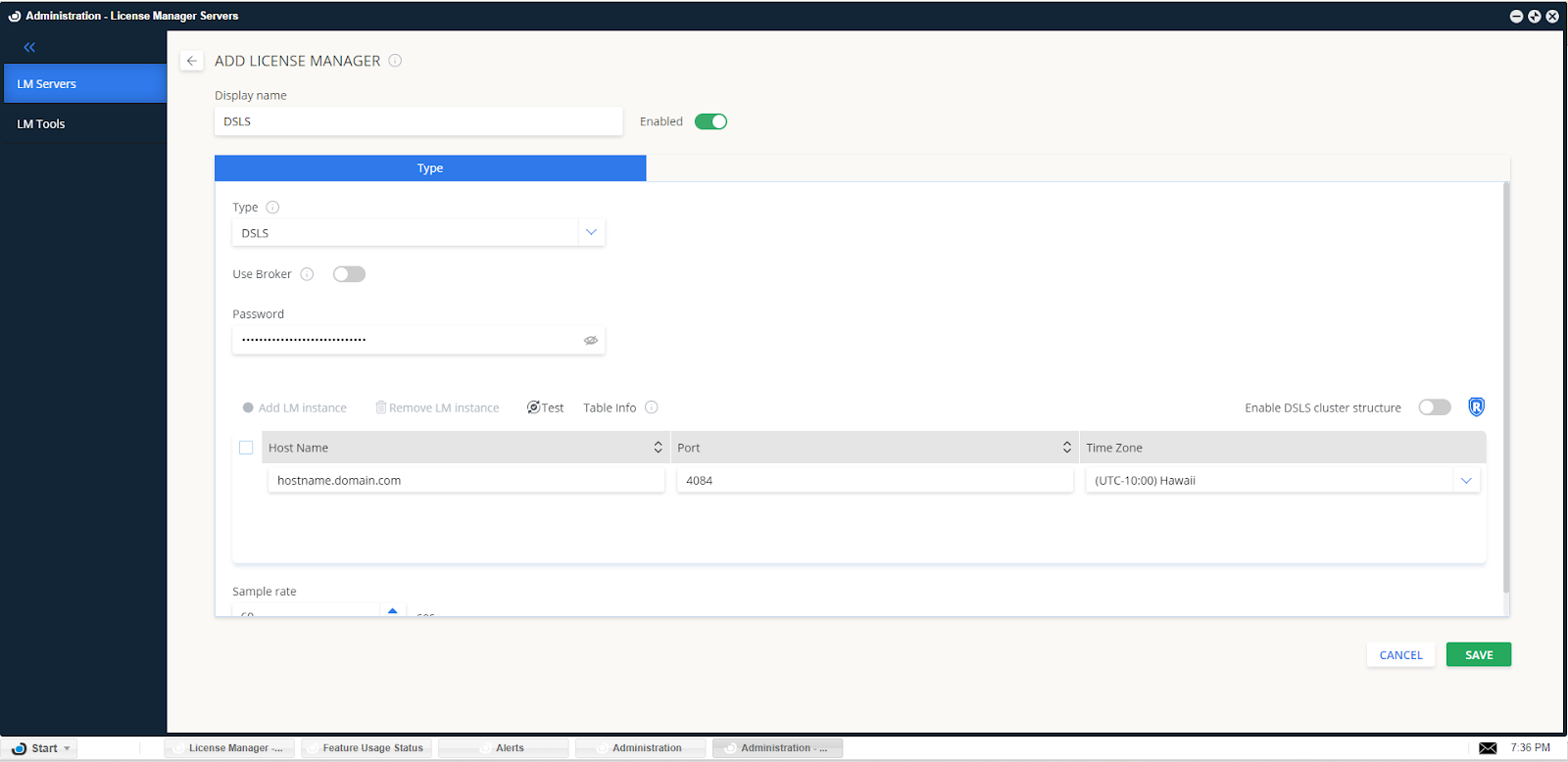
クラスタ構成オプション
- SAVE をクリックします。
- LM Tools タブに切り替えます。
- LM Type → DSLS を設定します。
- DSLS 実行ファイルのパスを入力します(例:
C:\Program Files\Dassault Systemes\DS License Server\win_b64\code\bin)。 - SAVE をクリックします。
これで OpenLM Server から DSLS を問い合わせ、EasyAdmin に表示できるようになります。
OpenLM Server + Broker で DSLS を連携
Broker による DSLS 連携
OpenLM Broker は任意ですが推奨です。DSLS サーバーにインストールし、ローカルで問い合わせて OpenLM Server に転送します。安定した通信が確保されます。
Broker で取得できる情報:
- ライセンス使用状況レポート
- 拒否の詳細
- 借用ライセンス(オフライン)情報
Broker の設定
- 最新の Broker をインストールします。Broker 設定ガイドを参照してください。
- Broker Web UI を開きます: http://localhost:5090/。
- License Managers タブに移動します。
- Detect を使用して DSLS を自動検出します。
検出できない場合は Add License Manager をクリックし、DSLS を選択してポートを入力し、ADD をクリックします。
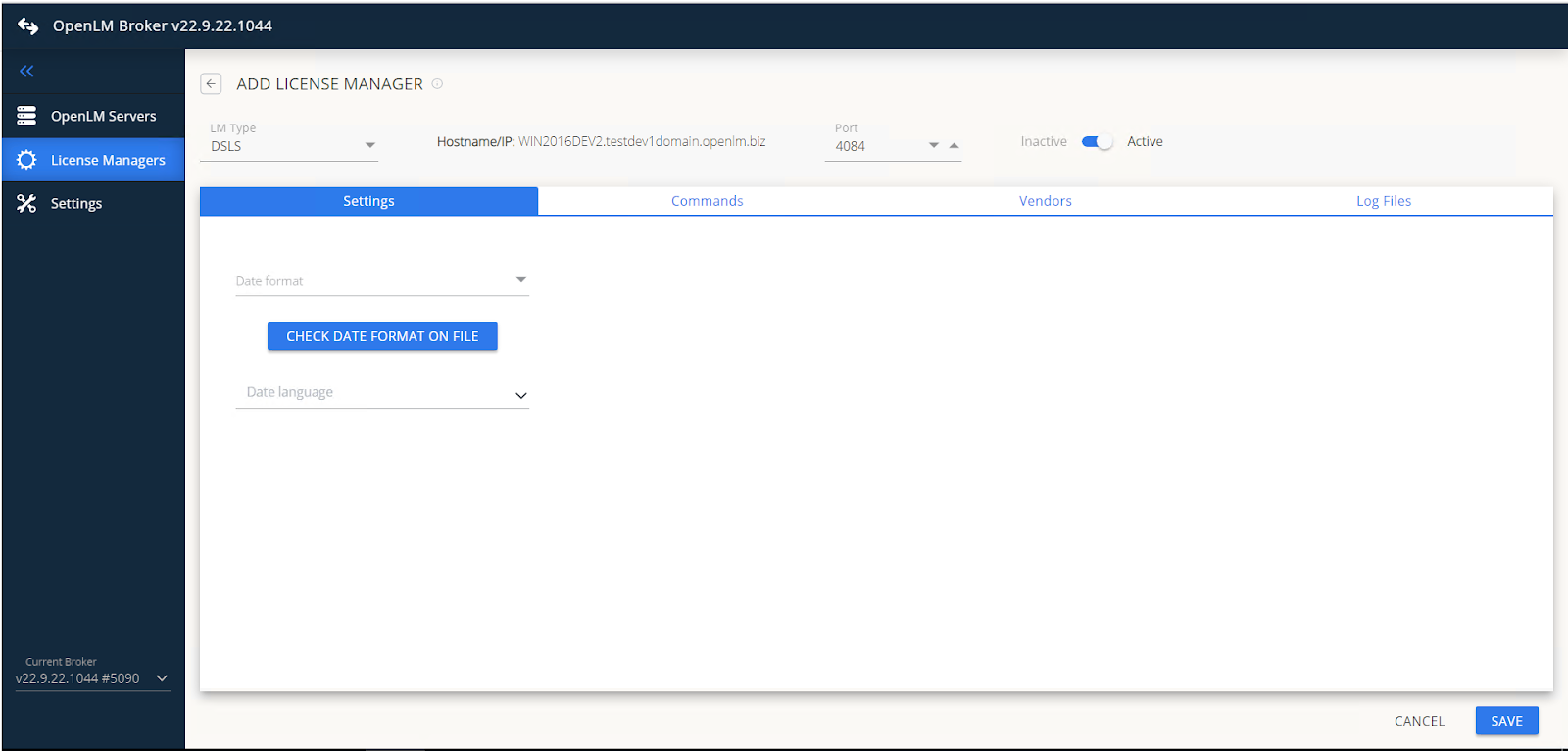
Broker で DSLS を追加 - Date format と Language をライセンスファイルに合わせます。
- Commands タブで
DSLicSrv.exeのパスを入力し、Execute でテストします。注意DSLS でパスワードを使用する場合は、コマンド構文に追加します。各セミコロンの前にはスペースを入れてください。
- Vendors タブで Add Vendor → Dassault Systemes を追加します。
- 複数サーバー構成の場合は各 DSLS マシンに Broker をインストールします。
status、data_inquiry、denialの各コマンドでロケールen_USを使用することを確認します。
DSLS ログファイルの設定
- Log files タブで Add Log File をクリックします。
- Type を Other に設定します。
- ファイル名(例: DSLS log file)を入力します。
- ファイルパスを入力または参照します(例:
C:\my_dsls_log.log)。 - ベンダーに Dassault Systemes を選択します。
- ログがローテーションする場合は Watch files by pattern をオンにします。
EasyAdmin での確認
- EasyAdmin を開きます。
- Start → Widgets → License Servers に移動します。
- 一覧に DSLS が表示されることを確認します。緑色の丸アイコンは接続が有効であることを示します(反映まで数分かかる場合があります)。
DSLS の拒否レポート
EasyAdmin で Start → Reports → Denials に移動します。
注意
拒否は「真の拒否」のみがフィルタリングされます。OpenLM が後続のライセンス付与を確認するまで、レポートが遅延する場合があります。
これで DSLS の監視が設定されました。