License4J
概要
OpenLM は幅広い ライセンスマネージャー の監視に対応しています。
本記事では License4J License Manager と連携し、ライセンス使用状況レポートを生成するための設定方法を説明します。この機能は License4J 4.3.4 以降で利用できます。
前提条件
License4J ライセンスサーバーを監視するには、次のコンポーネントをインストールしてください:
- License4J ライセンスサーバーに License4J add-on for OpenLM をインストールします。アドオンがサーバーをローカルで問い合わせます。
- 同じ License4J ライセンスサーバーに OpenLM Broker をインストールします。Broker が問い合わせ結果を OpenLM Server に転送します。
- ネットワーク上の任意の Windows マシンに OpenLM Server をインストールします(同一サーバーでも可)。EasyAdmin Web アプリで結果を解析・表示します。
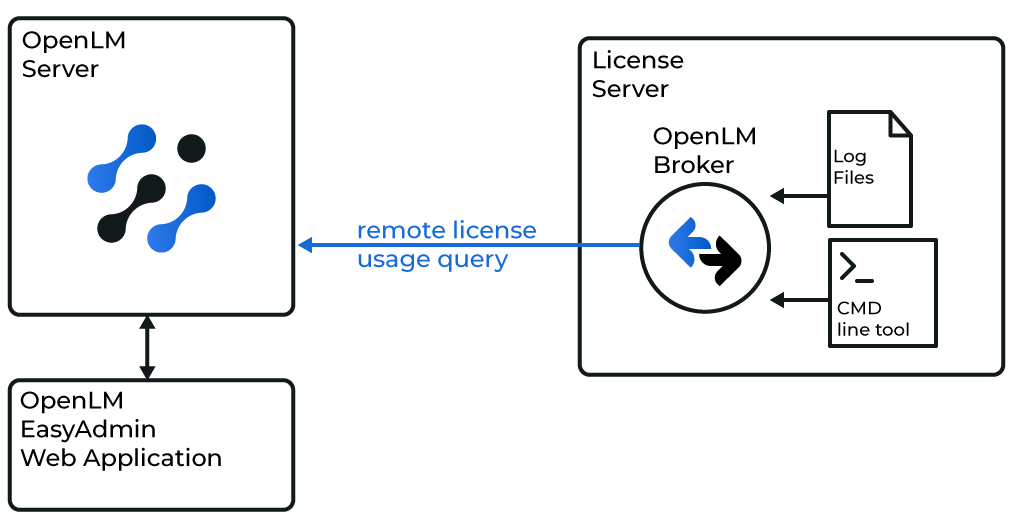
設定
OpenLM Server の設定
- OpenLM Server をダウンロードしてインストールします。
- OpenLM Server Configuration ツールを開きます。
- License Servers タブで Add をクリックします。
- Type のドロップダウンから OpenLM Generic を選択します。
- Description にわかりやすい名前(例: License4J server)を入力します。
- ライセンスサーバーの場所の Time Zone を設定します。
- サーバーの hostname または IP(例: license4j_server)を入力します。
- Broker の設定でも同じホスト名を使用します。
- License4J の ポート番号(例: 16090)を入力します。
- Broker の設定でも同じポートを使用します。
- Is Triad Configuration はオフにします。License4J は triad 構成に対応していません。
- Use Broker をオンにします。
- Apply をクリックします。
OpenLM Broker の設定
-
OpenLM Server のホスト名(例: my_openLM_server)を入力します。
-
通信ポートを設定します(既定は 5015)。OpenLM Server のポートが受信通信で開いていることを確認します。
-
OpenLM Server の設定と一致するライセンスサーバー情報を設定します:
- License Servers ノードを選択します。
- 同じホスト名(例: license4j_server)を入力し、Apply をクリックします。
-
ライセンスサーバーのポートを追加します:
- license4j_server ノードを選択します。
- Add Port をクリックします。
- OpenLM Server と同じポート番号(例: 16090)を入力します。
- License Manager Type のドロップダウンで OpenLM Generic を選択します。
- Apply をクリックし、続けて OK をクリックします。
-
License4J add-on をダウンロードし、License4J サーバー上で展開します(例:
C:\tmp)。 -
Commands を開き、data_inquiry ノードを選択します。License4J コマンドのフルパスを入力します:
java -jar "<FullPath>\FloatingLicenseServerQueryOpenLM.jar" <ServerNameOrIP>:<PortNumber>例:
java -jar "C:\tmp\FloatingLicenseServerQueryOpenLM\FloatingLicenseServerQueryOpenLM.jar" license4j_server:16090 -
Execute をクリックして Data Inquiry コマンドをテストします。
-
Apply をクリックします。
-
Status コマンドでも手順 7〜9 を繰り返します。
-
Vendors ノードを展開し、ベンダー名に License4J を入力します。
-
Apply をクリックします。Vendor details changed が表示された場合は No を選択します。
-
Restart Broker をクリックします。
これで OpenLM が License4J のライセンス使用状況を監視できるようになります。