BetaLM
OpenLM は、幅広い ライセンスマネージャー の監視に対応しており、対応範囲は拡大し続けています。
本ガイドでは、OpenLM を BetaLM ライセンスマネージャーと連携させ、ライセンス使用状況を監視して統計情報を収集するための設定方法を説明します。
BetaLM ライセンスサーバーを問い合わせる方法は 2 通りあります:
- OpenLM Server からライセンスサーバーを直接問い合わせる。
- ライセンスサーバーに OpenLM Broker をインストールし、ローカルで問い合わせて結果を OpenLM Server に転送する。
オプション 1: OpenLM 直接サーバー方式
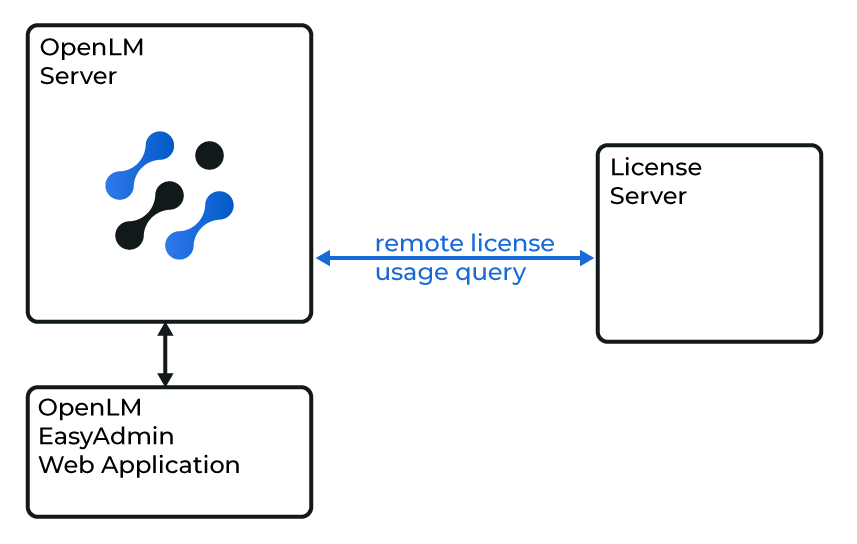
OpenLM Server の設定
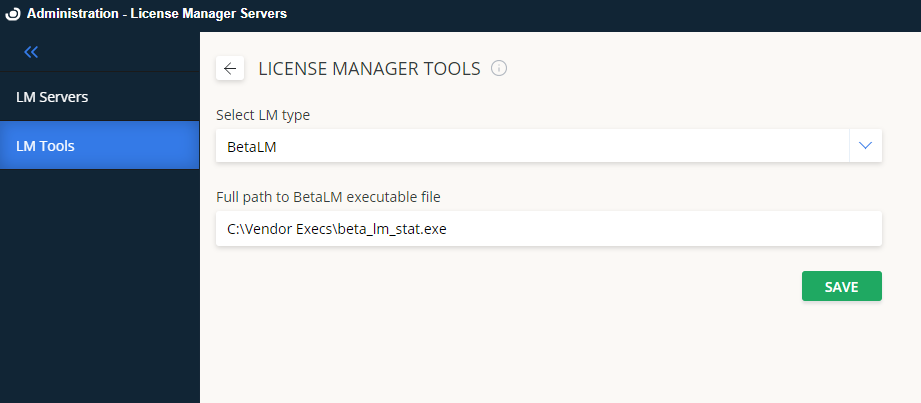
OpenLM が BetaLM ライセンスサーバーにアクセスできるようにするには:
- EasyAdmin を開きます。
- Start → Administration → License Manager Servers に移動します。
- LM Tools をクリックします。
- LM Type から BetaLM を選択します。
beta_lm_stat.exeをC:\Program Files\OpenLM\OpenLM Server\LM\にコピーし、フルパスを入力します。- Save をクリックします。
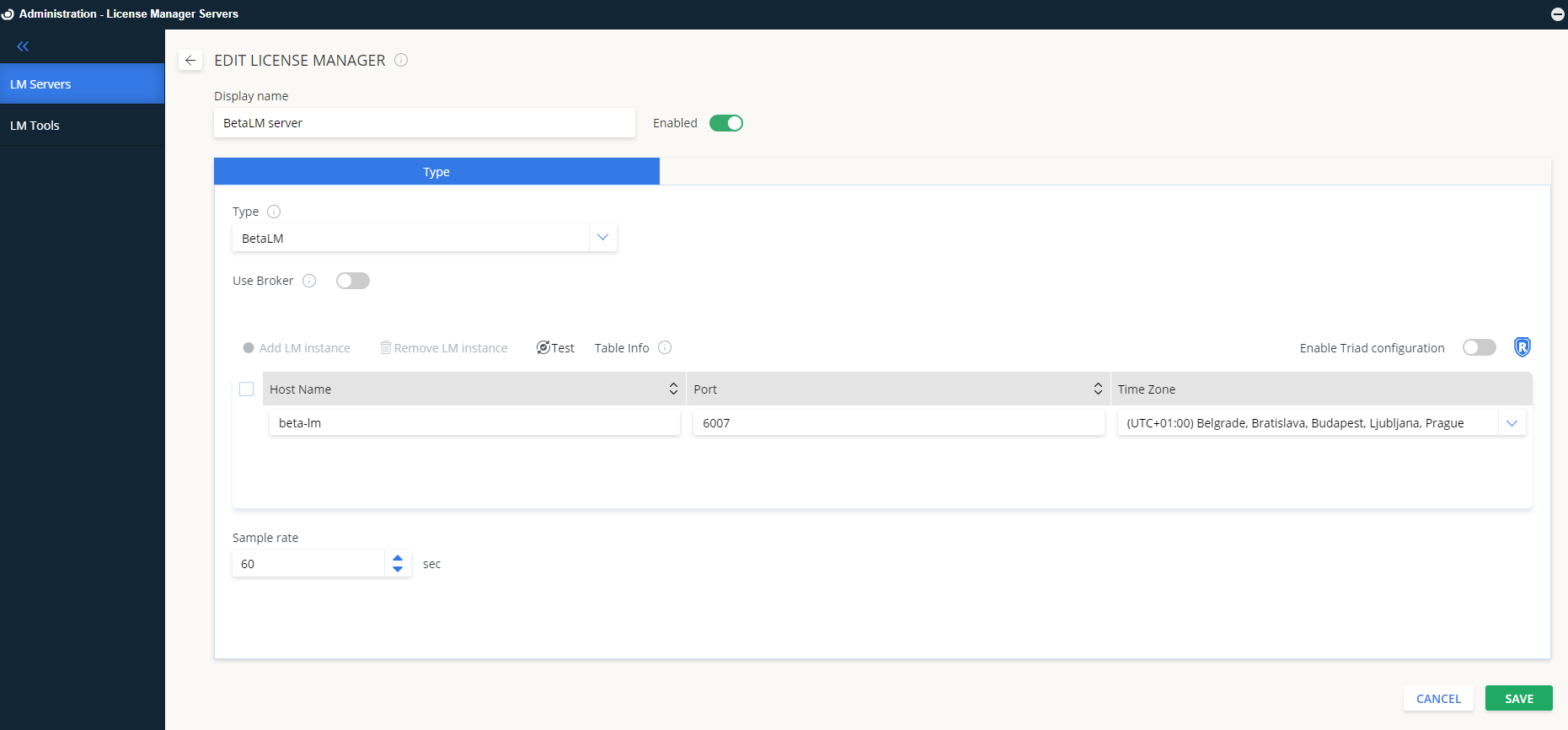
BetaLM サーバーの追加
- LM Servers に切り替えます。
- Add LM をクリックします。
- Display name にわかりやすい名前を入力します。
- Type から BetaLM を選択します。
- Hostname と Port を入力します(既定: 6007)。
- ライセンスサーバーの Time Zone を正しく設定します。
- 冗長構成を使用する場合は Triad Configuration を有効にできます(すべてのライセンスマネージャーが対応しているわけではありません)。
- Use Broker を設定します:
- Off(既定): OpenLM Server がライセンスマネージャーを直接問い合わせます。
- On: ライセンスサーバーにインストールされた Broker を使用します。
- Save をクリックします。
これで OpenLM Server が BetaLM を問い合わせ、EasyAdmin に結果を表示できるようになります。
オプション 2: OpenLM Broker 経由
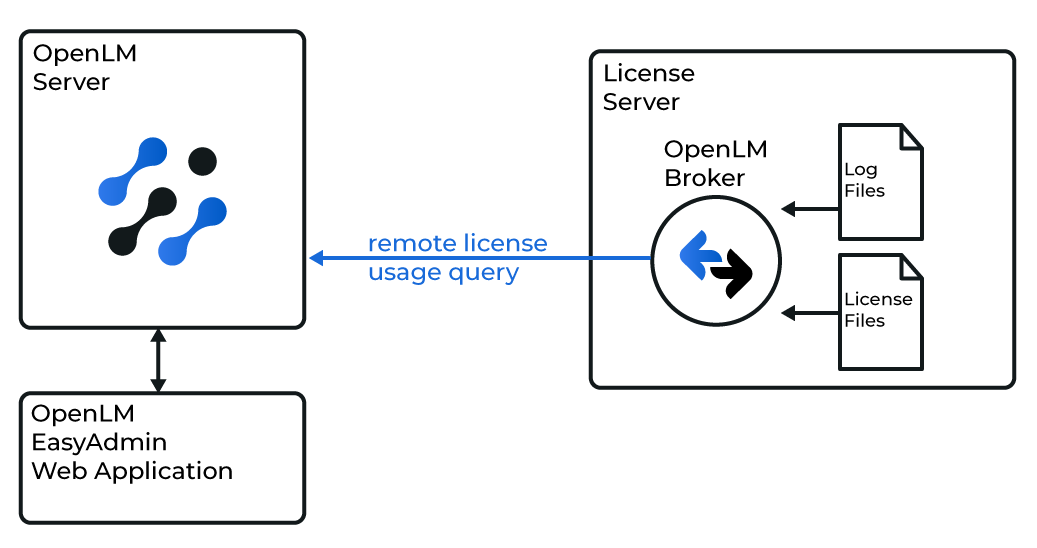
OpenLM Broker は任意ですが推奨です。BetaLM ライセンスサーバーにインストールすると、ローカル問い合わせと OpenLM Server へのバッファ付き通信が可能になります。これにより一時的なネットワーク障害時のデータ損失を防げます。
OpenLM Server の設定
オプション 1 と同じ手順で設定し、Use Broker をオンにします。
OpenLM Broker の設定
- 最新の OpenLM Broker をダウンロードしてインストールします。
- Add Port をクリックします。
- BetaLM ライセンスサーバーのポート(既定: 6007)を入力します。
注意
ポート番号は OpenLM Server の設定と完全に一致させる必要があります。
- status と data_inquiry の各ノードに
beta_lm_stat.exeのフルパスを入力します。例:続けて Apply をクリックします。C:\Program Files\OpenLM\OpenLM Server\LM\beta_lm_stat.exe
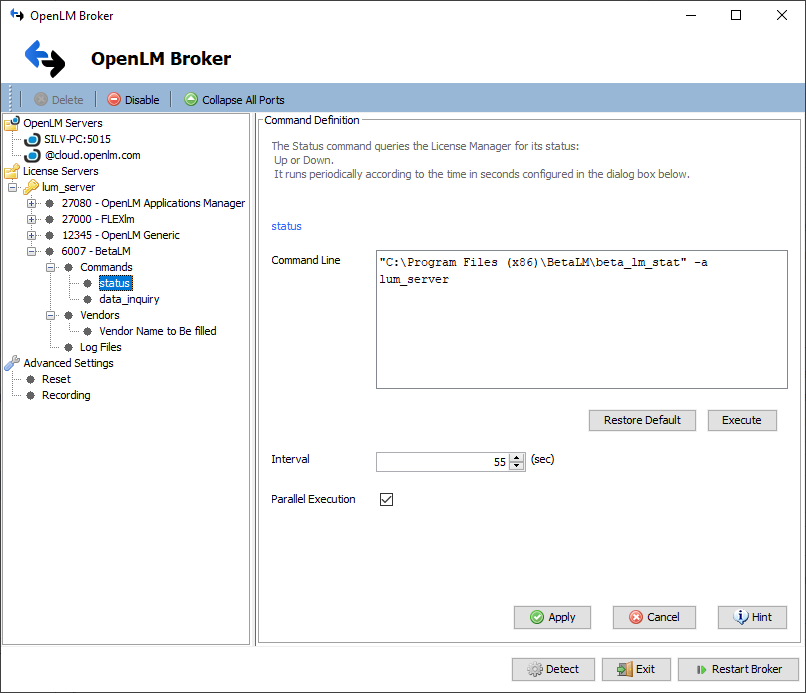
- Restart Broker をクリックします。
- または
http://localhost:5090/の Broker Web UI から設定します。
EasyAdmin で設定を確認
BetaLM が監視されていることを確認するには:
- ブラウザで
http://<OpenLM Server hostname>:5015にアクセスし、EasyAdmin を開きます。 - 設定した BetaLM ライセンスサーバーが一覧に表示されていることを確認します。
- 緑色の丸アイコンは接続が有効であることを示します。
有効になったら、BetaLM のライセンス使用状況データがレポートやダッシュボードで利用できます。