Sparx
:::info 監視に関する注意 OpenLM は OpenLM Broker を介して Sparx License Manager(SparxLM)と連携し、ライセンス使用状況と統計情報を収集します。 :::
要件
- 組織内のマシンに OpenLM Server v21.x 以降をインストール済み。
- Sparx License Manager と同じマシンに OpenLM Broker v21.x 以降をインストール済み。
OpenLM Broker の設定
- 最新の OpenLM Broker をインストールします。Broker 設定ガイドに従って構成します。
- Broker 設定でホスト名ノード(例:
L312MD)を選択し、Add Port をクリックします。
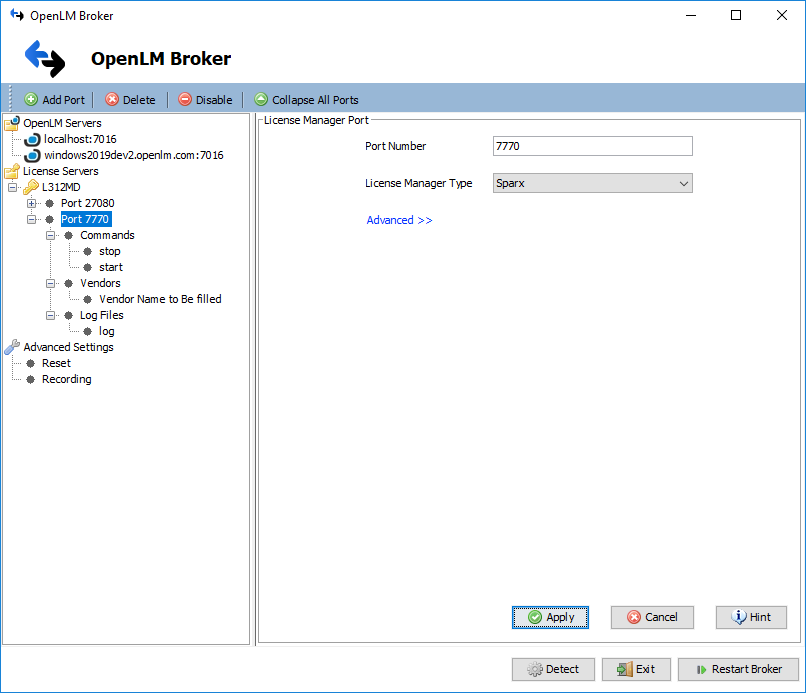
- Sparx サーバーのポート(既定: 7770)を入力し、License Manager Type のドロップダウンから Sparx を選択して Apply をクリックします。
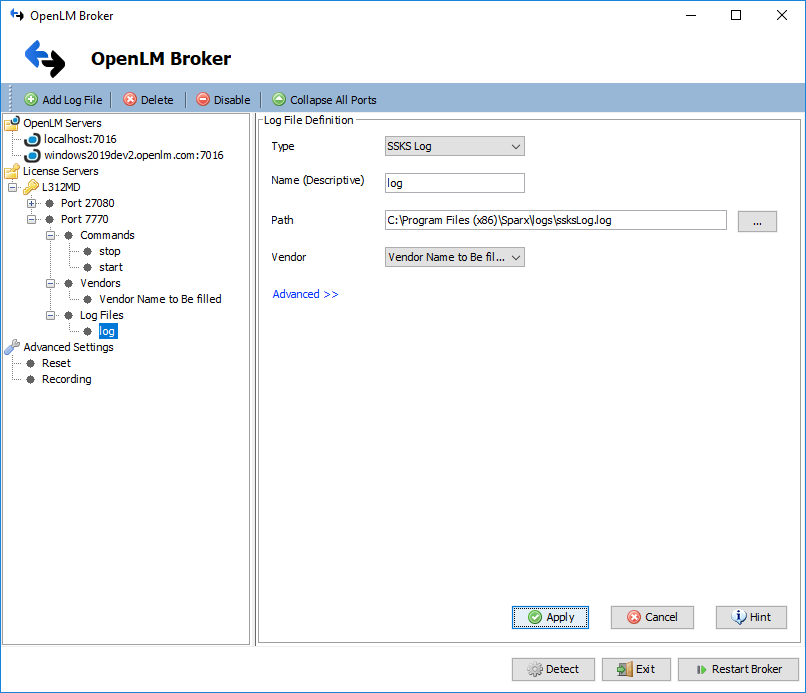
- 新しいポートノード配下で Log Files → Add Log File を右クリックし、次のように設定します:
- Type: SSKS Log
- Name: わかりやすい名前(例: “Sparx log”)
- Path: Sparx のインストールログフォルダ内の
ssksLog.logファイル - Vendor: Vendors ノードで定義したベンダーを選択
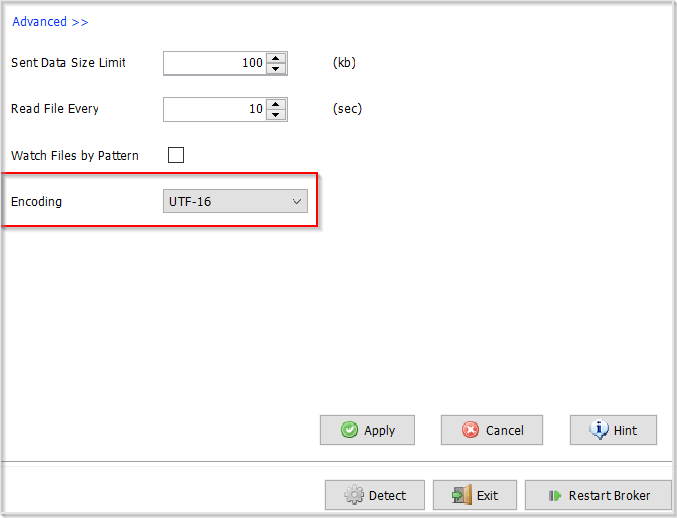
- Encoding: 既定では Sparx のログは UTF-16 です。ログファイルに BOM がない場合は、Log File Definition 画面の Advanced で手動設定してください(UTF-16 または UTF-16LE を選択)。
- Apply をクリックします。
- Restart Broker をクリックし、数秒待ってから「Service started successfully」メッセージで OK をクリックします。
- EasyAdmin(
http://<OpenLM Server FQDN>:5015またはhttps://cloud.openlm.com)を開き、License Servers ウィンドウで Sparx エントリの Approve をクリックします。
Broker UI で設定(代替方法)
- Broker UI を
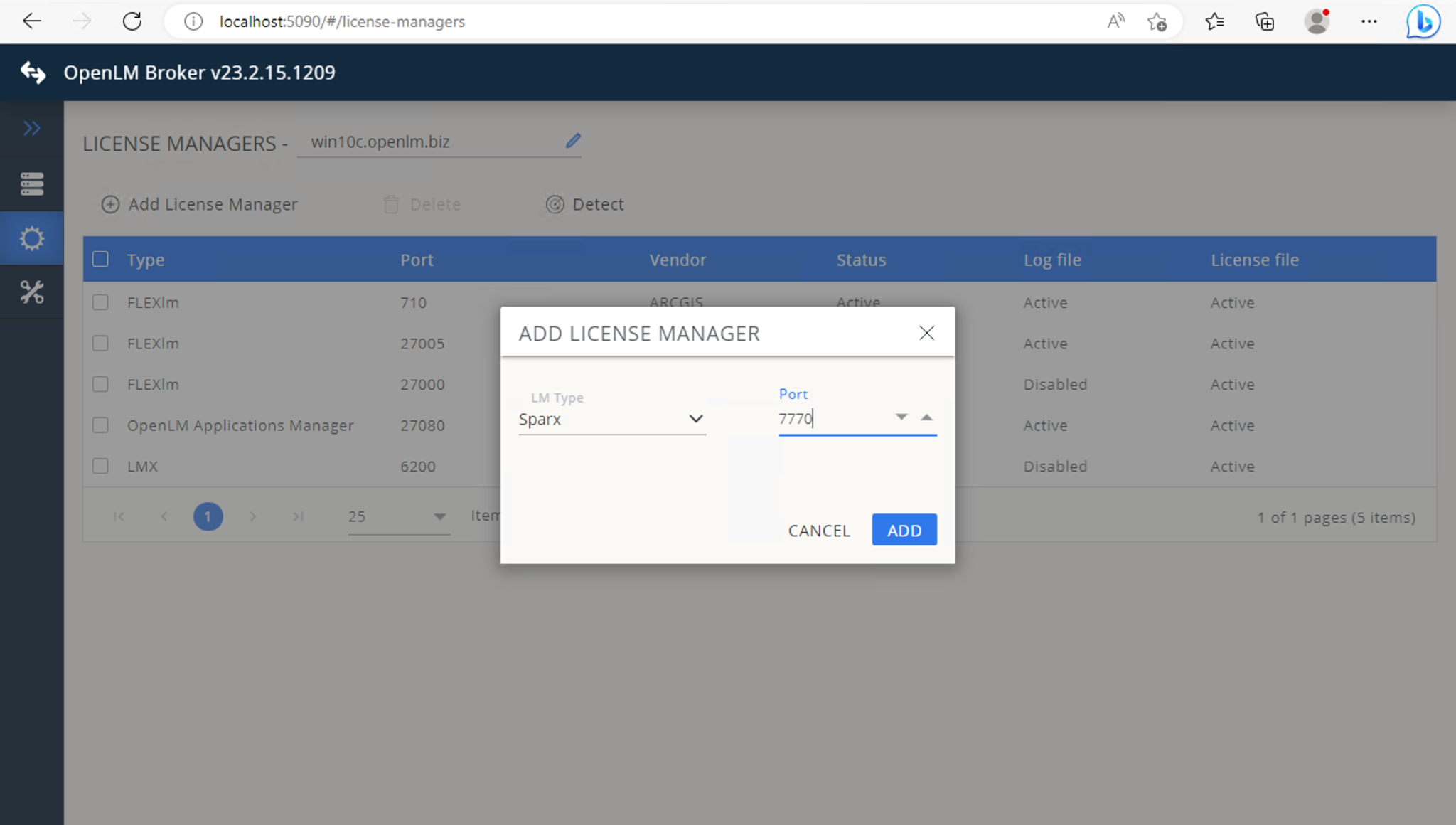
http://localhost:5090/で開きます。 - License Managers → Add License Manager に移動します。
- LM type に Sparx を選択し、ポート(既定 7770)を入力して Add をクリックします。
- 必要に応じてコマンドや実行オプションを設定します(例: 起動/停止の切り替え、定期/オンデマンドの問い合わせ)。
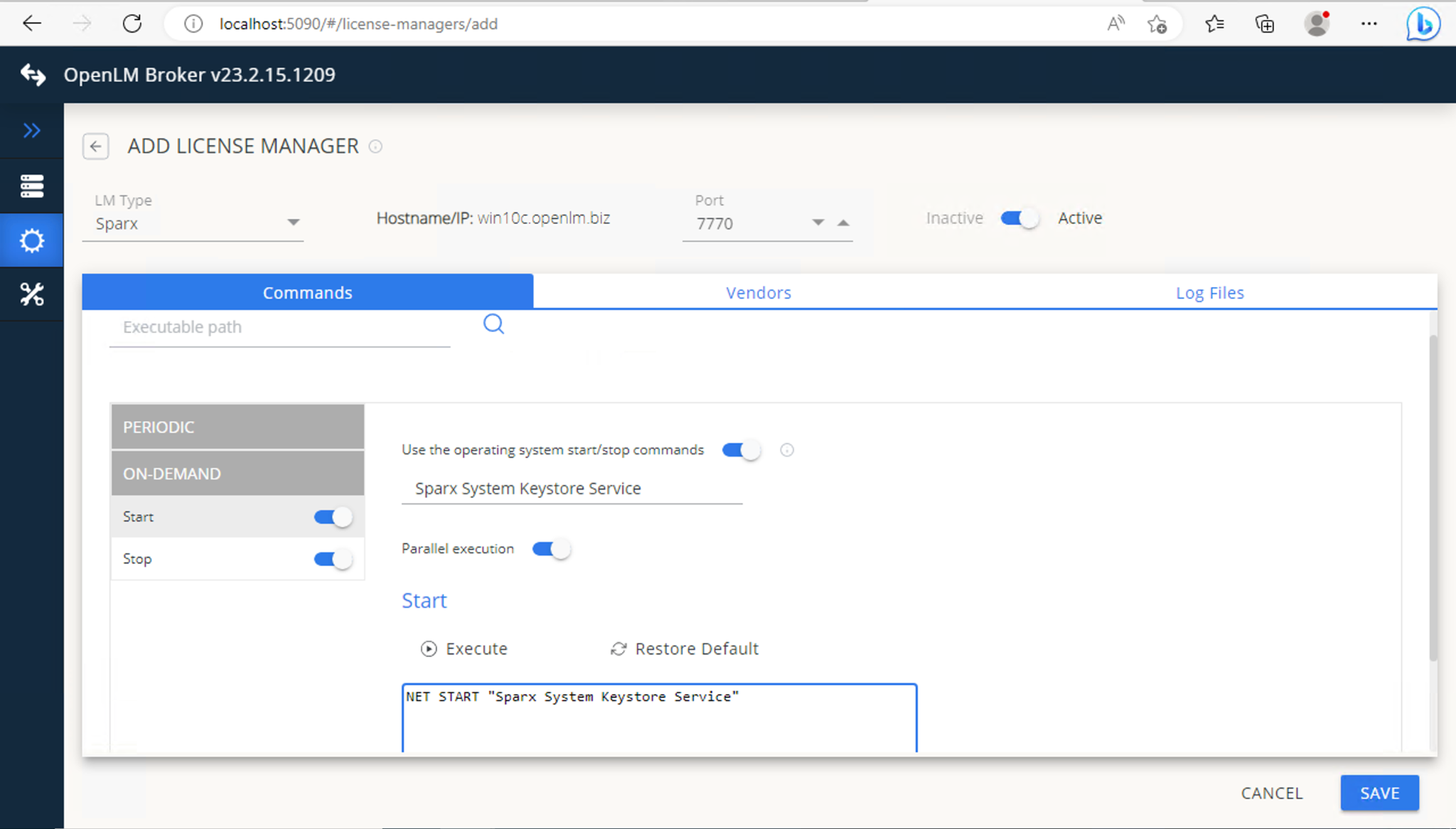
- ログファイル設定を追加します(上記と同様)。
- Type: SSKS Log
- Path:
ssksLog.log - Encoding: UTF-16
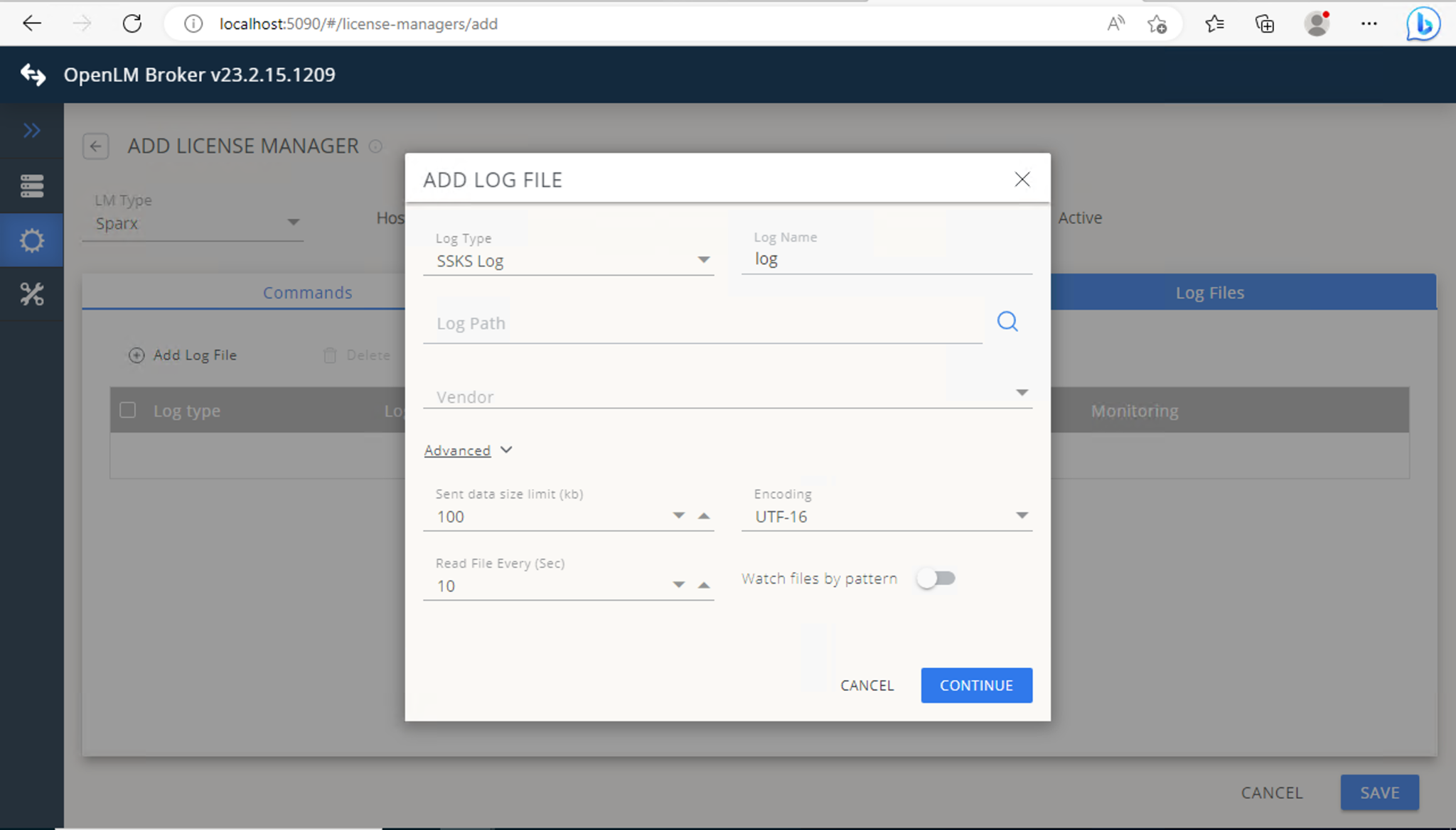
- 設定を保存します。
OpenLM Server の設定
自動承認が完了しない場合は、手動で設定します:
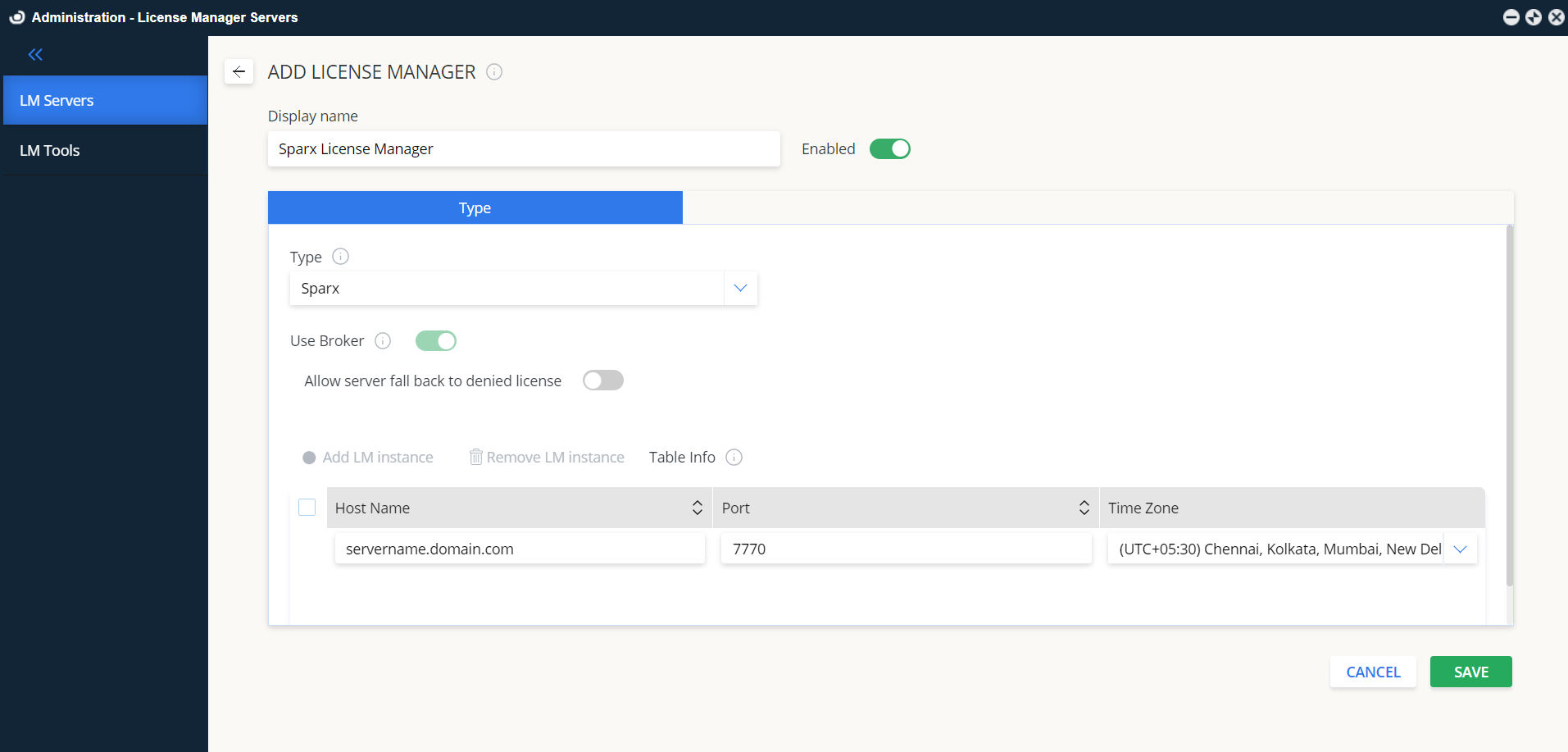
- EasyAdmin → Administration → License Manager Servers で Add LM をクリックします。
- 次を入力します:
- Display name: 例: SparxLM
- Type: Sparx
- Description: 任意のテキスト(例: “Sparx License Manager”)
- Time Zone: ライセンスサーバーの所在地
- Hostname と Port: Broker の設定に合わせる(既定ポート 7770)
- Use Broker: オン
- Save をクリックします。
監視の確認
- EasyAdmin(
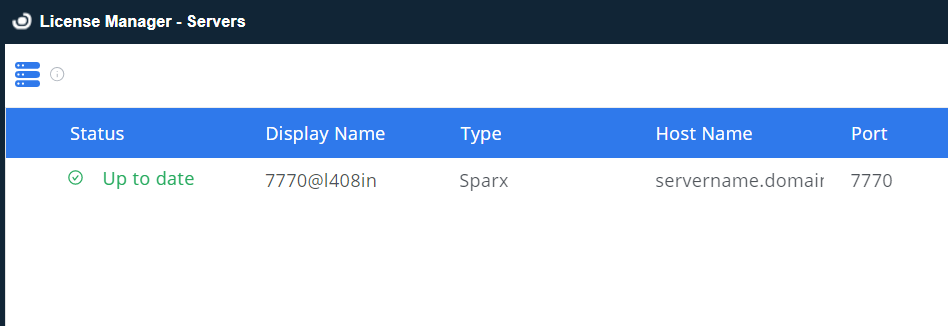
http://<OpenLM Server FQDN>:5015またはhttps://cloud.openlm.com)を開きます。 - Start → Widgets → License Manager Servers に移動します。
- 一覧に SparxLM が表示され、緑色のステータス表示(アクティブ接続)になっていることを確認します。
既知の制限
- Sparx のライセンス拒否は監視されません。