EasyCopy
概要
OpenLM は、Flexera FLEXnet Publisher (FLEXlm) や Sentinel RMS など、幅広いネットワークライセンスの監視に対応するライセンス管理/監視システムです。
EasyCopy はエンジニアリング、地球科学、ライフサイエンス向けのグラフィックソリューションを提供します。
OpenLM は EasyCopy のビジネスパートナー です。
本記事では EasyCopy License Manager を監視し、ライセンス使用状況レポートを生成するための設定方法を説明します。この機能は EasyCopy 8.7.12 以降で利用できます。
前提条件
EasyCopy のライセンス使用状況を監視するには次を用意してください:
- EasyCopy ライセンスサーバーに OpenLM Broker をインストール済み。
- ネットワーク内の任意の Windows マシンに OpenLM Server をインストール済み(同一マシンでも可)。
Broker が EasyCopy ライセンスサーバーをローカルで問い合わせ、OpenLM Server にデータを転送します。
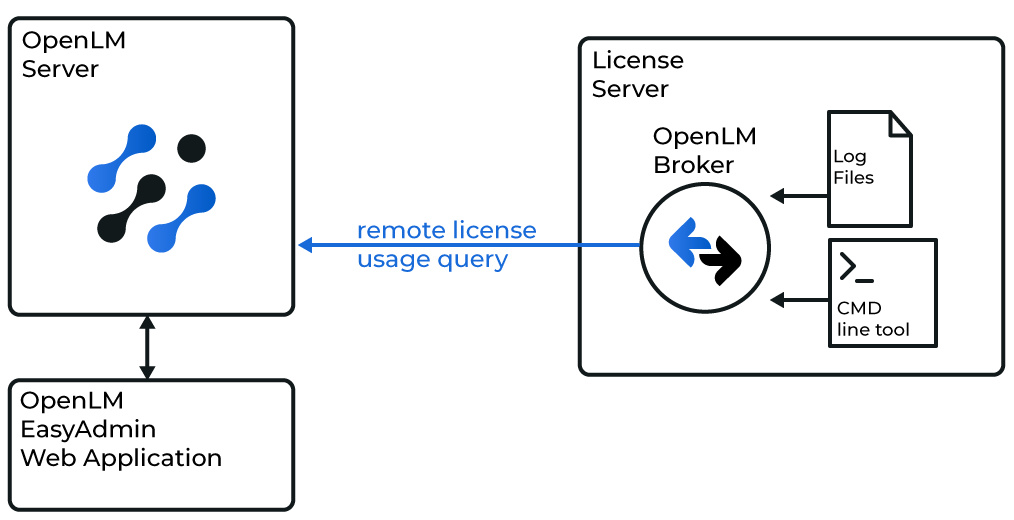
OpenLM を EasyCopy と連携する設定
OpenLM Server の設定
- OpenLM Server をダウンロードしてインストールします。
- EasyAdmin で Administration → License Manager Servers → Add LM → Type に移動します。
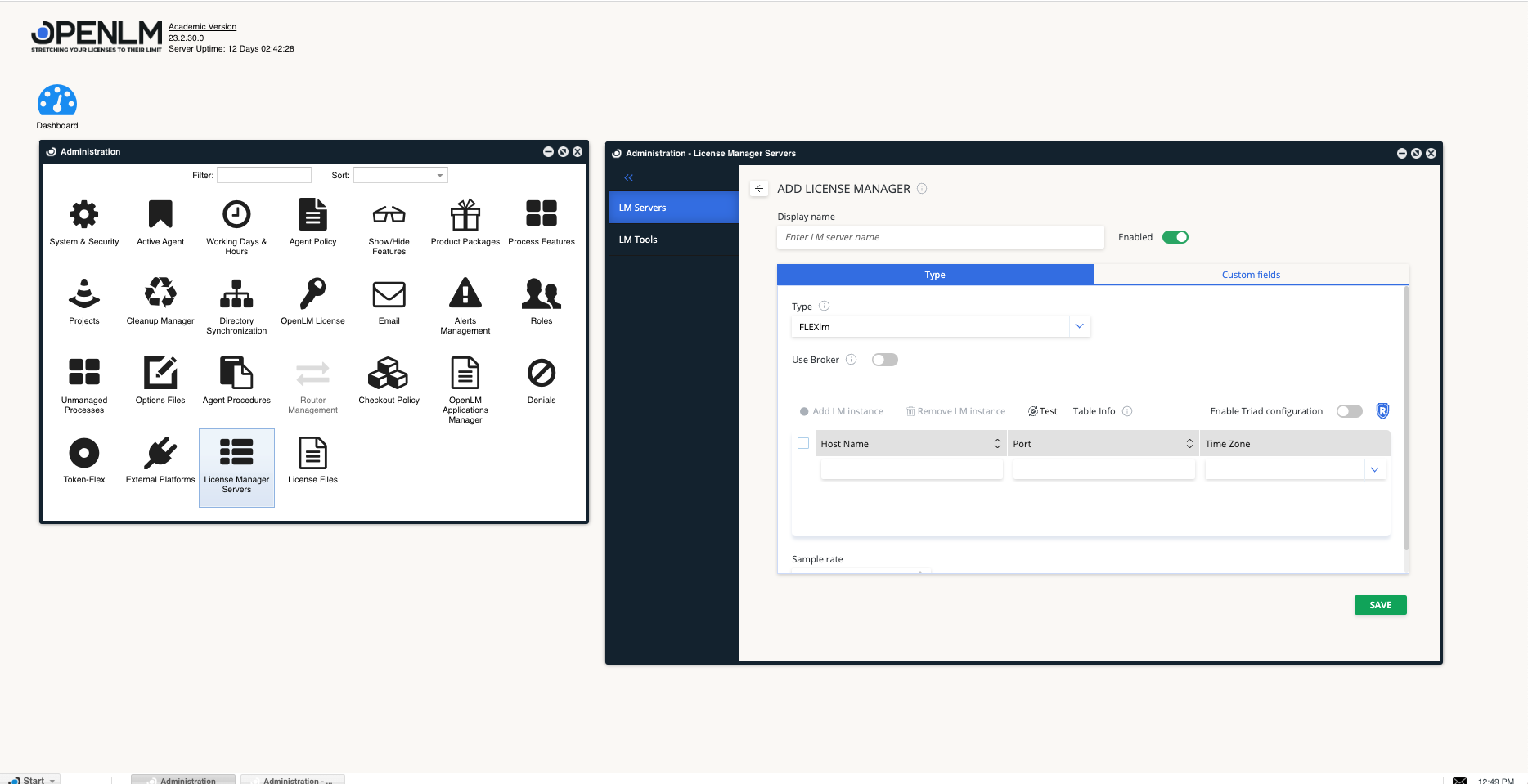
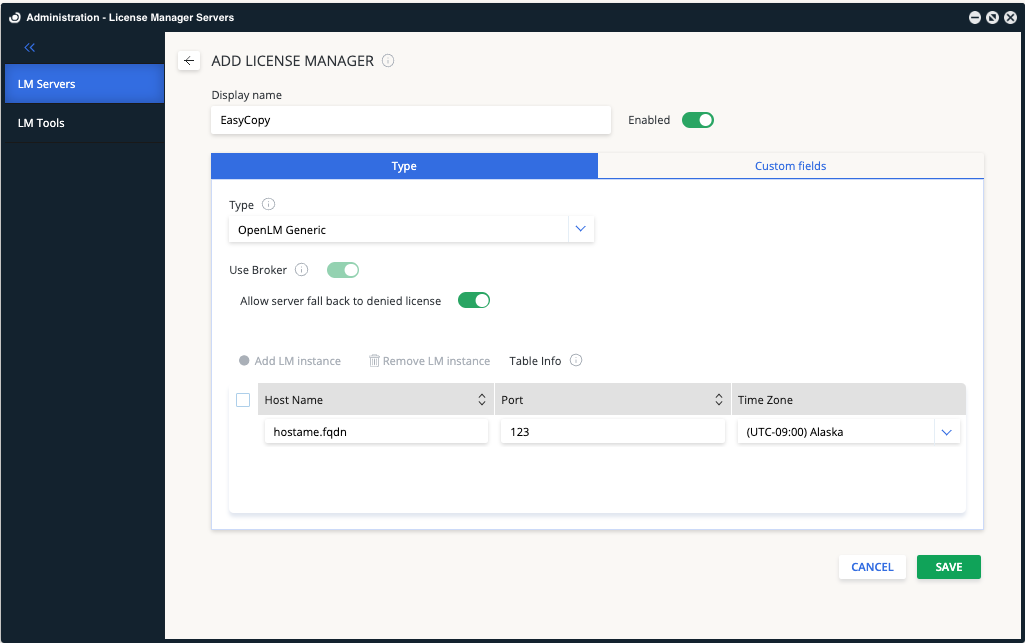
- 説明(例: My EasyCopy license server)を入力します。
- Type のドロップダウンから OpenLM Generic を選択します。
- ライセンスサーバーの Time Zone を設定します。
- Hostname に EasyCopy サーバー名(例: easycopy_server)を入力します。
- Port: EasyCopy は特定のポートを使用しません。任意の 3 桁の番号を入力します。
- Broker の設定でも同じ番号を使用します。
- Use Broker: チェックをオンにします。
- 有効にすると、使用状況情報はサーバー上の Broker により収集されます。
- Allow Server fall back to denied license: 他の EasyCopy サーバーからライセンス取得に成功した場合に拒否を無視する場合は有効にします。
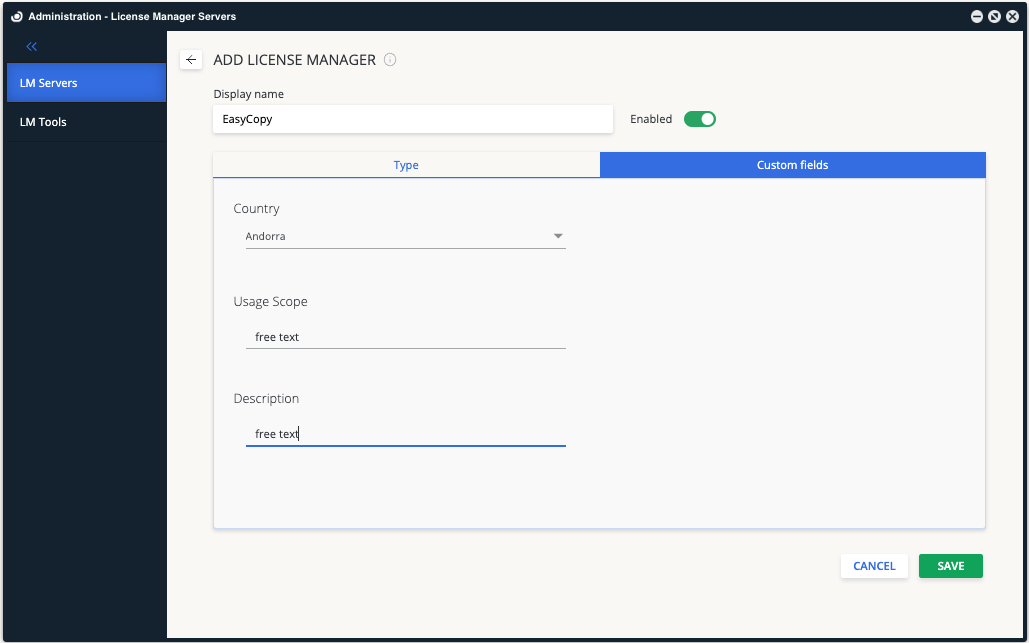
- Custom fields タブに切り替え、Country、Usage Scope、Description などの詳細を入力します。
- Save をクリックします。
OpenLM Broker の設定
-
OpenLM Server のホスト名(例: my_openLM_server)を入力します。
-
OpenLM Server のポート(既定 5015)が受信通信で開いていることを確認します。
-
新しいポートを追加し、種別を OpenLM Generic に設定します。
-
OpenLM Server で設定したライセンスサーバー名とポート番号(例: easycopy_server, 123)を入力します。
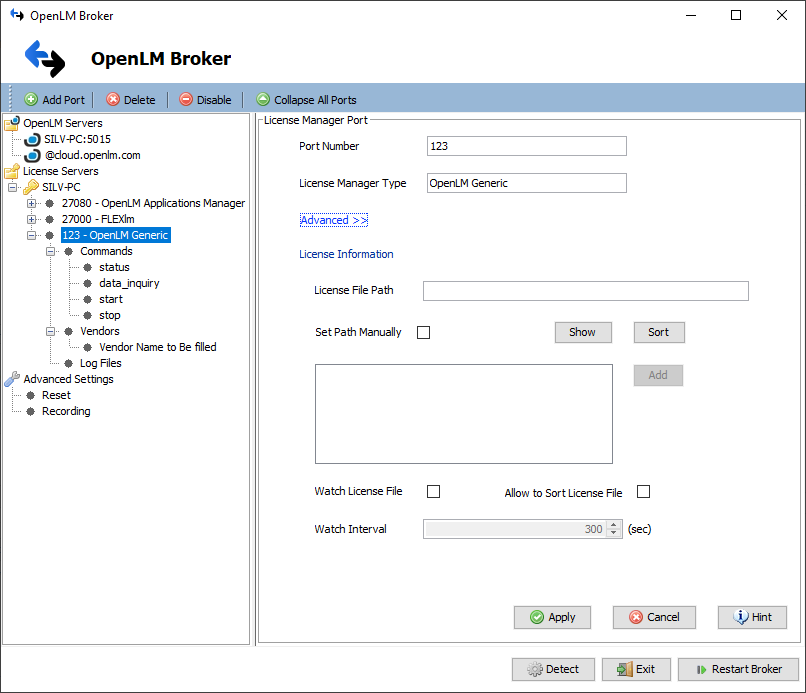
-
status と data_inquiry のコマンド欄に EasyCopy 実行ファイルのフルパスを入力します:
eclic.exe openlm -
Apply をクリックし、続けて Restart Broker をクリックします。
代替: Broker Web UI の手動設定
- 最新の OpenLM Broker をインストールします。
- Broker Web UI を
http://localhost:5090/で開きます。 - License Managers タブに移動します。
- Add License Manager をクリックします。LM type で OpenLM Generic を選択し、ポート(例: 123)を入力して Add をクリックします。
- Commands タブで
eclic.exe openlmのパスを入力し、Execute をクリックして出力を確認します。 - Vendors タブで Add Vendor をクリックし、
EasyCopyを入力します。 - Save をクリックします。
設定の確認
- EasyAdmin Web アプリを開きます。
- Start → Widgets → License Servers に移動します。
- 一覧に EasyCopy ライセンスサーバーが表示されることを確認します。
緑色の丸アイコンは接続が有効であることを示します。