Lloyd’s Register Licence Manager (LiMBR)
この連携により、OpenLM は Lloyd’s Register Licence Manager(LiMBR)のライセンス使用状況、拒否、借用ライセンス、有効期限を監視できます。
要件
- 組織内のマシンに OpenLM Server v21.x 以降をインストール済み、または Cloud アカウント。
- LiMBR と同じマシンに OpenLM Broker v21.x 以降をインストール済み。
監視機能と特徴
| 機能 | 粒度 | ライセンス総数 | ライセンス使用状況 | 拒否レポート | 借用ライセンスのレポート | 有効期限のレポート | 冗長化(複数サーバー) |
|---|---|---|---|---|---|---|---|
| 対応 | 開始時刻: 秒、終了時刻: 分 | ✔ | ✔ | ✔ | ✔ | ✔ | ❌ |
さらに OpenLM Broker を使用すると、バッファ付き通信と LiMBR サービスのリモート起動・停止が可能になります。
OpenLM Broker の設定
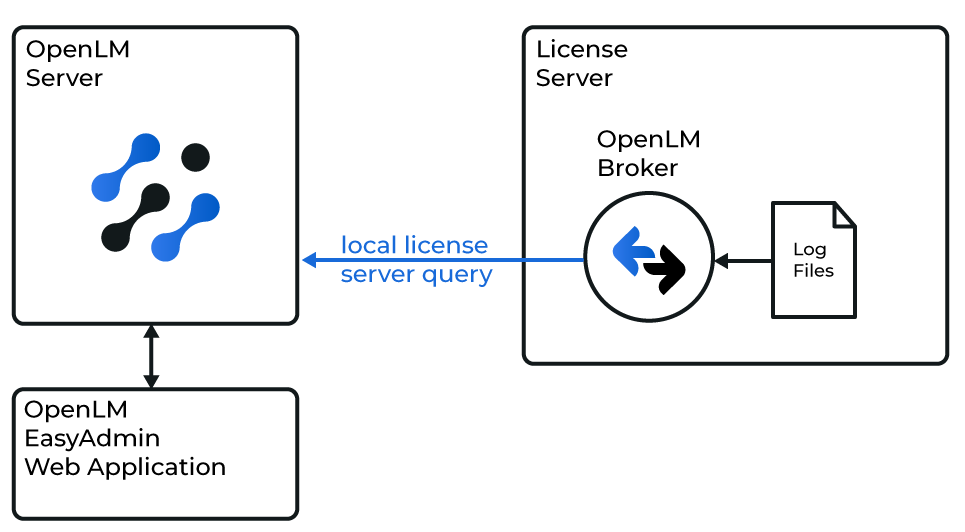
OpenLM と LiMBR の連携図
OpenLM Broker は LiMBR のコマンドラインユーティリティを使ってローカルで問い合わせ、結果を集計して OpenLM Server に送信します。
自動設定
- Broker 設定ツールで Detect をクリックします。
- LiMBR が稼働していれば、Broker が必要な設定でポートノードを作成します。
- Apply をクリックします。
- Restart Broker をクリックします。
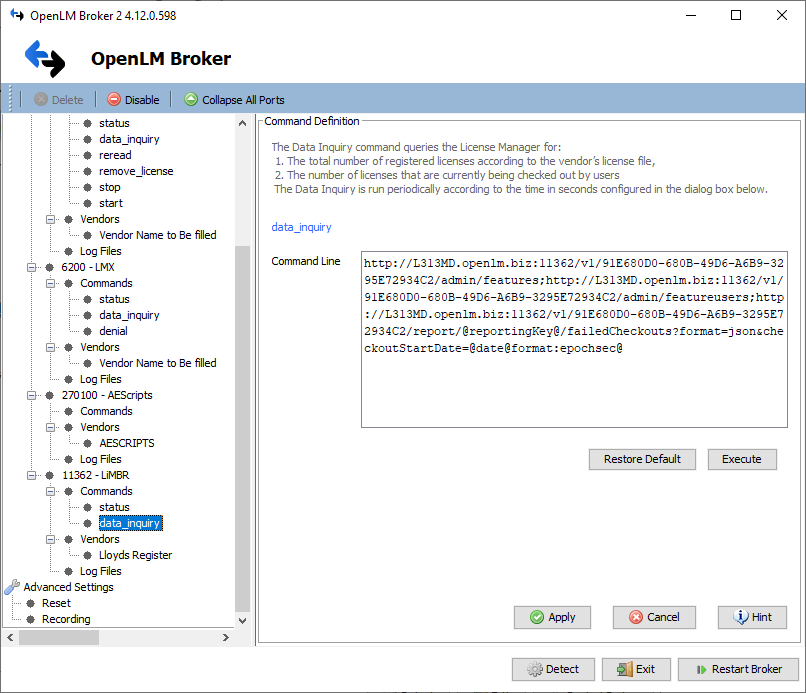
- 確認するには、Commands → data_query に移動して Execute をクリックします。

手動設定
- Add Port をクリックします。
- LiMBR のポート番号(既定:
11362)を入力します。 - License Manager Type を LiMBR に設定して Apply をクリックします。
- Commands で LiMBR のインストール先フォルダを参照し、Update → Apply をクリックします。
- status で構成を確認します。
- data_inquiry で Execute をクリックし、出力が有効であることを確認します。
- Restart Broker をクリックします。
- Vendors で Vendor Name に LiMBR を入力し、Apply をクリックします。
- もう一度 Apply をクリックします。
- Restart Broker をクリックします。
OpenLM Server の設定
EasyAdmin による自動設定
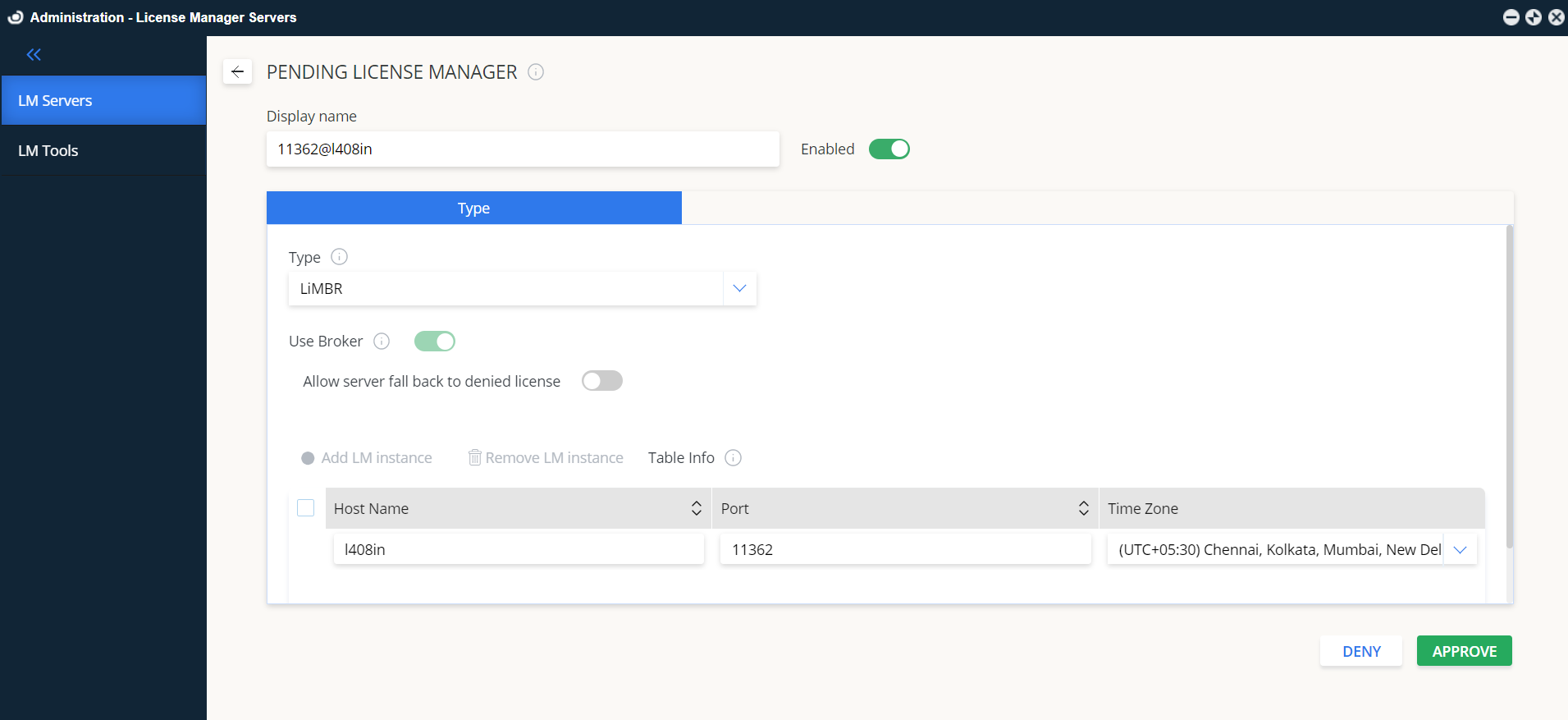
- EasyAdmin を開きます(
http://<OpenLM Server FQDN>:5015または Windows Start → OpenLM → OpenLM EasyAdmin User Interface)。 - License Manager Servers で新しい LiMBR エントリを承認します。

手動設定
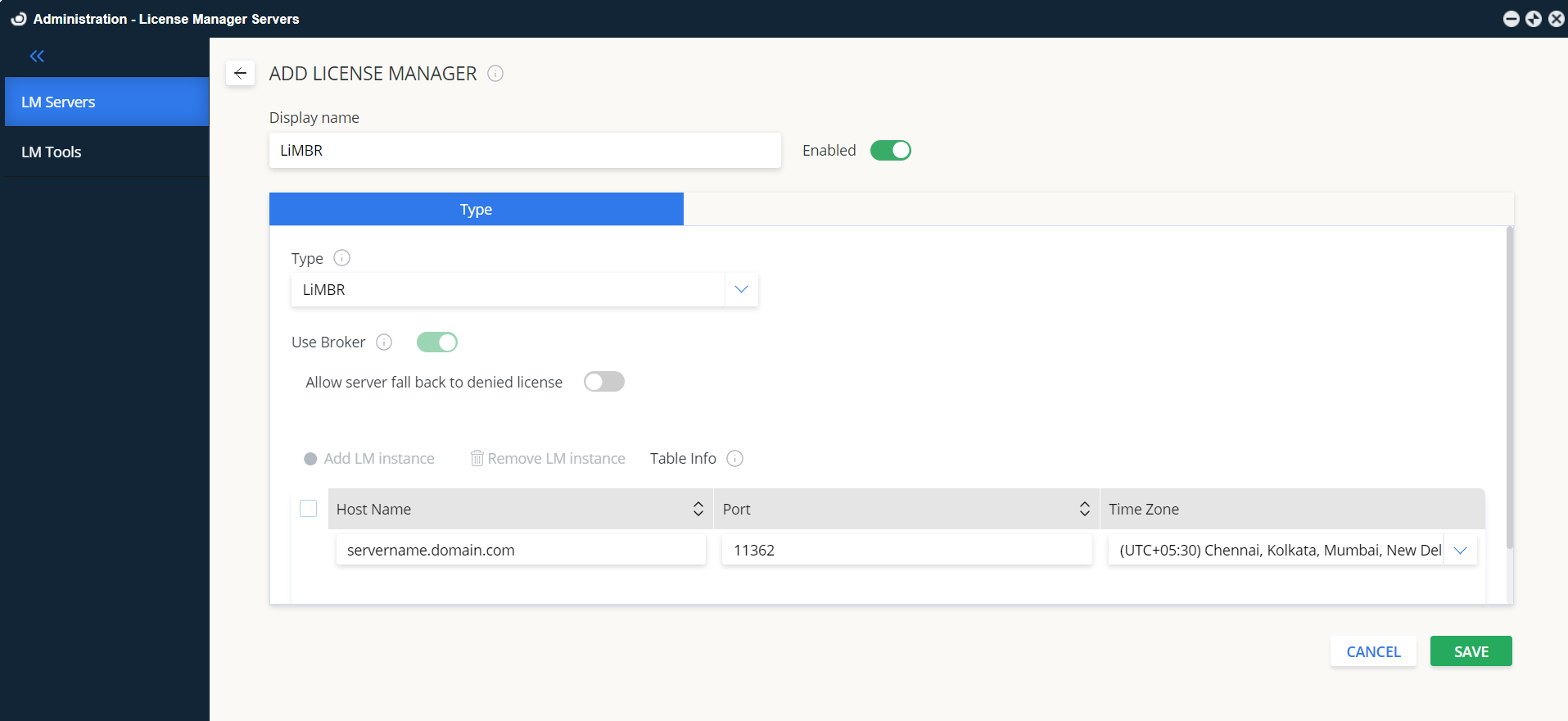
- EasyAdmin で Administration → License Manager Servers → Add LM に移動します。
- Type を LiMBR に設定します。
- 表示名と説明(例: LiMBR)を入力します。
- タイムゾーンを設定します。
- ホスト名とポート(既定:
11362)を入力します。 - Is Triad Configuration: オフ。
- Use Broker: オン。
- Save をクリックします。
設定の確認
- EasyAdmin を開きます(
http://<OpenLM Server FQDN>:5015またはCloud.openlm.com)。 - Start → Widgets → License Manager Servers に移動します。
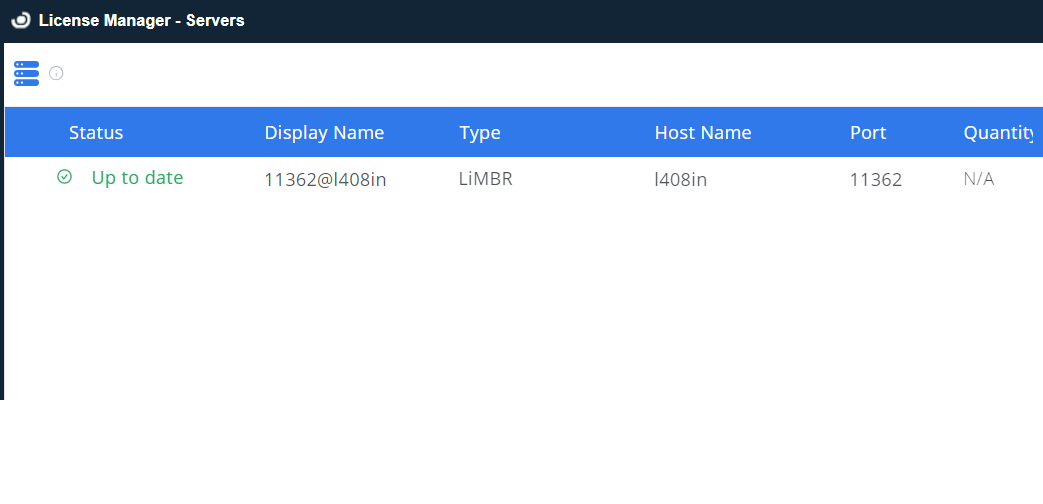
- LiMBR が表示され、緑色の丸アイコンになっていることを確認します。
注意
新しい接続の後、EasyAdmin にアクティブとして表示されるまで最大 3 分かかることがあります。