Office 365 Cloud
本トピックでは、OpenLM を使用して Office 365 Cloud のライセンスマネージャーを監視する方法を説明します。プロキシサーバー配下の環境向け設定も含まれます。
要件
Office 365 Cloud のライセンスマネージャーを問い合わせるには次が必要です:
- 組織内のマシンに OpenLM Server v22.2 以降をインストール済み。
- OpenLM Agent と Applications Manager(使用状況データ用)。
- Azure アカウント(次のいずれかのロール):
- Global administrator
- Privileged role administrator
- Cloud application administrator
- Application administrator
(または、アプリに権限を付与できるカスタムディレクトリロール)
- 二要素認証が無効であること。
OpenLM が必要とする権限
- Read all users' basic profiles – 表示名、名、姓、メール、写真を読み取ります。
- Read all users' full profiles – サインインユーザーなしでユーザープロファイルを読み取ります。
- Read all usage reports – サインインユーザーなしで Office 365 と Azure Active Directory の使用状況レポートを読み取ります。
- Read directory data – サインインユーザーなしでユーザー、グループ、アプリなどのディレクトリデータを読み取ります。
監視機能
| 機能 | 粒度 | ライセンス総数 | ライセンス使用状況 | 拒否レポート | 借用ライセンスのレポート | 有効期限のレポート | 冗長化(複数サーバー) |
|---|---|---|---|---|---|---|---|
| 対応 | 分 | ✔ | ✔ | ✔ | ❌ | ✔ | ❌ |
Office 365 Cloud 向け OpenLM の設定
OpenLM Server を Office 365 Cloud 管理ポータルに接続し、ライセンス割り当て情報を取得します。ライセンス使用状況は OpenLM Agent と Applications Manager で収集します。
手順
- EasyAdmin で Start → Administration → License Manager Servers → Add LM に移動します。
- Display name にわかりやすい名前を入力します。
- License manager type から Office365Cloud を選択します。LM address は自動入力されます。
- Set access permission をクリックします。
Microsoft Azure ポータルにリダイレクトされるので、権限を確認して Accept をクリックします。 - Microsoft 365 Admin portal – Domains で
.onmicrosoft.comで終わるドメイン(例:openlmsoftware.onmicrosoft.com)を探し、コピーします。 - EasyAdmin の Tenant/Domain フィールドに貼り付けます。
- Save をクリックします。
- OpenLM User interface を開いて新しいライセンスサーバーとデータを確認します。
プロキシ配下の場合
OpenLM Server が Office 365 Cloud にプロキシ経由で接続する場合は、appsettings.json を更新します。
ユーザー名/パスワードありのプロキシ
"Proxy": {
  "UseProxy": true,
  "ProxyUrl": "http://10.0.0.140:3128",
  "ByPassProxyOnLocal": false,
  "UseCredentials": true,
  "UseDefaultCredentials": false,
  "UseDefaultWebProxy": false,
  "UserName": "openlm",
  "Password": "b3Blbmxt" // Base64-encoded password
}
ユーザー名/パスワードなしのプロキシ
"Proxy": {
  "UseProxy": true,
  "ProxyUrl": "http://10.0.0.140:3128",
  "ByPassProxyOnLocal": false,
  "UseCredentials": true,
  "UseDefaultCredentials": false,
  "UseDefaultWebProxy": false,
  "UserName": "",
  "Password": ""
}
資格情報が不要なプロキシ
"Proxy": {
  "UseProxy": true,
  "ProxyUrl": "http://10.0.0.140:3128",
  "ByPassProxyOnLocal": false,
  "UseCredentials": false,
  "UseDefaultCredentials": false,
  "UseDefaultWebProxy": false,
  "UserName": "openlm",
  "Password": "password"
}
プロキシを無効化する
"Proxy": {
  "UseProxy": false,
  "ProxyUrl": "http://10.0.0.140:3128",
  "ByPassProxyOnLocal": false,
  "UseCredentials": true,
  "UseDefaultCredentials": false,
  "UseDefaultWebProxy": false,
  "UserName": "openlm",
  "Password": "password"
}
Office 365 ライセンスマネージャーサーバーを追加
OpenLM EasyAdmin の License Manager Servers タブで Office 365 ライセンスマネージャーを追加するには:
- Start → Administration → License Manager Servers をクリックします。
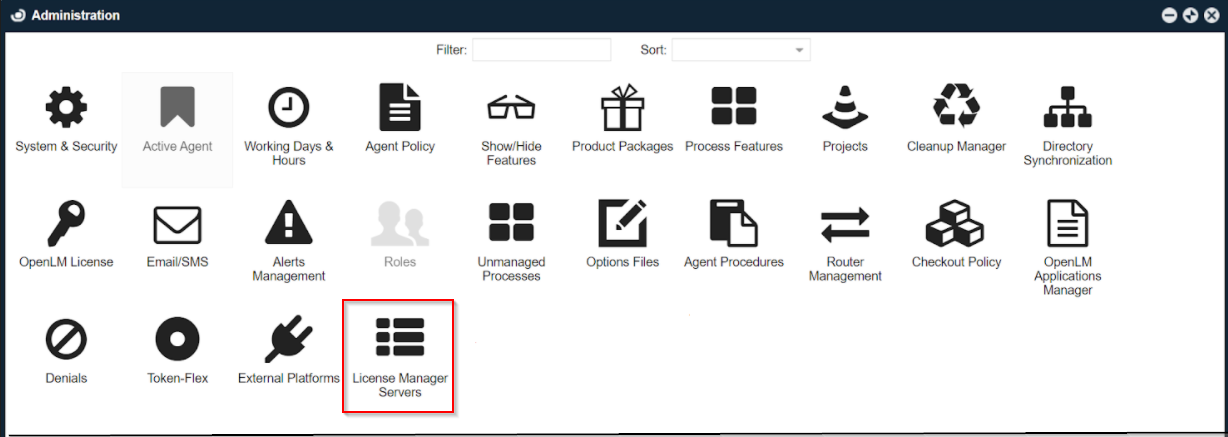
- LM Servers をクリックし、Add LM を選択します。

- Display name にライセンスマネージャーを識別する一意の名前を入力します。
- LM address に Office 365 のライセンスマネージャー URL またはアドレスを入力します。
- Username にユーザー名を入力します。
- Password にパスワードを入力します。
- Timezone でライセンスマネージャーのタイムゾーンを選択します。
- Enabled を切り替えて監視を有効/無効にします。
- Save をクリックします。
(任意) アクセス権を設定する場合は Set access permission をクリックします。
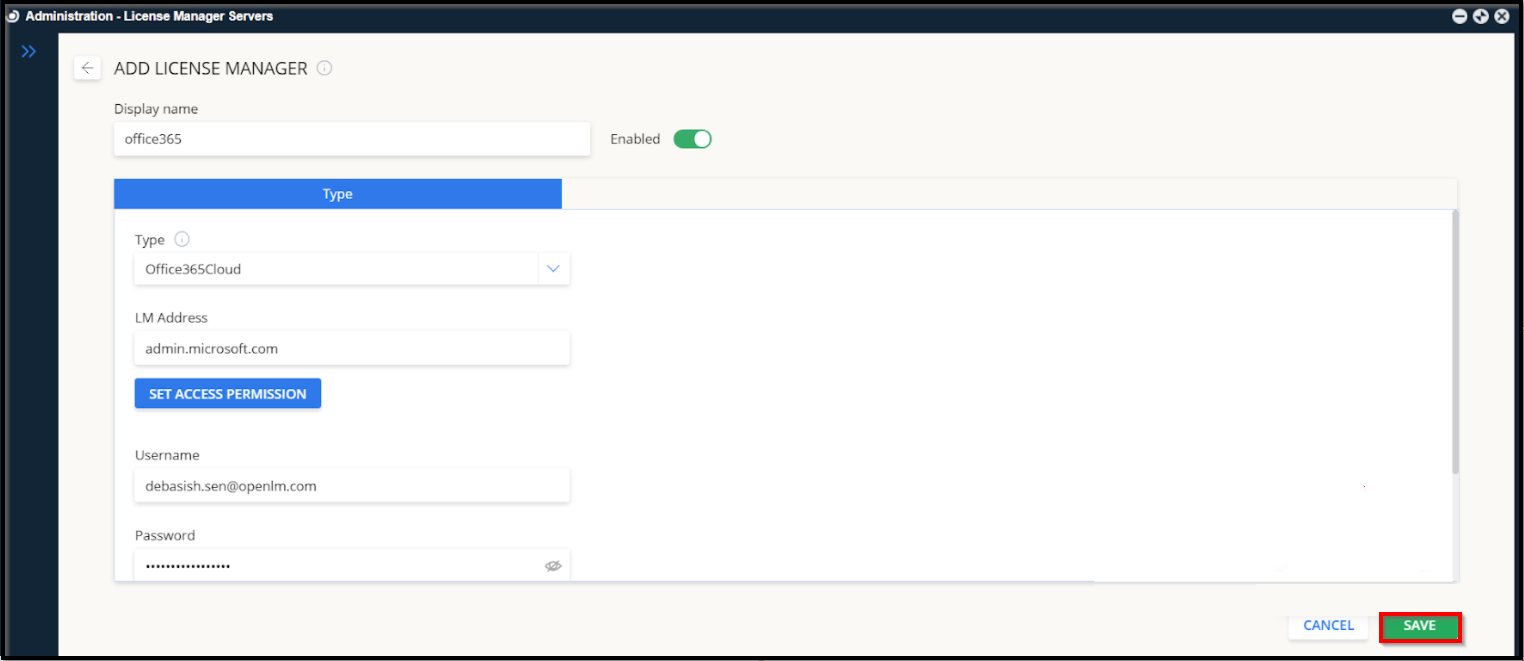
Office 365 設定の確認
設定した Office 365 ライセンスマネージャーサーバーが一覧に表示され、アクティブであることを確認します:
- EasyAdmin で Start → Widgets → License Manager - Servers に移動します。
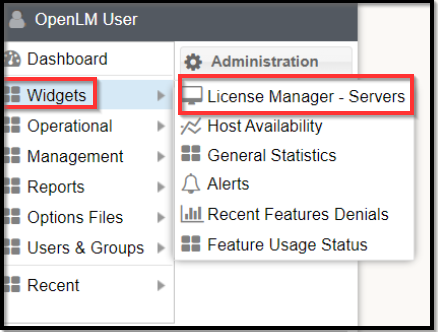
- Office 365 ライセンスマネージャーサーバーが一覧に表示され、緑色のチェックマークになっていることを確認します。

- 表示されない場合は Refresh アイコンをクリックします。追加したライセンスマネージャーが表示されます。

新しい接続の場合、アクティブ表示まで最大 3 分かかることがあります。