UniSim
このドキュメントでは、UniSim License Manager と OpenLM を連携し、ライセンス使用状況の監視と統計取得を行う方法を説明します。
要件
UniSim ライセンスマネージャーを問い合わせるため、次を用意してください:
- 組織内のマシンに OpenLM Server v5 以降をインストール
- UniSim ライセンスマネージャーと同じマシンに OpenLM Broker v4.14 以降をインストール
監視機能と特長
OpenLM Broker 経由の監視機能は次のとおりです:
| 機能 | 粒度 | ライセンス総数 | ライセンス使用状況 | 拒否レポート | 借用ライセンスレポート | 有効期限レポート | 複数サーバー冗長 |
|---|---|---|---|---|---|---|---|
| 対応 | 分単位 | ❌ | ✔ | ✔ | ❌ | ❌ | ❌ |
Broker を使用すると、バッファ付き通信が有効になり、ライセンスマネージャーサービスのリモート起動・停止も可能になります。
OpenLM Broker の設定
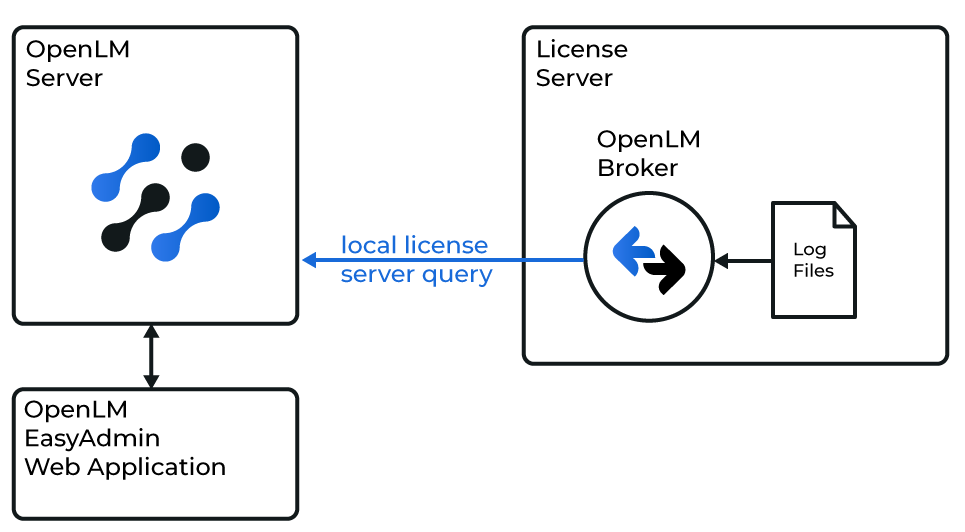 OpenLM と UniSim の連携図
Broker は NetworkLicenceManager ツールと UniSim のログファイルを用いて UniSim をローカルで問い合わせます。取得したデータは OpenLM Server に送信されます。
続行する前に、Broker を インストール し、OpenLM Server へレポートするよう 設定 しておく必要があります。
手動設定
自動検出が動作しない場合は、ライセンスマネージャーを手動で追加して設定します:
- Add Port をクリックします。
- UniSim LM のポート番号(例: 6607)を入力します。
- License Manager Type の一覧から UniSim を選択し、Apply をクリックします。
- Commands に移動し、Update path for commands に UniSim のインストールルートフォルダーを入力または参照します。Update → Apply をクリックします。
- Broker がベンダー名とログファイルパスを自動で追加します。
- Apply をクリックします。
- Restart Broker をクリックします。
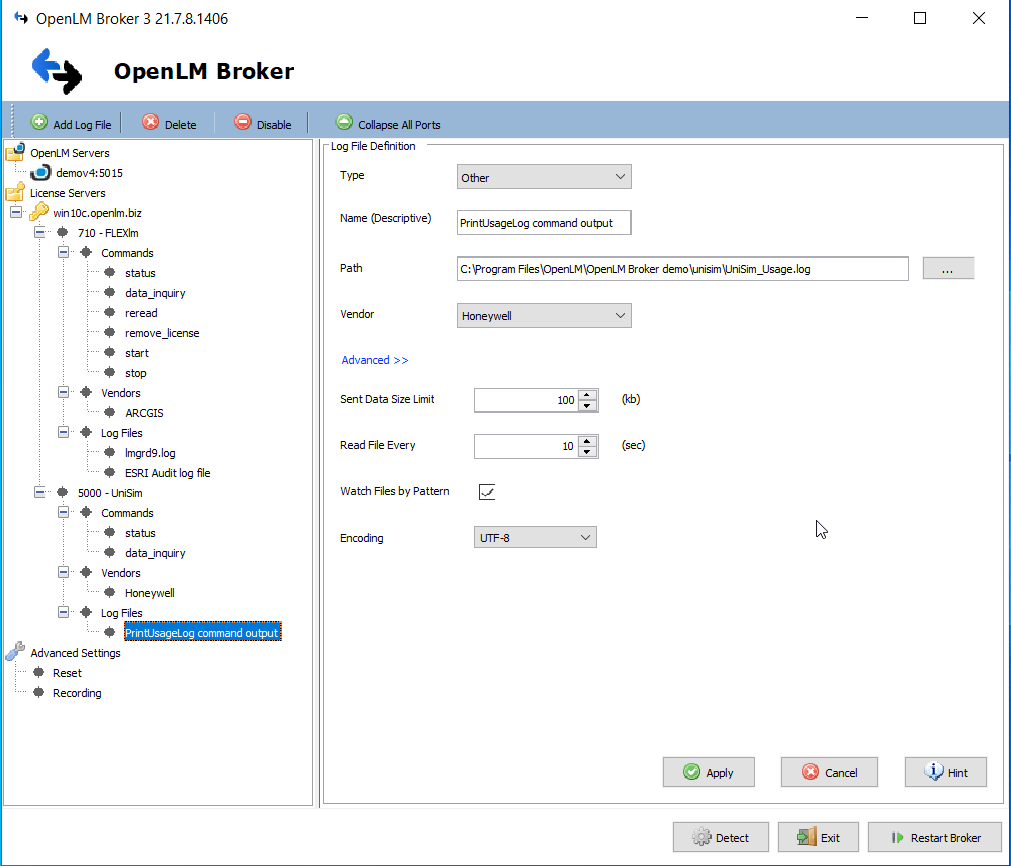
OpenLM Server の設定
EasyAdmin による自動設定
Broker がデータ送信中であれば、EasyAdmin で設定を承認します:
-
ブラウザーで EasyAdmin を開くか、Windows Start → OpenLM → OpenLM EasyAdmin User Interface から起動します。
-
Start → Administration → License Manager Servers に移動します。
-
承認が必要な UniSim License Manager エントリをダブルクリックします。
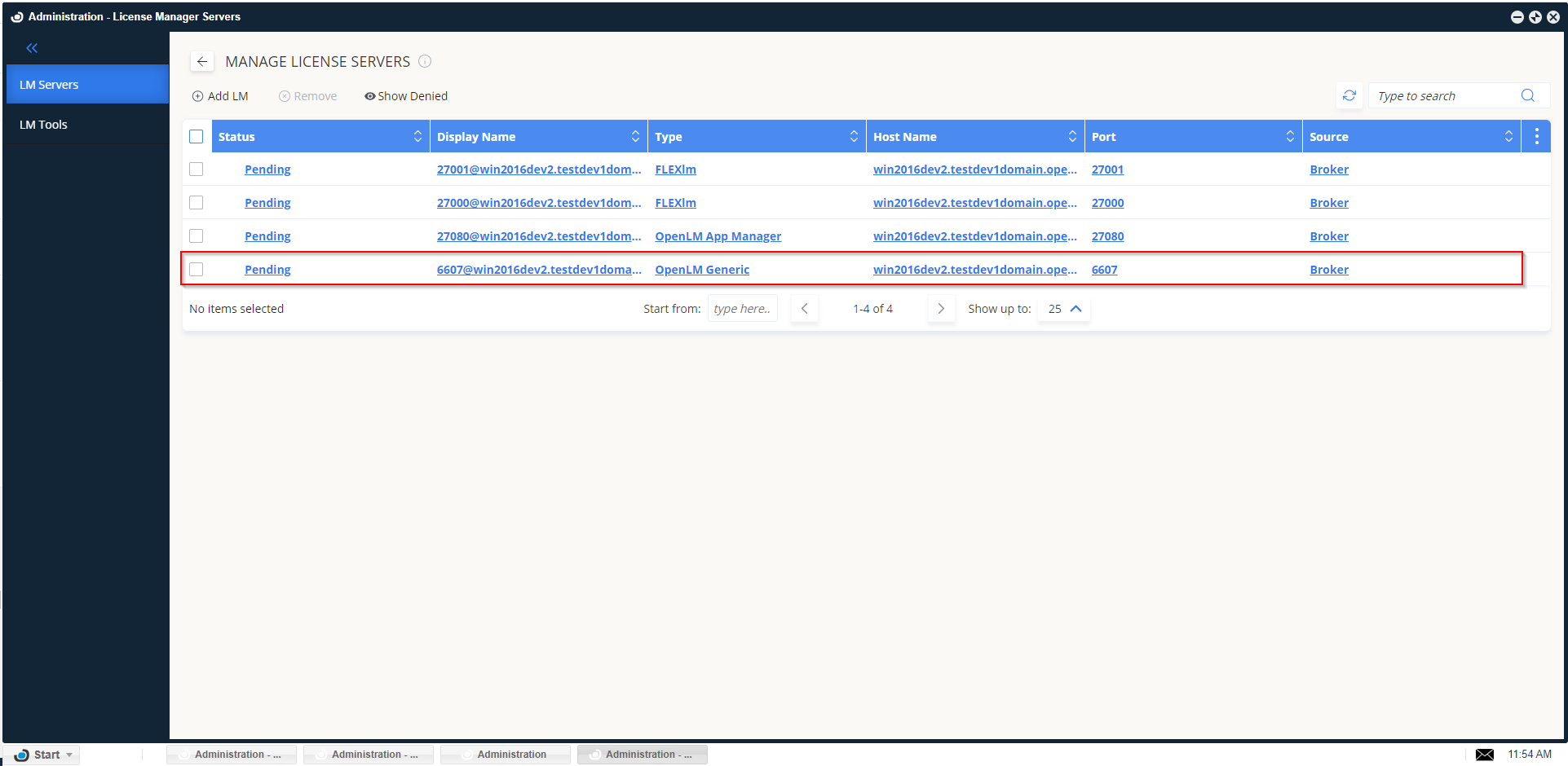
-
表示名を入力します。
-
ライセンスサーバーを有効化します。
-
Type に OpenLM Generic を選択します。
-
ホスト名とポートを確認し、必要に応じて調整します。
-
Timezone を設定します。
-
Approve をクリックします。
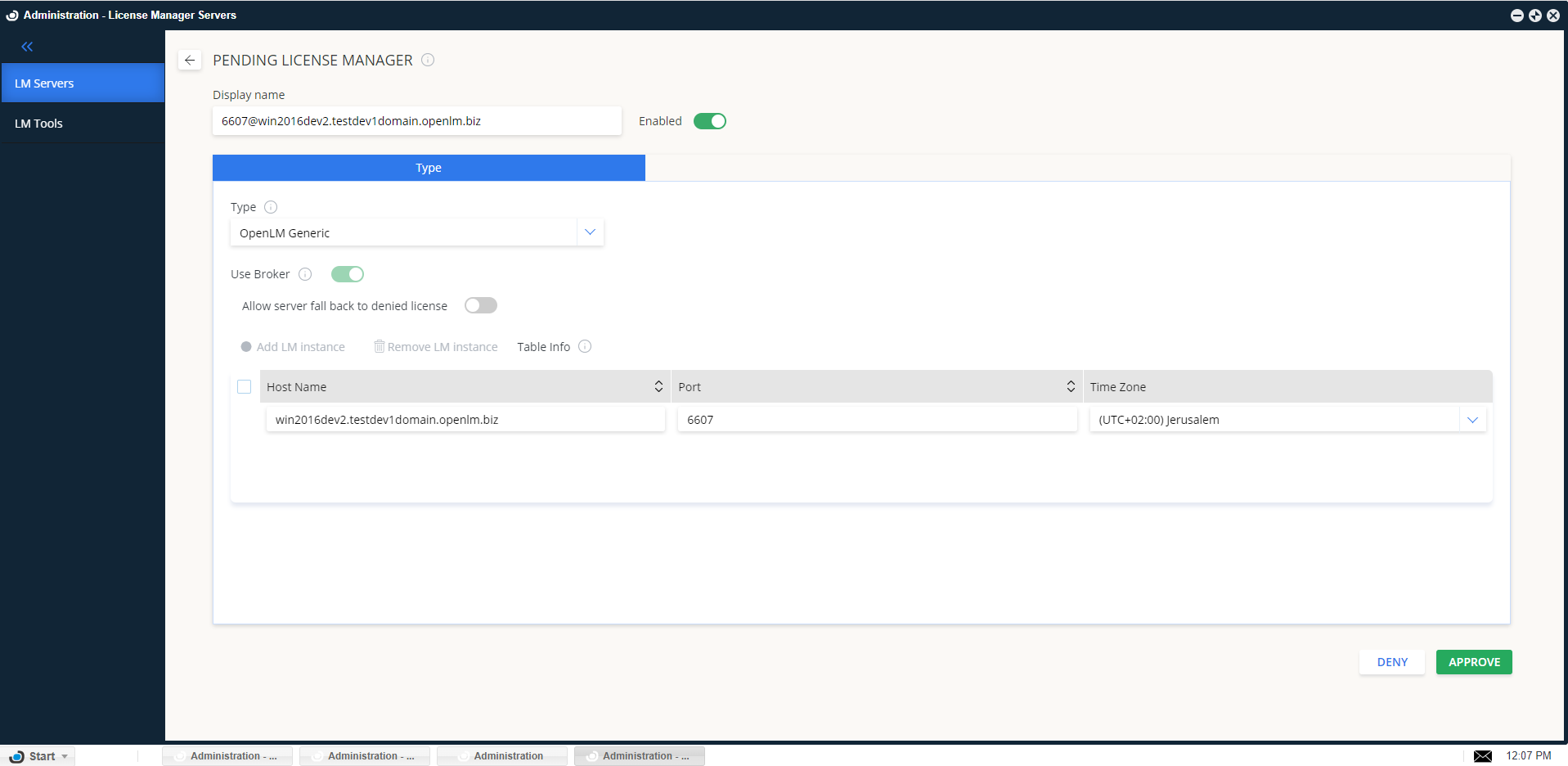
これで UniSim License Manager が追加され、設定は完了です。
設定の確認
- ブラウザーで EasyAdmin を開きます。
- Start → Widgets → License Servers に移動します。
- 一覧に UniSim License Manager が表示されることを確認します。緑色の丸は接続がアクティブであることを示します。
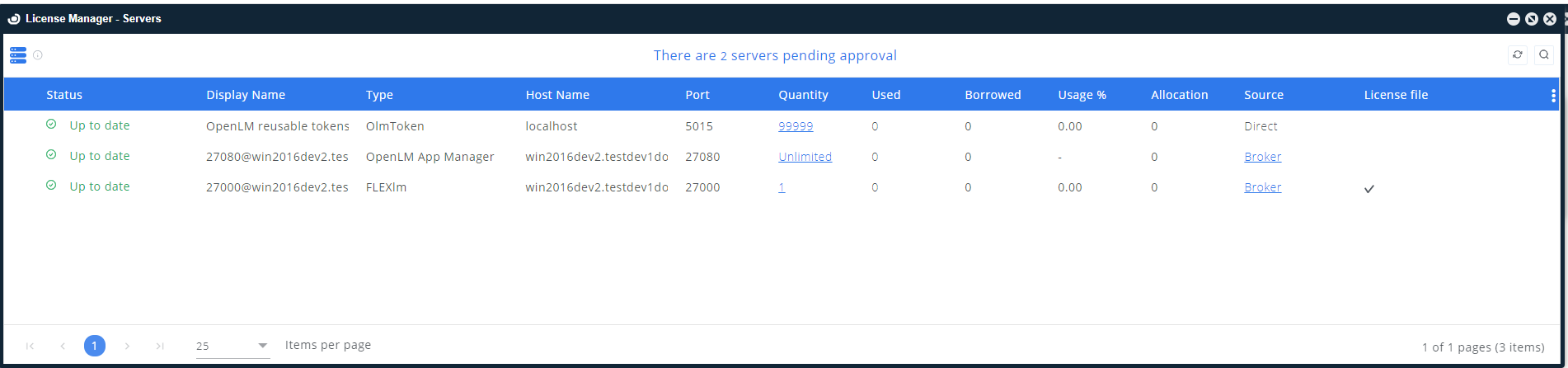
新しい接続の場合、ステータス更新まで最大 3 分かかることがあります。