Reprise RLM
本ガイドでは、OpenLM を Reprise License Manager (RLM) と連携し、ライセンス使用状況を監視して統計情報を取得する方法を説明します。
要件
- OpenLM Server を組織内のマシンにインストール済み。
- OpenLM Broker は任意ですが推奨です。RLM ライセンスサーバーに Broker を導入すると高度な監視/制御が可能になります。
監視機能
RLM の問い合わせ方法によって利用できる機能が異なります:
-
OpenLM Server のみ
- ライセンス総数
- ライセンス使用状況
-
OpenLM Broker 経由
- 上記に加えて:
- ネットワーク障害時のバッファ付き通信
- ライセンスマネージャーサービスのリモート起動・停止
- ライセンス拒否情報
- 使用状況レポートの 1 秒粒度
- RLM ライセンス/ログファイルの読み取り
- EasyAdmin で RLM ライセンスファイル内容を表示
OpenLM Server のみで RLM を連携
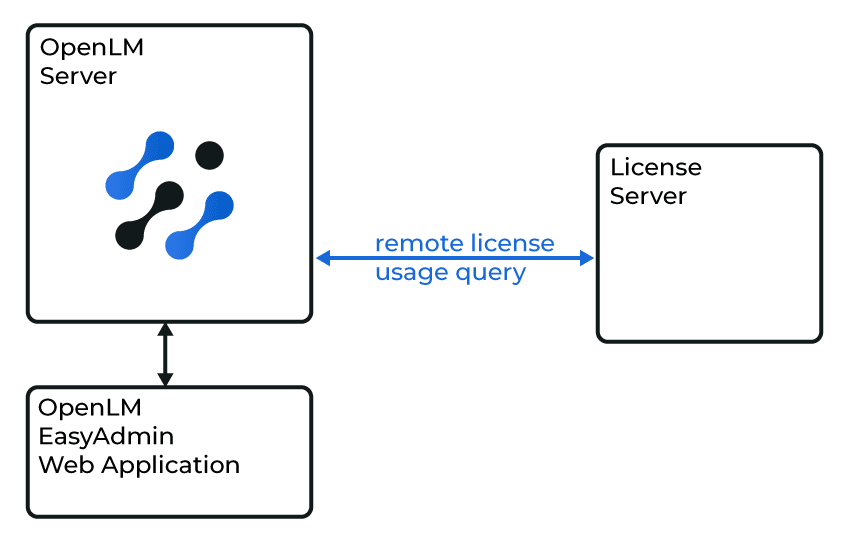
OpenLM Server の設定
- EasyAdmin を開きます:
- Windows Start → OpenLM → EasyAdmin
- またはブラウザで
http(s)://<FullyQualifiedDomainName>:5015
- Start → Administration → License Manager Servers に移動します。
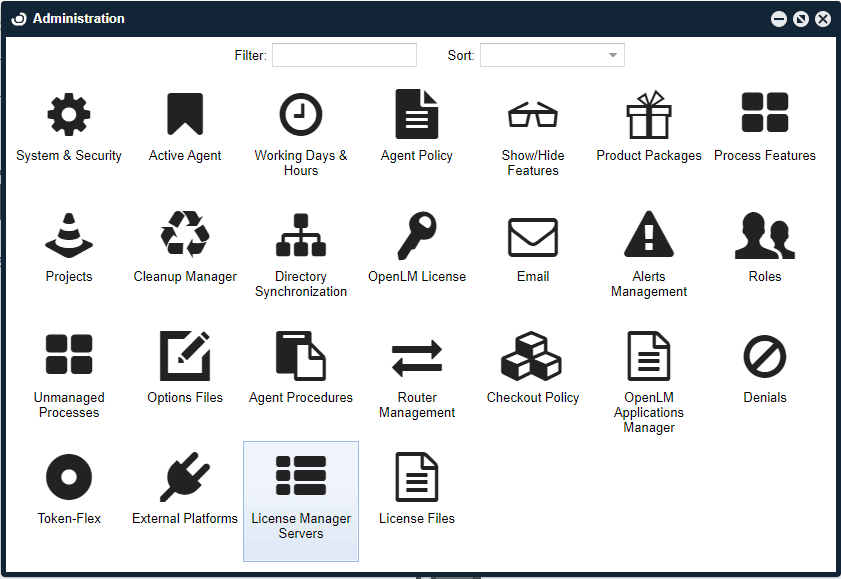
- License Manager Servers ウィンドウが開きます。
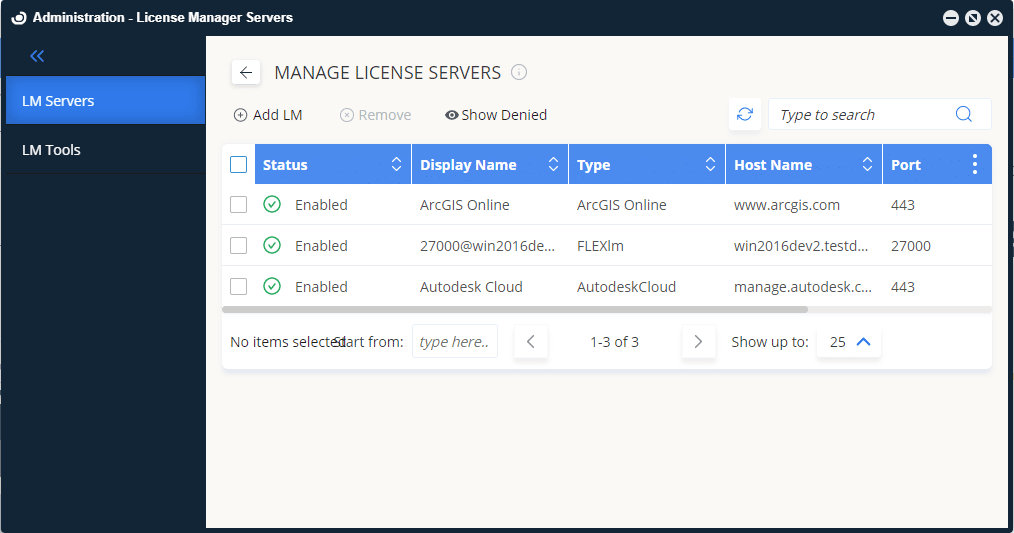
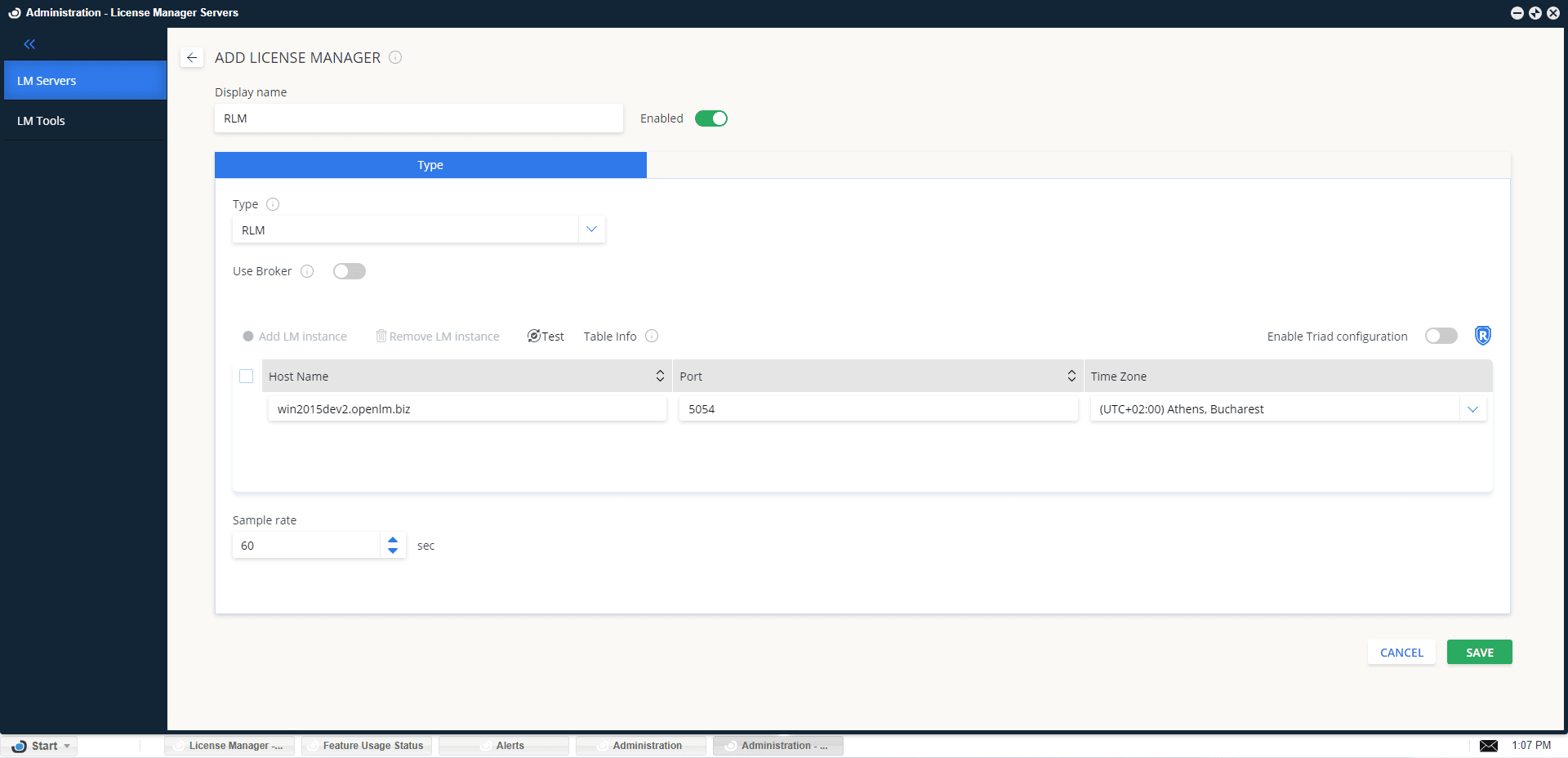
- Add LM をクリックします。
- Display name に名前(例:
RLM)を入力し、Enabled がオンであることを確認します。 - Type から RLM を選択します。
- Use Broker を設定します:
- Off(既定): Server が RLM を直接問い合わせます。
- On: Broker を使用します(次セクション)。
- Triad Configuration はオフにします。
- (任意)Allow server fallback to denied license を有効にします。
- Hostname と Port を入力します。既定ポートは 5054(v6 以前は 9000)。
- 正しい Time Zone を設定します。
- Save をクリックします。
OpenLM Broker 経由で RLM を連携
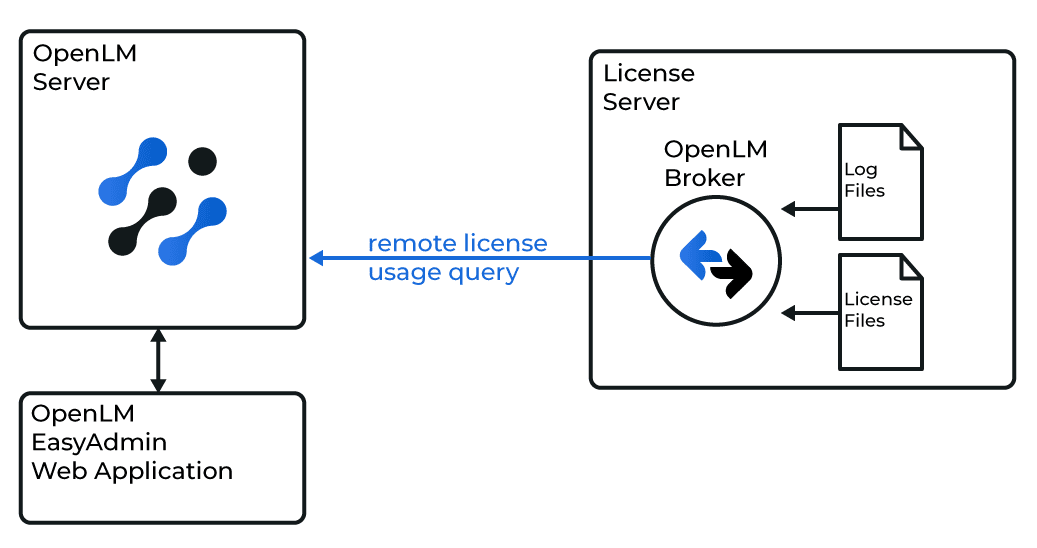
RLM ライセンスサーバーに OpenLM Broker をインストールします。Broker が RLM のログ/ライセンスファイルをローカルで読み取り、OpenLM Server に送信します。
RLM のレポートログ機能を有効化
既定では RLM はレポートログを記録しません。完全な監視には有効化が必要です。
-
レポートログの有効化方法 または RLM マニュアル の The ISV Options File → REPORTLOG を参照してください。
-
std 引数を含めます。
-
有効化後、ログファイル(通常
.txt)を確認します。先頭行は次のようになります:RLM Report Log Format 0, version 11.0, authenticatedISV: ssi, RLM version 11.1 BL2
注意
レポートログの場所は ISV options ファイルで定義します。未設定の場合、拒否や詳細な使用状況データは取得できません。
OpenLM Broker の設定
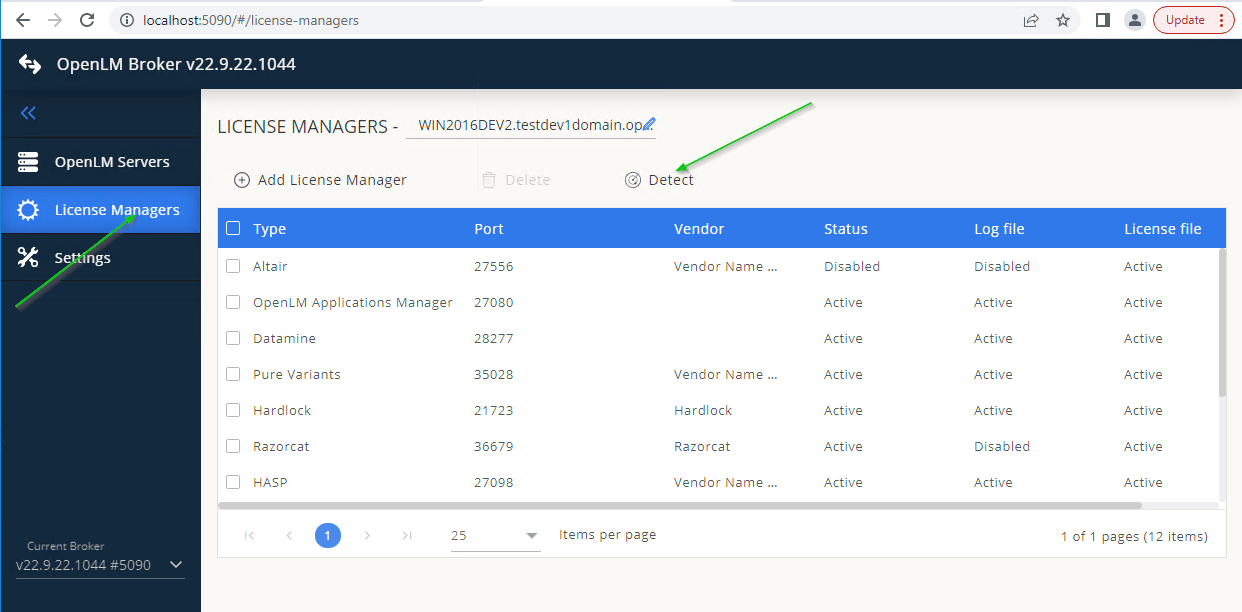
自動検出
- RLM ライセンスサーバーで Broker を開きます。
- License Managers タブに移動します。
- Detect をクリックします。
RLM サービスが稼働していれば、Broker が自動設定します。
手動設定
検出に失敗した場合:
- License Managers → Add License Manager に移動します。
- RLM を選択し、ポート(例: 5054)を入力して Add をクリックします。
- Settings タブを開きます。
- Set Path Manually を有効にし、Add License File Manually でライセンスファイルパスを入力します。
- Watch license file をオンにします。
- Commands で
rlmutil.exeのパス(通常C:\RLMServer)を設定し、Execute でテストします。ヒントRLM がパスワードを使用する場合は、status と data inquiry に
-z <password>を追加します。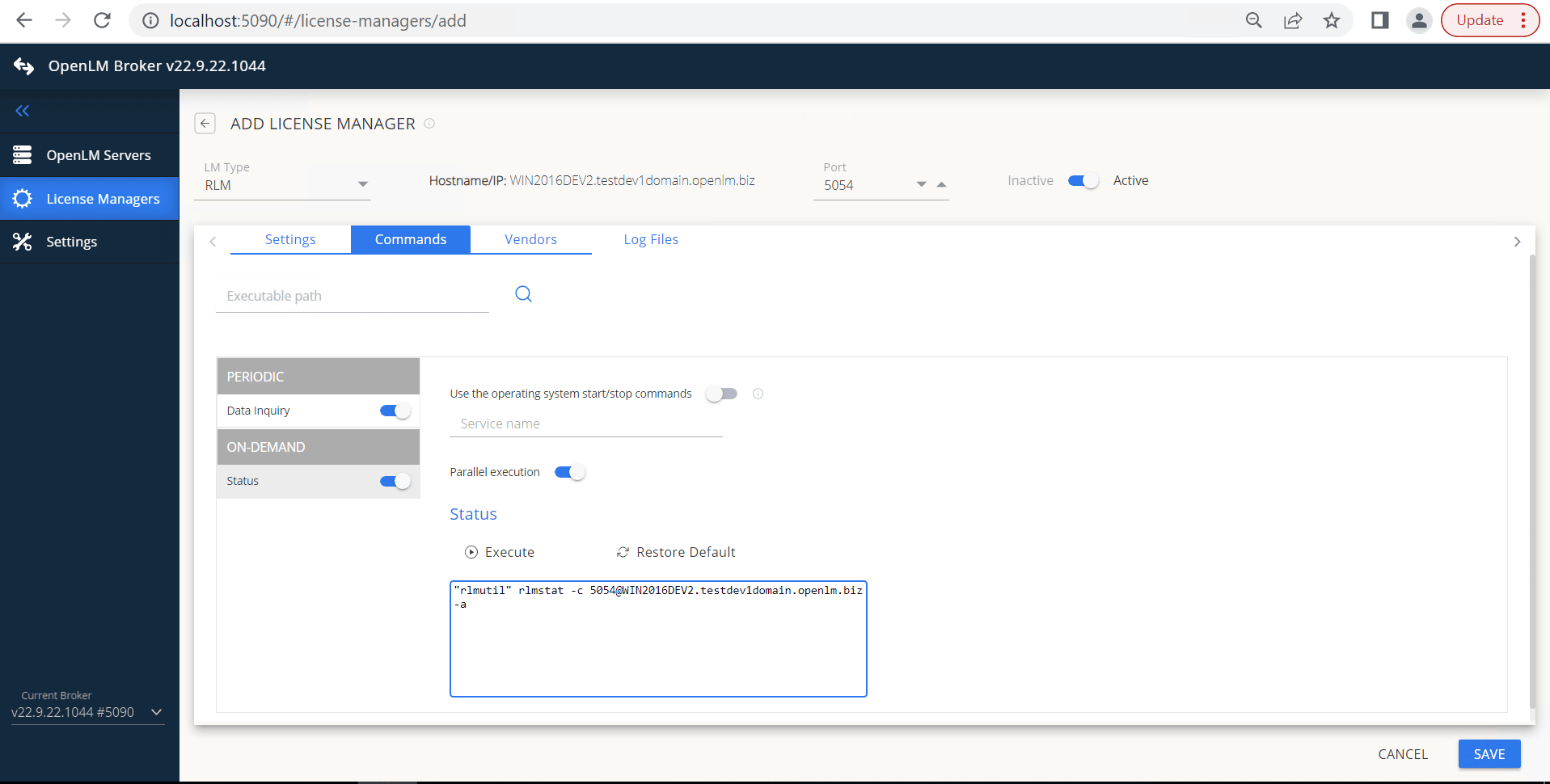
- (任意)RLM がサービスとして動作している場合は Use operating system start/stop commands を有効にし、Service Name を入力します。
- Vendors で Add Vendor をクリックし、RLM ベンダー名を入力します。
- Log Files で Add Log File をクリックし、パスを入力してベンダーに紐付けます。
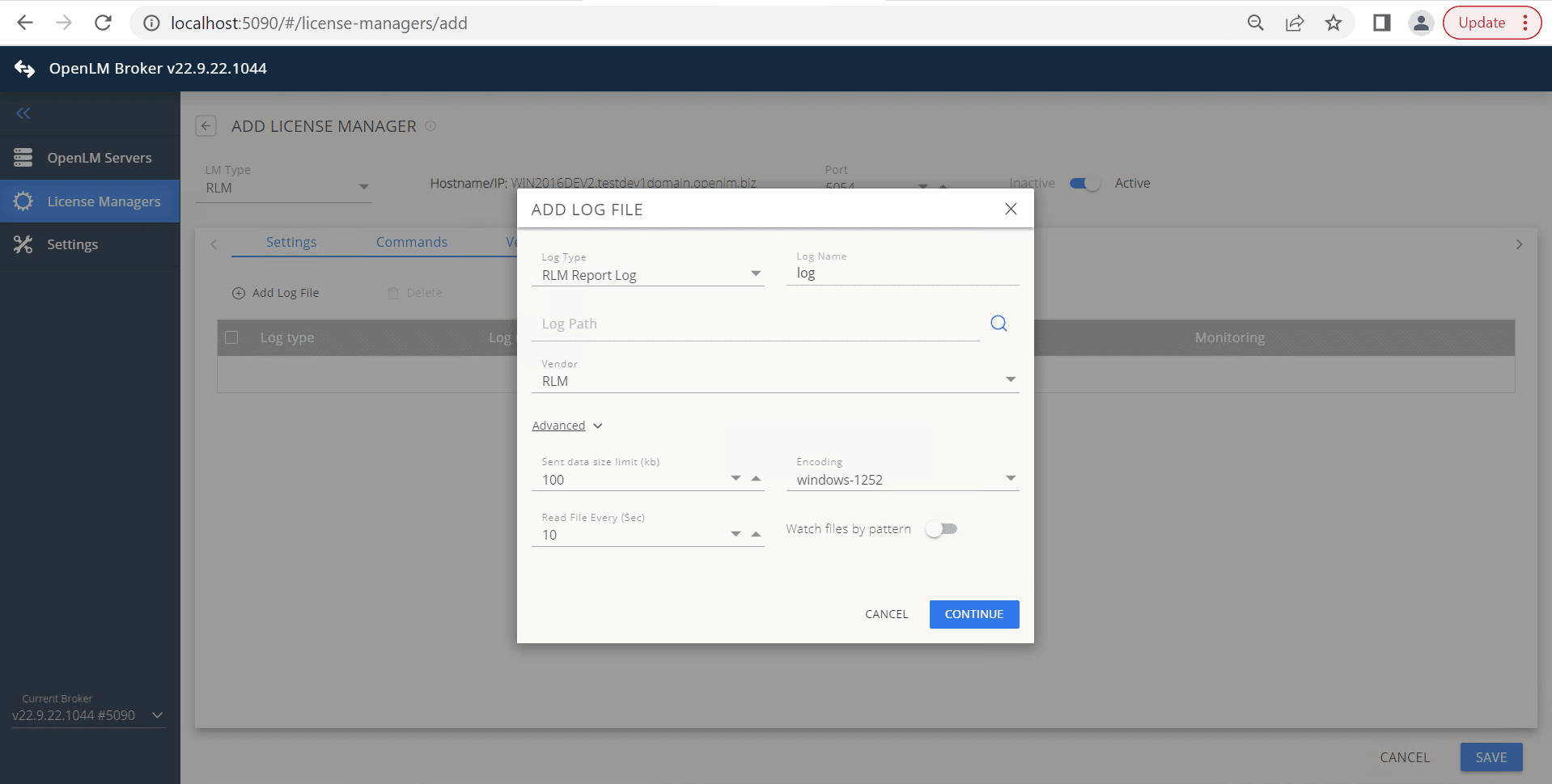
- Save をクリックします。
OpenLM Server の設定
- EasyAdmin を開きます。
- License Servers ウィンドウで保留中の RLM ライセンスマネージャーを承認します。
RLM フェイルオーバー設定
前提: RLM 側でフェイルオーバーが設定済みであること。
- Broker に RLM primary port を追加します。
- primary license file を追加します。
- failover port を追加します。
- EasyAdmin で候補サーバーを確認します。
- primary host を承認します。
- Failover Configuration を有効にします。
- フェイルオーバー RLM の hostname と port を追加します。
- primary RLM サーバーをマークします。
- Apply をクリックします。
RLM 設定の確認
- EasyAdmin を開きます。
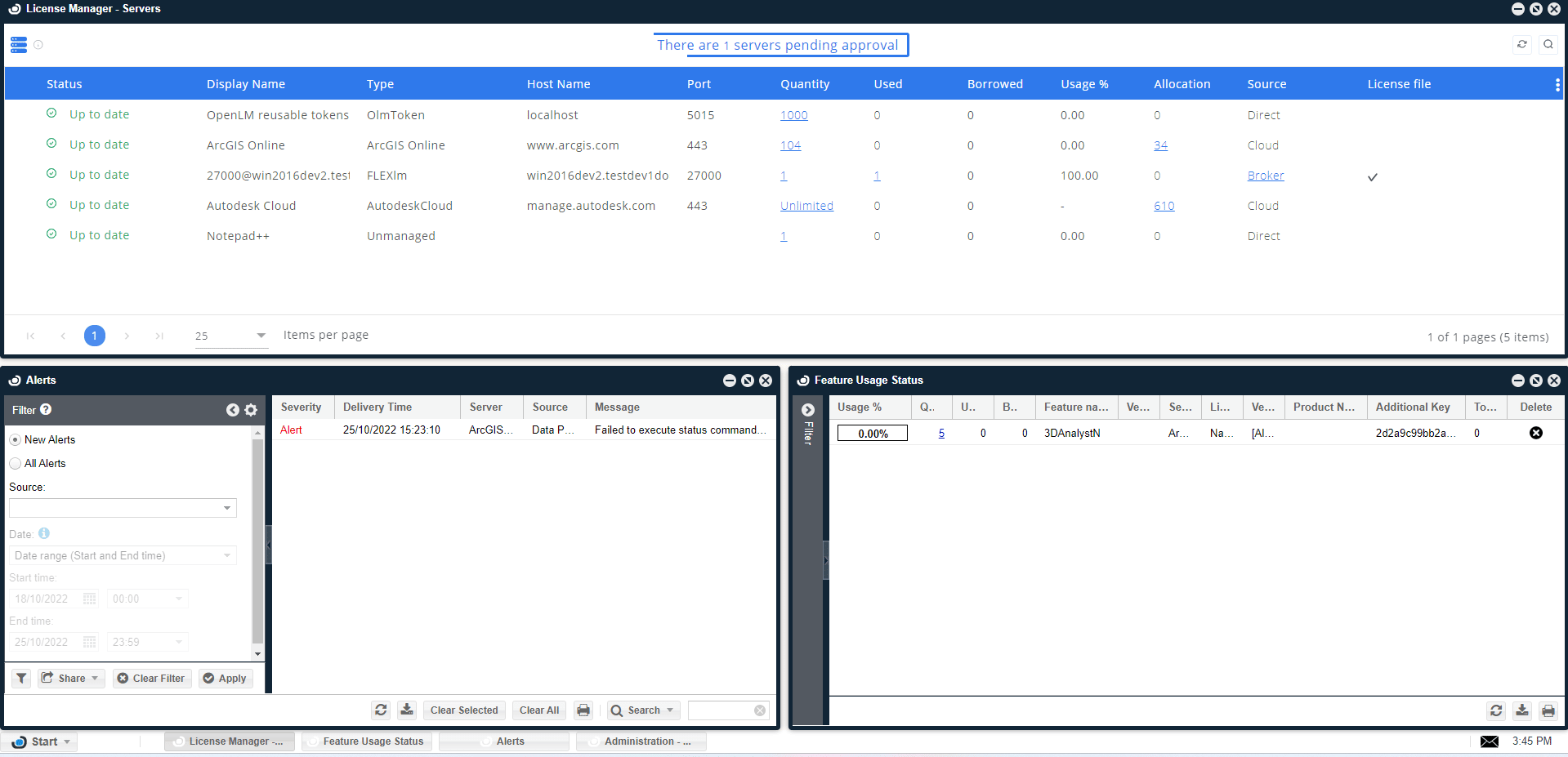
- Start → Widgets → License Servers に移動します。
- 一覧に RLM が表示されることを確認します。緑色の丸アイコン は接続が有効であることを示します。
注意
新しい接続の場合、ステータス更新まで最大 3 分かかることがあります。