Hosted HyperWorks Units (HHWU)
Follow these steps to configure OpenLM to monitor license usage and retrieve statistics from the Hosted HyperWorks Units (HHWU) License Manager.
Requirements
Before starting, install:
- OpenLM Server v2.x on a machine in your organization
- OpenLM Broker v22.6 or higher on the same machine as the HHWU License Manager
Monitoring capabilities
| LM Type in the Broker | License totals | License usage | Denials | Borrowing | Expiration date | Redundancy | Report resolution |
|---|---|---|---|---|---|---|---|
| HHWU | Yes | Yes | No | No | Yes | No | Minutes |
Using the Broker also enables buffered communication and allows remote start and stop of the license manager service.
OpenLM Broker configuration
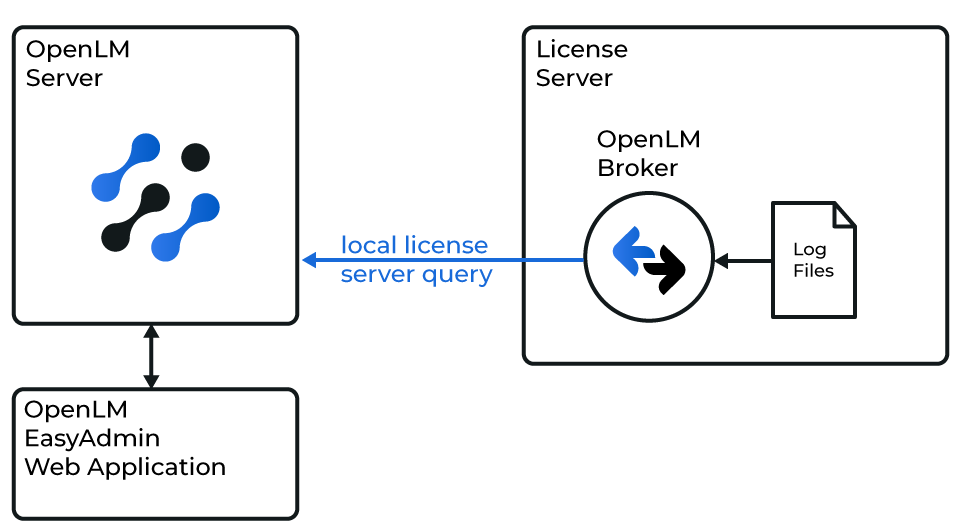
Diagram of how OpenLM interfaces with the HHWU License Manager
OpenLM Broker must be installed and configured to report to OpenLM Server before proceeding.
Method 1 — Broker desktop UI
-
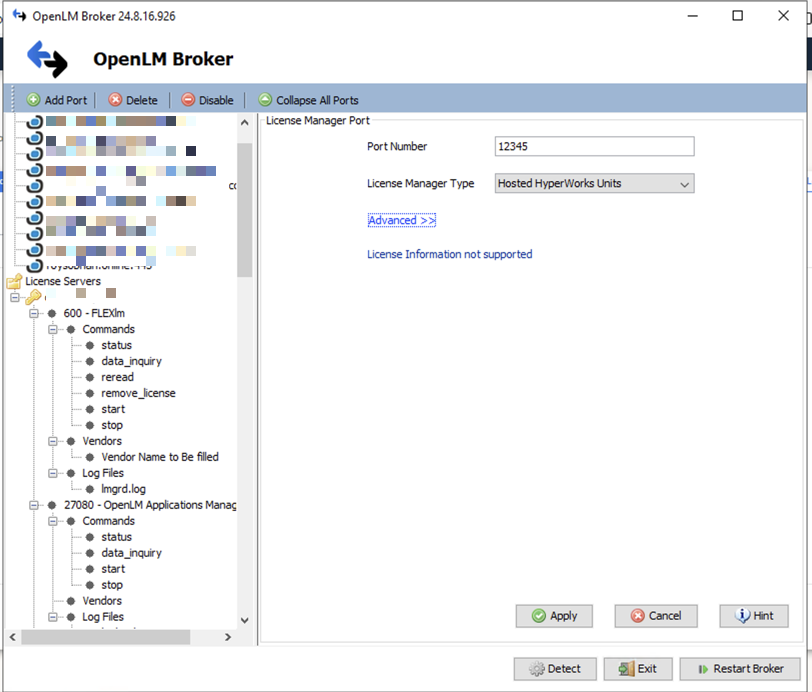
Open the OpenLM Broker desktop application.
-
Click Add Port.
-
Enter the port number (e.g.,
888). -
From License Manager Type, select Hosted HyperWorks Units (HHWU) and click Apply.
-
Go to the Commands node. In Update path for commands, browse to the folder where the HHWU command-line utilities are located and click Update.
-
Under data_inquiry, click Execute and verify a valid output. Click Apply before running Execute again.
The command will query:- Total number of registered licenses in the vendor license file
- Number of licenses currently checked out by users
-
In Vendors, enter
Altairas the vendor name and click Apply. -
Restart the Broker.
Method 2 — Broker web UI
-
Open the Broker web UI at
http://localhost:5090.
If the default port is in use, try5091or5092. -
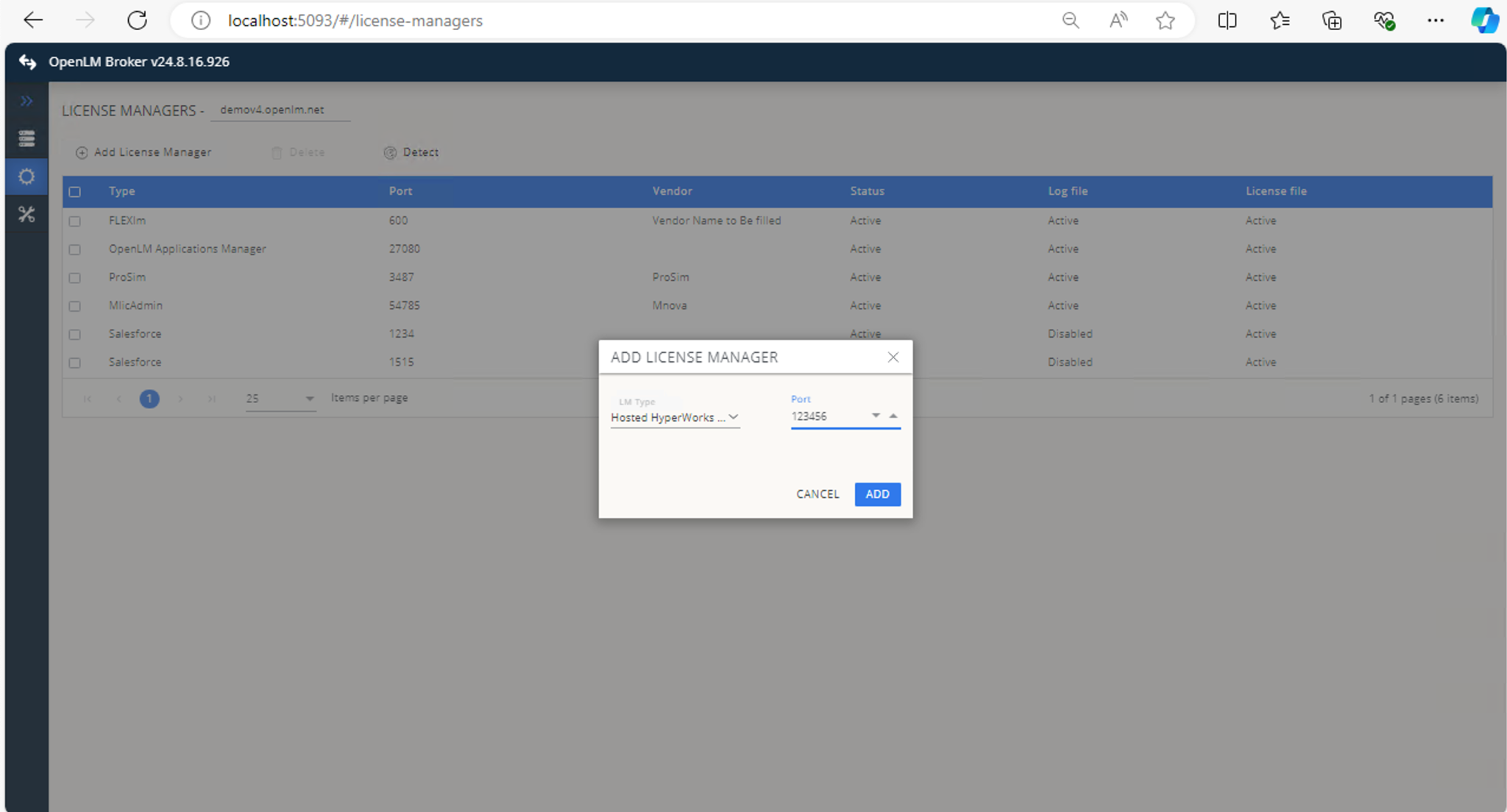
Go to License Managers → Add License Manager.
-
Select Hosted HyperWorks Units (HHWU) from the drop-down list, enter the port number, and click Add.
-
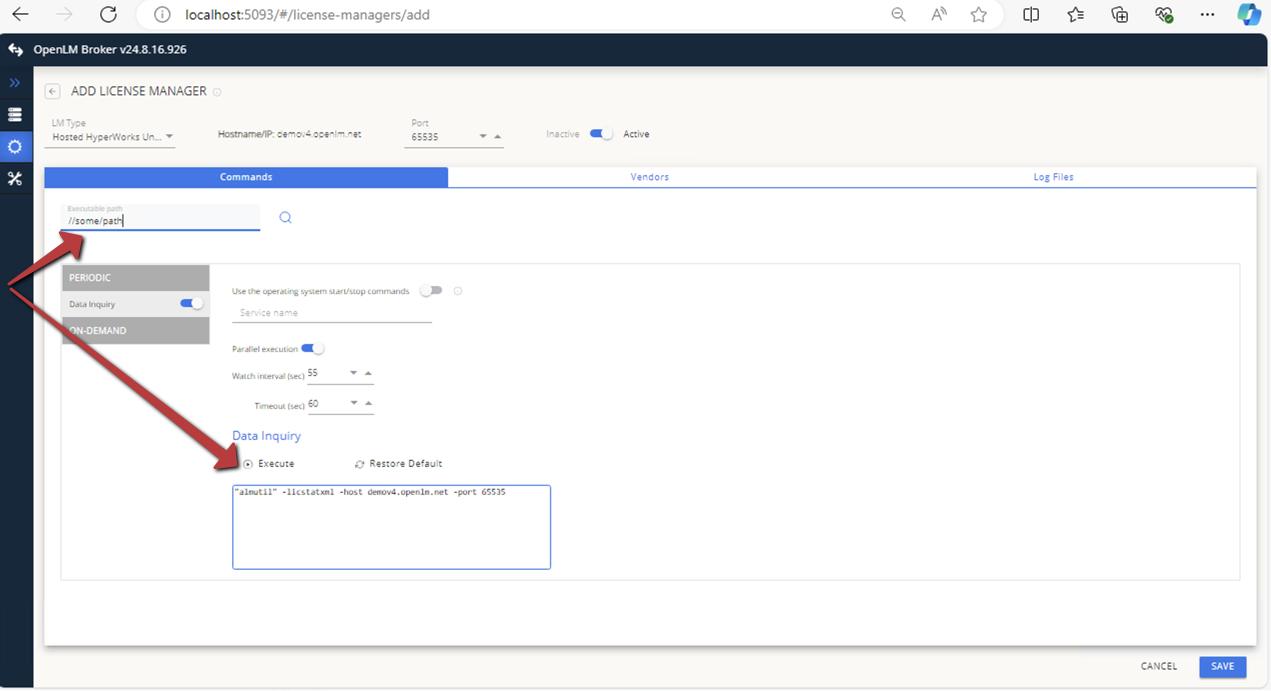
In Commands, set the Executable path to the folder containing the HHWU command-line utilities and click Execute.
-
In Vendors, click Add Vendor, enter
Altair, and click Continue.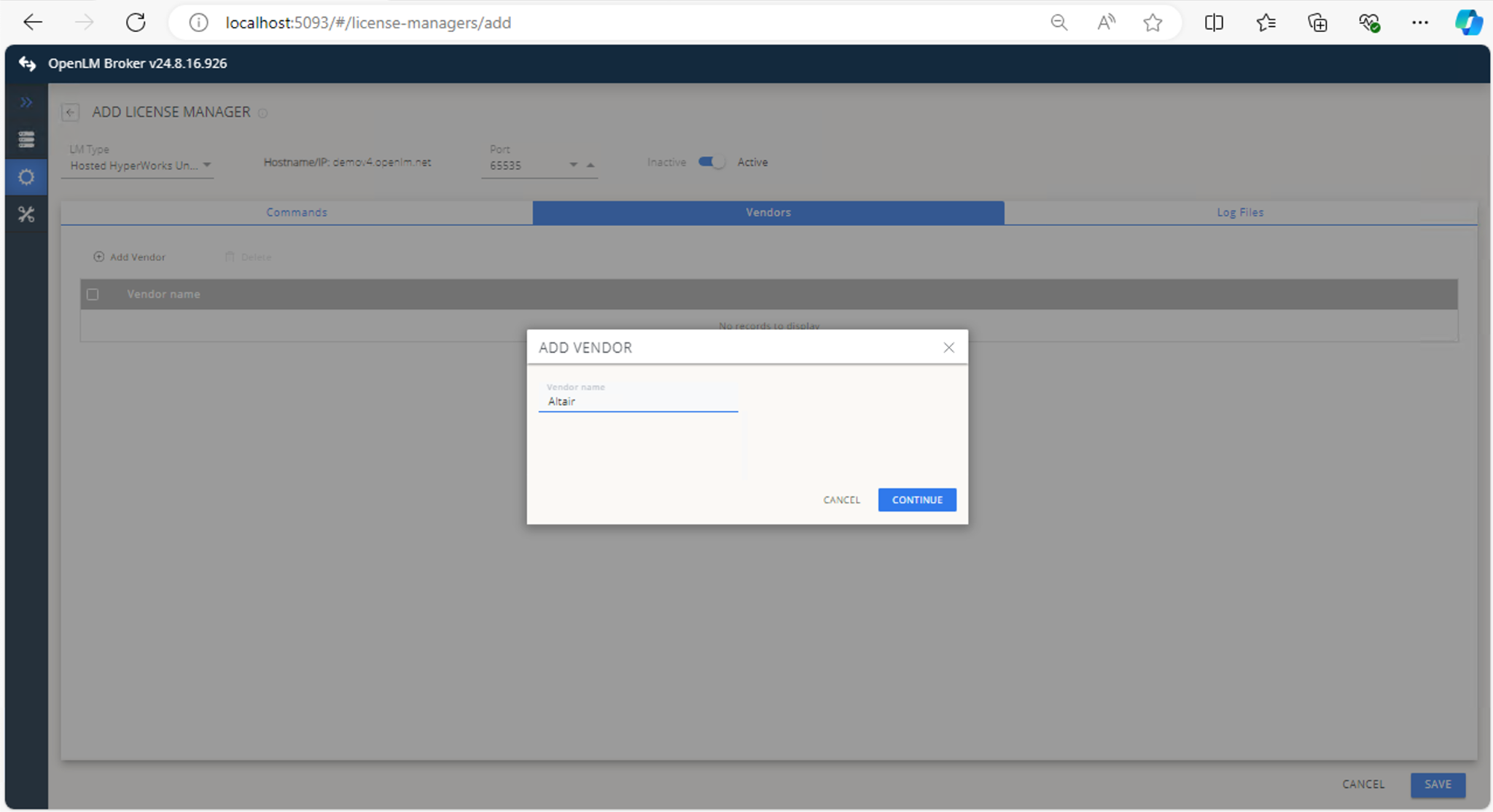
-
Click Save.
OpenLM Server configuration
Once the Broker is configured, approve the license manager in EasyAdmin:
- Open EasyAdmin.
- In License Servers, double-click the red row for the new HHWU entry.
- Give it a descriptive name or leave the default, keep Type as OpenLM Generic, and click Approve.
If automatic configuration fails, configure manually:
- Go to Start → Administration → License Manager Servers.
- Click Add LM.
- Set Type to Hosted HyperWorks Units (HHWU).
- Enter a description (e.g.,
HHWU). - Set the Time Zone to match the license server location.
- Enter the hostname and port from the Broker configuration.
- Leave Triad Configuration unchecked and Use Broker checked.
- Click Save.
Verify your configuration
- Open EasyAdmin.
- Go to Start → Widgets → License Servers.
- Ensure the HHWU entry shows a green circle icon.
It may take up to 3 minutes for the status to update after a new connection.