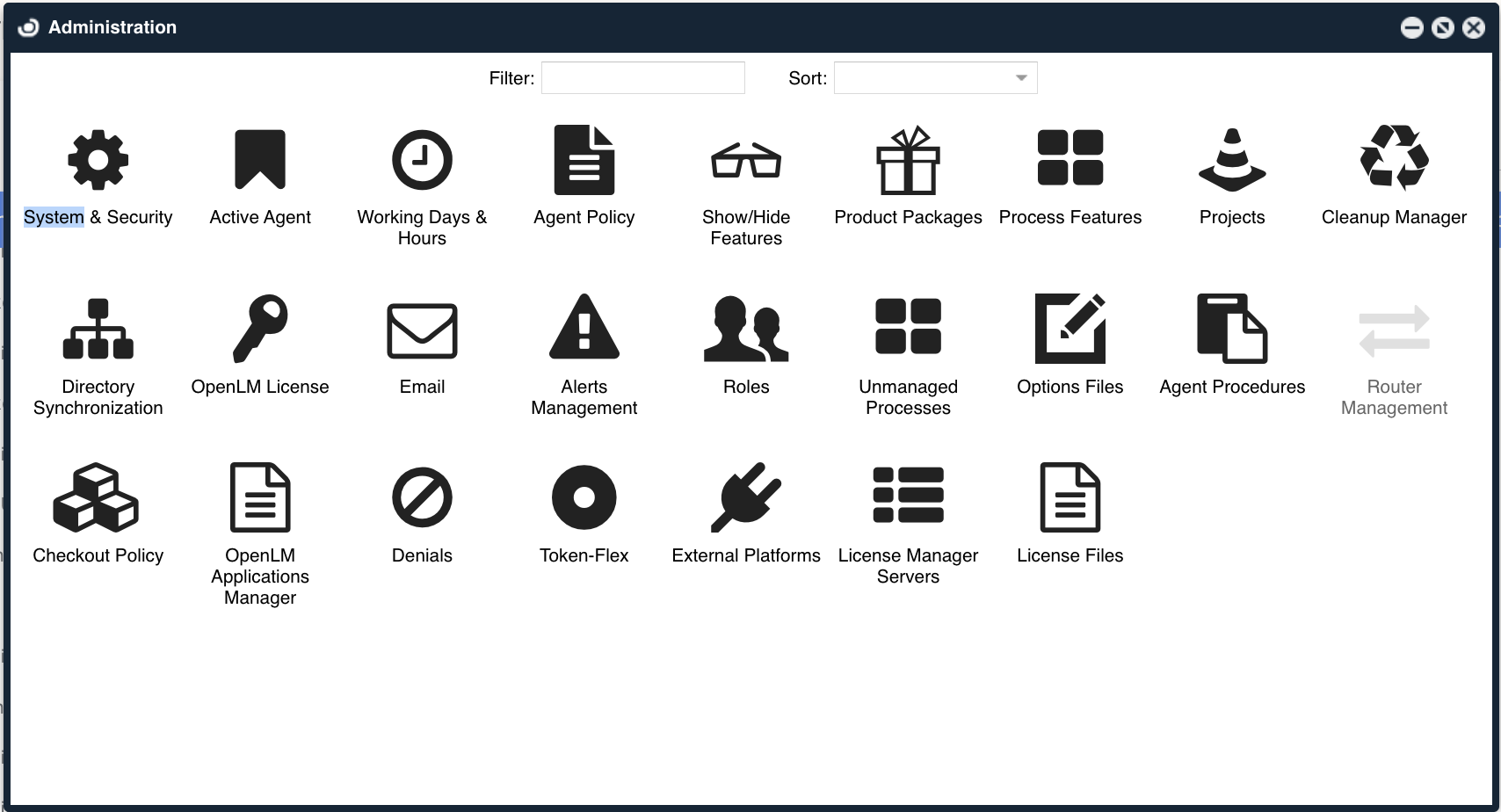
Here, you’ll see the basic descriptions for the OpenLM EasyAdmin User Interface – Administration window.
System&Security
System
Timezone
OpenLM interface time zone can be set by users on their first login or globally by the administrator.
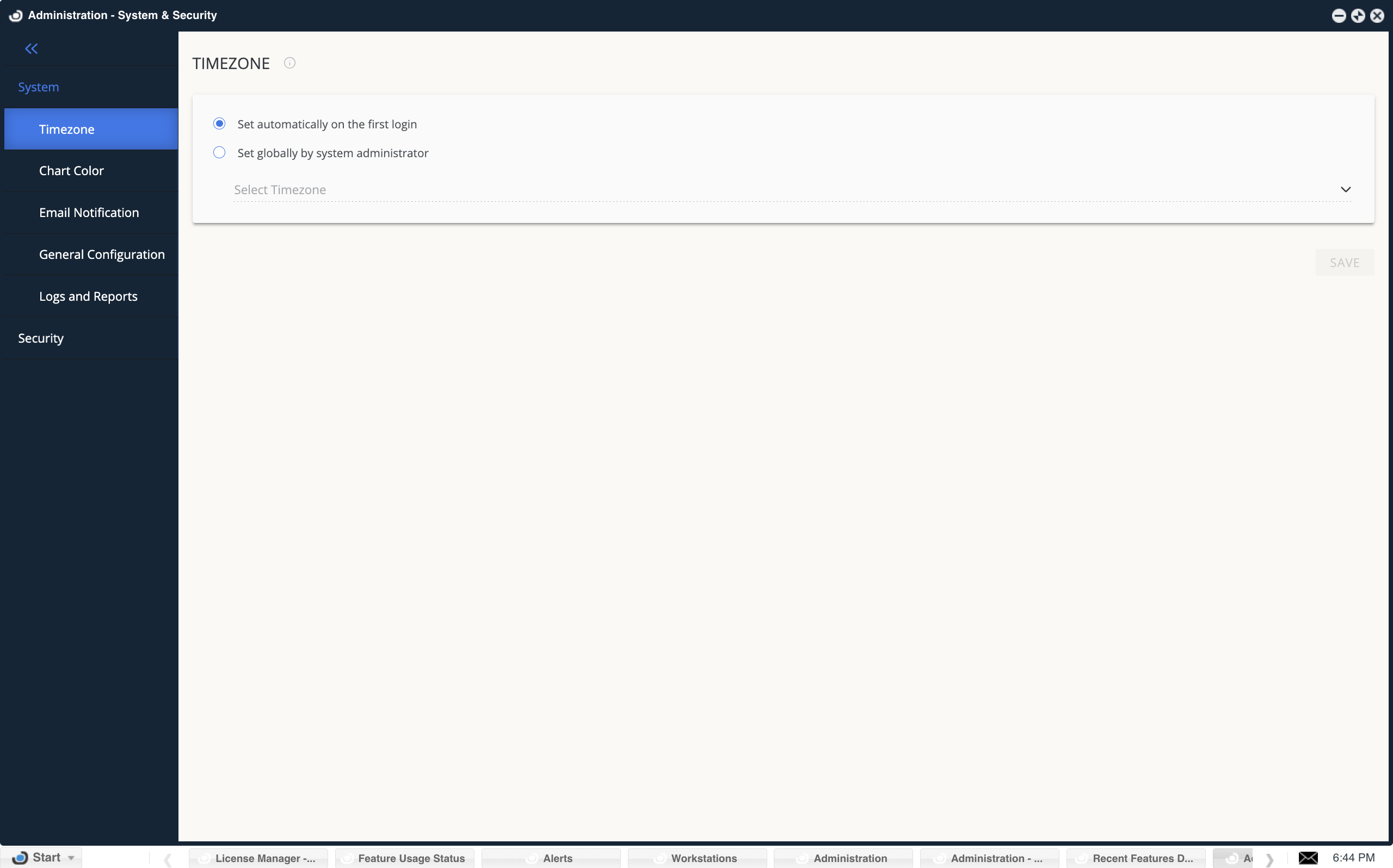
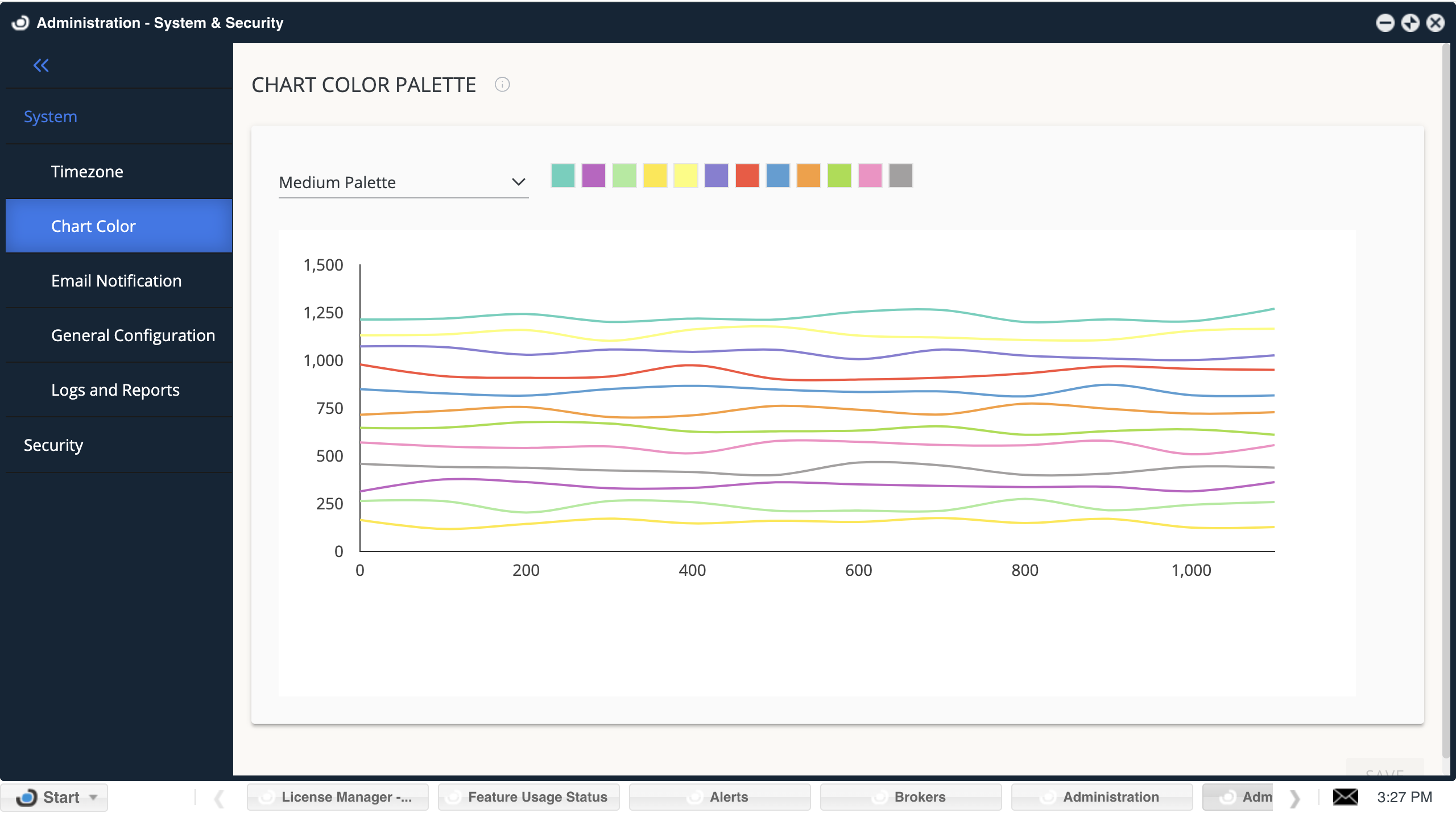
Chart Color
The chart color allows you to set the colors by selecting a predefined color pattern or customize them to fit your needs. A color picker will appear by clicking a color, allowing you to adjust the required color. This selection will affect all charts in the OpenLM interface. Three pallets are available: Medium Pallete, Soft Pallete, and Custom Pallete.
Email Notifications
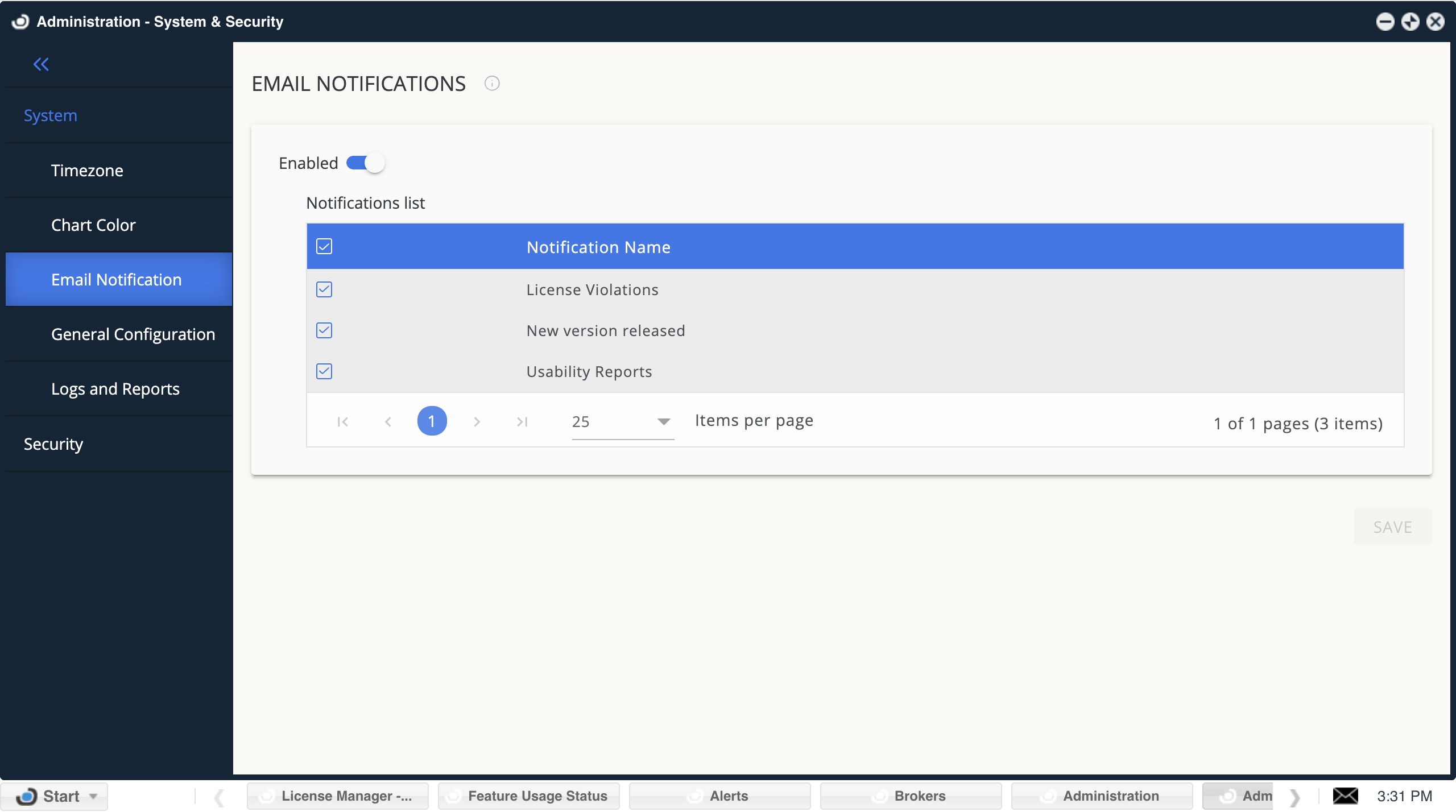
Switching it on allows the system administrator to get email notifications for predefined scenarios.
The Email panel must be configured and tested to switch on Email notifications.
Supported email notifications:
1. Performance improvements: OpenLM will report on spending actions that can be improved and controlled by additional settings or components. (Only for OpenLM Light users & Live Monitoring license).
2. License violations: OpenLM will notify you when the license agreement is in breach and which components are in violation.
3. New version released: get an email whenever a new version update is released.
4. Usability report: Open LM generates auto reports when the system detects technical issues or crashes. By switching this notification, the system will send an email in addition to the system message.
General Configuration
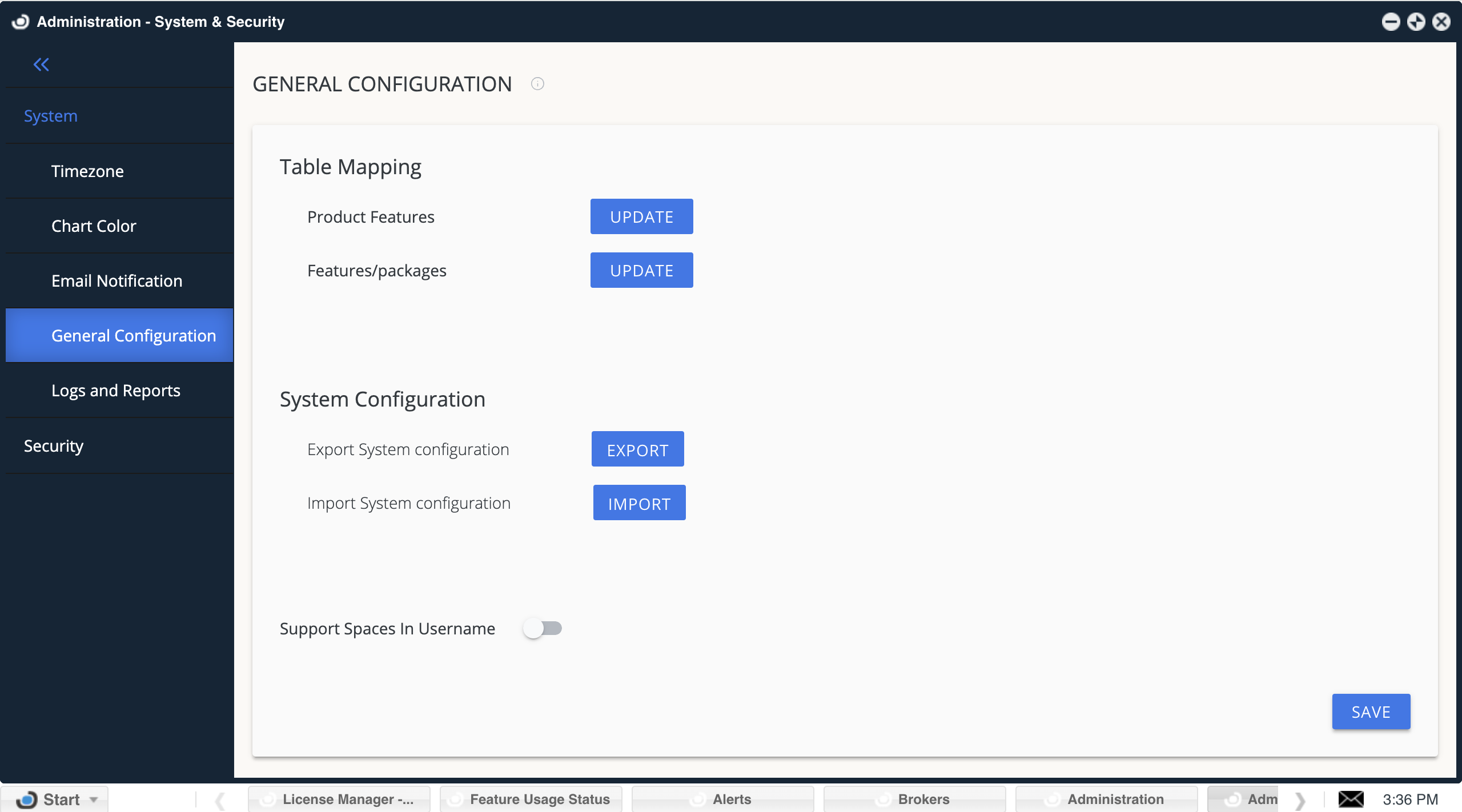
Support spaces in the user name when reading LM SLM output/log files.
The default configuration when OpenLM reads the LM output file and log spaces in the user name position is considered as the user end of the username. By switching this option on, OpenLM will support spaces in the User name fields of the output and log files. (using this method might increase mistakes in data parsing).
Table Mapping:
Update product features
Choosing this option will update the system product feature tables remotely.
Update feature/packages
Enable OpenLM to arrange licensed features in Packages. It can also be updated remotely.
Those two tables are routinely updated.
Select between Autoupdate on a Daily, weekly, or monthly basis, or choose to sync manually.
A daily update will take place every day at midnight.
The weekly update takes place every Sunday at midnight.
The Monthly update takes place on the first of each month.
Please note that if you update the product/feature or feature/package manually through the package/product window and then switch to auto-update, the previous mapping will be overridden.
System Configuration:
Export/import your system configuration.
We strongly recommend backing up your system configuration, especially when switching between DB types.
Logs&Reports
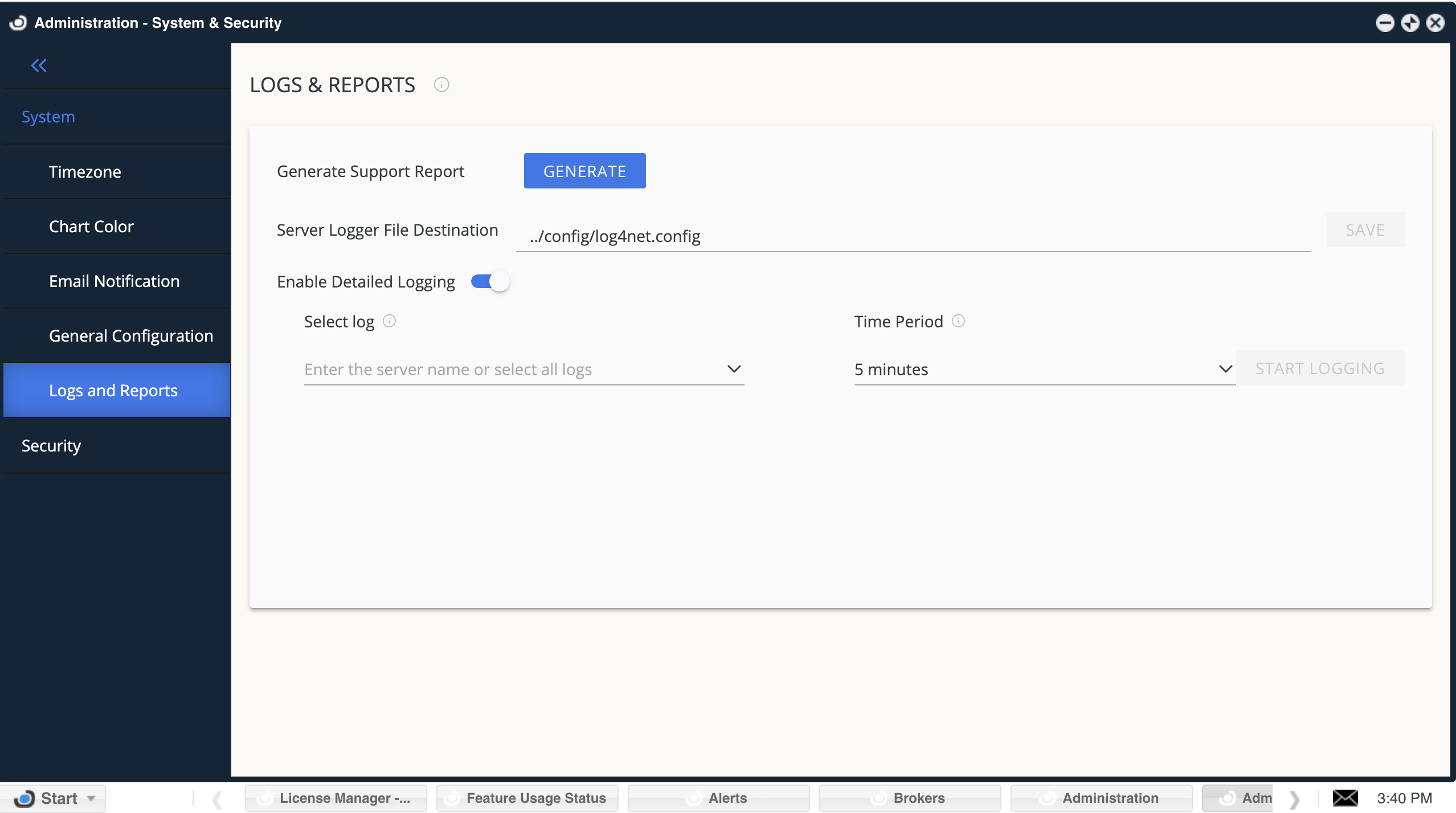
Generate support reports: This is a quick and easy way to generate reports for the OpenLM Support team in case you encounter a problem. Reports provide general information about server settings and ports, DB type, memory consumption, and much more, and they are a great starting point for troubleshooting with the OpenLM support team.
Server Logger Configuration File Destination: This is the location of the logs configuration file. All log paths are elaborated in this file.
Enable detailed logs: this allows you to activate detailed logs for the predefined period. It also prevents forgetting the running logs and overloading the system.
The detailed logs have three modes:
Full OpenLM logging (All Logs): In this mode, all the logs supported by OpenLM will be recorded in detailed mode. (including license manager server logs)
Full LM Logging: A specific License manager server will be logged in details mode in addition to OpenLM full logging (Server, Broker listener, Agent listener). The rest of the LM servers will be monitored in default mode.
LDAP Log: Start Logging the LDAP Log
The logs can run for a predefined period, from 5 minutes to 48 hours. Once they finish running, the logging will return to the standard setting.
Security
Data management
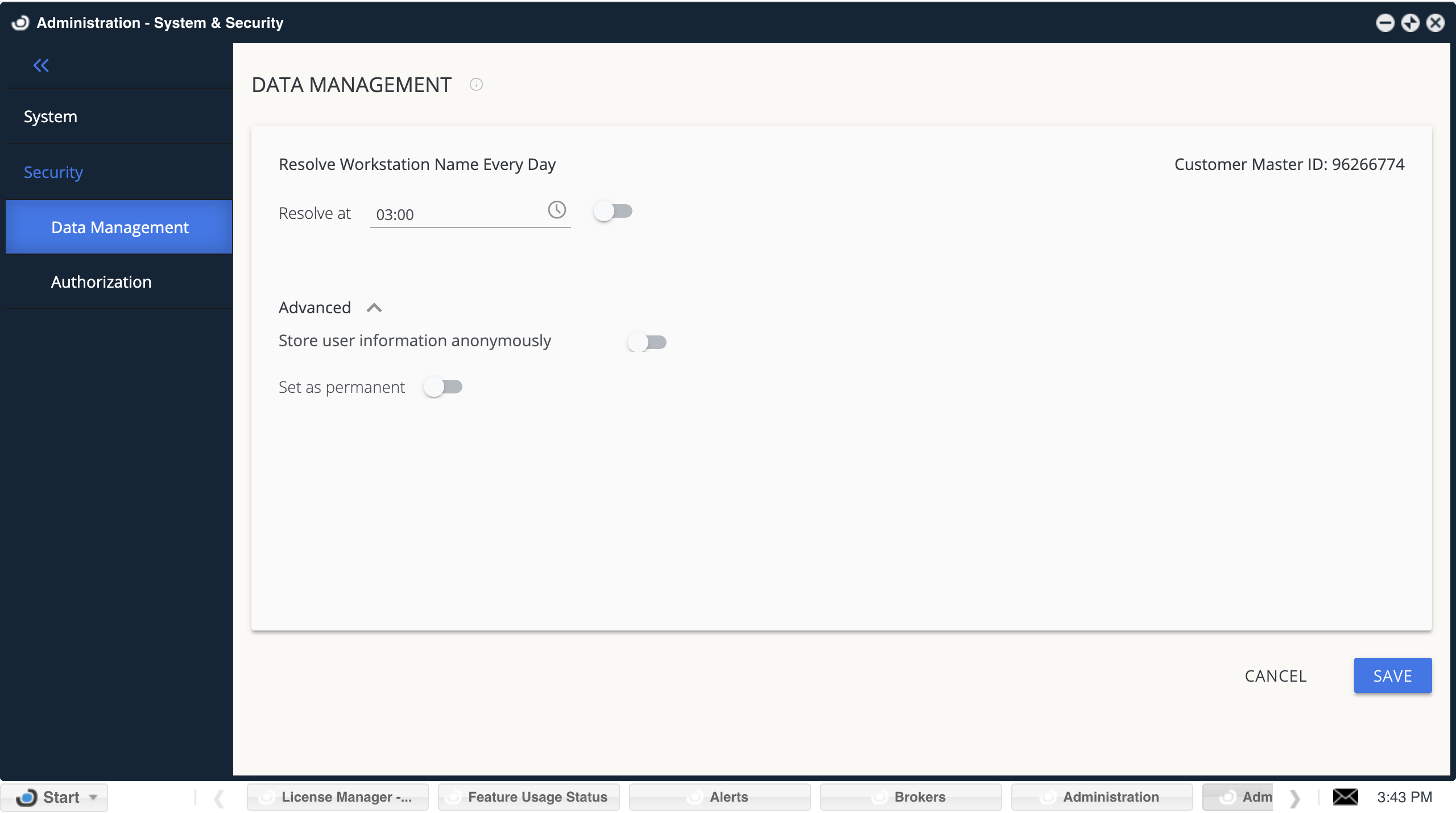
Resolve workstation name every day
When this option is enabled, OpenLM SLM will try to translate the workstation’s names to IP addresses daily at the selected time.
Store user information anonymously
Sometimes, laws or respective agreements restrict the storage of a user’s usage information. When using this option, data will be stored anonymously.
Set as permanent
Selecting this option will make the stored user information anonymously irrevocable. You won’t be able to switch it back. Your system will not be able to collect clear user information. Please make sure you understand the consequences.
Another method of hiding users’ usage information from unauthorized.
Audiences are provided by “OpenLM Role Based Security.”
Authorization
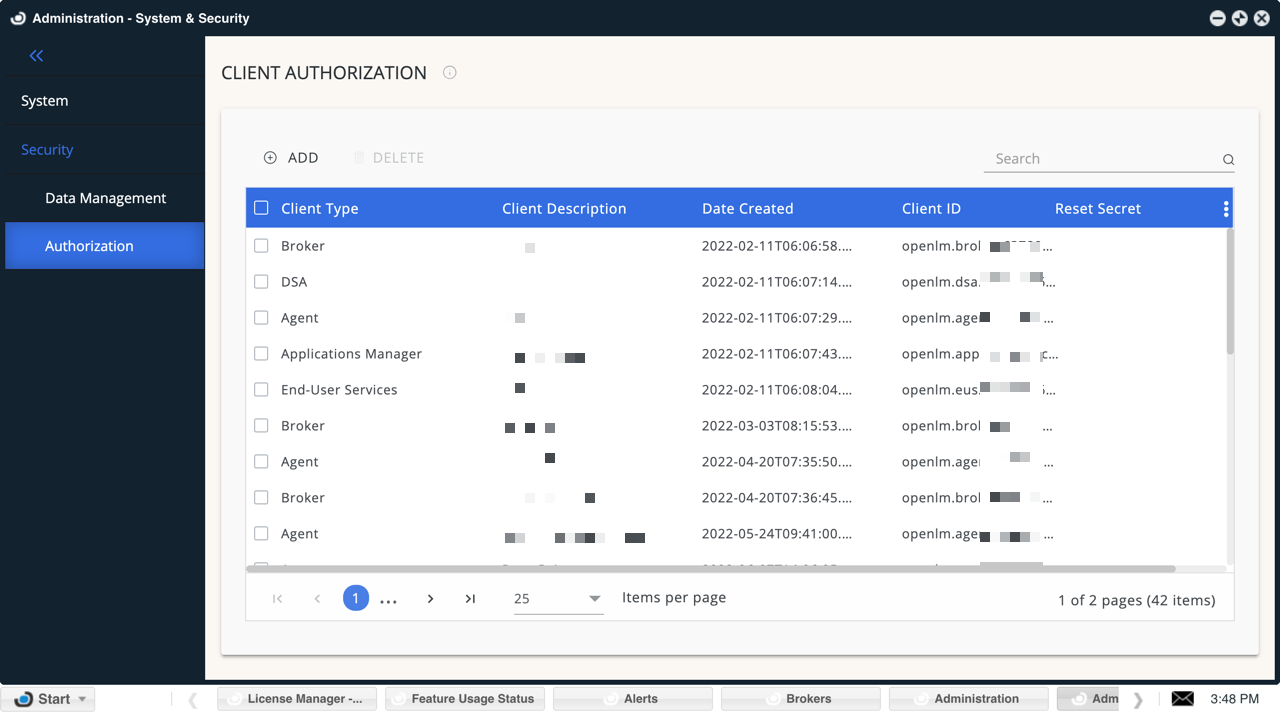
OpenLM Supports Oauth2.0 and Open ID Connect security protocols. In the authorization screen, you can generate a client ID and secret key to allow external components (such as OpenLM Broker and DSS) to access the OpenLM SLM.
Reset Secret: by clicking on this, you reset the previous secret key connected to the client ID and generate a new one. The old secret key will no longer work.
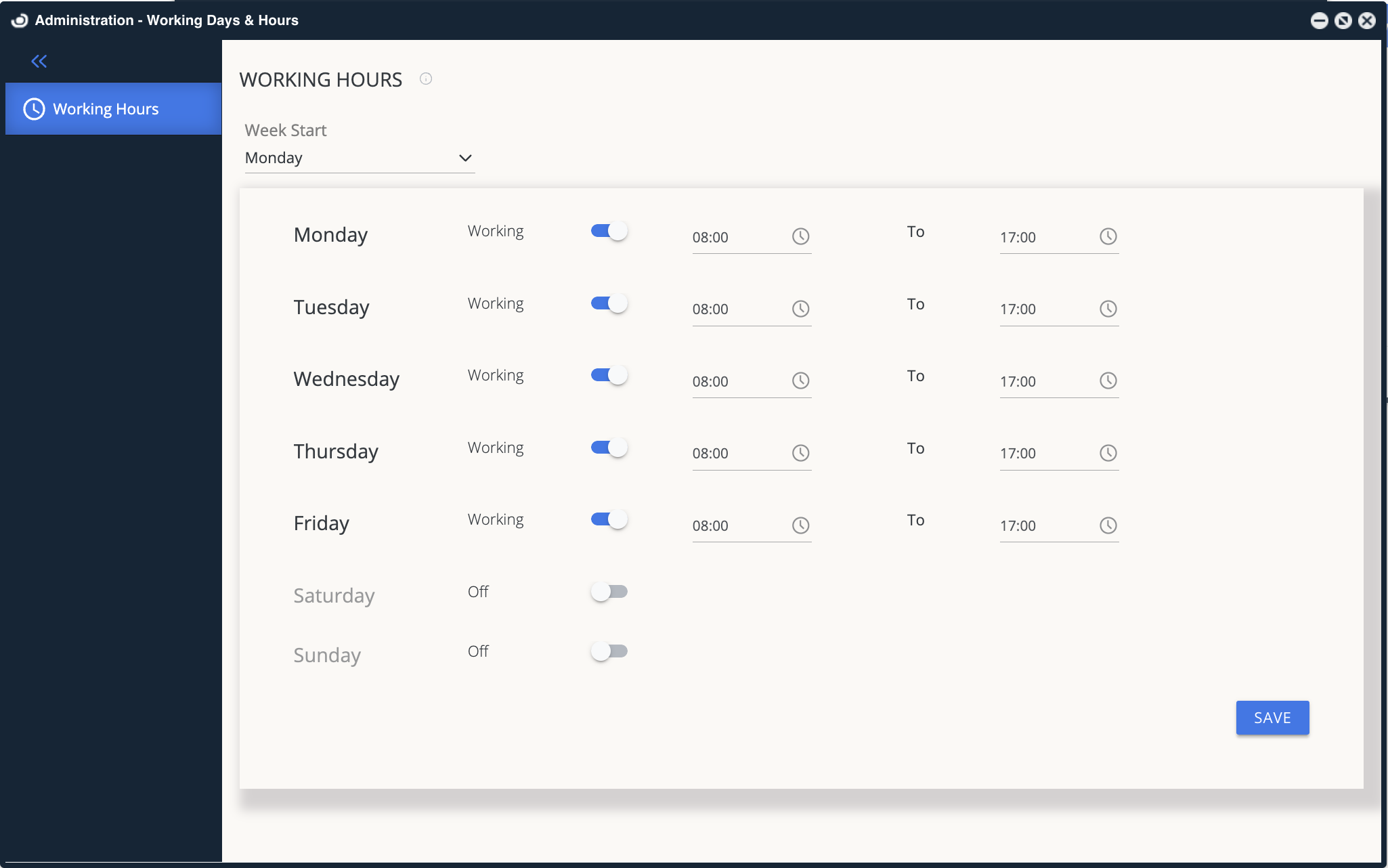
Working Hours
Define the organization’s working hours for filtering in all of OpenLM’s reports.
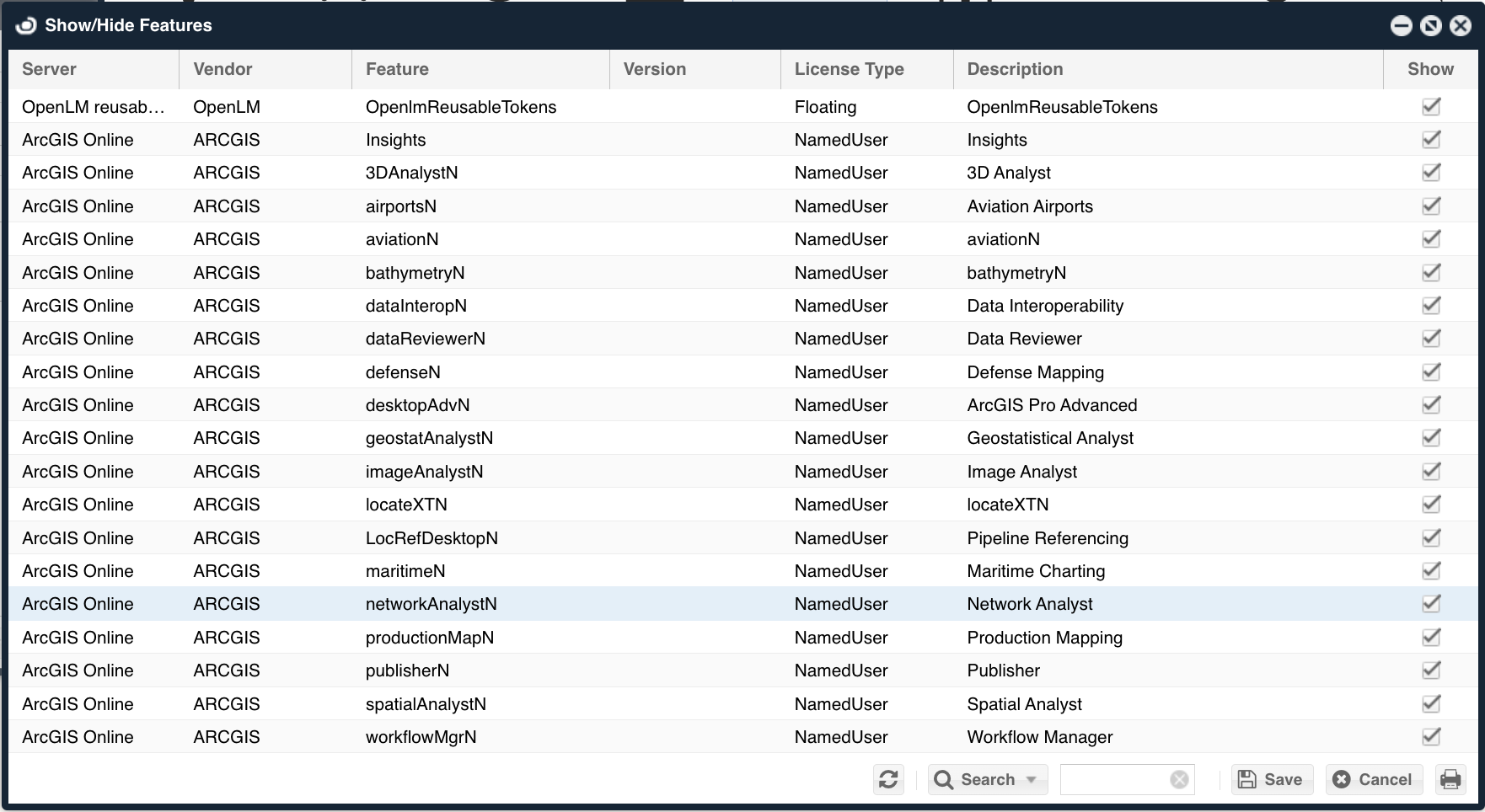
Show/Hide features
Hide or show different features from the OpenLM interface.
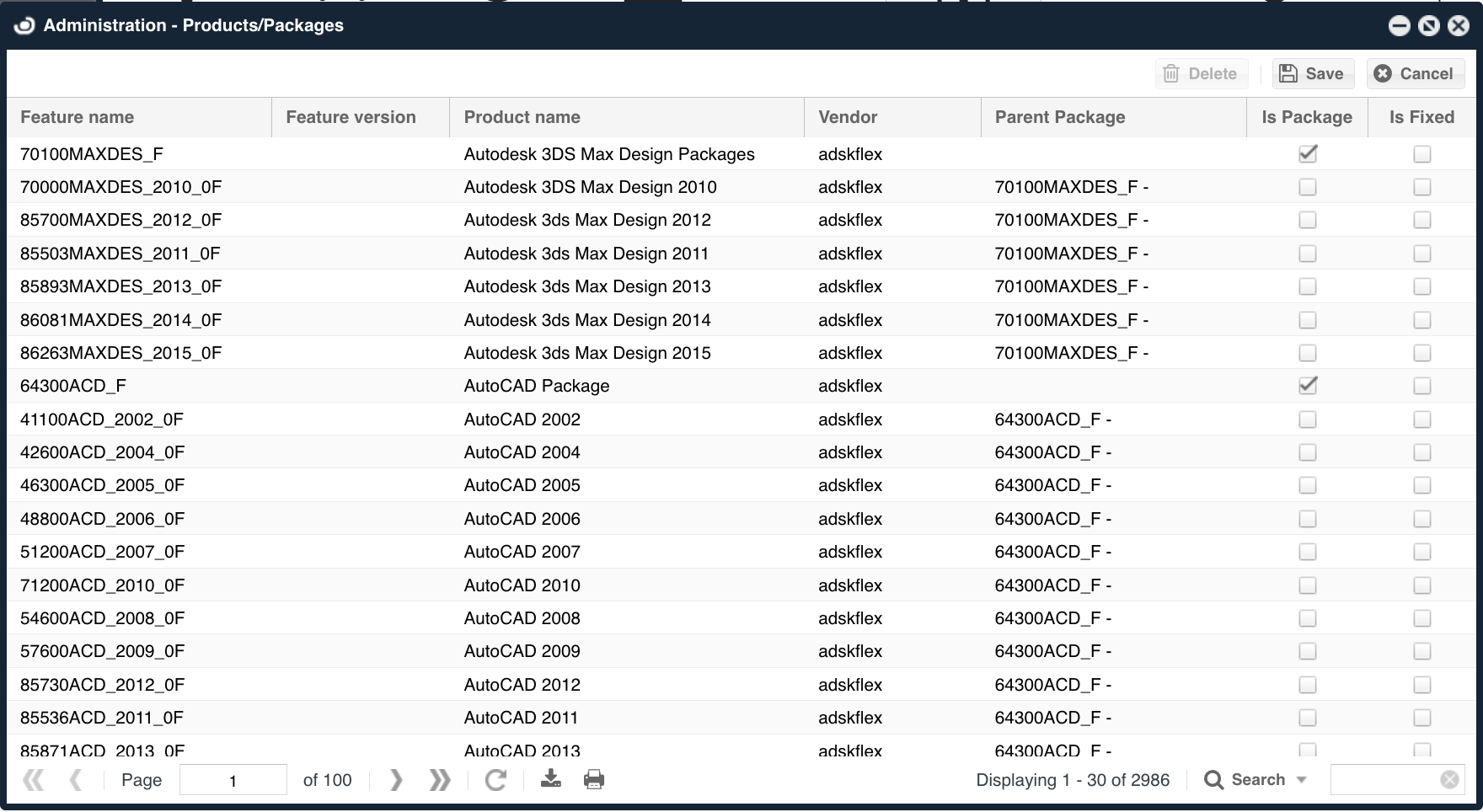
Product Packages
Change product names and set product packages in the OpenLM User Interface.
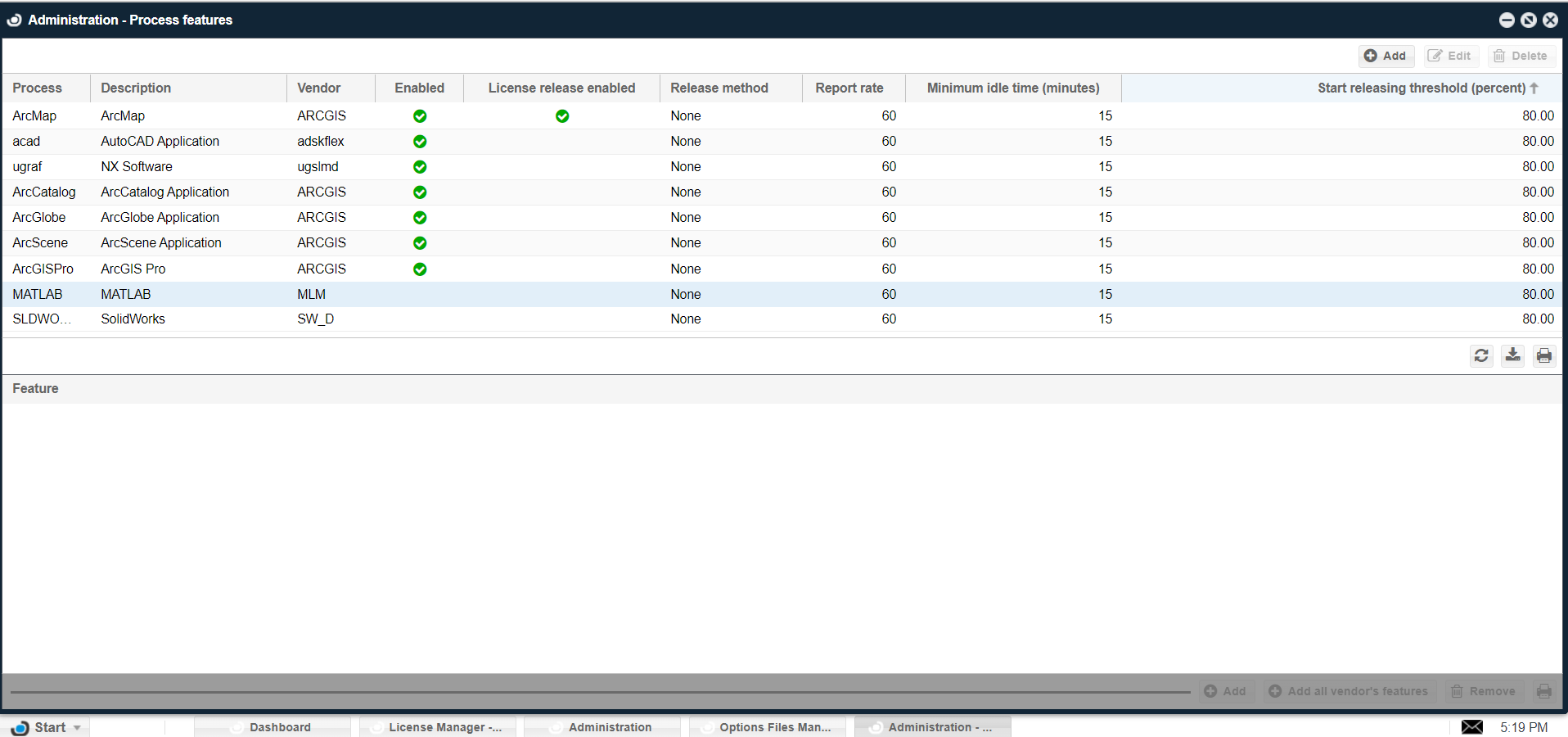
Process Feature
The OpenLM Process Features Window is a tool within the OpenLM EasyAdmin User Interface that allows system administrators to configure license monitoring for specific applications. Here, administrators can define processes to be tracked, set idle time thresholds, and determine when an inactive session is considered idle. This helps identify and reclaim unused licenses for optimal resource allocation.
Projects
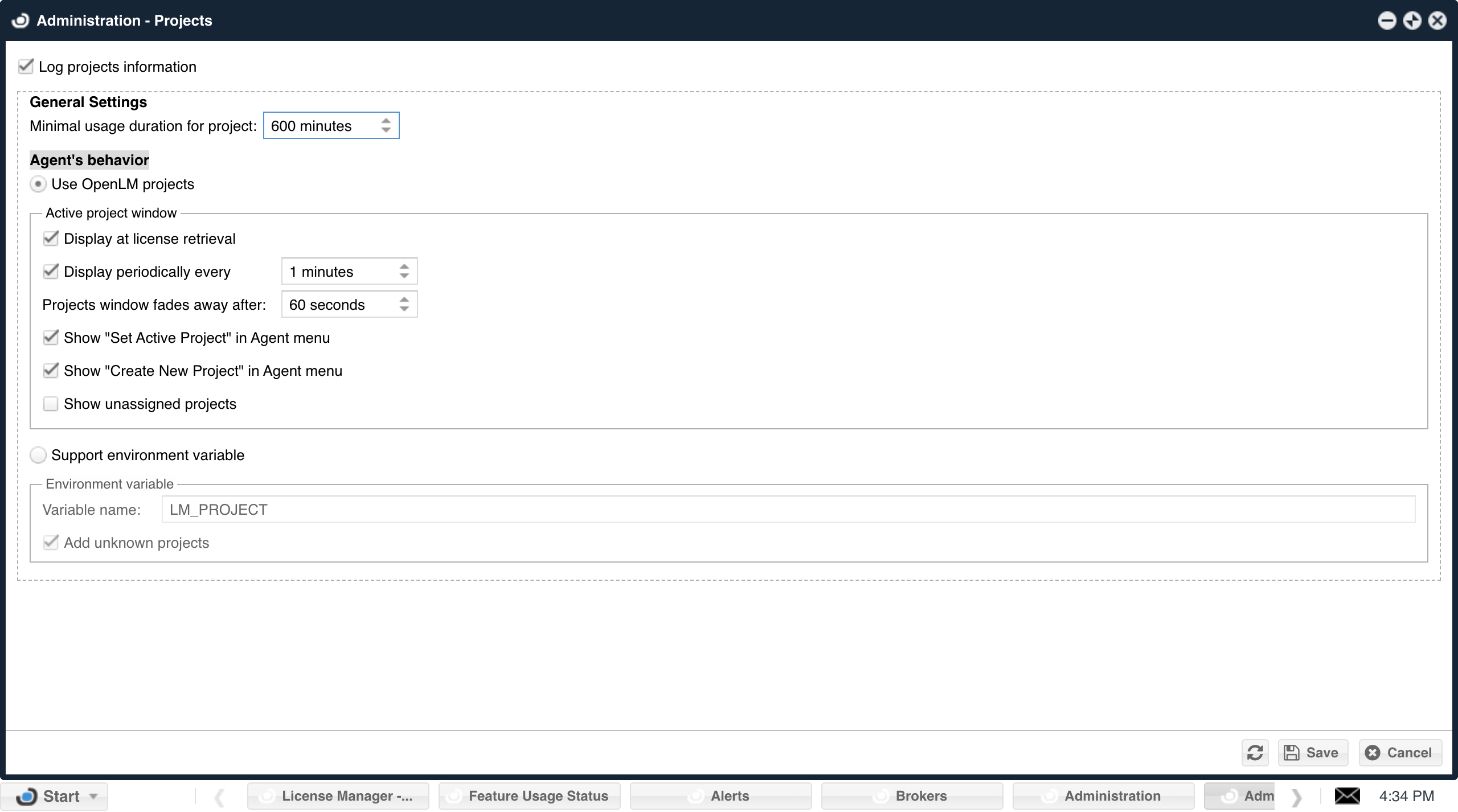
Log projects information: Check this box to enable this feature and the ability to configure it.
General Settings:
Minimal usage duration for project: This setting allows you to set a minimum usage duration below a project’s inactive status.
Active project window: This section controls the behavior of the Active project window. You can choose to:
Display the window at license retrieval.
Display the window periodically at a set time interval. You can set the interval in the box next to “every”.
Projects window fades away after This setting controls how long the project window stays open after it’s displayed.
Show “Set Active Project” in Agent menu: This option enables the “Set Active Project” option in the Agent menu.
Show “Create New Project” in Agent menu: This option enables the “Create New Project” option in the Agent menu.
Show unassigned projects: This option allows you to display unassigned projects.
Support environment variable: This section allows you to configure an environment variable for OpenLM use.
Variable name: This box allows you to specify the environment variable’s name.
Add unknown projects: This option allows you to add unknown projects to OpenLM based on the value of the environment variable.
Cleanup Manager
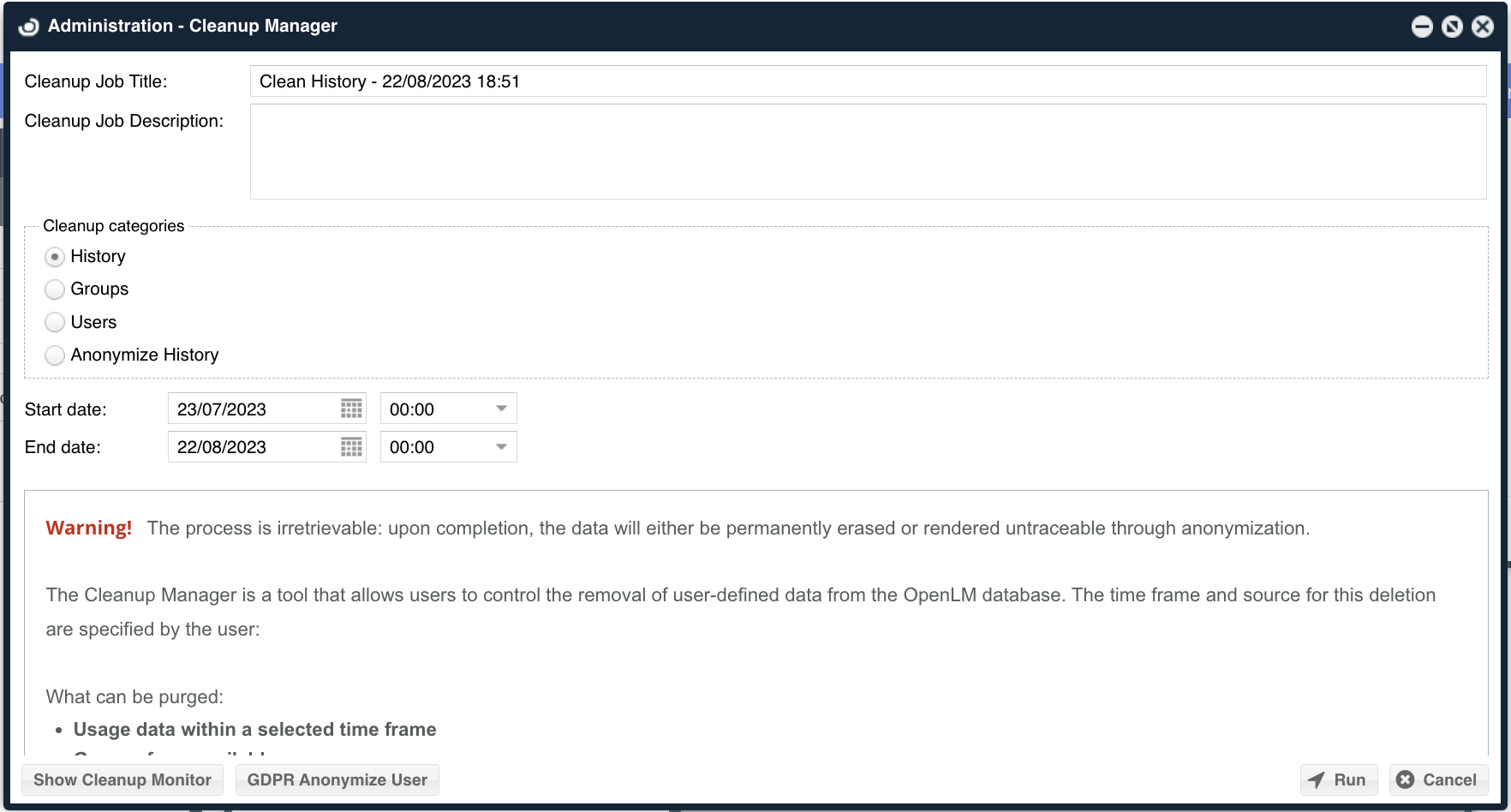
Delete usage history, group, and users from the OpenLM database.
Directory Synchronization
OpenLM provides functionality for synchronizing the OpenLM database with user information from a domain directory (e.g., ActiveDirectory).
OpenLM License
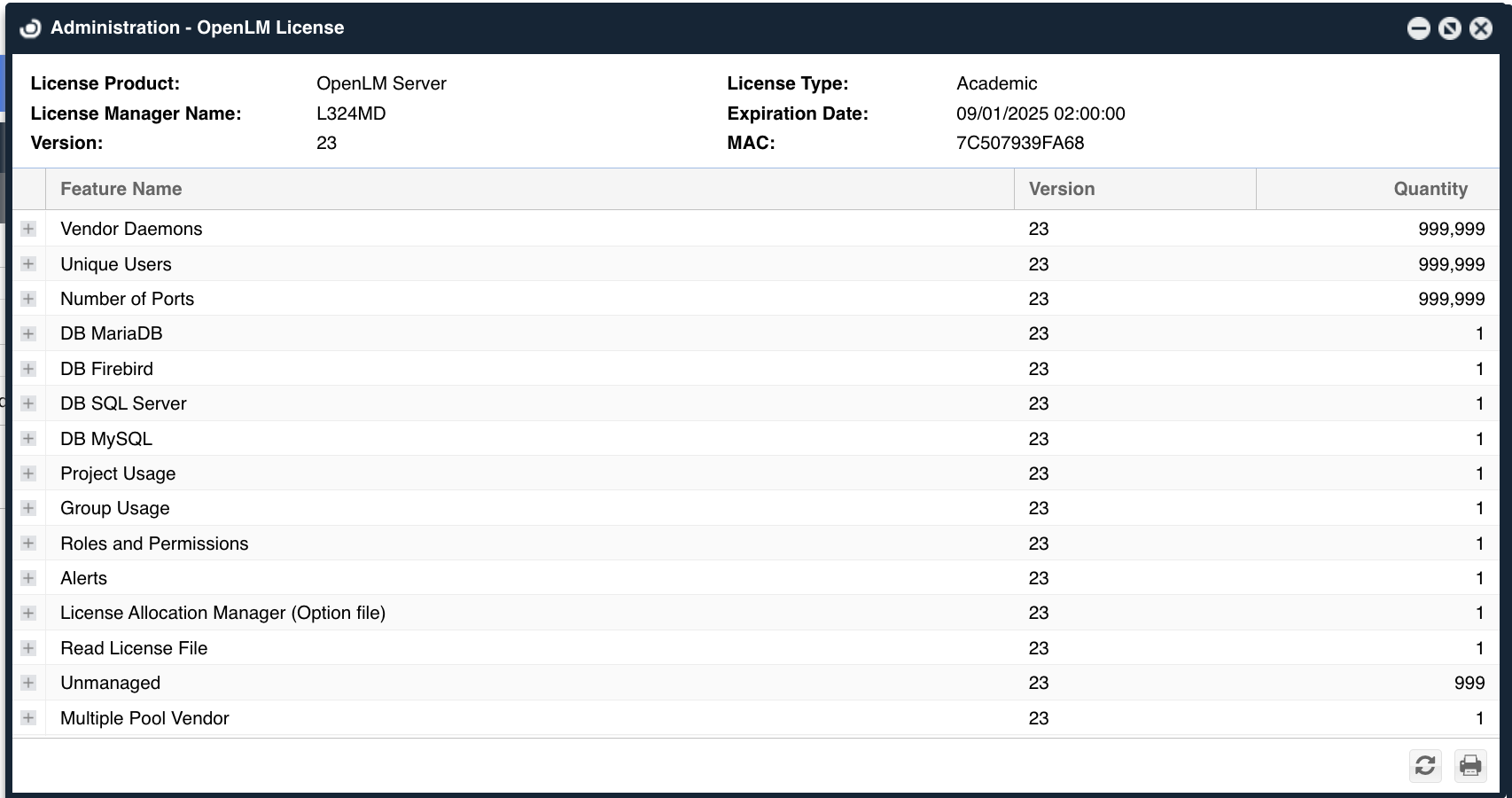
You can see the details of your OpenLM license file, such as when it expires, which extensions you have, how many of each, etc.
Email
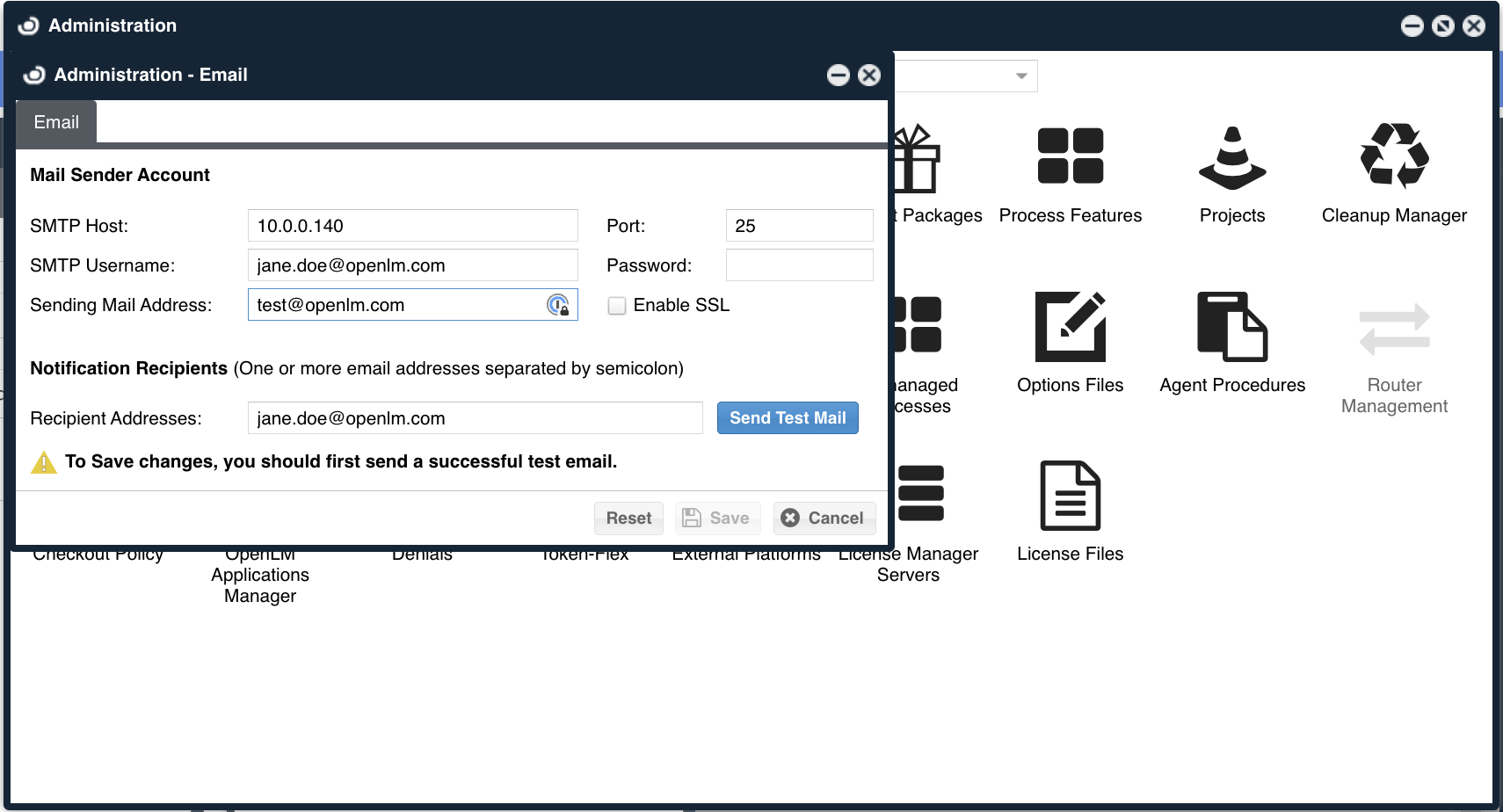
Set up the organization’s SMTP server details so OpenLM SLM can send you emails if certain conditions are configured.
Alerts
The OpenLM Alerts feature is designed to help you monitor the stability and availability of a licensing system. You can define alert conditions and actions triggered when these conditions are met.
The extension can handle complex conditions and features for multiple license servers. There are several options for how these alerts are displayed:
- In the EasyAdmin User Interface Alerts widget, as an event in the Application Event Log.
- Sent as letters to one or multiple email accounts.
Roles
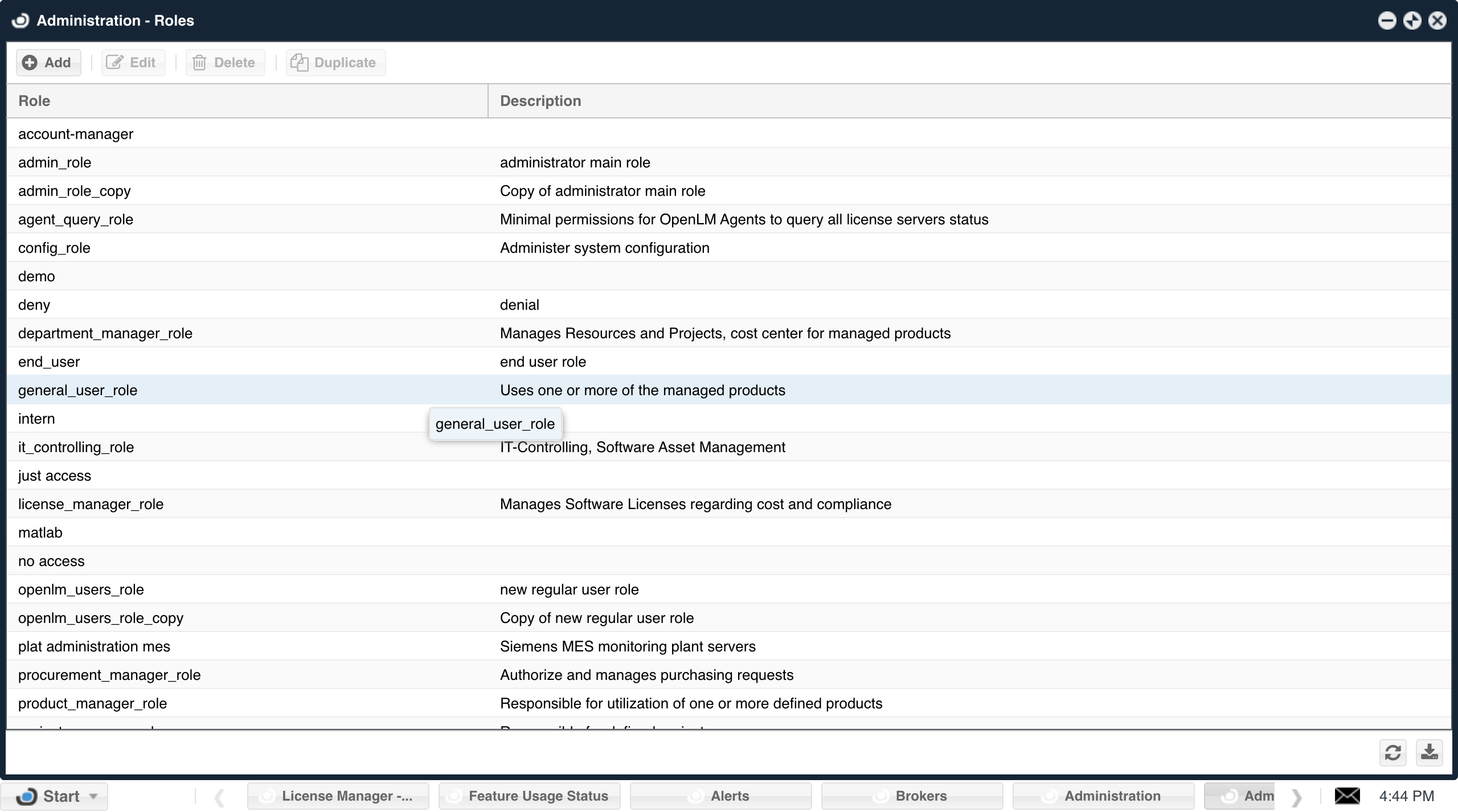
The OpenLM SLM supports a role-based security feature that enables system administrators to implement customized access to OpenLM tools by setting access roles. This feature facilitates the implementation of OpenLM tools for diverse groups, such as the help desk, system administrators, managers, and developers. The role-based security system secures nearly all the resources of the OpenLM system’s entities, such as listed servers, fields, and action buttons.
Unmanaged Processes
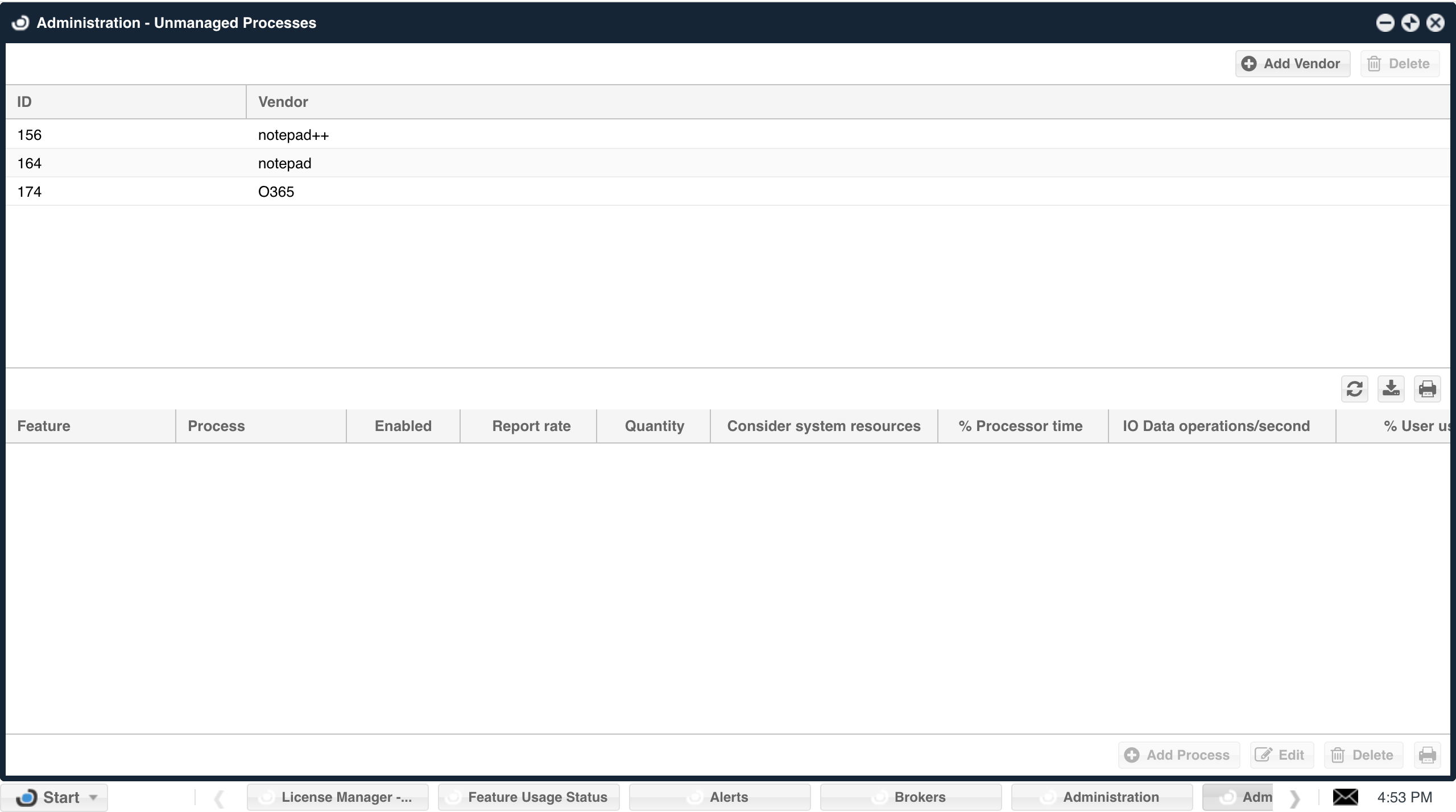
Every Software Feature runs as a Process on your PC. Unmanaged Processes allow you to track these features.
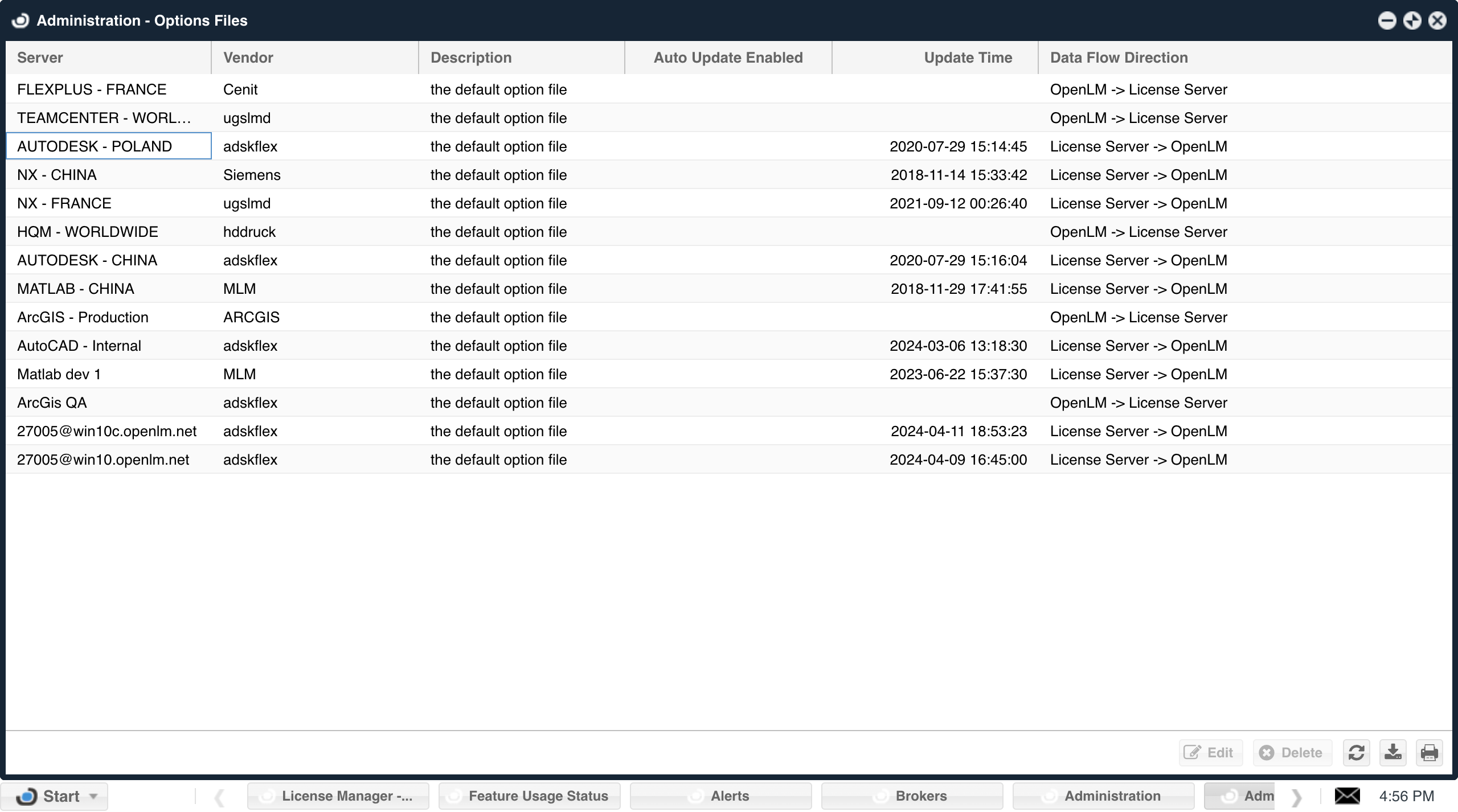
Options Files
FLEXlm ( FlexNet publisher ) Options files grant license administrators close control over various operating parameters within the constraints of the license model. Licensed features can be dedicated, denied, or reserved to users or groups of users, as well as Hosts, IPs, and Host Groups according to the Options file setting.
Agent Procedures
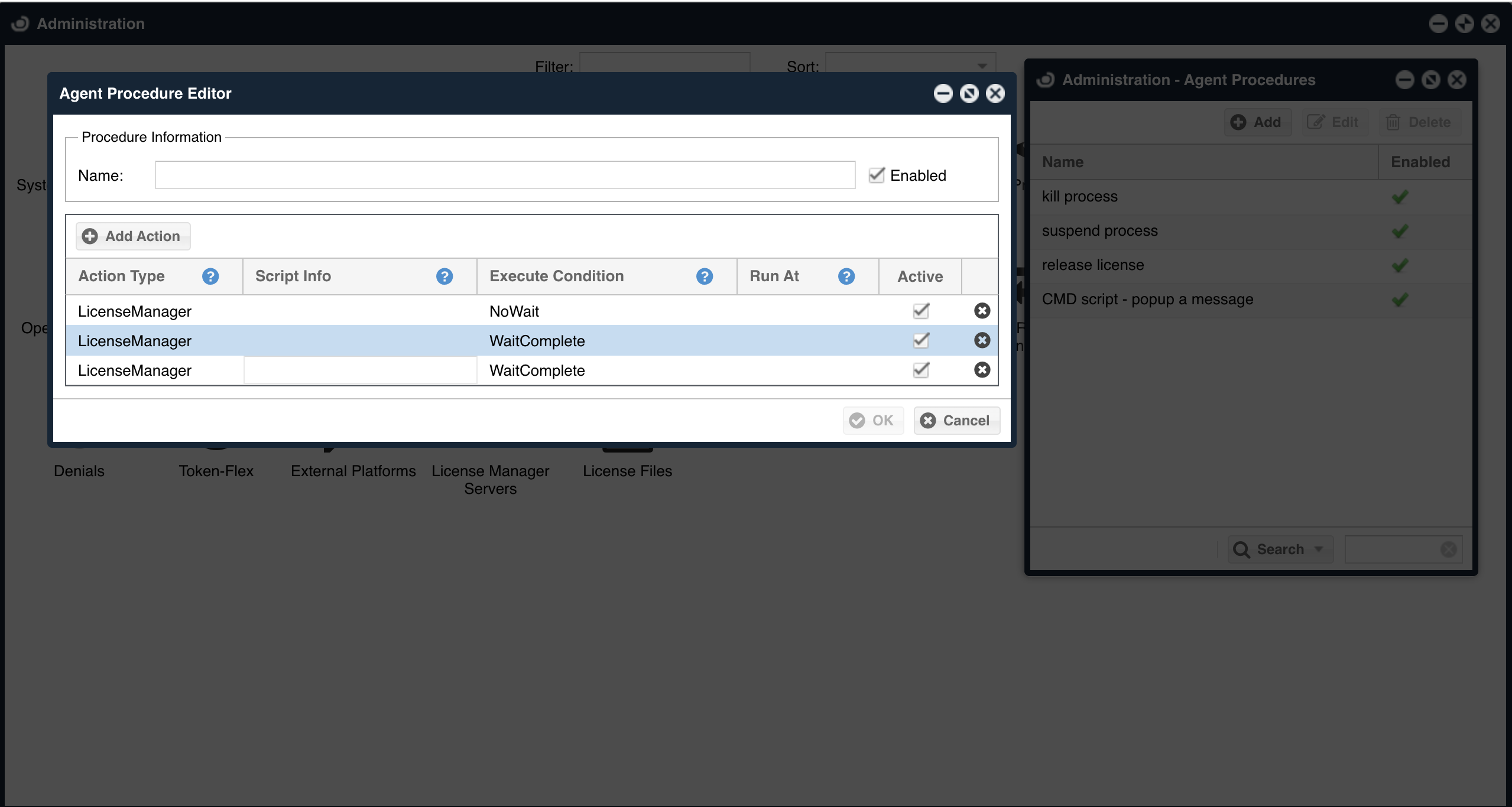
OpenLM can retrieve licenses for idle applications through Agent Procedures. These include:
- General purpose license retrieval of licenses managed by any license server (not just for FlexLM).
- Conditional license retrieval (e.g., “close idle application A only if application B is inactive”)
- Close idle applications of ‘Unmanaged’ licenses (licenses that are not managed by a license server that OpenLM queries)
Checkout Policy
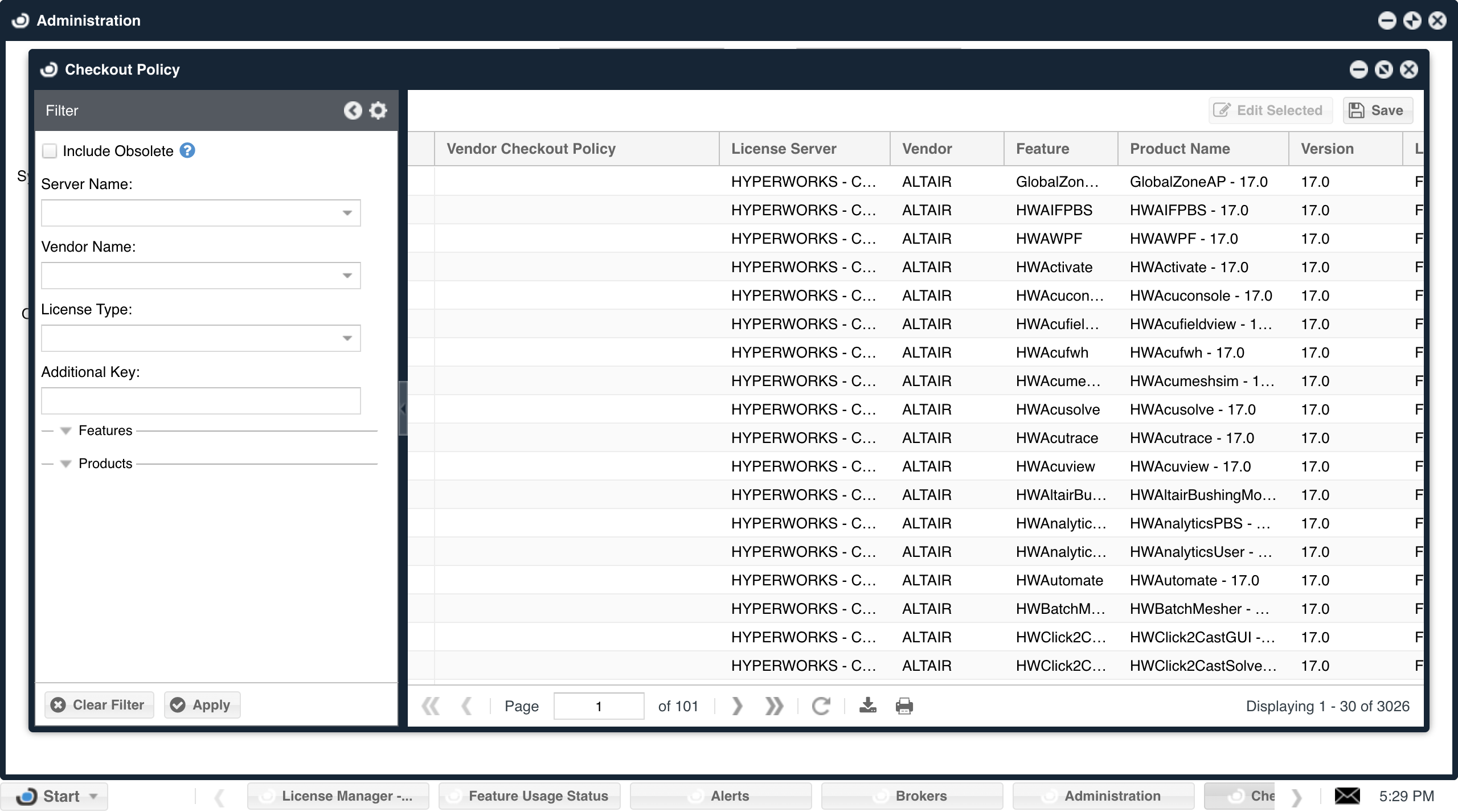
The “Checkout Policy” is defined as the number of licenses an application consumes when multiple sessions are invoked. For example, launching multiple sessions of Autodesk on a single workstation by the same user may prompt the license server to consider either a single license or more as consumed by that user. It is essential to align the checkout policy as defined by the license server (i.e., vendor) to the one specified in OpenLM to ensure correct license usage reporting.
Application Manager
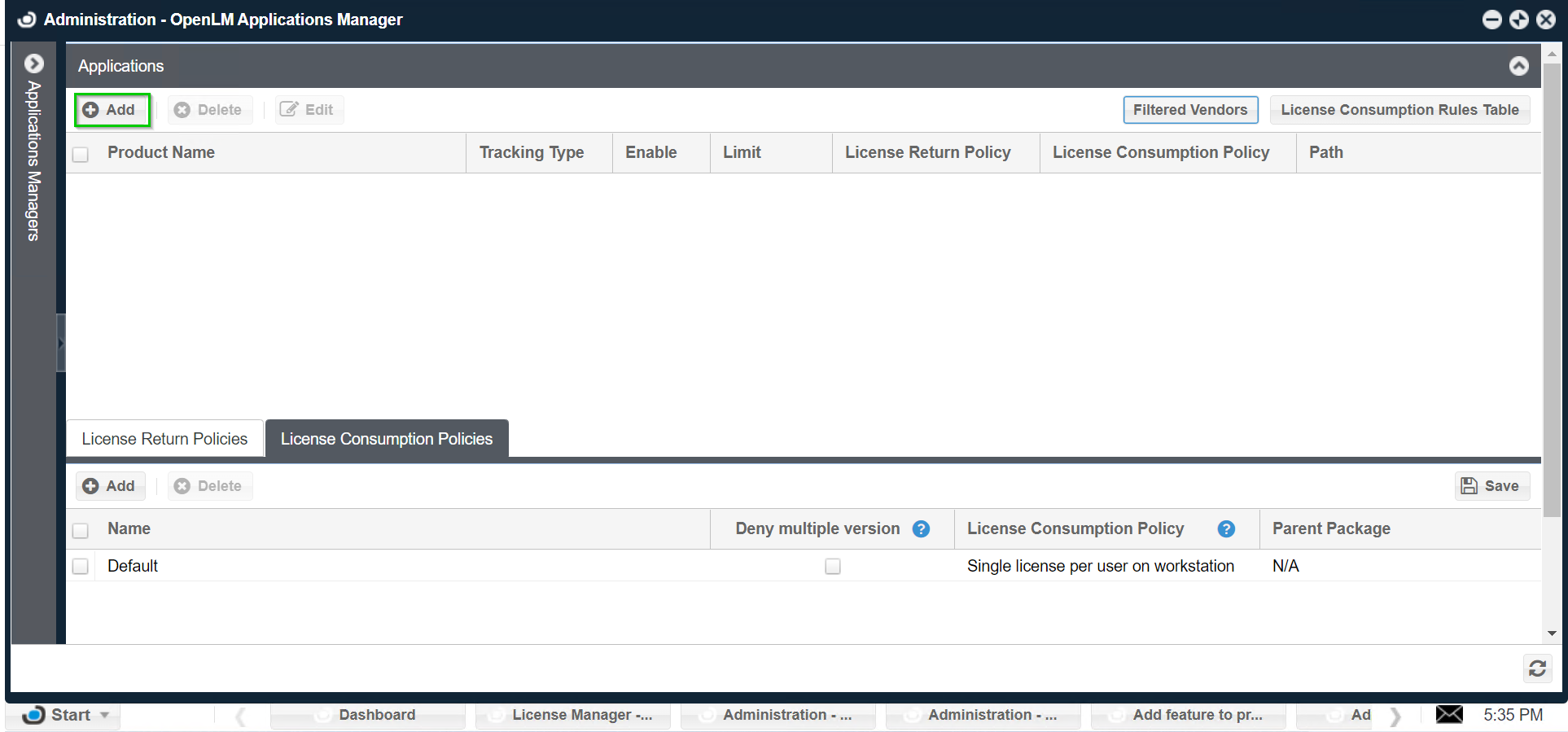
OpenLM Applications Manager is a Java application that monitors and controls the use of any software in the organization regardless of the licensing scheme in effect.
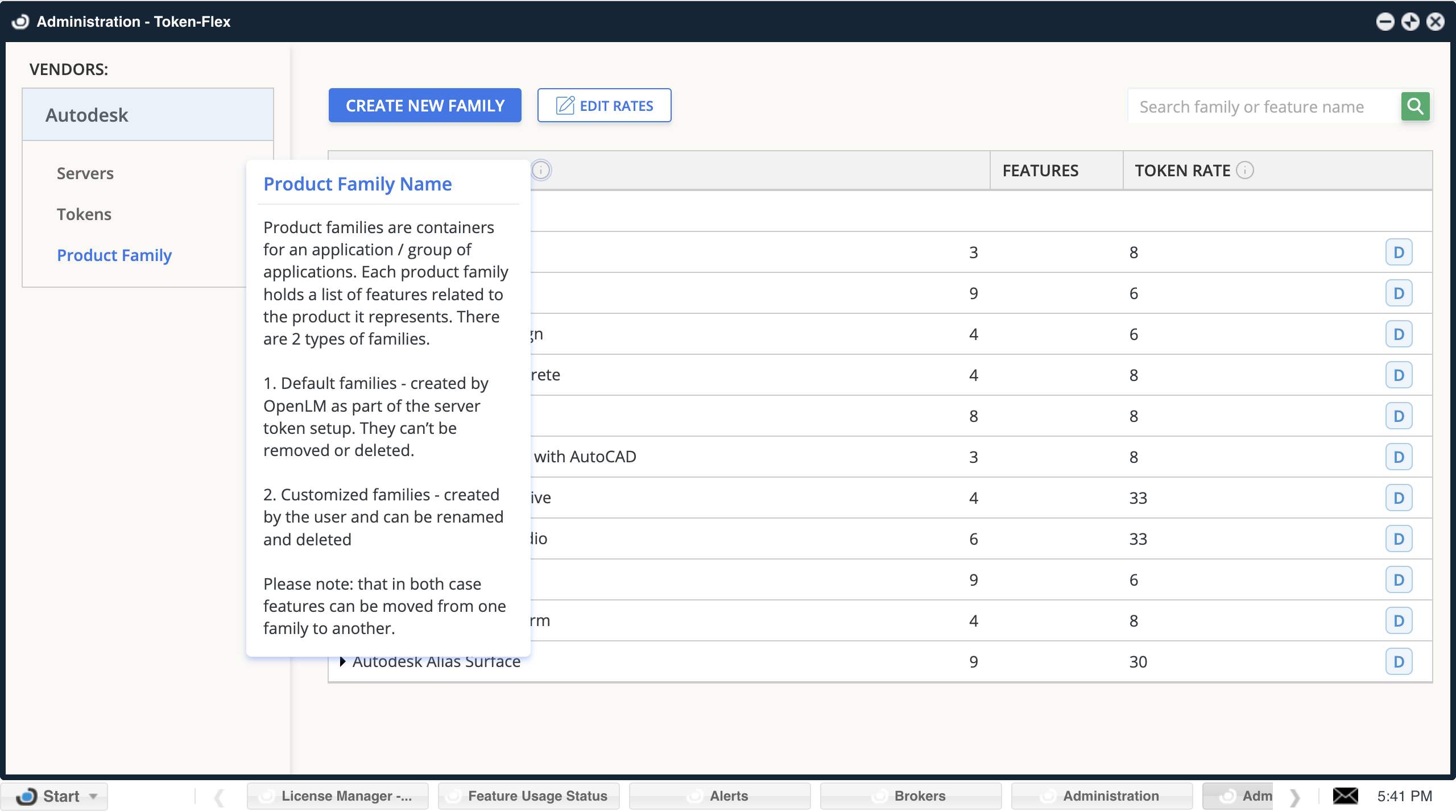
Token Flex
Token Flex is a cloud-based, pay-as-you-go licensing model from Autodesk where the customer buys several tokens (referred to as a “token pool”) and pays with these tokens each time a user runs a product belonging to a particular product family within a specified amount of time (usually counted as 24-hour intervals).
External Platforms
DSS
Connection setup
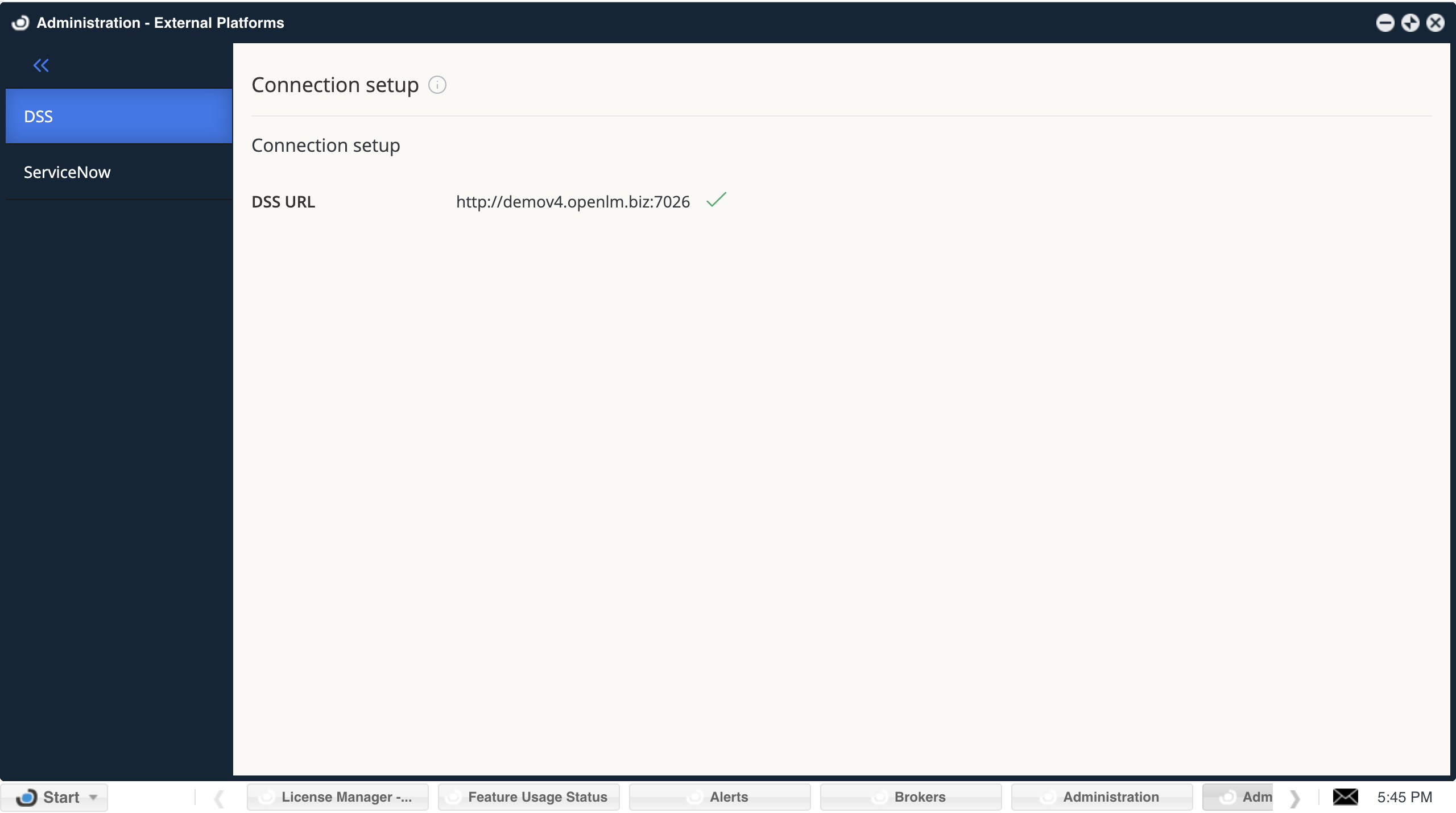
Approve and manage the connection between the OpenLM Server and the OpenLM Directory Synchronizations Service (DSS).
Once a DSS is configured to report OpenLM Server, it will be in pending approval mode for 5 minutes or until the request is approved/rejected.
The connection between the OpenLM Server and DSS is a single connection. To switch the DSS, OpenLM works by sending an approval request from the new DSS. The new DSS will appear as pending approval, and once you approve and save, the connection will be switched to the new DSS.
ServiceNow
ServiceNow Destination
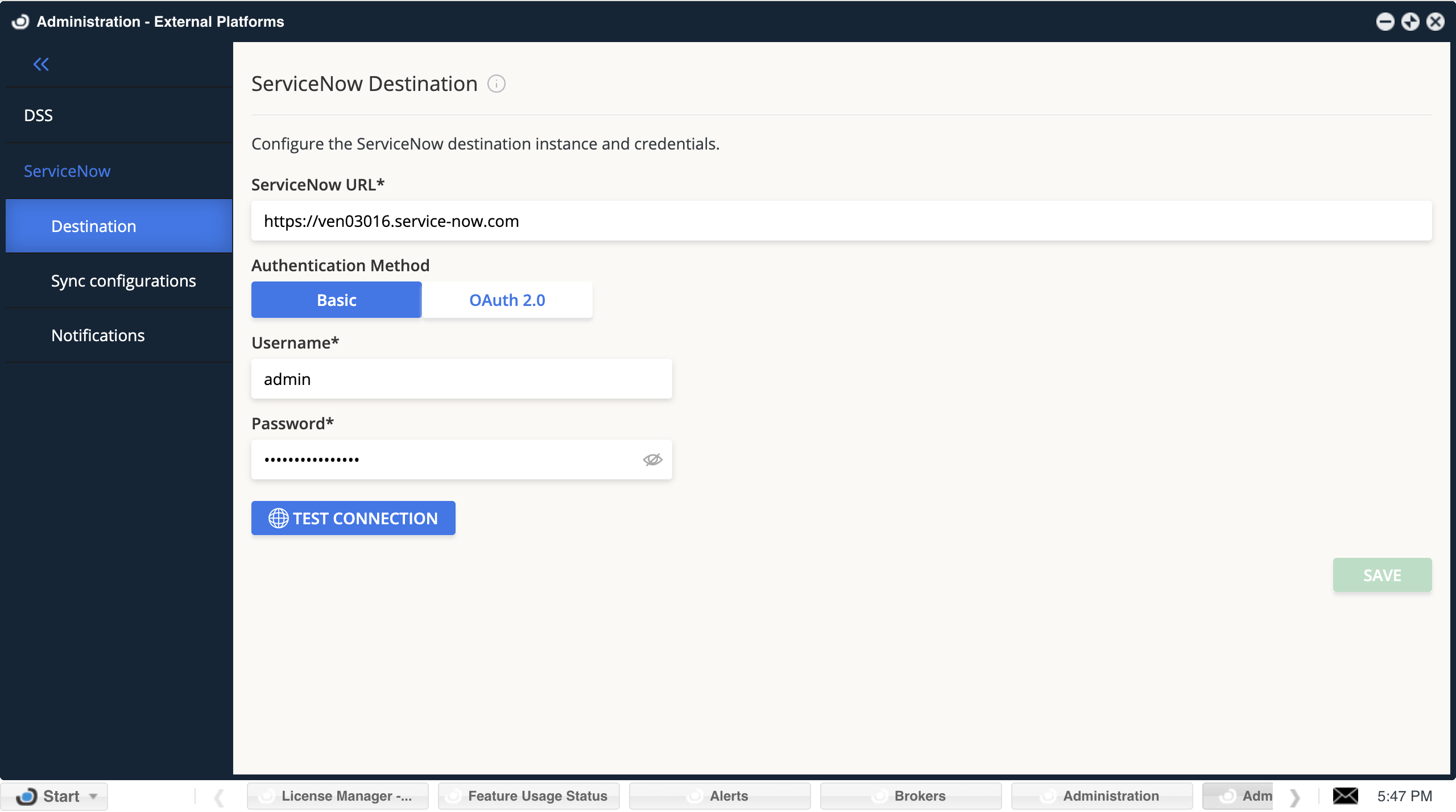
OpenLM is a trusted partner of ServiceNow and has a ServiceNow application to integrate OpenLM reports into the ServiceNow interface.
ServiceNow URL: The path to your ServiceNow instance. For example, https://ven11111.service-now.com
User: Your ServiceNow username.
Password: Your ServiceNow password.
Test connection: Check the connectivity between OpenLM and ServiceNow.
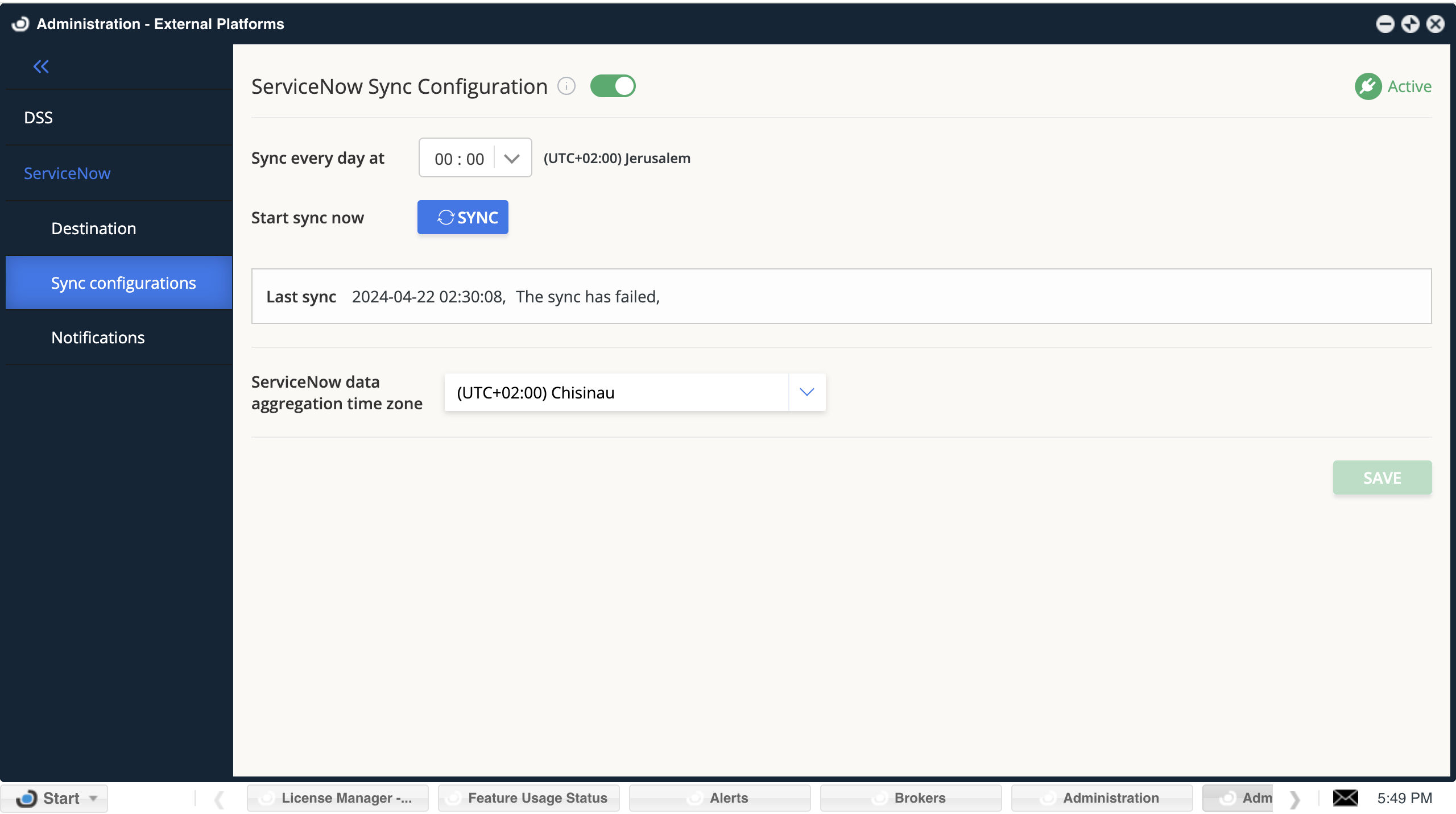
ServiceNow Sync Configuration
Enable/Disable the data sync between OpenLM and ServiceNow.Sync every day at:
Configure when the daily sync between OpenLM and ServiceNow will start. The execution time is based on the External Platforms server time zone.Sync Now:
Execute a sync request with ServiceNow outside the regularly scheduled time. While scheduled sync is running, Sync Now is disabled.
ServiceNow data aggregation time zone:
OpenLM reports daily Aggregated data to ServiceNow. Please select the time zone to configure the term day.
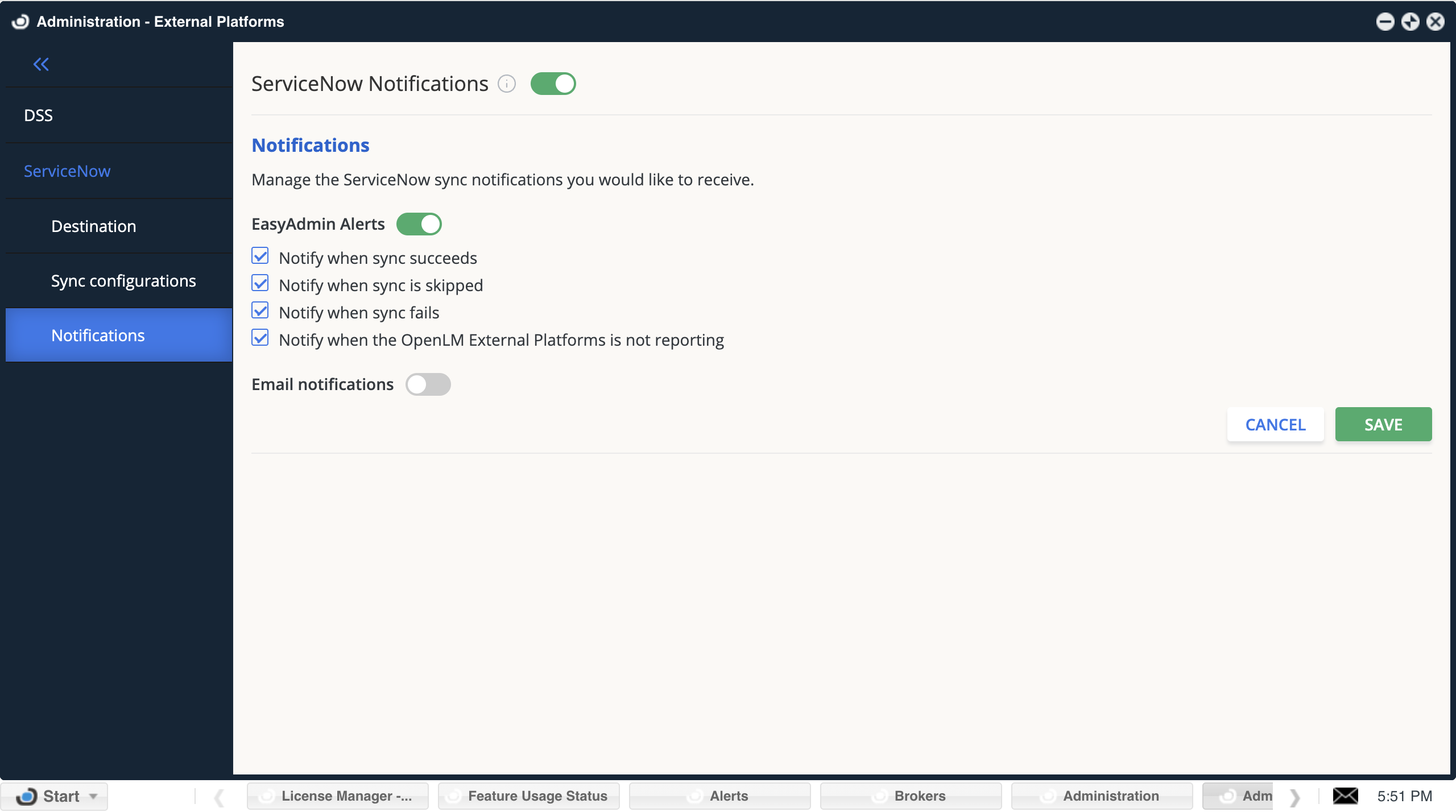
ServiceNow Notifications
The ServiceNow integration includes email and alert notifications. Whenever sync is finished successfully or encounters a problem, the notifications are sent to the system administrator and to the recipients list.
EasyAdmin Alerts: When switched On, the notifications will be displayed in the OpenLM EasyAdmin Alerts window.
Email Notifications: When switched On, notifications will be emailed to the OpenLM system administrator and the recipients list.
Recipients list: When the Email switch is On, you can add as many recipients’ emails as you need, each separated by a new line.
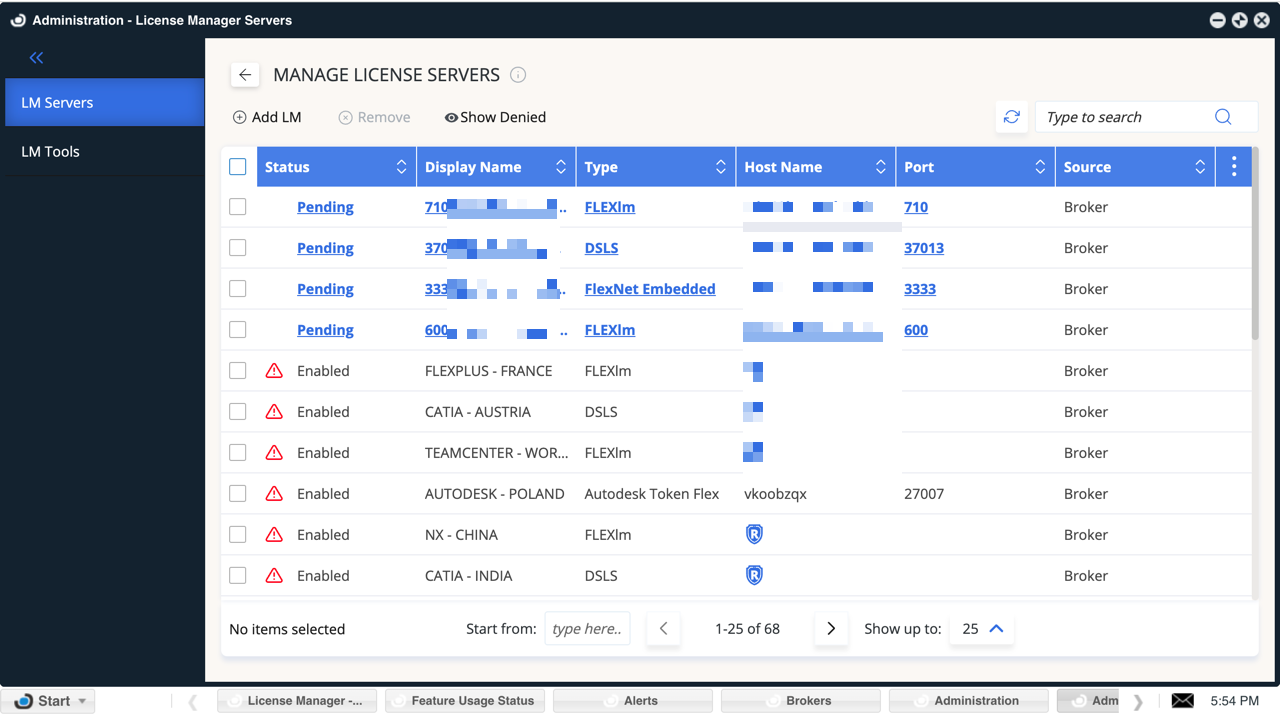
License Manager Servers
LM Servers
Control your license manager server preferences. Monitor their status and approve, add, or edit license servers.
Status:
License Server status can be pending, enabled, disabled, or denied.
Pending: initial status. Indicates that OpenLM Broker reported the LM server. Once the LM server is approved, OpenLM will start monitoring it.
Denied: indicates an LM server reported by OpenLM Broker that you have chosen to deny. LM servers with this status won’t be monitored.
Enabled:
A green checkmark indicates that OpenLM is successfully monitoring the LM server.
“Enabled,” shown with any other sign but green, indicates that OpenLM has encountered a problem while trying to monitor the LM server (mouse over the icon to see the reason)
Disabled: The LM server is configured, but monitoring has been turned off.
Add LM: Manually add a new License Manager server to be monitored by OpenLM.
Edit: Double-click a server name or select the server and click edit.
Remove: Select one or more servers to be removed from the LM server list monitored by OpenLM (historical data will be preserved).
Show/hide denied servers: Show license servers you have denied to allow you to reverse their status back to pending. Denied servers will be presented at the bottom of the list by default.
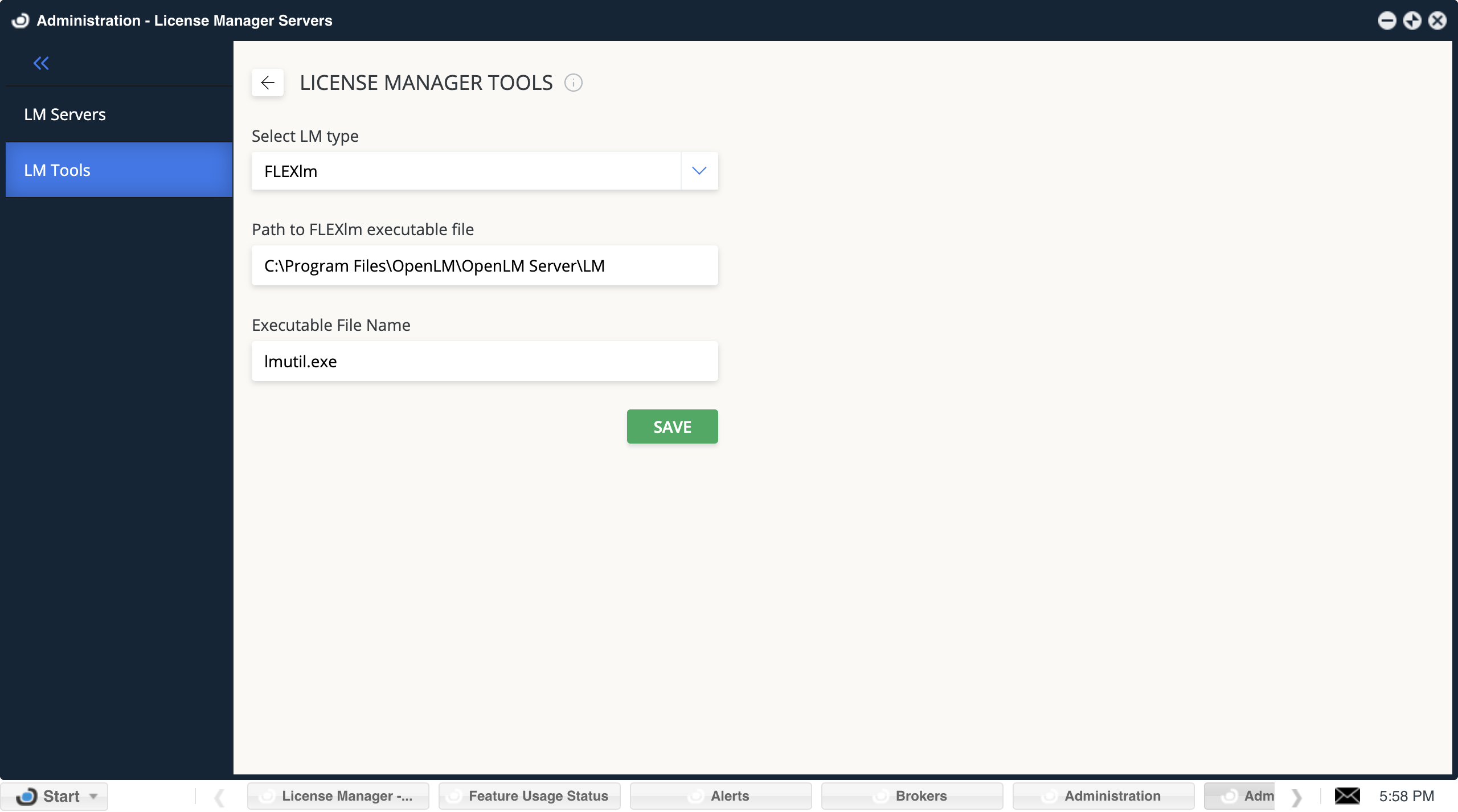
LM Tools
Configure the exe file or command line OpenLM will use to query the license server.
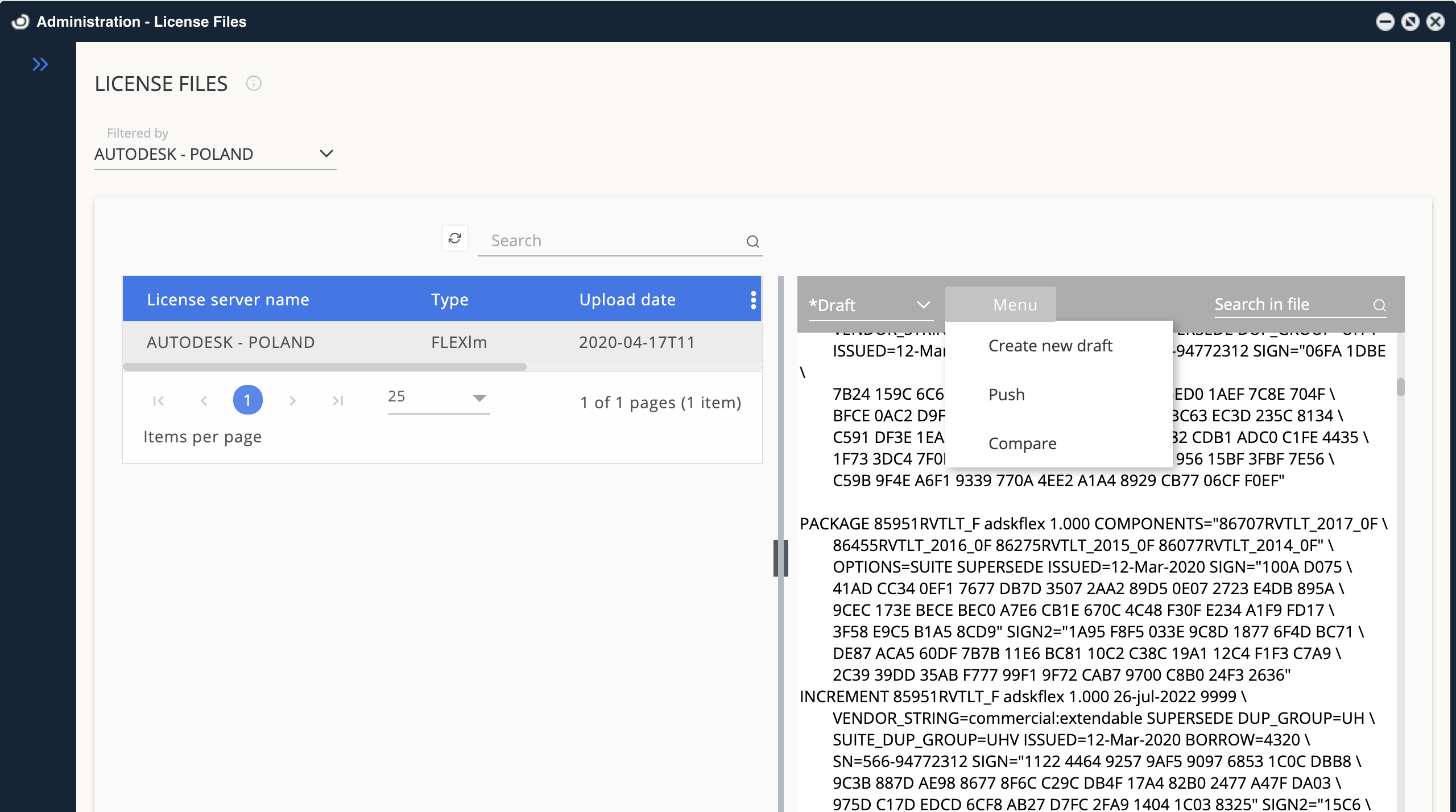
License Files
It allows administrators to upload, modify, and compare FLEXlm” license files for software applications.
License Server Name: This column displays the name of the license server where the license files reside.
Type: This column indicates the type of license file.
Upload Date: This column shows the date the license file was uploaded to the server.\
Switch from the Original File to the Draft
Menu: Clicking this button reveals options to manage the license file, including:
Create a new draft: This option allows you to create a new draft version of the license file for editing purposes.
Compare: This option enables you to compare the current version of the license file with a draft version.
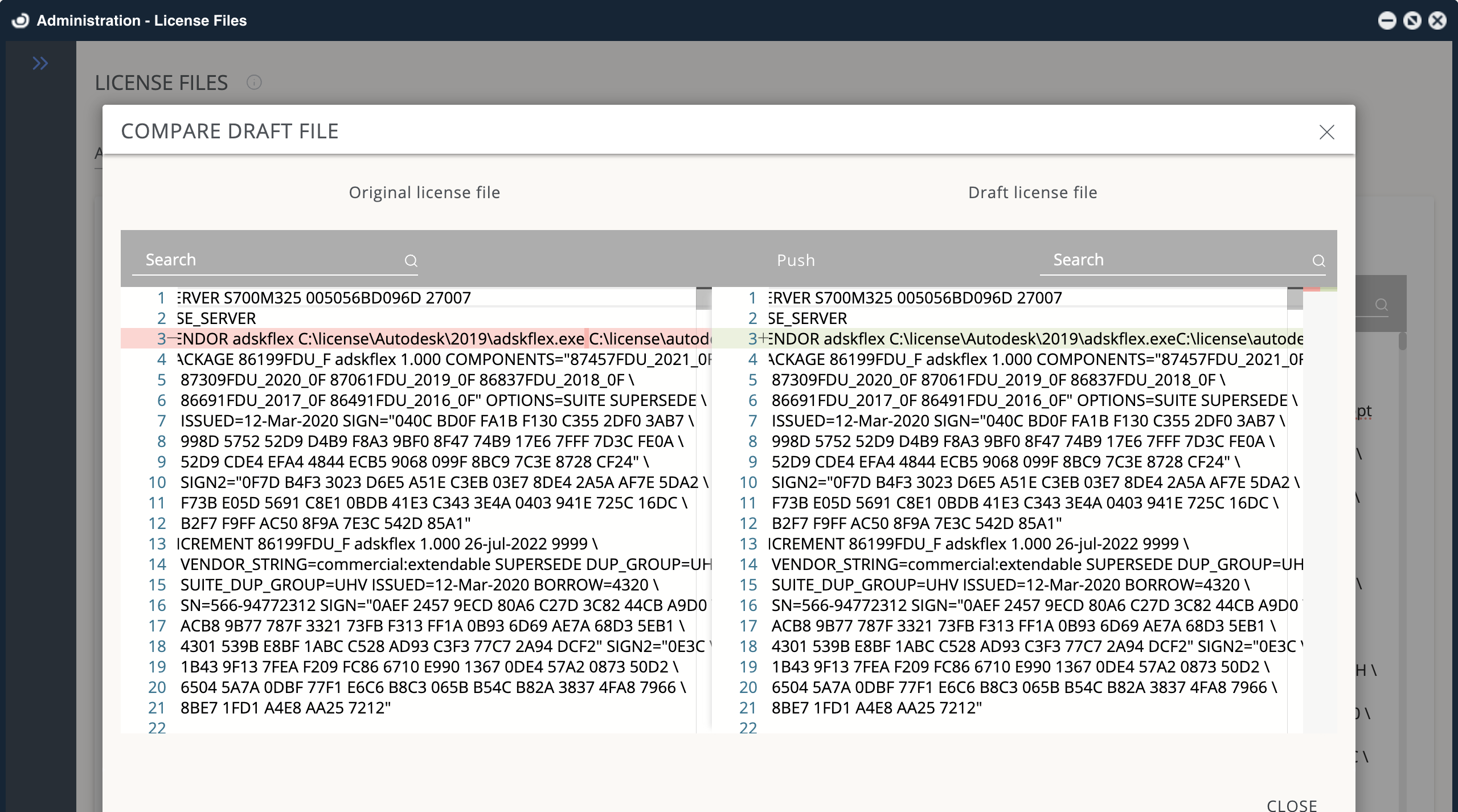
Push to LM Server: This option allows you to upload the chosen license file (original or draft) to the license server.
Search in file: This search bar allows you to look for specific keywords within the license file.
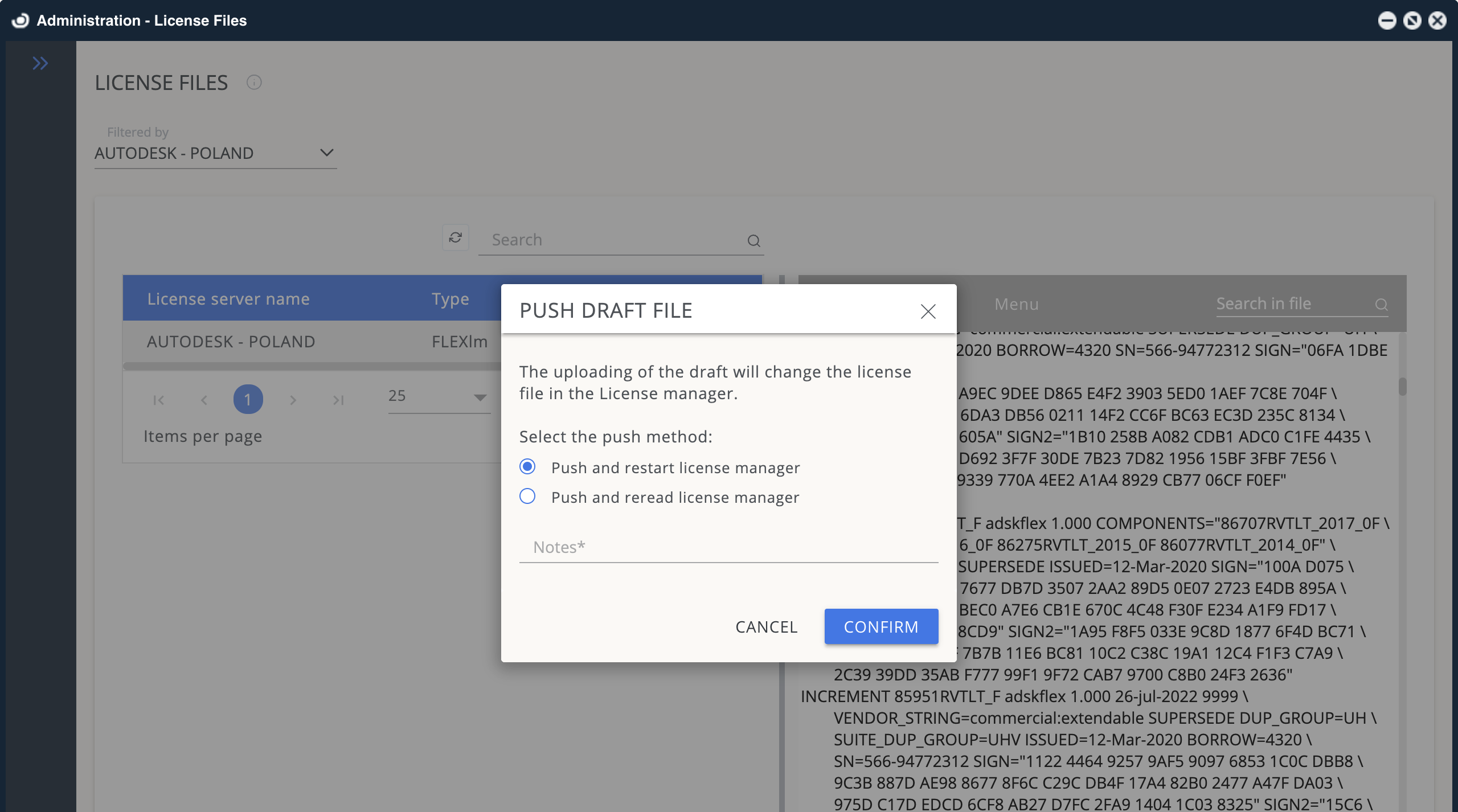
When you want to push a new license file, you can use the Push and Restart license manager or Push and Reread license manager:
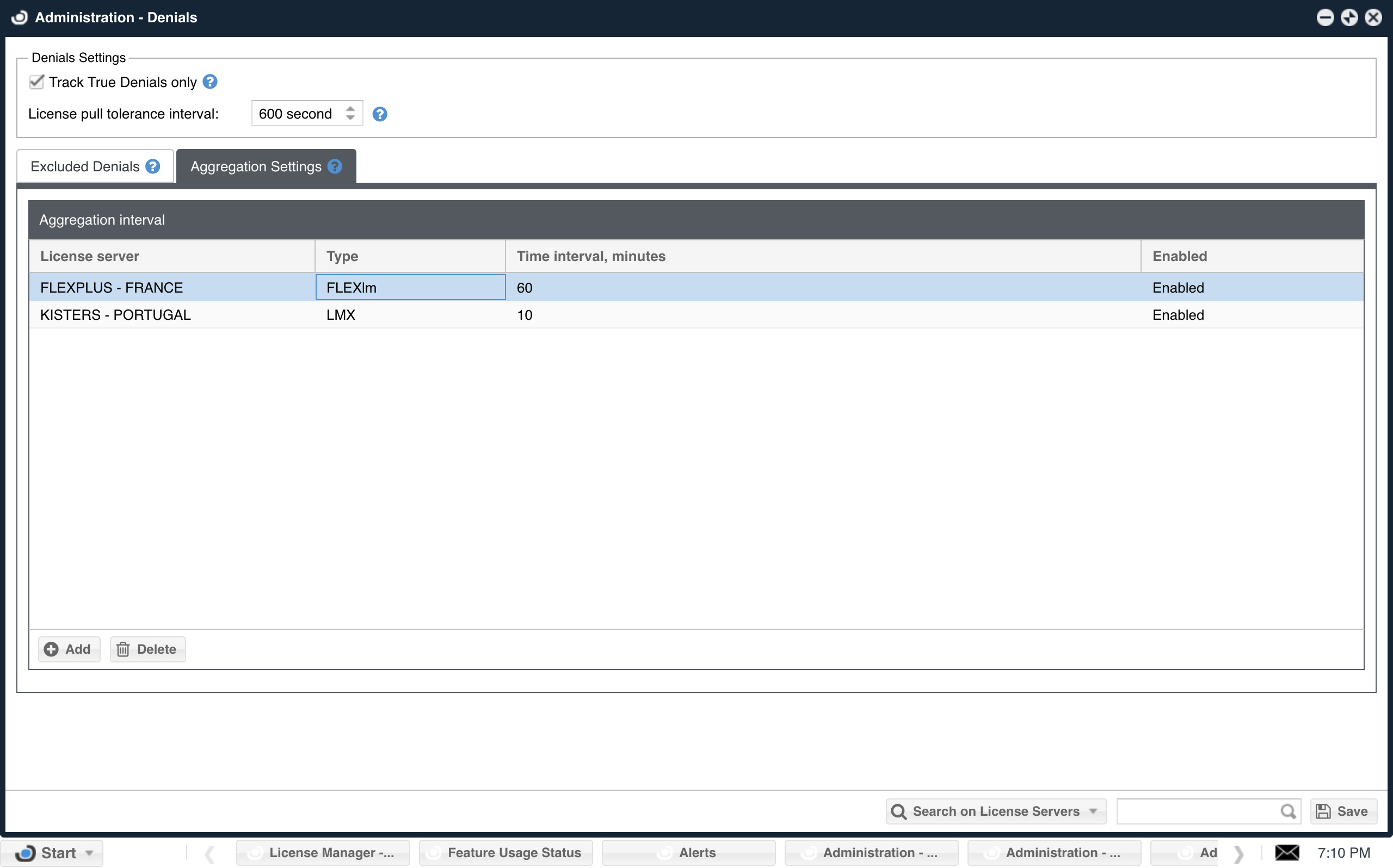
Denials
Set which denials to filter out of the reports of OpenLM and database.
Track true denials only:
The system won’t record denials before successful license acquisitions within the user-defined tolerance interval if selected. Additionally, denials from various pools for the same license will be omitted if the permit was granted within this ° interval by a different pool (referred to as a “false denial”).
License pull tolerance
If a user successfully draws a license from another server during this interval after the initial denial, the denial is not counted as a True Denial. The minimum is 1 second, and the maximum is 600 seconds.
Excluded denials
A listing of denials excluded from reporting based on specific license servers, error codes, and error messages.