CADENAS
Follow these steps to configure OpenLM to monitor license usage and retrieve license statistics from CADENAS Server.
Requirements
Before you query the license manager, install:
- OpenLM SLM v2.x on your premises (or an SLMC account)
- OpenLM Broker v25.5 or higher on the same machine as the CADENAS Server LicenseMonitor
Monitoring capabilities
| LM Type in the Broker | Commands | Logs | Quantity | Expiration date | Denied | Borrowing | Allocations | Report resolution |
|---|---|---|---|---|---|---|---|---|
| Cadenas | No | Yes | Yes | No | No | No | No | Seconds |
OpenLM Broker configuration
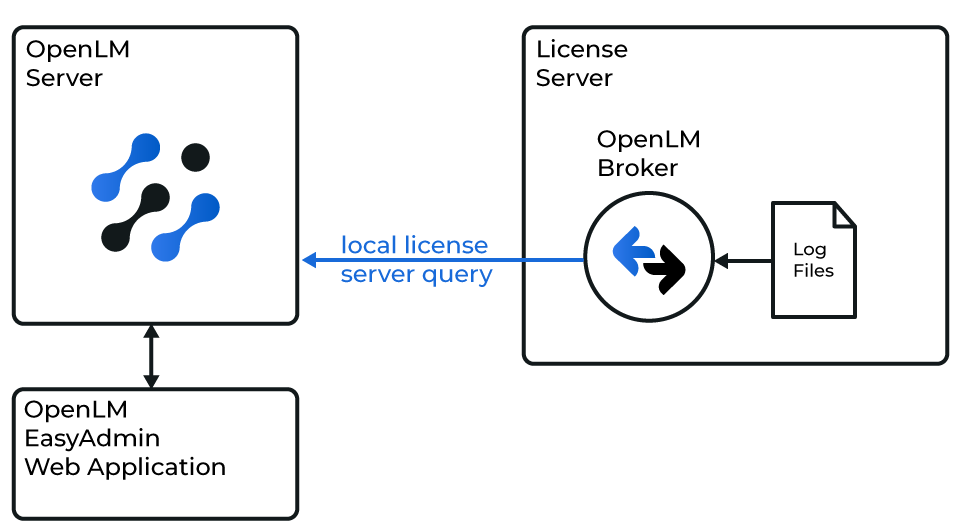
Diagram of how OpenLM interfaces with the CADENAS Server License Manager
OpenLM Broker must be installed and configured to report to OpenLM before proceeding.
-
Open the Broker web UI.
-
Go to License Managers → Add License Manager.
-
From the LM Type drop-down list, select CADENAS Server.
-
Enter the CADENAS Server port number (e.g.,
2004) and click Add.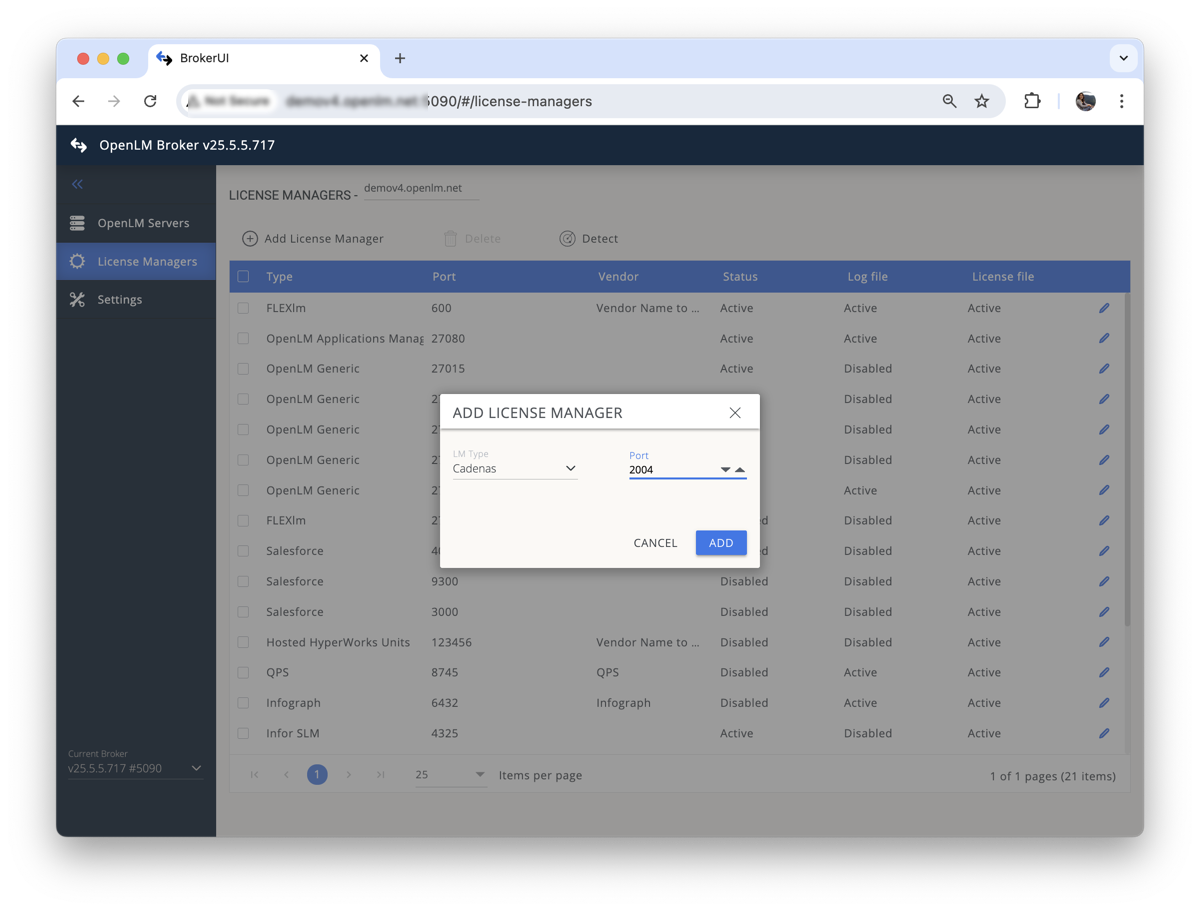
Adding a CADENAS Server license manager in OpenLM Broker -
Go to the Vendors tab. Click Add Vendor, enter
CADENAS Server, and click Continue.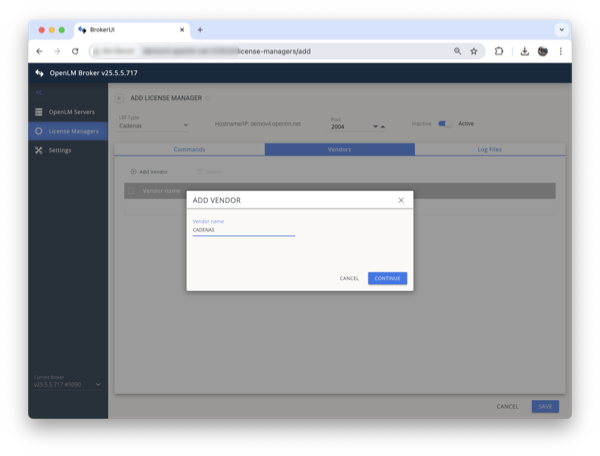
Adding CADENAS Server vendor in OpenLM Broker -
Go to the Log Files tab. Click Add Log File.
Turn off Watch file by pattern. Add the log path, then click Continue.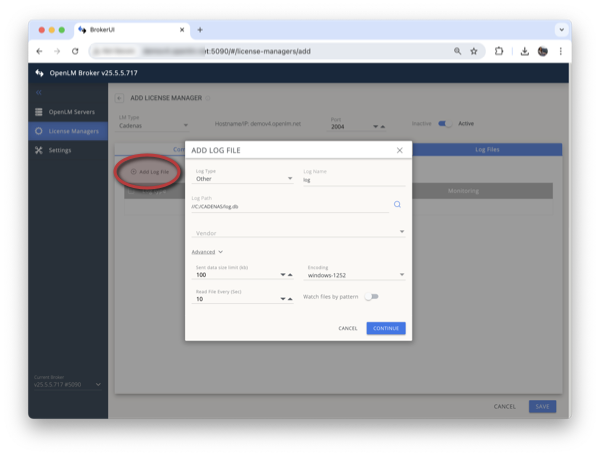
Adding a log file for CADENAS Server in OpenLM Broker -
Click Save.
OpenLM configuration
If the above steps are complete, Broker should be transmitting data to OpenLM SLM.
Approve the configuration in the EasyAdmin UI:
-
Go to Start → Widgets → License Manager Servers.
-
Click Servers Pending Approval.
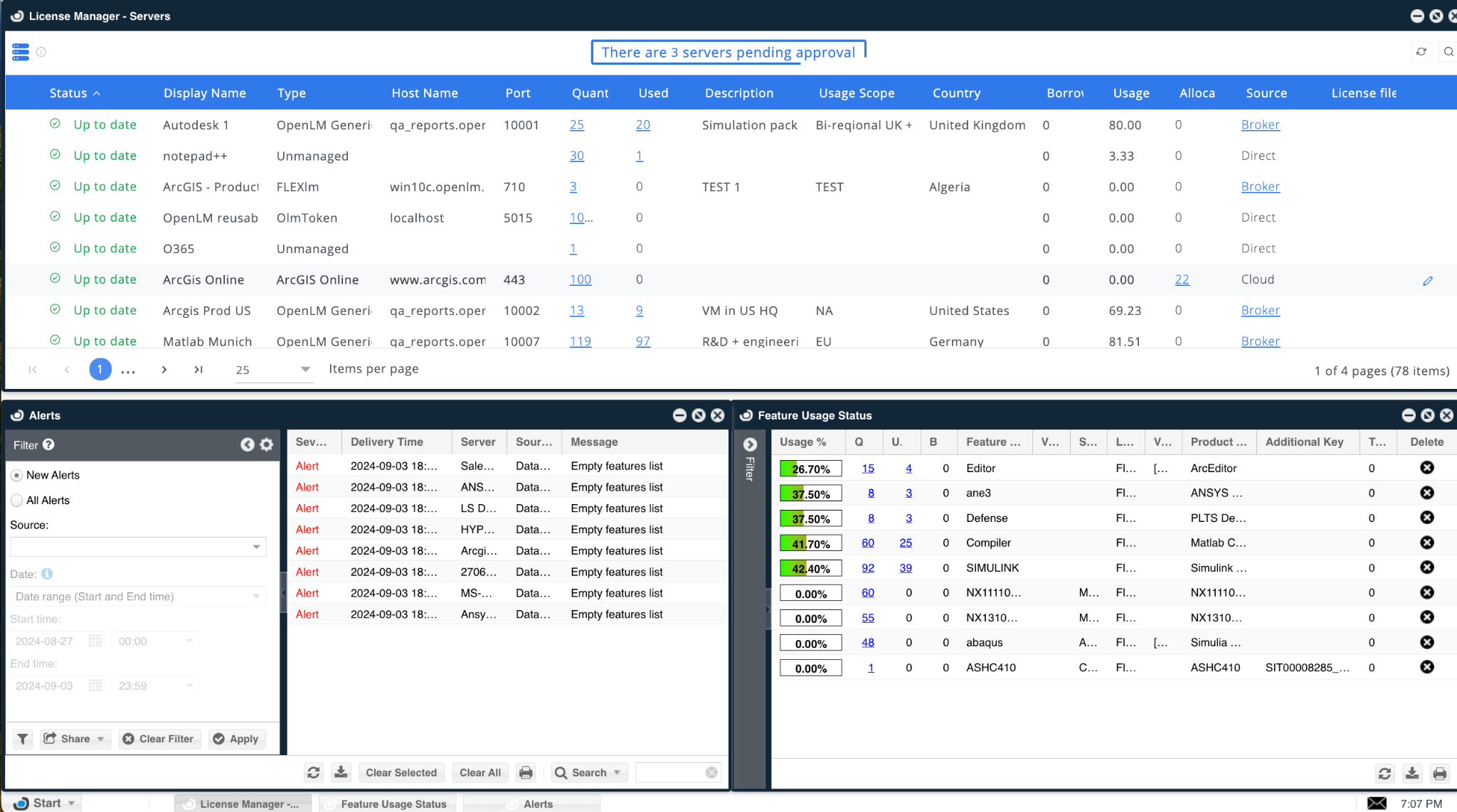
Pending license managers in EasyAdmin -
Double-click the pending license manager. It will display as OpenLM Generic.
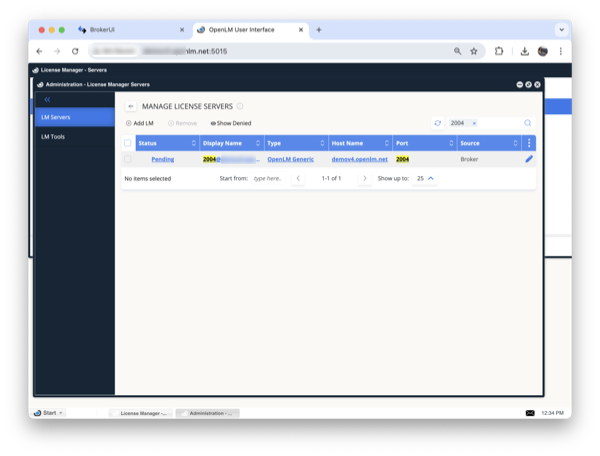
Pending CADENAS Server license manager in EasyAdmin -
(Optional) Modify the display name. Verify the configuration, then click Approve.
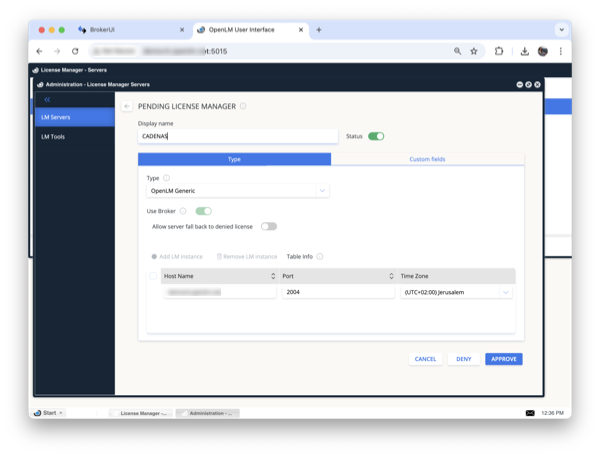
Approving a CADENAS Server license manager in EasyAdmin -
(Optional) Add details such as country, usage scope, and description in Custom Fields.
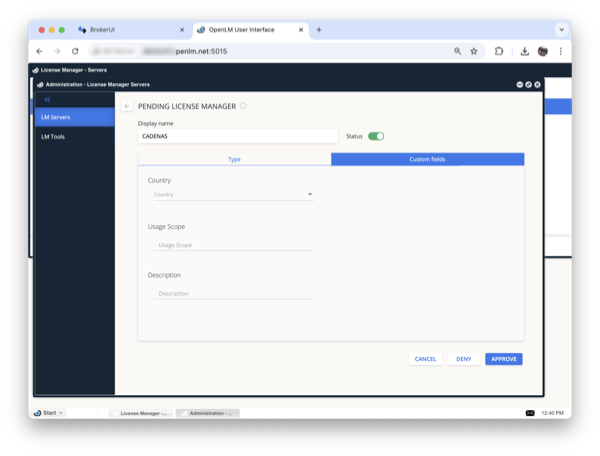
Custom fields in EasyAdmin
Verify your configuration
- Open EasyAdmin.
- Go to Start → Widgets → License Manager Servers.
- Confirm that the CADENAS Server license manager appears in the list with a green circle icon.
It may take up to 3 minutes for the status to update after a new connection.