Razorcat
Follow these steps to configure OpenLM to monitor license usage and retrieve statistics from the Razorcat license manager.
Requirements
Before starting, make sure you have:
- OpenLM Server v2.x installed on a machine in your organization
- OpenLM Broker v22.5 or higher installed on the same machine as Razorcat
- Broker configured to run with a service account
Monitoring capabilities
The current monitoring capabilities for Razorcat through OpenLM Broker are:
| Feature | Resolution | License totals | License usage | Denials reporting | Borrowed license reporting | Expiration date reporting | Multiple server redundancy |
|---|---|---|---|---|---|---|---|
| Support | By minute | ✔ | ✔ | ❌ | ❌ | ❌ | ❌ |
OpenLM Broker configuration
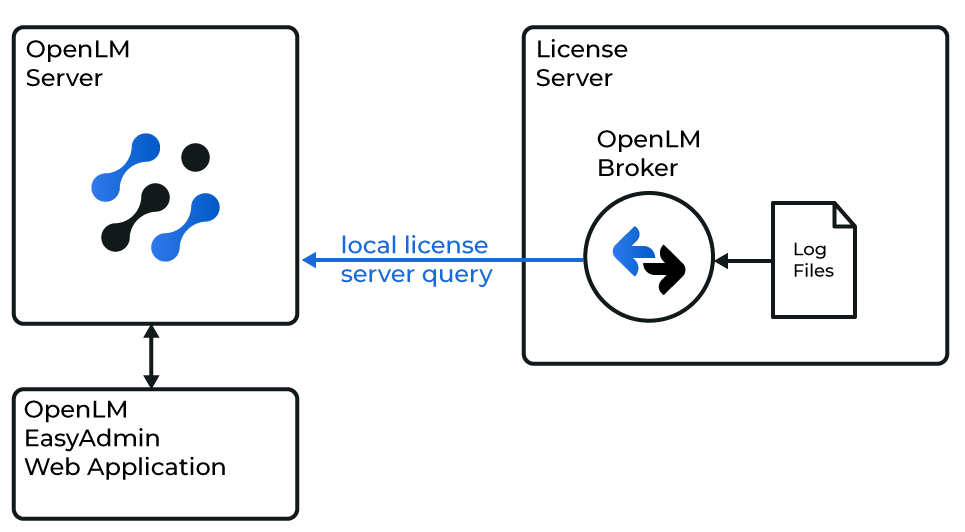
Diagram of how OpenLM interfaces with the Razorcat license manager
note
Install and configure OpenLM Broker before starting these steps.
Manual configuration (Broker desktop UI)
- Click Add Port.
- Enter the Razorcat server port number (e.g.,
36679). - From License Manager Type, select Razorcat.
- In Commands, click the browse icon next to Update path for commands and select the folder where
flsutil.exeis located (typicallyC:\Program Files\Razorcat\FLS_4.2\bin). Click Update. - Click Apply.
- Select Data Inquiry under Commands and click Execute. Verify that the output is valid.
- If a fallback FLS is used, add
-h localhost(works for local host only).
- If a fallback FLS is used, add
- Click Restart Broker.
Manual configuration (Broker web UI)
- Open a browser and go to http://localhost:5090/.
- Go to License Managers → Add License Manager.
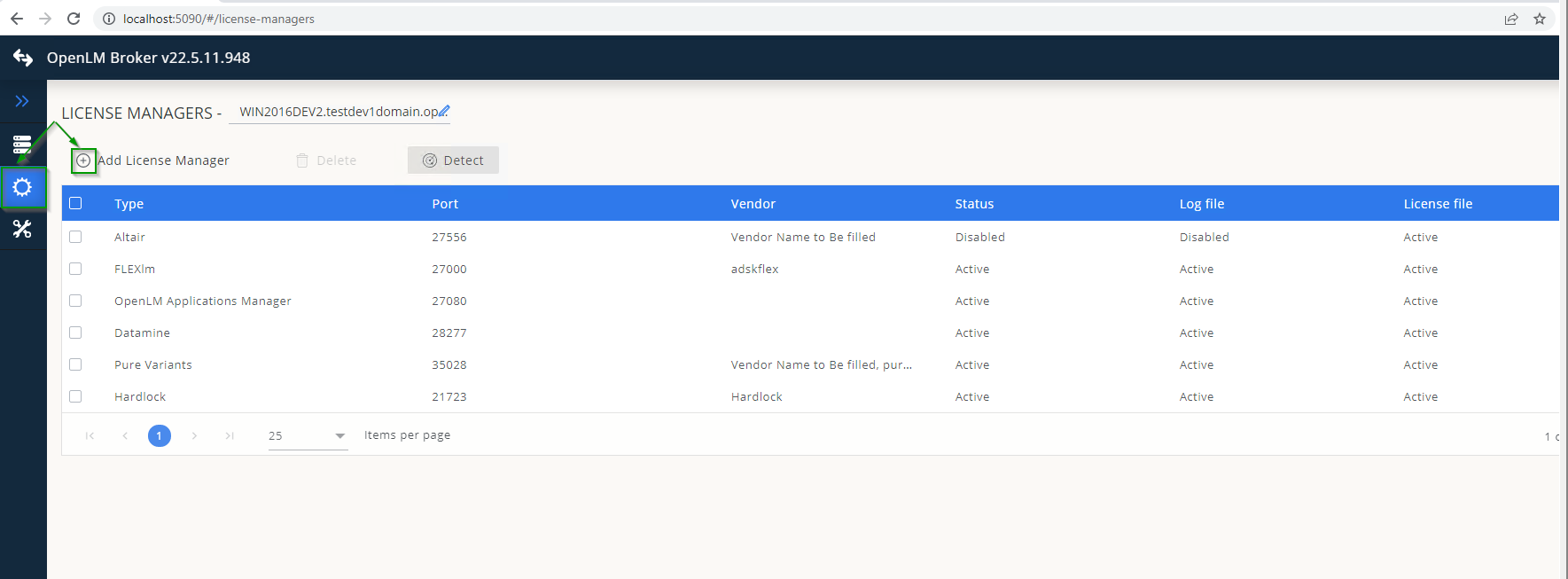
- Select Razorcat from the type dropdown, enter the port number, and click Add.

- In the Commands tab, set the Executable Path to the folder containing
flsutil.exe(or browse with the magnifier icon). - Enter the Service Name (e.g.,
Razorcat).
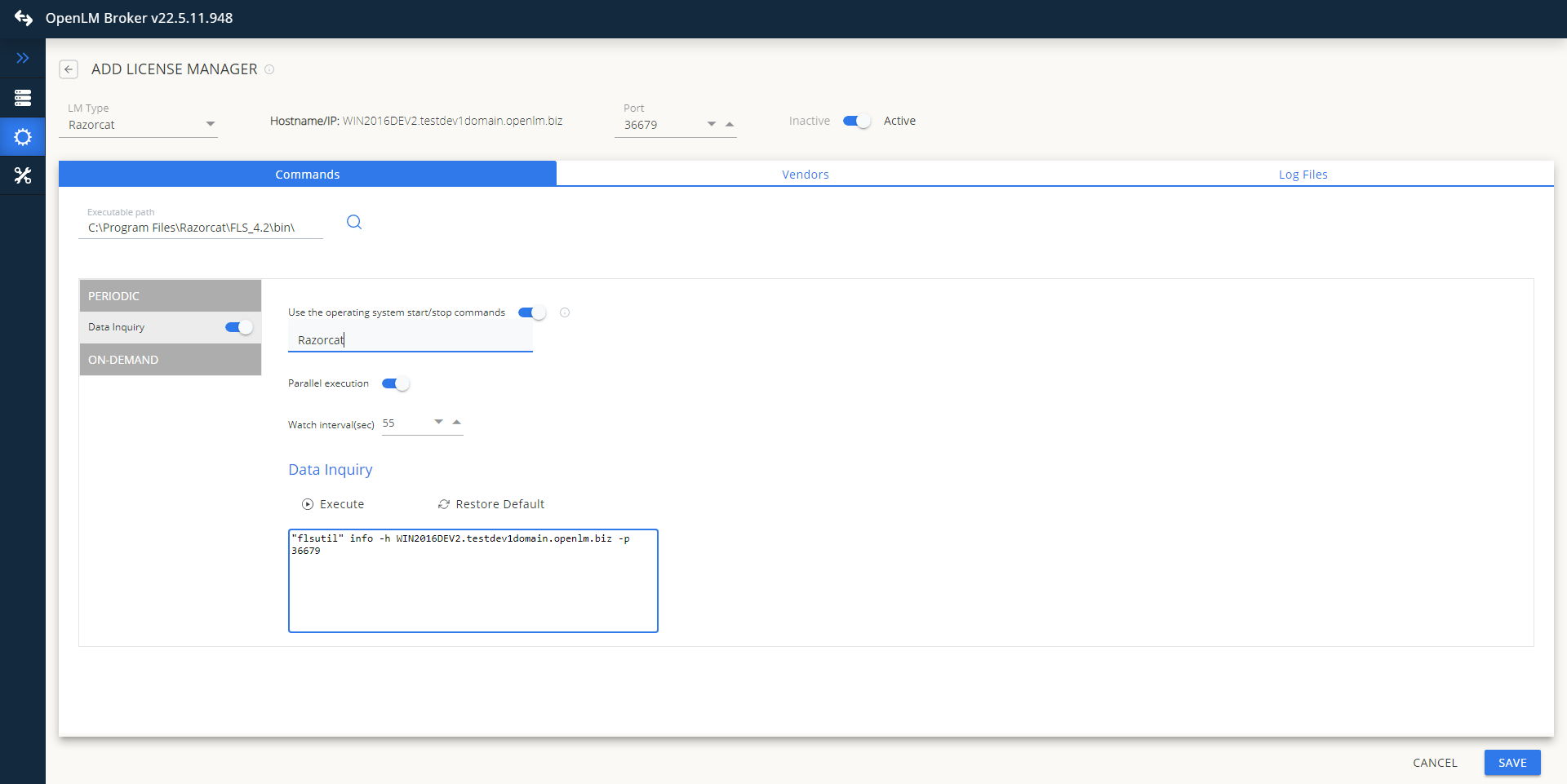
- Go to the Vendors tab → Add Vendor, enter Razorcat, and click Continue.

- Click Save.
OpenLM Server configuration
Automatic configuration via EasyAdmin
- Open EasyAdmin (Start → Widgets → License Manager - Servers).
- Click the Servers pending approval icon.
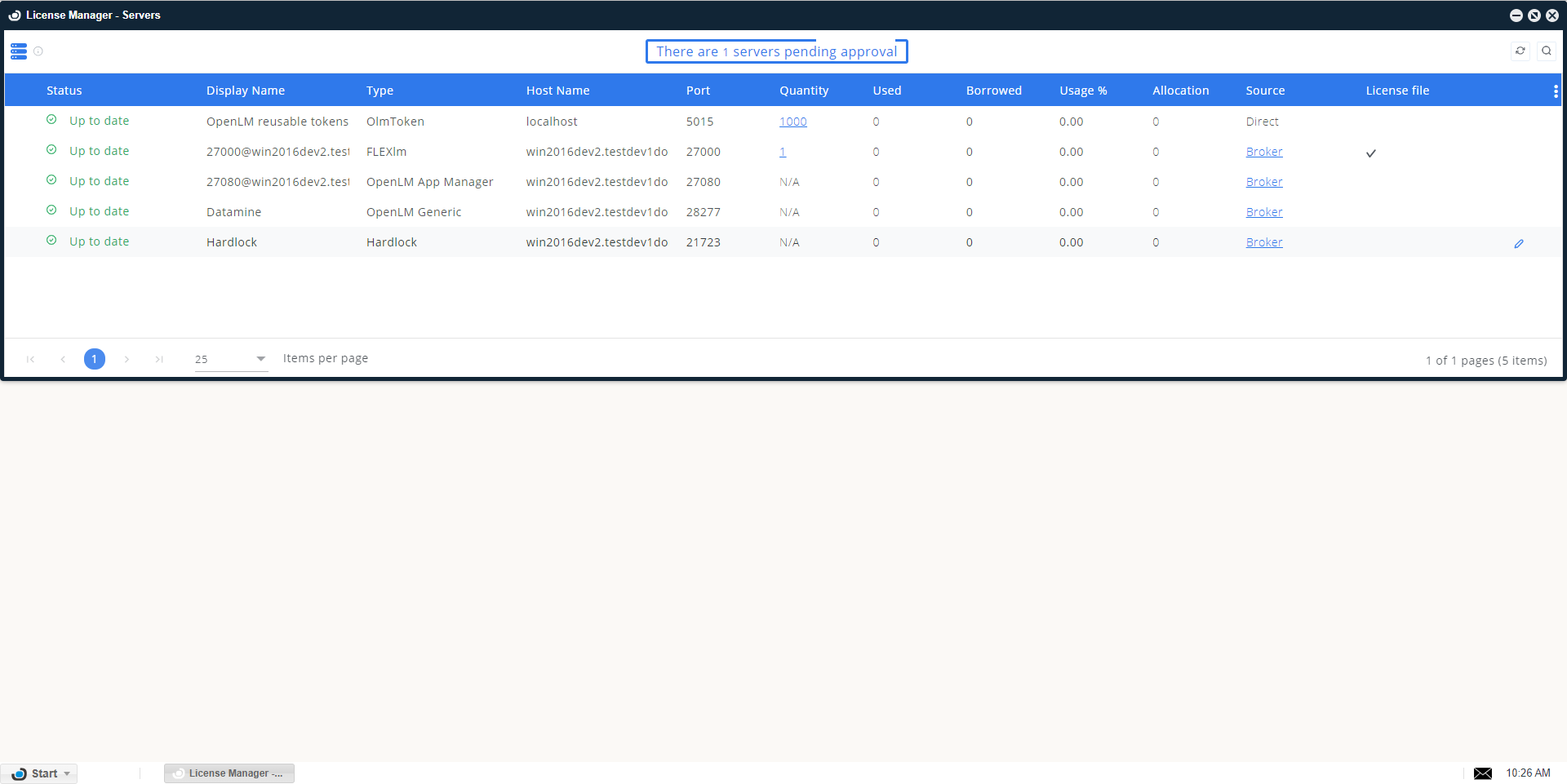
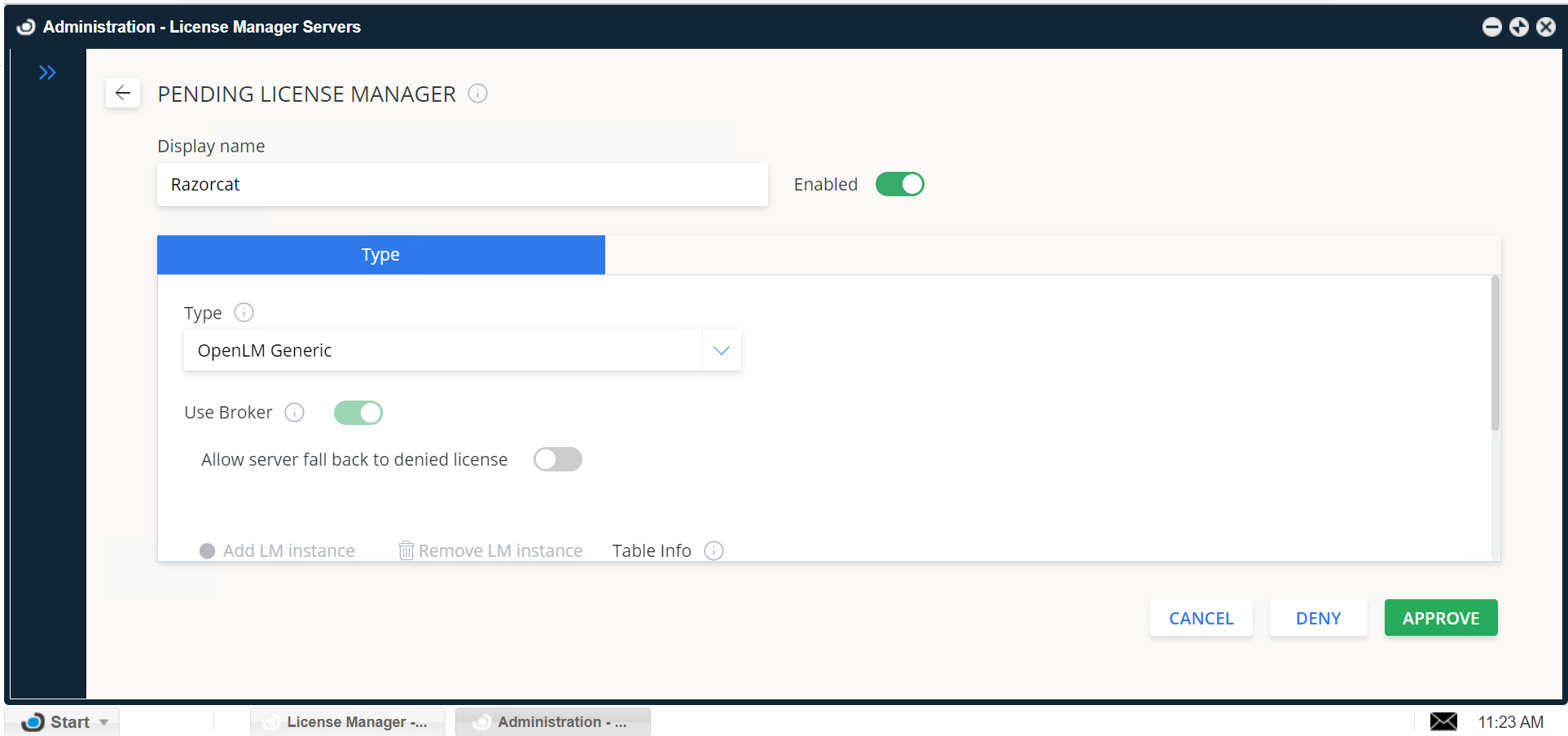
- Double-click the Razorcat entry (type will show as OpenLM Generic).
- Optionally rename the connection, leave type as OpenLM Generic, ensure Enabled is on, and click Approve.
Manual configuration via EasyAdmin
If automatic configuration fails:
- Go to Start → Administration → License Manager Servers.
- Click Add LM.
- From Type, select OpenLM Generic.
- Enter a description (e.g., "Razorcat").
- Set the time zone for the license server location.
- Enter the Hostname and Port for the machine running Razorcat.
- Uncheck Is Triad Configuration.
- Check Use Broker.
- Click Save.
Verify your configuration
- Open EasyAdmin in your browser.
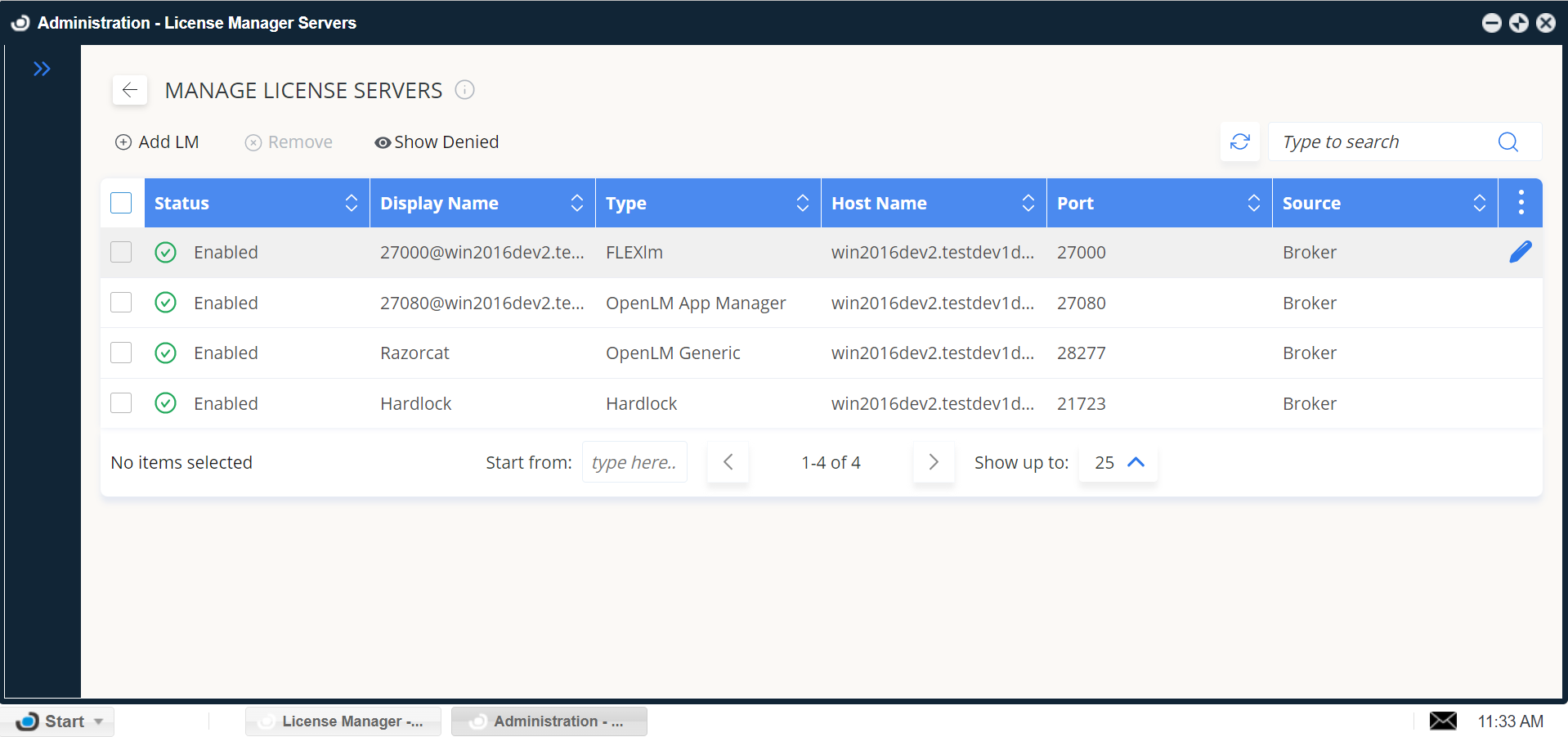
- Go to Start → Widgets → License Servers.
- Confirm that Razorcat appears in the list with a green status circle.
note
It may take up to 3 minutes for a new connection to display as active.