Innovyze
This integration enables OpenLM to monitor Innovyze for license usage, denials, and borrowed license reporting.
Requirements
- OpenLM Server v4.7 or higher installed on a central network server.
- OpenLM Broker v4.14.0 or higher installed on the same machine as Innovyze.
Monitoring capabilities and features
| Feature | Resolution | License totals | License usage | Denials reporting | Borrowed license reporting | Expiration date reporting | Multiple server redundancy |
|---|---|---|---|---|---|---|---|
| Support | By second | ✔ | ✔ | ✔ | ✔ | ❌ | ❌ |
Additionally, using OpenLM Broker allows for buffered communication and the ability to remotely start or stop the Innovyze service.
OpenLM Broker configuration
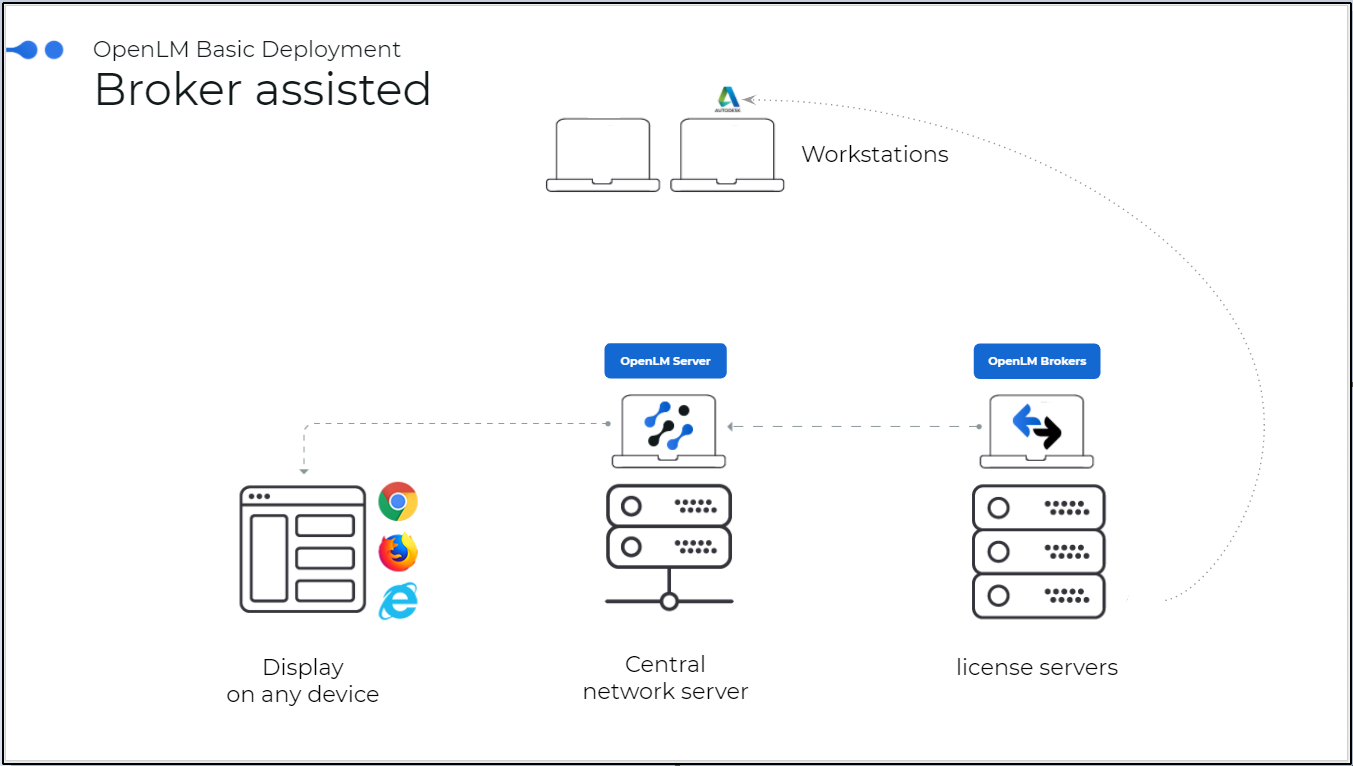 Diagram of how OpenLM interfaces with Innovyze.
OpenLM Broker reads the Innovyze LicenseMonitor log file, compiles the data, and sends it to OpenLM Server for processing.
note
You must have OpenLM Broker installed and reporting to OpenLM Server before starting this configuration.
Automatic configuration
- In the OpenLM Broker configuration tool, click Detect in the bottom-right corner.
- If the Innovyze process or service is running, Broker automatically creates a port node with the required settings.
- Click Apply.
- Click Restart Broker to send changes to OpenLM Server.
- To verify, go to Commands → data_query and click Execute.
Manual configuration
- Click Add Port.
- Enter the Innovyze port number (e.g.,
20230). - Set License Manager Type to Innovyze and click Apply.
- Under Vendors, select “Vendor Name to Be Filled,” enter Innovyze, and click Apply.
- Select the Log Files node and click Add Log File.
- Select the newly created log node, click […], and browse to the CSV log file location (typically
C:\ProgramData\Innovyze<LM>#.#\Usagewhere#.#is the version, e.g.,6.0). - Click Advanced, then check Watch Files by Pattern.
- Click Apply.
- Click Restart Broker.
OpenLM Server configuration
Automatic configuration via EasyAdmin
- Open EasyAdmin via browser (
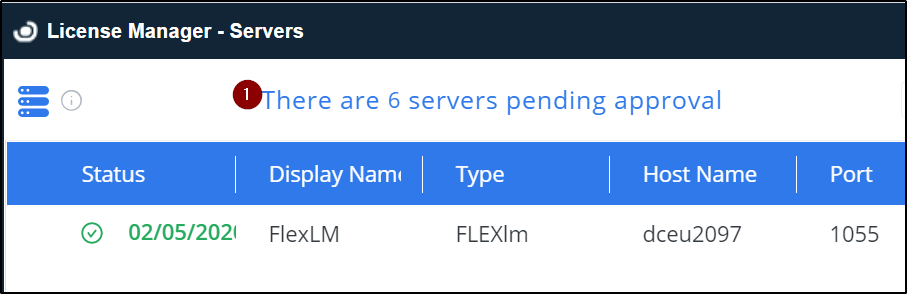
http://<OpenLM Server IP>:7019/EasyAdmin2/) or Windows Start → OpenLM → OpenLM EasyAdmin User Interface, or log in to Cloud.OpenLM.com. - In License Servers, click the message showing pending approvals.
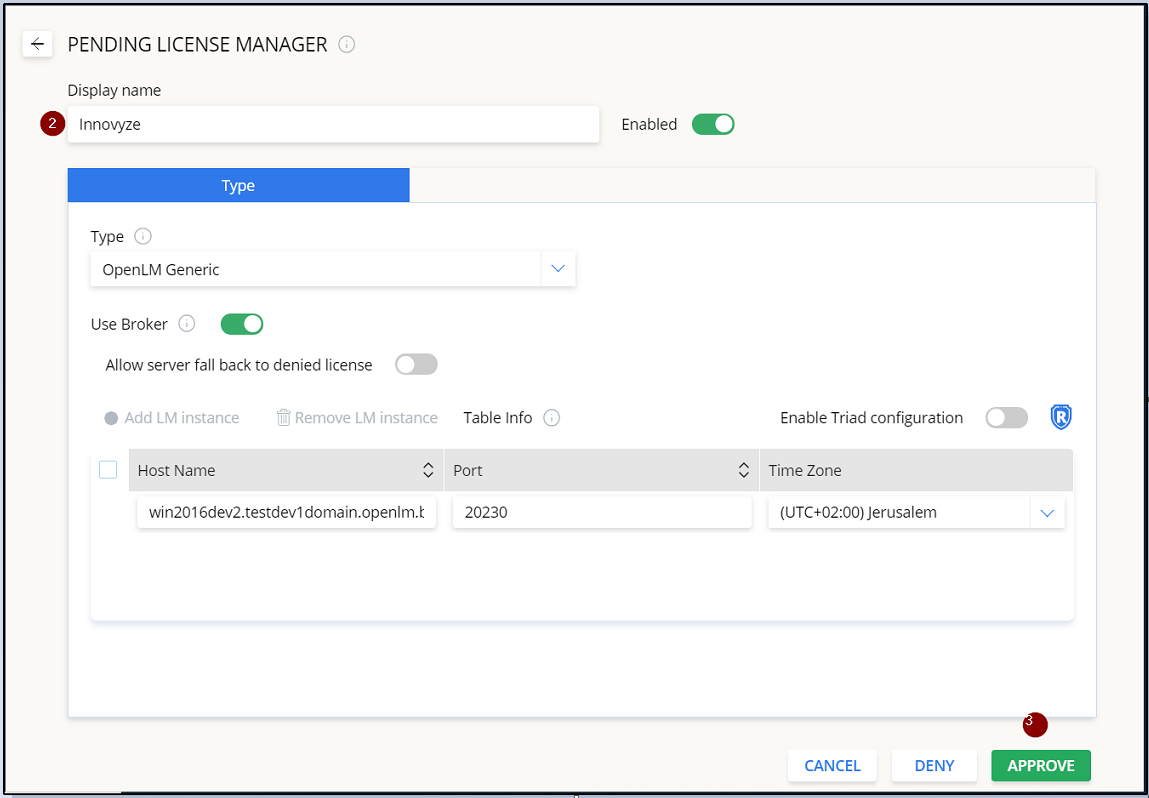
- Enter a display name (e.g., Innovyze).
- Click Approve.
Manual configuration
- Open the OpenLM Server configuration tool (Windows Start → OpenLM → OpenLM Server).
- Select the License Servers tab.
- Click Add.
- From Type, select OpenLM Generic.
- Enter a description (e.g., Innovyze).
- Set the correct Time Zone for the server.
- Enter the Hostname and Port matching the Broker configuration.
- Leave Is Triad Configuration unchecked.
- Check Use Broker.
- Click Apply and close the tool.
How to verify configuration
- Open EasyAdmin.
- Go to Start → Widgets → License Servers.
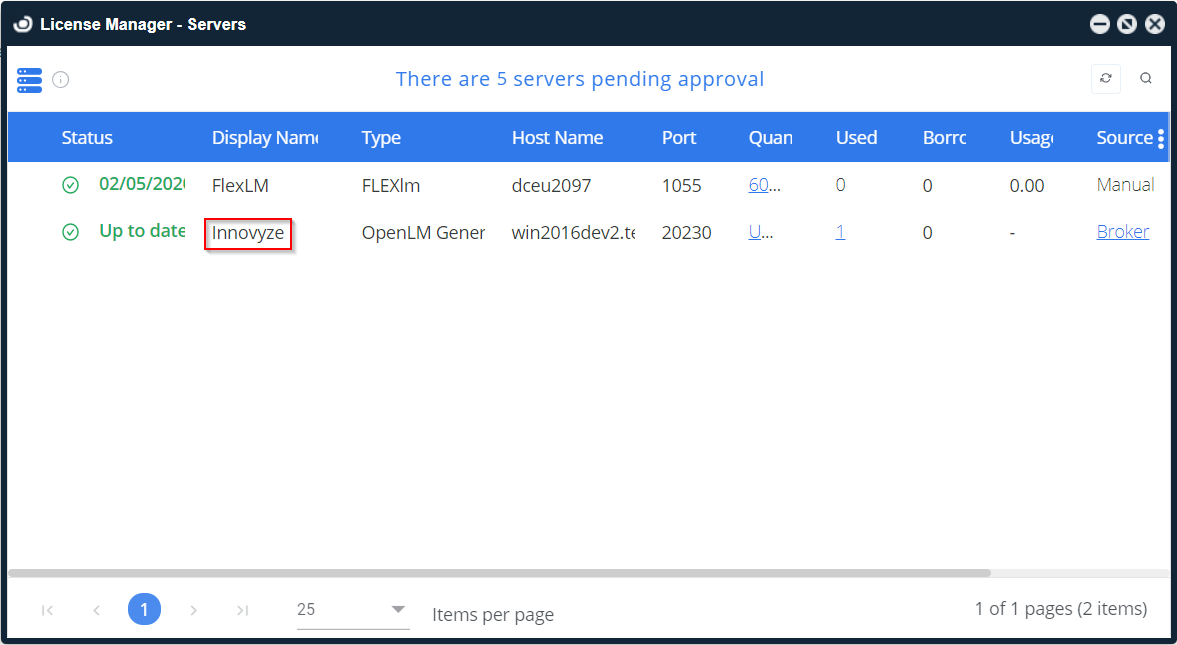
- Verify that Innovyze appears with a green status indicator.
note
It may take up to 3 minutes for a new connection to appear as active in EasyAdmin.