Licman
OpenLM can interface with Licman to monitor license usage and obtain statistics.
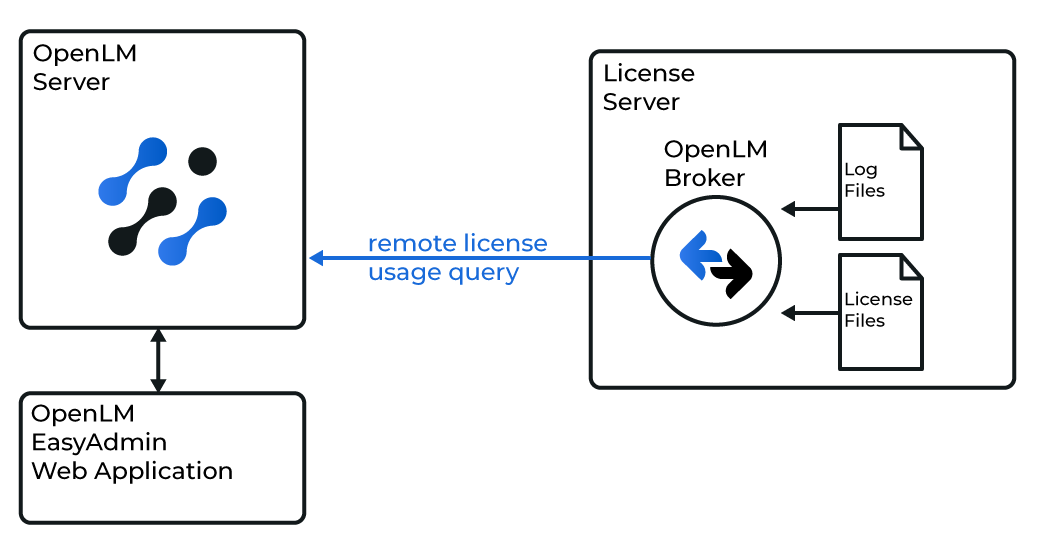
The Licman server is queried locally by OpenLM Broker, which sends the data to OpenLM Server for monitoring and reporting.
Requirements
- OpenLM Server (Windows, Linux, or Docker) installed anywhere on the network
- OpenLM Broker installed on the same machine as the Licman server
Check the OpenLM system requirements before installation.
OpenLM Server Configuration
- Install OpenLM Server.
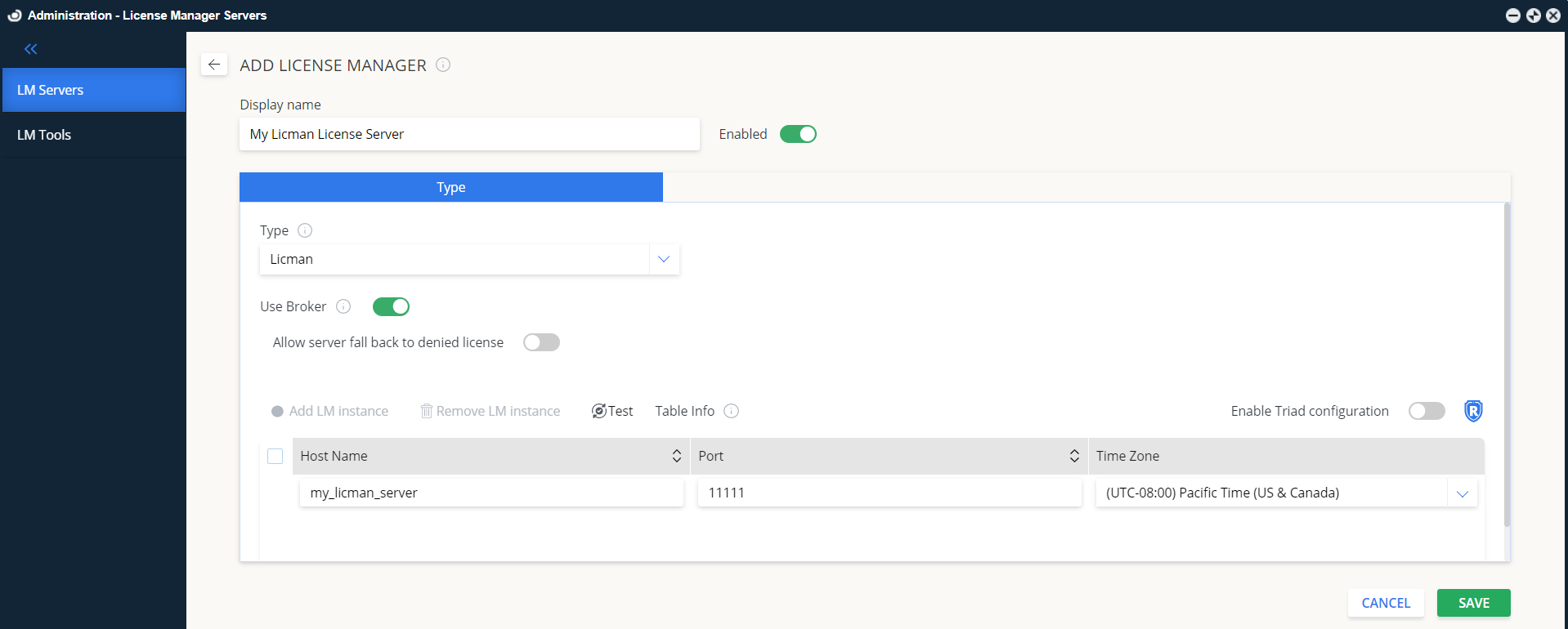
- In EasyAdmin, go to Start → Administration → License Manager Servers.
- Click Add LM.
- Enter a Display Name (e.g.,
My Licman Server). - In Type, select Licman.
- Toggle Use Broker ON.
- Leave Is Triad Configuration OFF (Licman does not support multiple server redundancy).
- Enter the Hostname (e.g.,
my_licman_server). - Enter the Port (e.g.,
11111). Licman does not require a specific port. - Select the license server’s Time Zone.
- Click Save.
OpenLM Broker Configuration
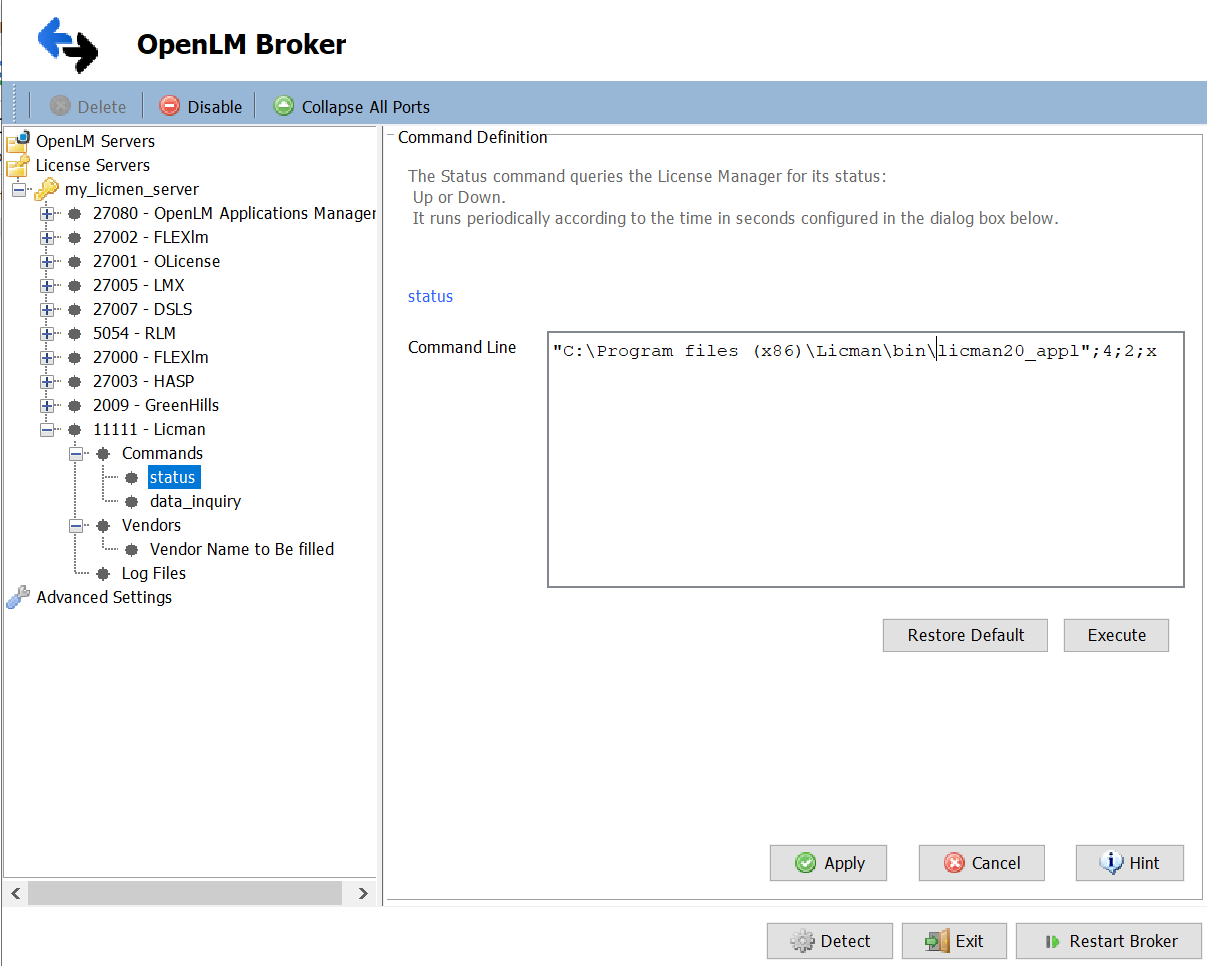
- Install the latest OpenLM Broker.
- Click Add Port.
- Select Licman as the License Manager Type and enter the same Port as in the Server configuration.
- In Commands, set the path to
licman20_appl.exeon the Licman server. Click Update → Apply. - Verify that Status and data_inquiry commands appear.
- Click Apply, then Restart Broker.
Alternative: Broker Web UI
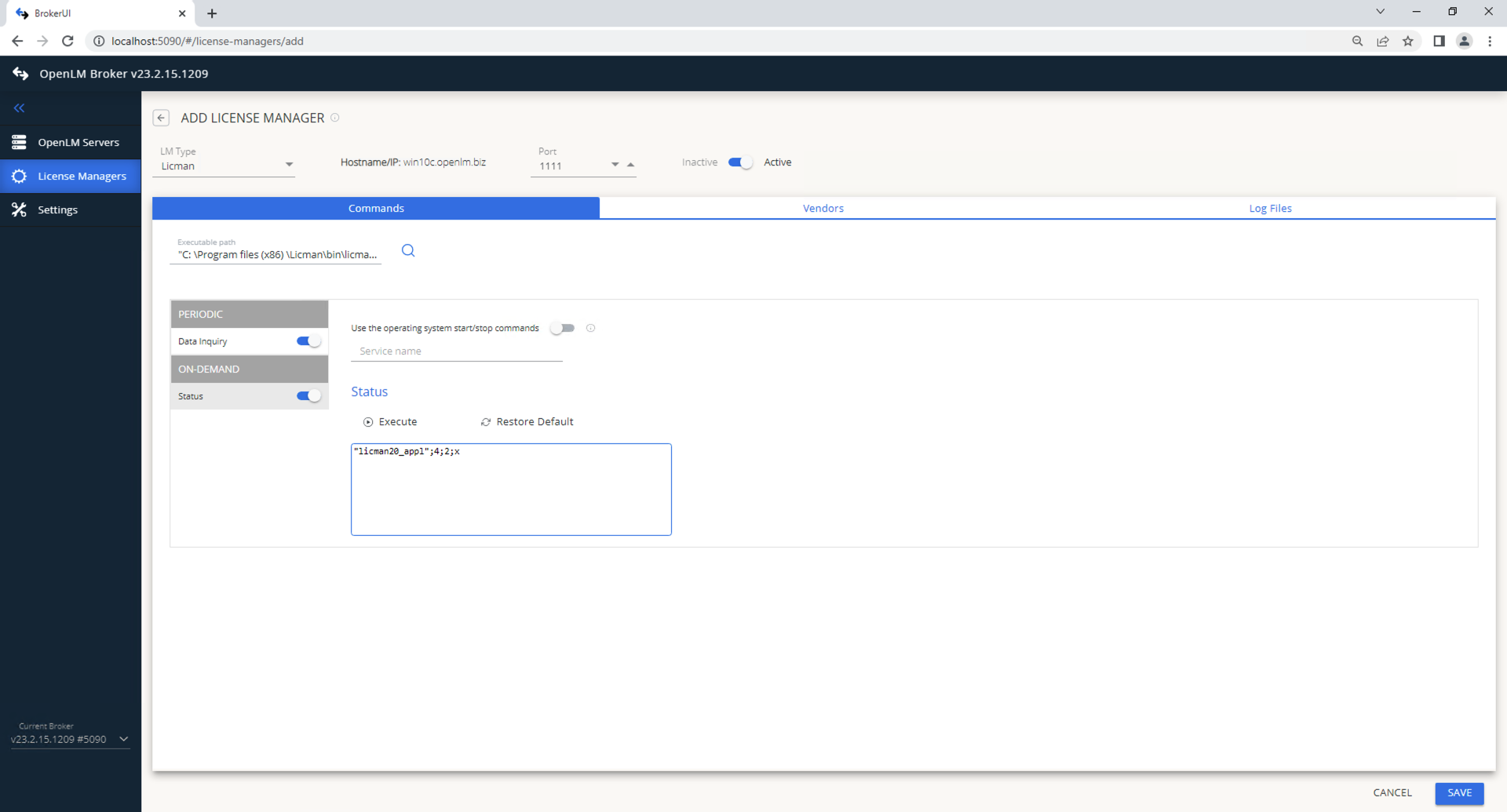
- Open a browser and go to
http://localhost:5090/. - Go to License Managers → Add License Manager.
- Select Licman, enter a port, and click Add.
- In Commands, set the path to
licman20_appl.exe. - In Vendors, enter the Licman vendor name.
- Click Save.
Verifying in EasyAdmin
- In EasyAdmin, go to Start → Widgets → License Servers.
- Confirm that the Licman server appears in the list.
- A green circle means an active connection.