

OpenLM is a software license monitoring tool for various concurrent license managers. It provides productivity tools for license usage optimization and application usage management.
OpenLM provides two main user interfaces:
- The EasyAdmin web application is meant for managers and system administrators.
- The Personal Dashboard is meant for end-users. This document discusses the latter.
The Workstation Agent is a lightweight optional software component that is installed on end users’ workstations. It provides a set of capabilities that empower end-users, making them less dependent on system administrators. The Workstation Agent does not present a risk of negative impact on the organization’s network; It limits end users’ capabilities to a subset of safe actions according to their specific area of work. To access the full functionality of Workstation Agent we advise you to install OpenLM End-User Services beforehand on a separate machine from Workstation Agent (can be on the same machine as OpenLM SLM). That way, you can use a web interface to interact with Workstation Agent, that interface being the Personal Dashboard that comes installed with End-User Services.
Capabilities Provided by the Workstation Agent
The Workstation Agent provides a wide variety of productivity tools, affecting the working environment in many aspects:
Who’s Got My License?
End users can find out who’s got the license they need and contact that person.
Idle or Active?
Idle sessions are monitored and presented graphically in OpenLM EasyAdmin. See here for more information: Monitoring Idle Application time.
Manual Application Shutdown
Administrators can manually shut down specific applications or check licenses back into the license pool, Retrieving licenses manually via the CCL window
Automatic Idle License Retrieval
Workstation Agent facilitates different methods to automatically shut down software applications, and retrieve concurrent licenses. Please refer to these application notes for more information:
- License retrieval of idle applications – Enhanced Agent procedures
- License retrieval of idle applications (MATLAB, Autodesk, ArcGIS, Solidworks, Catia) – Save and Close
- License retrieval of idle FlexLM applications – Suspend and Resume
.
Unmanaged License
OpenLM monitors a wide variety of licensed applications and provides license usage statistics by directly querying specific types of license servers. OpenLM is constantly striving to enhance its capabilities by supporting as many license server types as possible. Nevertheless, there will always be license server types for which OpenLM will not have a dedicated interface to apply license usage queries.
In such cases, the Workstation Agent is employed to accumulate usage statistics on the end-users’ workstations. OpenLM refers to this capability as “Unmanaged licenses” monitoring. Further details on this can be found here: Working with Unmanaged Licenses.
License management
The OpenLM Applications Manager serves as a shell for vendors’ license managers. It provides intricate license management capabilities that are not provided by the vendors’ license managers.
It is designed with the users’ best interest in mind: returning software control to the user.
The OpenLM Applications Manager interfaces with end-user workstations through the Workstation Agent. The Agent can be configured to intercept application launches according to a predefined configuration.
Projects
OpenLM can be configured to log license usage according to projects. The Workstation Agent may prompt the end-user for the currently active project name to select the project name through a menu item. This will attribute all license usage on that workstation to the selected project until the setting is changed.
For more information on license usage logging according to projects, see this document: License Usage Monitoring According to Projects
ArcGIS License level
OpenLM was originally written by ESRI ArcGIS veterans, and as such still includes some ArcGIS-oriented benefits. Setting the ArcGIS license level is one of them.
Notifications
Personal Dashboard users can receive browser notifications coming from OpenLM Workstation Agent.
These are native browser notifications, meaning they will be displayed as long as the browser is open. To receive them, the user should allow notifications to be displayed when they navigate to the Personal Dashboard user interface:

Browser notification
If the user clicks Allow and the network is not closed (allows connections to external APIs), the user will start receiving notifications from Workstation Agent. Otherwise, the notification system will fall back to a SignalR-based web socket system (it will show notifications only inside of the app in Toast message format).

The diagram of how the notification system works
For Firefox, the “Allow notification” popup window has to be triggered from the user’s interaction, because of that we display a dialog to the user first. That dialog has a request permission button that triggers the notification popup when clicked.

Example of a notification
The following events will trigger a notification:
- When a process has been released;
- When the user has to select an active project (there is also a variation of that, which includes the currently selected project and the possibility to choose another one);
- When an app is forbidden to run;
The latest Agent also provides the possibility to force the opening of a new browser tab (or a new browser window if the default browser is not opened) when the user receives the notification related to selecting a project.
Other notifications
When a license becomes available after previously being fully allocated, the user can attempt to claim it. This process can be configured in EasyAdmin:

Available license notification/reservation period: If no licenses were available when the user attempted to acquire one, but a license becomes available within x minutes, the user will receive a notification.
When another user requests you to release a license, this can be triggered from the personal dashboard here:

The ‘Send In-App Request’ feature allows a user to request another user to release a license by clicking a button. This action can be performed once every three minutes
Additional information
Additional information such as the Workstation IP is provided to the OpenLM SLM by the Agent.
Installation
The Workstation Agent is available in the Downloads section of the OpenLM site. It can either be installed manually per workstation or silently distributed by a script.
During installation, the user may be prompted to choose whether to add OpenLM extensions for certain supported applications. At the time of writing this revision – these applications include ArcGIS, Autodesk, and MATLAB. The OpenLM extensions provide additional capabilities such as saving and closing idle sessions and managing ArcGIS.
As stated above, OpenLM can attribute license usage according to active projects. The end-user may create an active project name or be prompted to select the active project from a dropdown list.
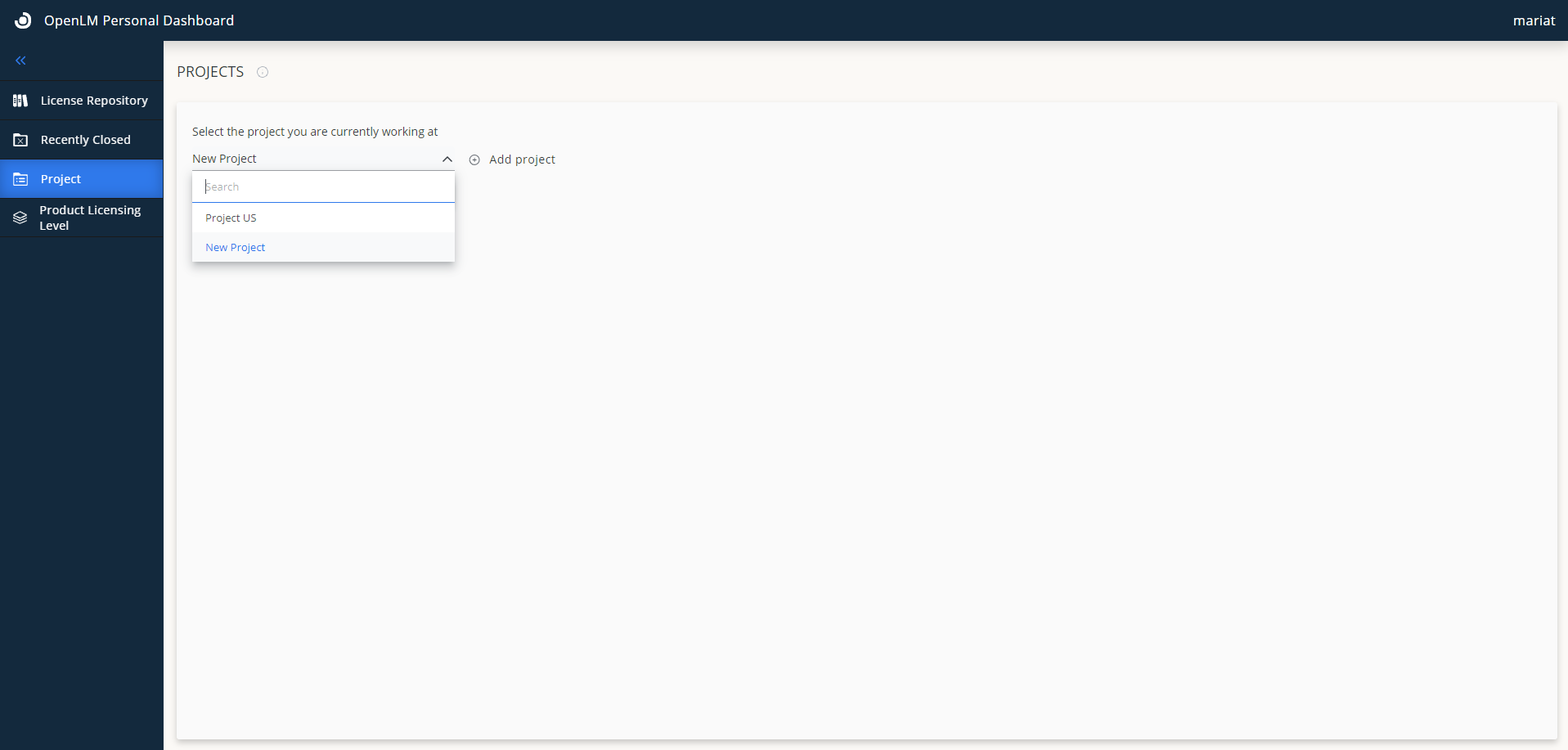
The “Project” page in the Personal Dashboard and the “Add project” button inside of it are hidden by default. To show them, open the EasyAdmin web application click Start → Administration → Projects, and check the ”Log projects information” box. That will allow you to view the “Project” page in your Personal Dashboard and select one of the already existing projects. To add a new one, you have to go to the EasyAdmin web application click Start → Administration → Projects, and check the “Show “Create New Project” in the Agent menu” box. For more information on license usage logging according to projects see this document: License Usage Monitoring According to Projects
Recently closed page
As explained above, the Workstation Agent facilitates different methods to actively shut down software applications and retrieve concurrent licenses. Please refer to these application notes for more information:
- License retrieval (Manual method), and Monitoring Idle Application time
- License retrieval of idle applications – Enhanced Agent procedures
- License retrieval of idle applications (MATLAB, Autodesk, ArcGIS, Solidworks) – Save and Close
- License retrieval of idle FlexLM applications – Suspend and Resume
OpenLM will indicate such cases of administrative license closure in the “Recently closed documents” window.

Clicking the Process name will resume the application, and check out a new license for it (if available).
License Repository page
The ability to query license availability from the end-user workstation is a very important step towards improving license usability. The license usage window displays the total number of used, borrowed, and available licenses per license server. Click on a row to get the complete list of active users who are currently drawing on a specific license (e.g.: Autodesk). Click on one of the user entries to get the user’s details as they’re recorded in the OpenLM database.
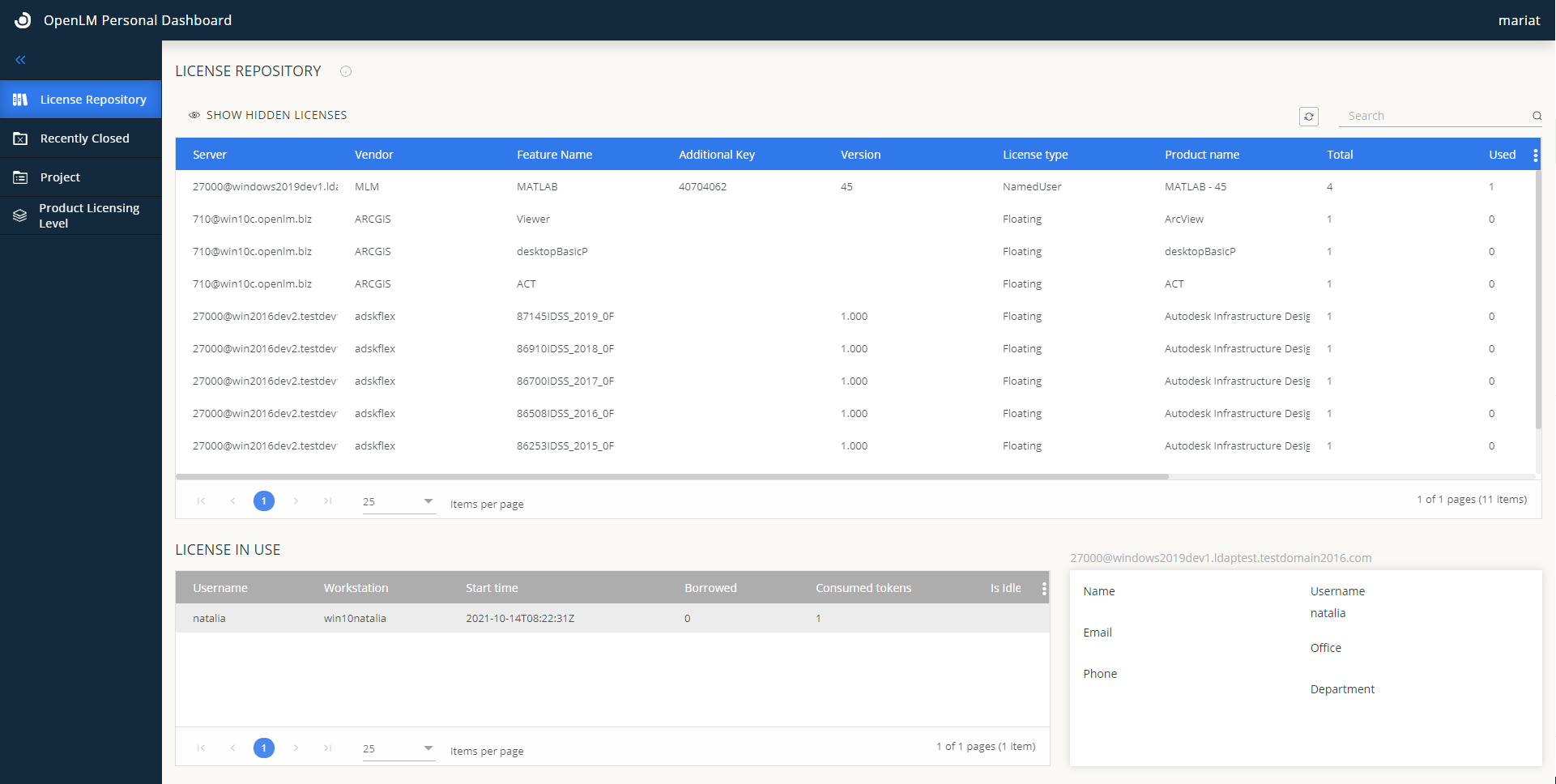
The license usage status may be hidden from end-users by checking the ”Hide license status query option” box, in the EasyAdmin Start → Administration → Agent Policy window
License repository filtering
There are several methods of filtering entries in the Agent’s license usage window so that end-users would only see the information regarding licenses of interest.
1. Use the ‘Search’ text box, in the “License usage information” window
2. By applying roles and permissions to users and user groups. This will limit the presented information to specific license servers.
3. Filtering entries in single features’ resolution can be accomplished by clicking the hide license button at the end of the desired row inside of the “License Repository” page: 
3.1 To undo this change, you can click on the “SHOW HIDDEN LICENSES” button on the “License Repository” page:
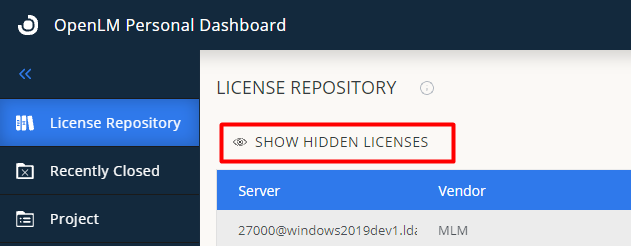
This will show you all the items that you’ve decided to hide. After that, you have to click the “Show this license in the list” button to toggle it back to a visible state:

Product Licensing level
Three licensing levels are available in ArcGIS (From high to low): Advanced, Standard, and Basic. ArcGIS end users can set this licensing level before activating the software. If such a license is available, the software will start at that chosen level. They can also choose one of the two available products for which they want to set the licensing level: ArcGIS Desktop and ArcGIS Pro. 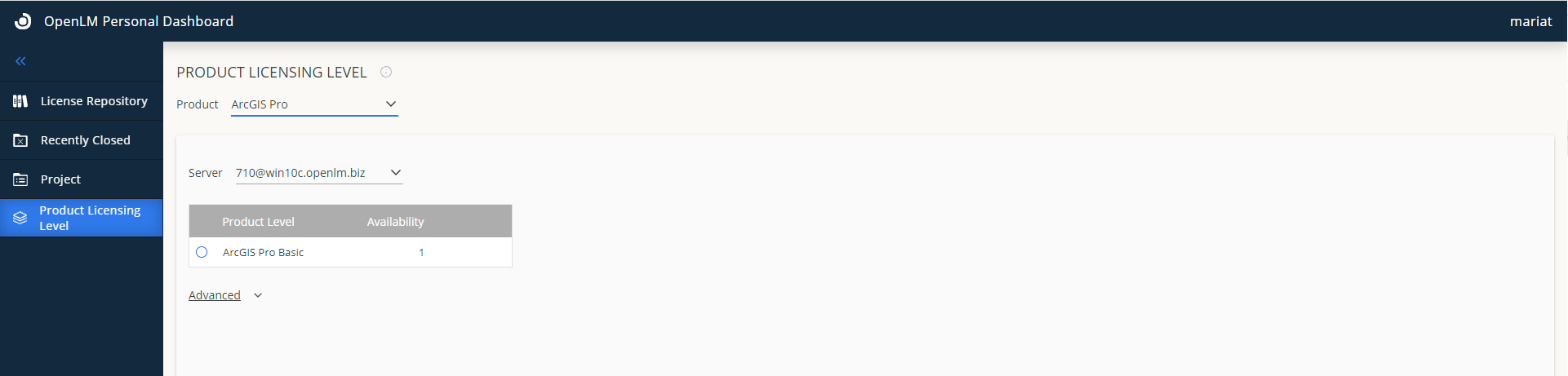
For further reference: https://pro.arcgis.com/en/pro-app/latest/get-started/license-levels.htm
Workstation Agent configuration window in OpenLM EasyAdmin
The ”Agent Policy” window in the EasyAdmin User Interface can be used to configure Workstation Agent. It is accessible by following this path: EasyAdmin Start → Administration → Agent Policy.