ASH WARE
Follow these steps to configure OpenLM to monitor license usage and retrieve license statistics from ASH WARE.
Requirements
- OpenLM Platform.
- OpenLM Broker v25.x or higher installed on the same machine as ASH WARE, and approve it in Broker Hub.
Monitoring capabilities
| Item | Value |
|---|---|
| LM Type in the Broker | ASH WARE |
| Commands | Yes |
| Logs | No |
| Quantity | Yes |
| Expiration date | Yes |
| Denied | No |
| Borrowing | No |
| Allocations | No |
| Report resolution | Seconds |
Using the Broker also enables buffered communication and allows remote start and stop of the license manager service.
OpenLM Broker configuration
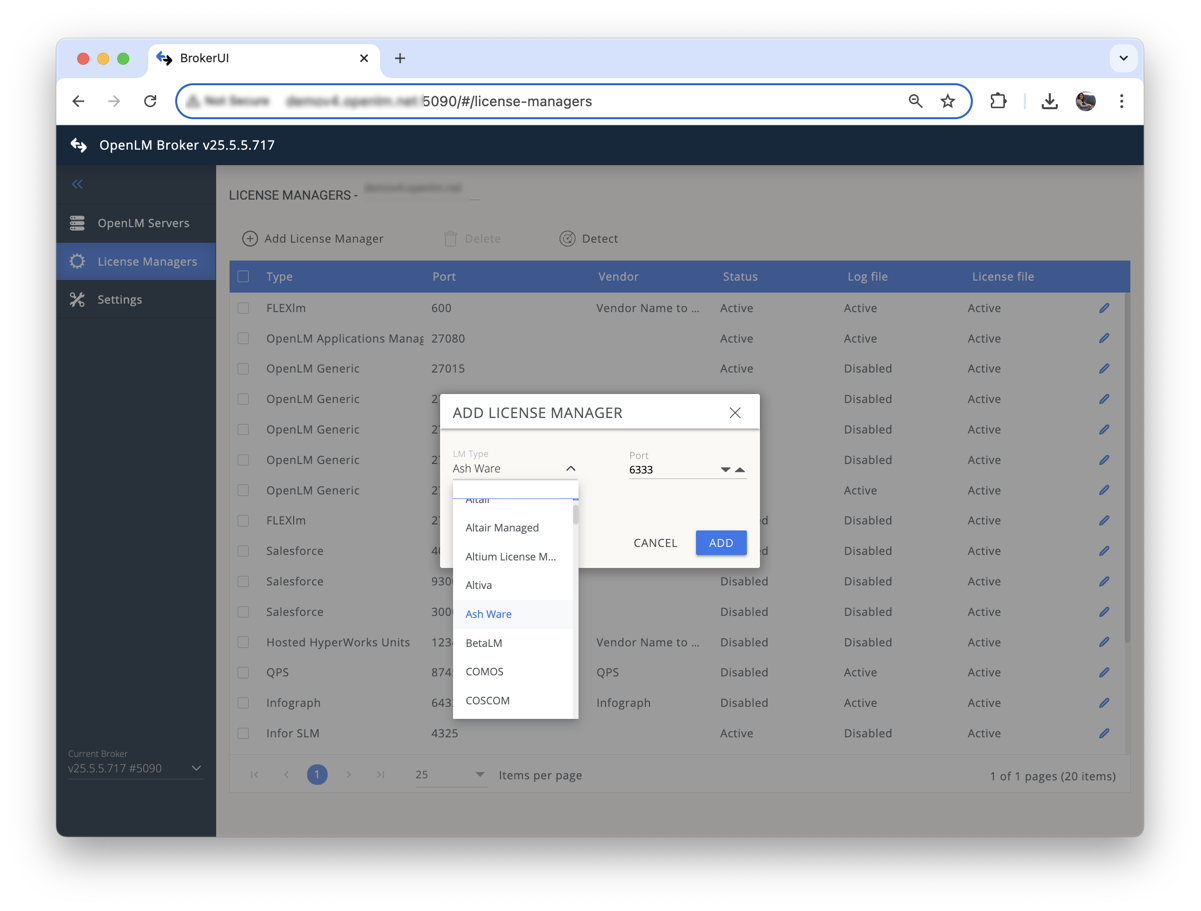
- Open Broker UI at http://localhost:5090/.
- Go to License Managers > Add License Manager.
- From the LM Type drop-down list, select ASH WARE.
- Enter the port number (default: 6333) and click Add.
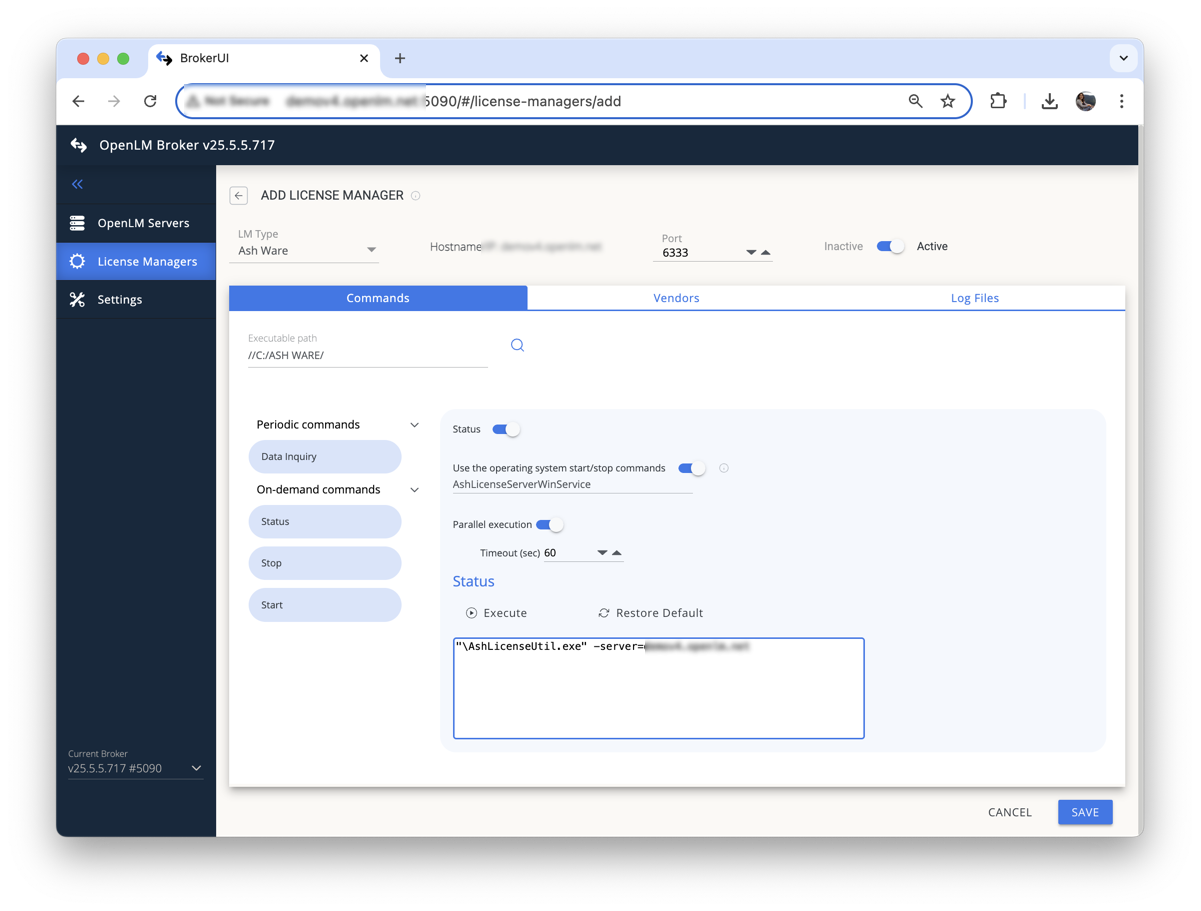
- In the Executable Path field, browse to the installation directory of the ASH WARE .exe file.
- Click Save.
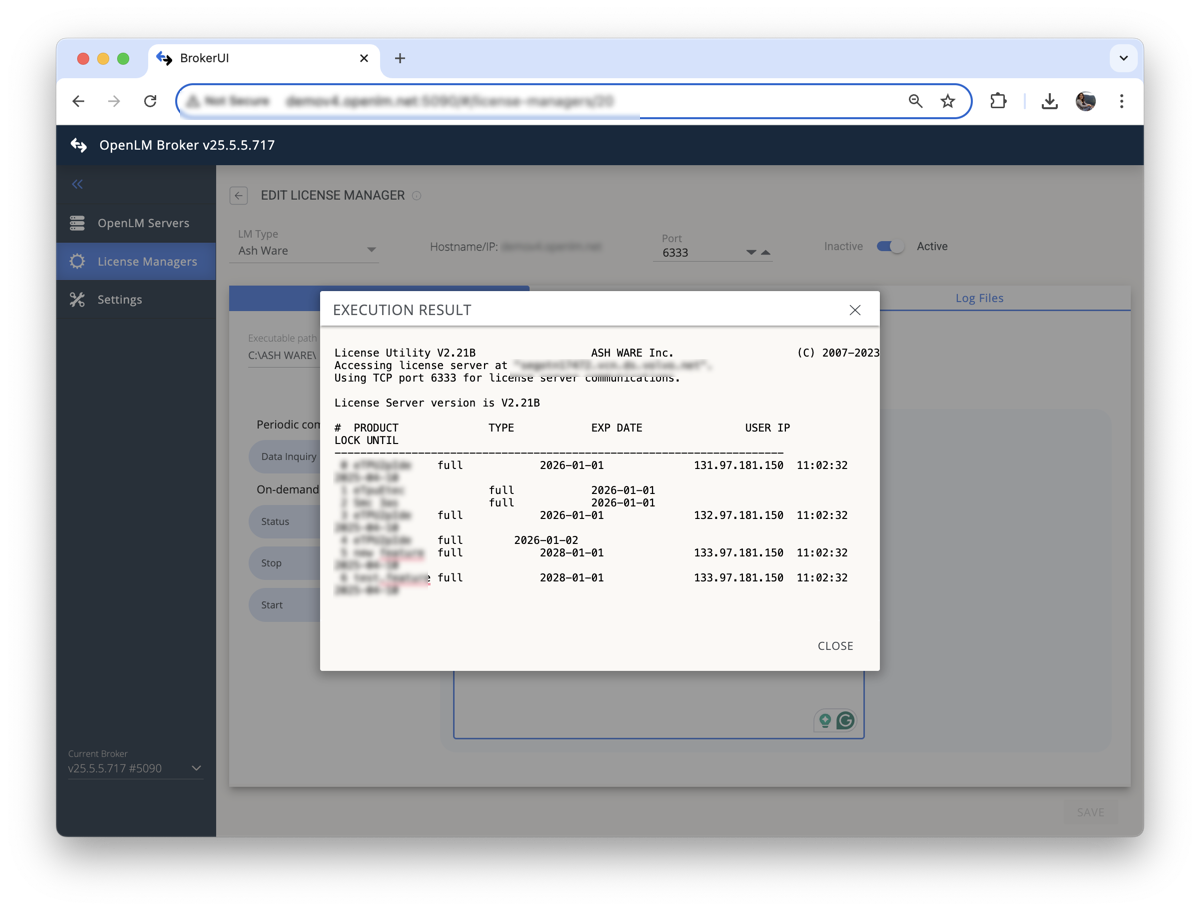
- To verify the configuration, click Execute in the Commands tab.
- Go to the Vendors tab. Click Add Vendor, enter ASH WARE, and click Continue.
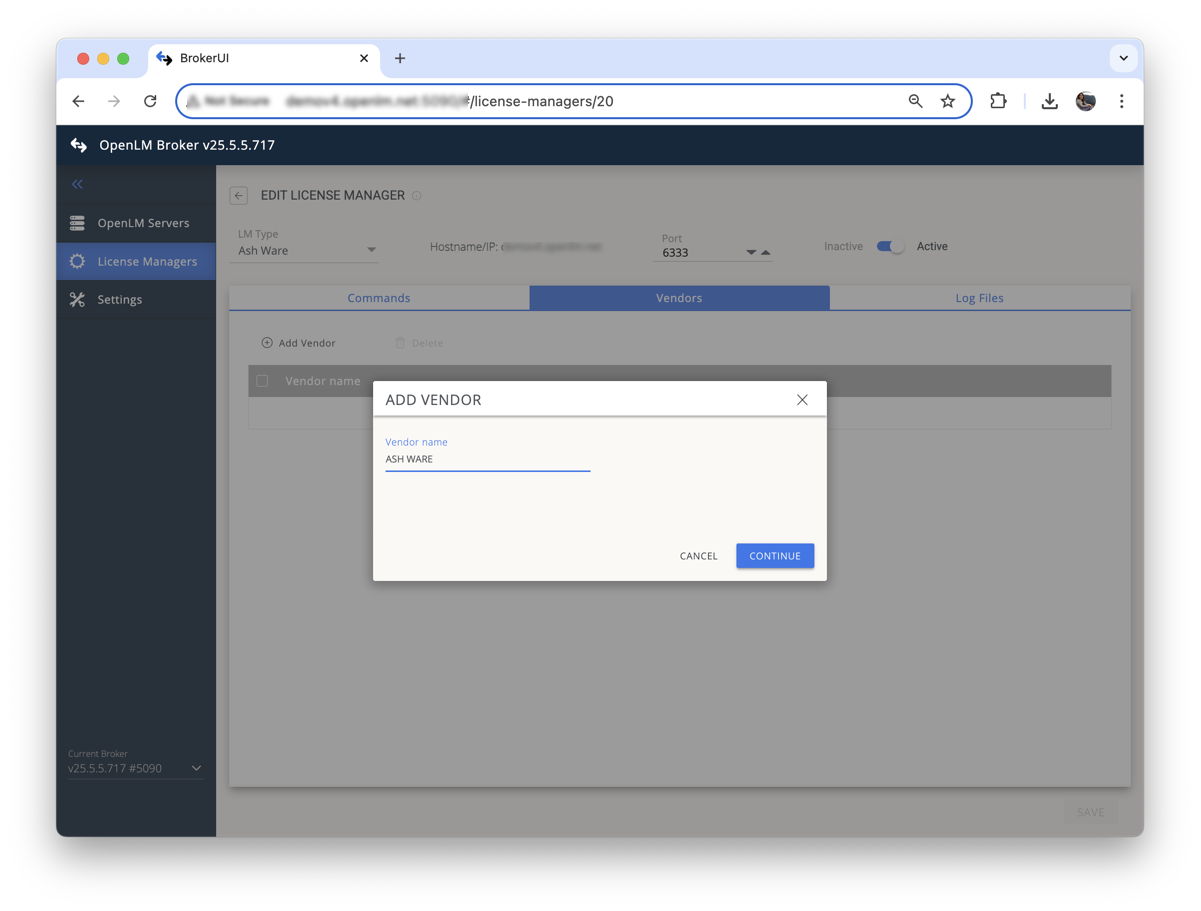
- Click Save.
Configure OpenLM Platform
- Log in to OpenLM Platform.
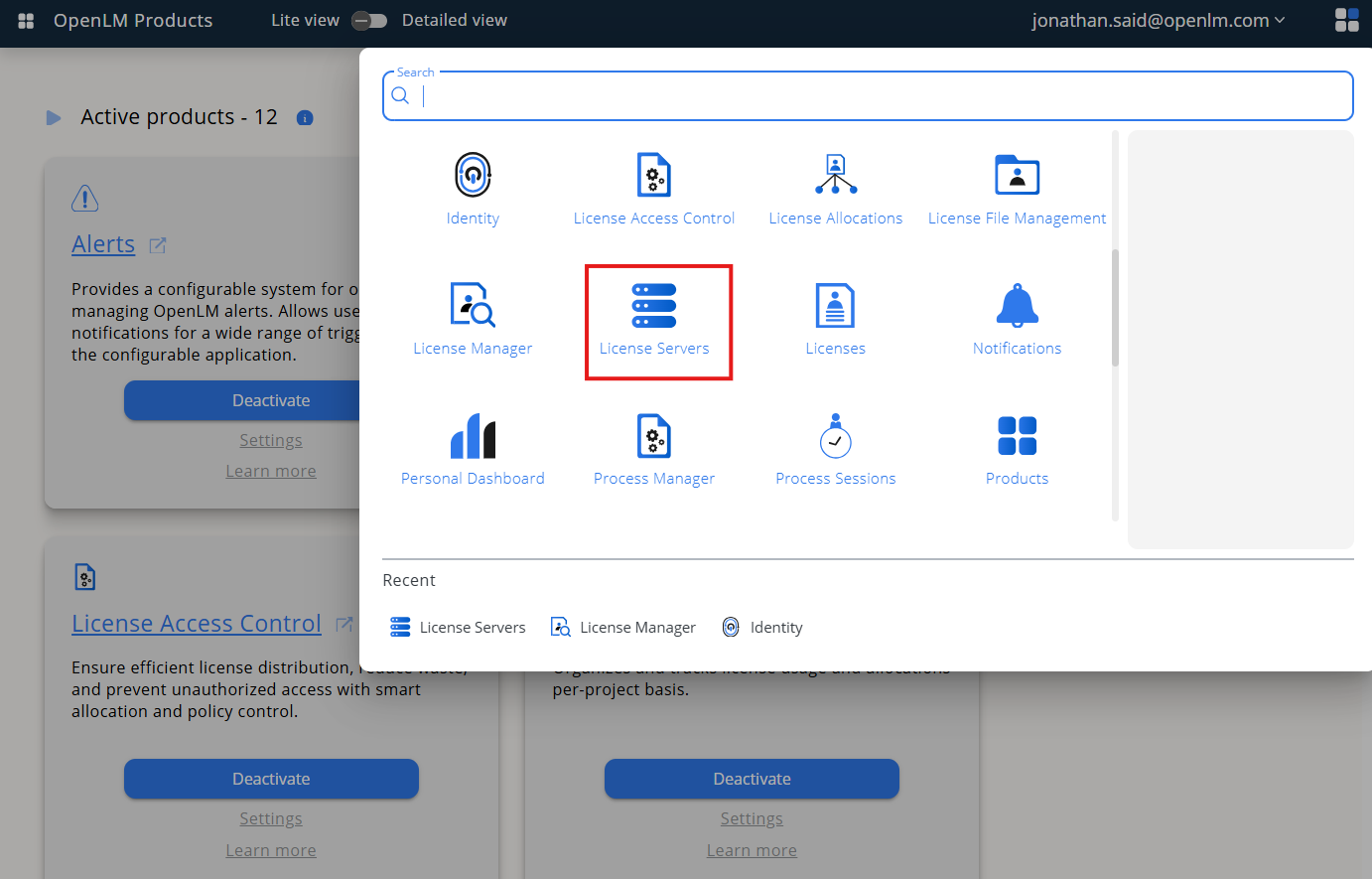
- From the Menu, go to License Servers.
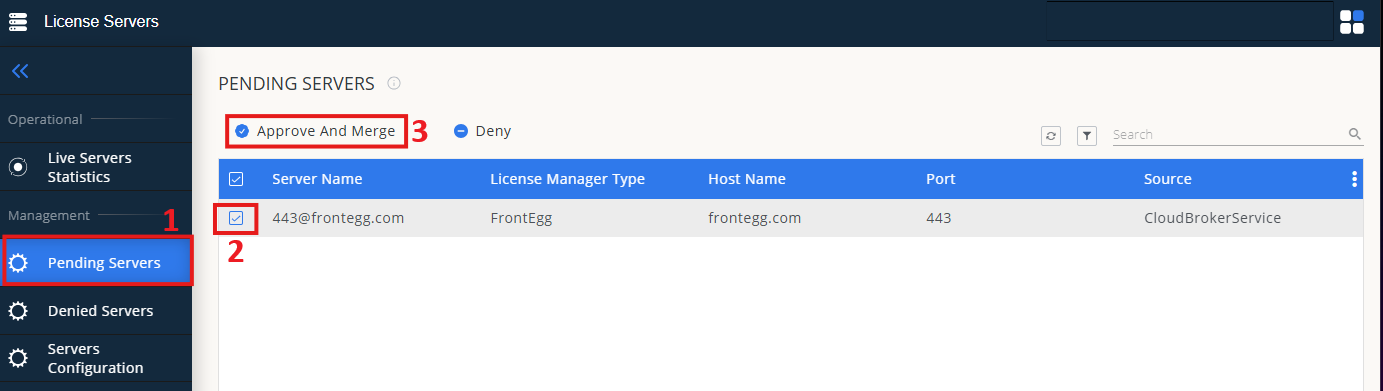
- In the left menu, select Pending Server.
- In the list, select the ASH WARE license manager and click Approve and Merge.
- Navigate to Menu > License Servers Live > Server Statistics.
- Ensure ASH WARE appears in the list with a green status indicator.
Note: It can take up to 3 minutes for the status to update for new connections.