AMP
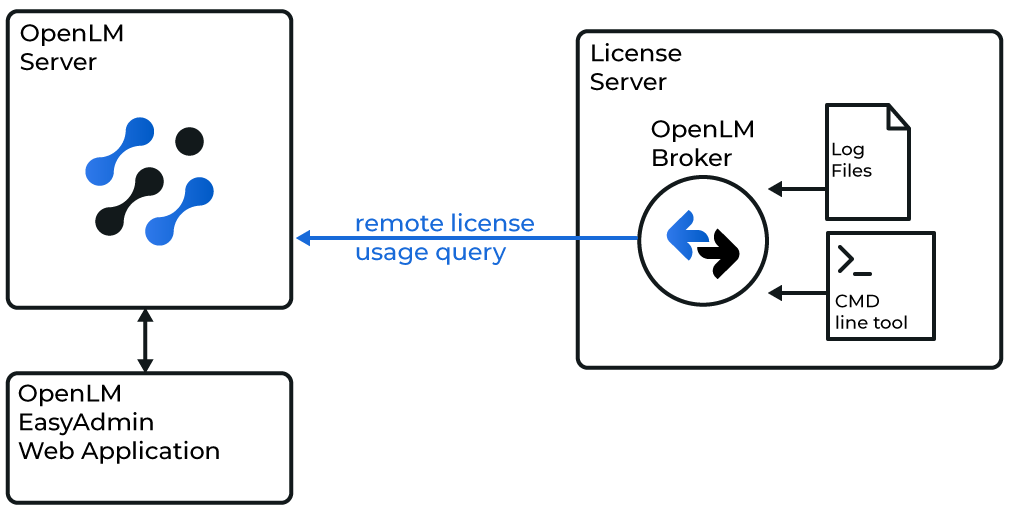
OpenLM can interface with AMP to monitor license usage and obtain statistics. AMP generates a periodic XML file, which OpenLM parses and displays in OpenLM Web Interface.
Requirements
-
OpenLM Platform
-
OpenLM Broker v25.x or higher installed on the same machine as AMP, and approve it in Broker Hub.
-
Open the Broker UI at
http://localhost:5090/. -
Go to "License Managers" and click "Add License Manager".
-
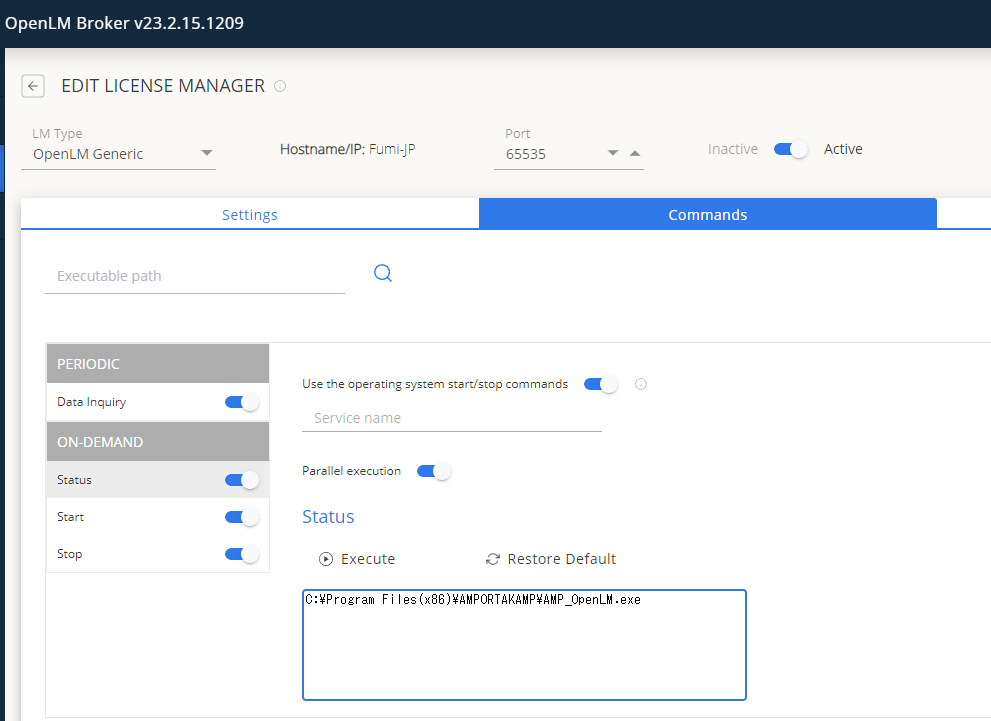
Select AMP and specify the port number (e.g., 2306).
-
In License Manager Type, select "OpenLM Generic".
-
In Commands, set the path to
AMP_OpenLM.exe(provided by vendor or in the AMP installation folder). Example:C:\Program Files (x86)\AMPORTAKAMP\AMP_OpenLM.exe -
Click Update, then Apply.
-
Click Execute to confirm data retrieval works.
-
Repeat for the Status command.
-
In Vendors, enter
AMP YAZILIM(case sensitive). -
Click Apply and then Restart Broker.
-
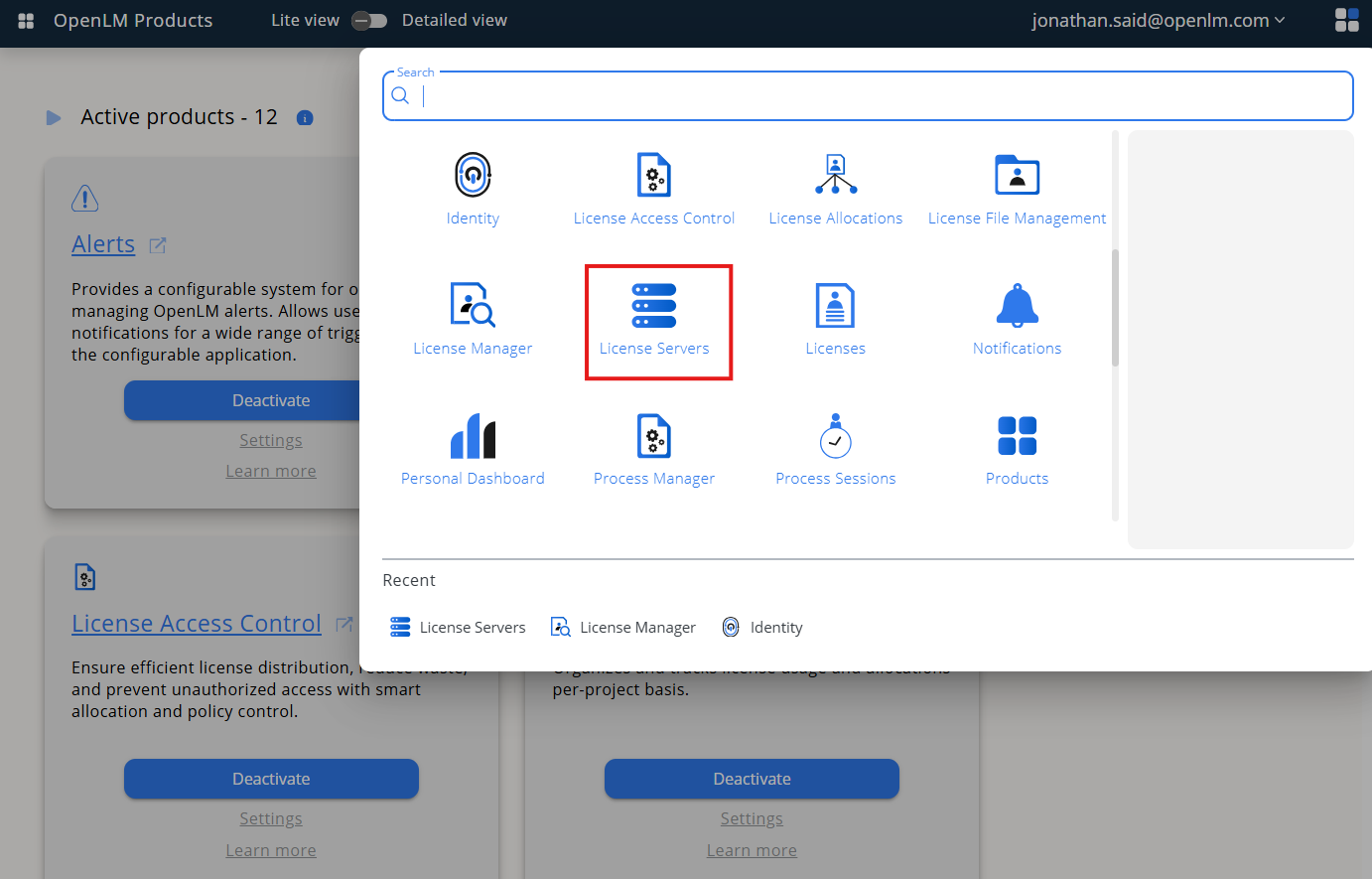
Open the OpenLM Platform.
-
From the menu, go to "License Servers".
-
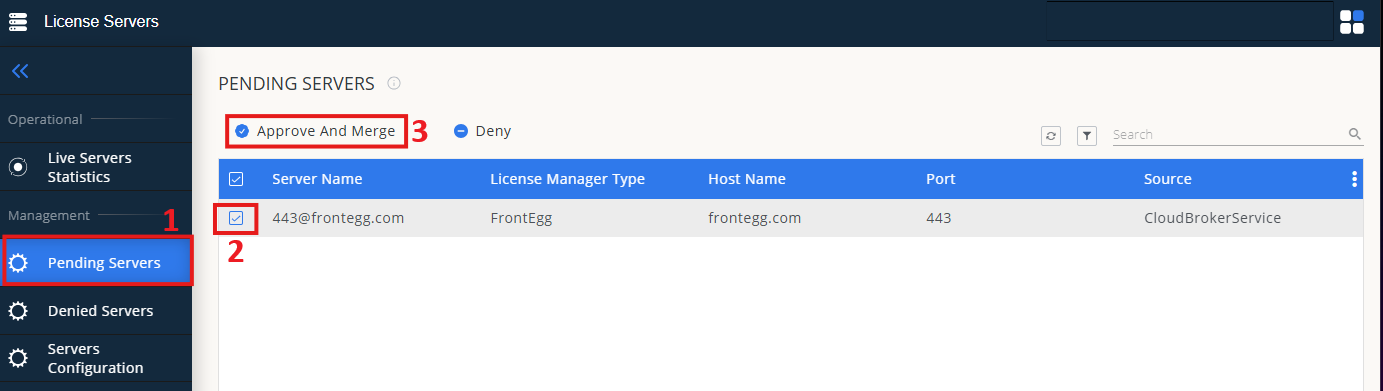
In the left menu, select "Pending Server".
-
In the list, select the AMP license manager and click "Approve and Merge".
-
In OpenLM Web Interface go to: Menu -> License Servers Live -> Server Statistics.
-
Ensure AMP appears in the list with a green status indicator.
Note: It can take up to 3 minutes for the status to update for new connections.
ArcGIS Online
OpenLM can connect to ArcGIS Online to retrieve license quantities and usage data.
Note: ArcGIS Online accounts with two-factor authentication (2FA) cannot be monitored. Disable 2FA before proceeding.
Requirements
- OpenLM Platform
- OpenLM Broker v25.x or higher installed on the same machine as ArcGIS, and approve it in Broker Hub.
Adding ArcGIS Online to OpenLM
-
Go to OpenLM Server Web Interface -> License Manager Servers.
-
Click "Add LM".
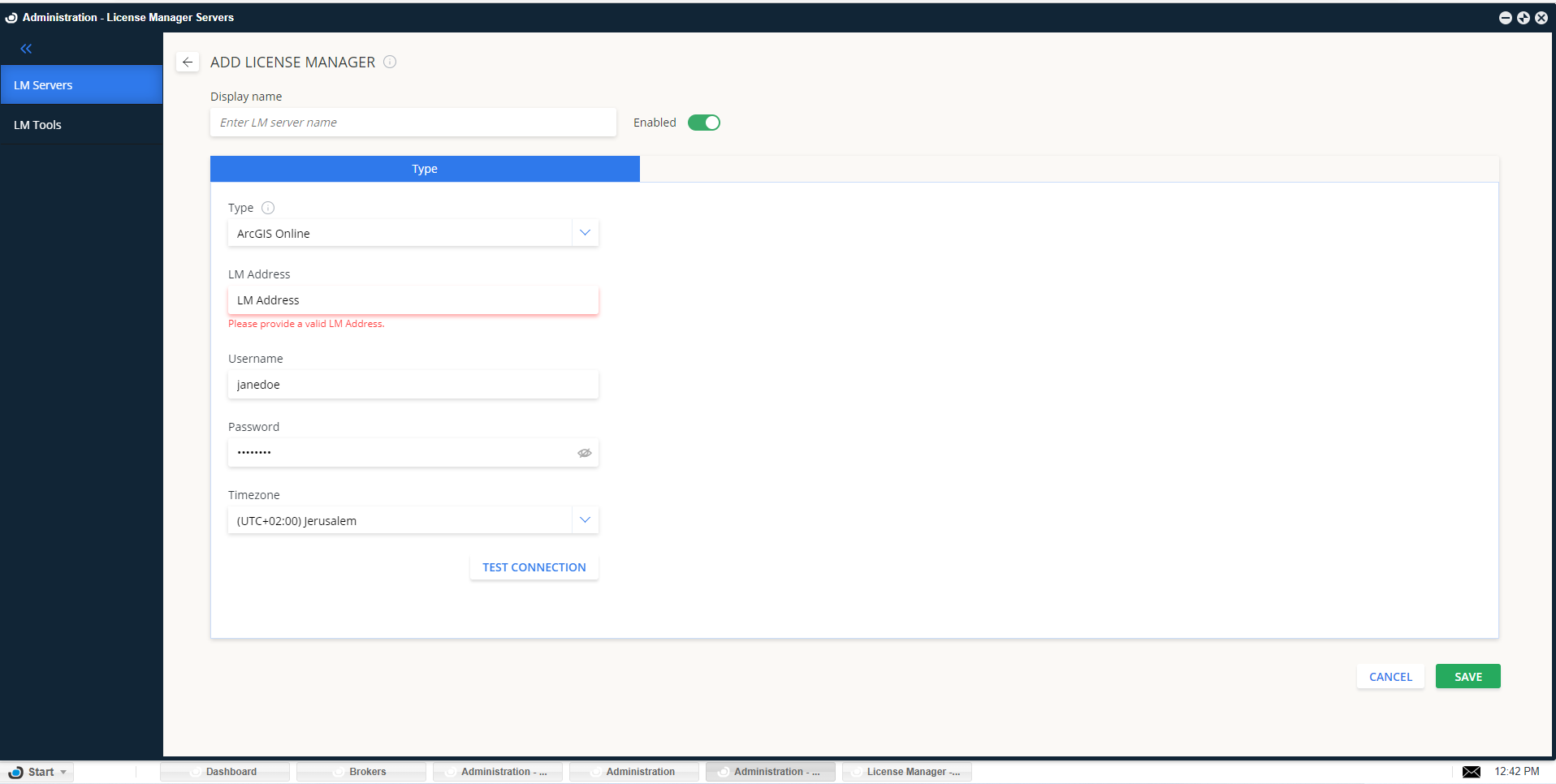
-
Enter a descriptive Display Name.
-
In Type, select "ArcGIS Online".
-
In LM Address, enter
https://www.arcgis.com. -
Enter your ArcGIS Online admin username and password.
-
Select the license manager's time zone.
-
Click "Test Connection". A successful connection will look like:
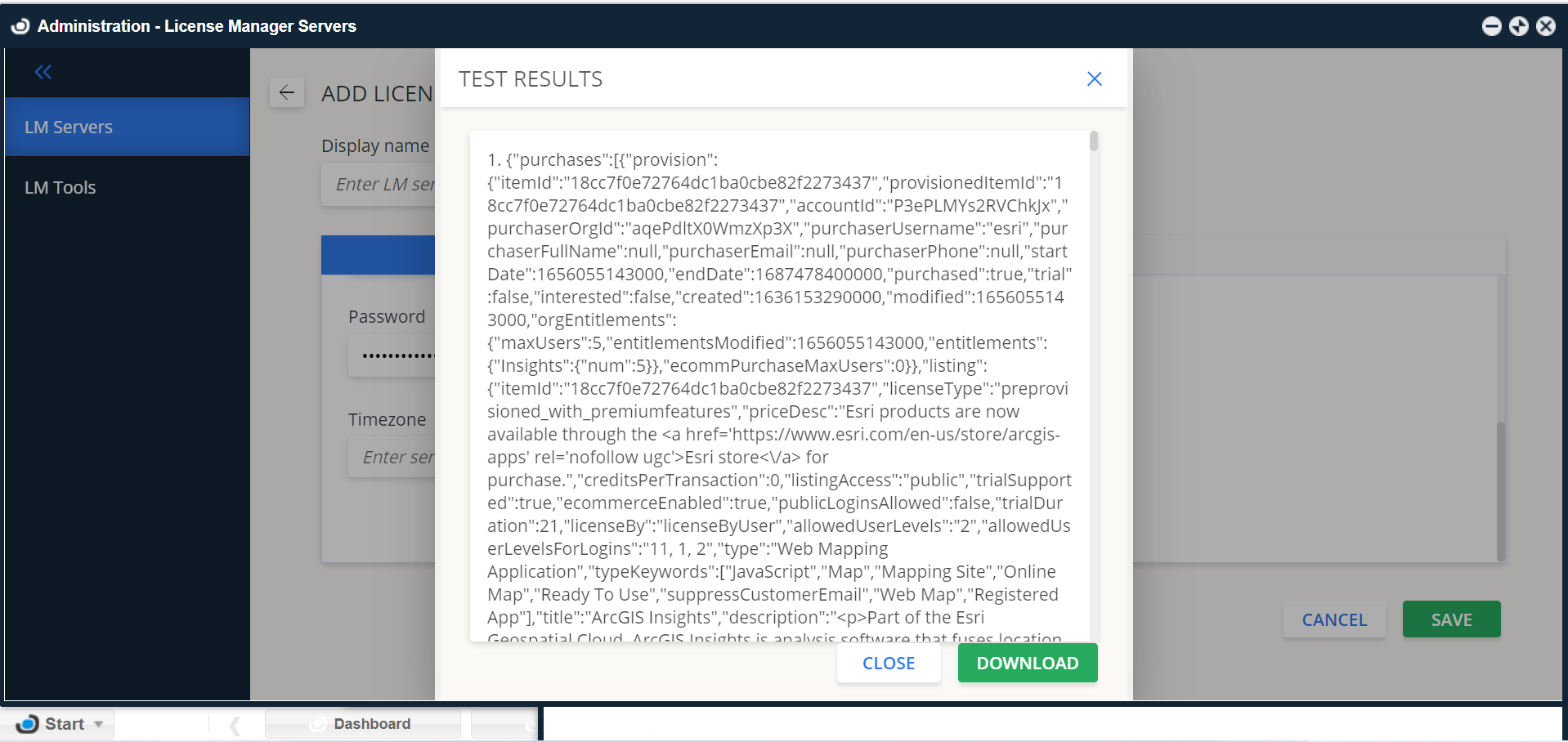
-
Click "Save".
Within a few minutes, license usage and allocation data will appear in OpenLM reports.
Configure OpenLM Platform
-
Open the OpenLM Platform.
-
From the menu, go to "License Servers".
-
In the left menu, select "Pending Server".
-
In the list, select the ArcGIS Online license manager and click "Approve and Merge".
-
In OpenLM Web Interface go to: Menu -> License Servers Live -> Server Statistics.
-
Ensure ArcGIS Online appears in the list with a green status indicator.
Note: It can take up to 3 minutes for the status to update for new connections.