EPLAN
Requirements
- OpenLM Platform
- OpenLM Broker v25.x or higher installed on the same machine as ELPAN, and approve it in Broker Hub.
Monitoring capabilities and features
The monitoring capabilities available for the EPLAN license manager through OpenLM Broker are:
| Item | Value |
|---|---|
| Report resolution | By second |
| License totals | Yes |
| License usage | Yes |
| Denials reporting | Yes |
| Borrowed license reporting | Yes |
| Expiration date reporting | No |
| Multiple server redundancy | No |
Using Broker also allows buffered communication in case of network interruptions.
OpenLM Broker configuration
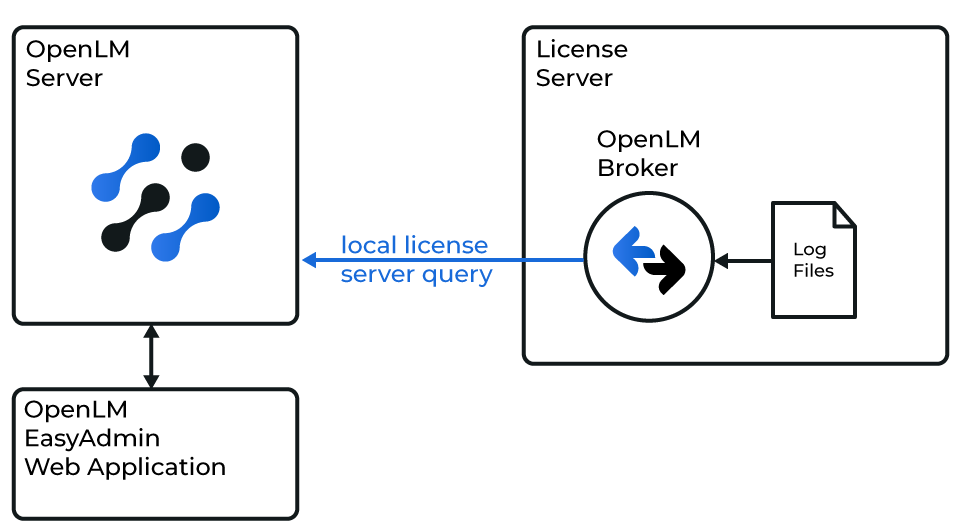
The process works as follows:
-
Broker runs ElmMonitor.exe at set intervals to generate portions of the log file.
-
These fragments are compiled into one log file, then converted into an XML file in the OpenLM Generic format.
-
Broker sends all gathered license usage information to OpenLM Server. You can then view the data in OpenLM Web Interface.
Configuring via Broker UI
-
Install the latest OpenLM Broker version.
-
Go to your Broker web UI (http://localhost:5090/).
-
Navigate to the License Managers tab.
-
If the license manager service is running, click Detect. Broker should automatically configure the EPLAN license manager.
-
If Detect does not work, follow these steps:
- In the License Managers tab, click Add License Manager.
- From the LM type drop-down list, select EPLAN. Enter a port number (for example 80). Click Add.
- In the configuration window, switch to the Commands tab. Browse to ElmMonitor.exe in the Executable path field. Click Execute to validate output.
- Switch to the Vendors tab. Click Add Vendor, type EPLAN (or another name), and click Continue.
- Click Save.
Configure OpenLM Platform
-
Log in to OpenLM Platform.
-
From Menu, go to License Servers.
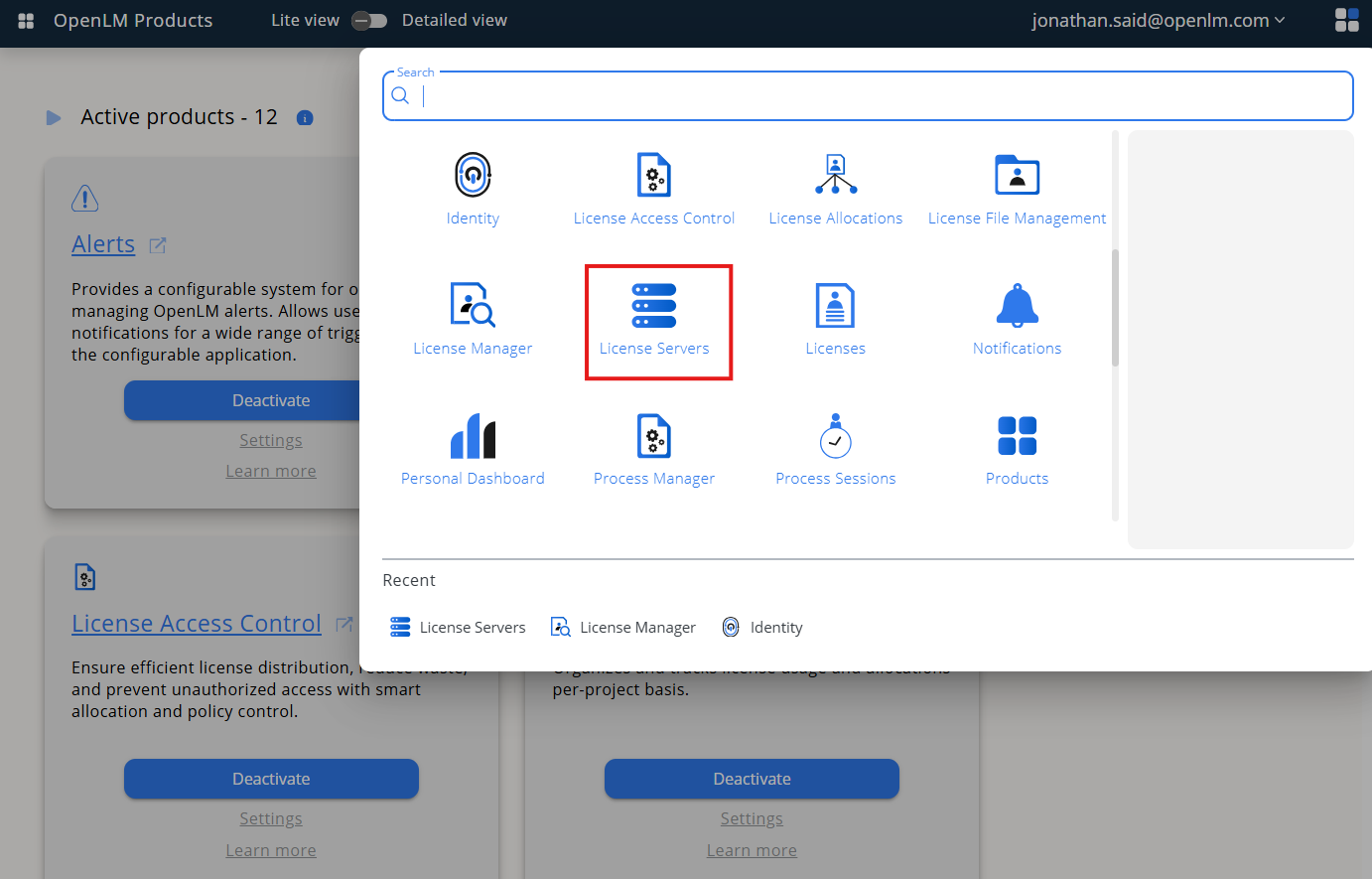
-
On left menu, select Pending Server
-
On the list, select the ELPAN license manager and click on Approve and Merge
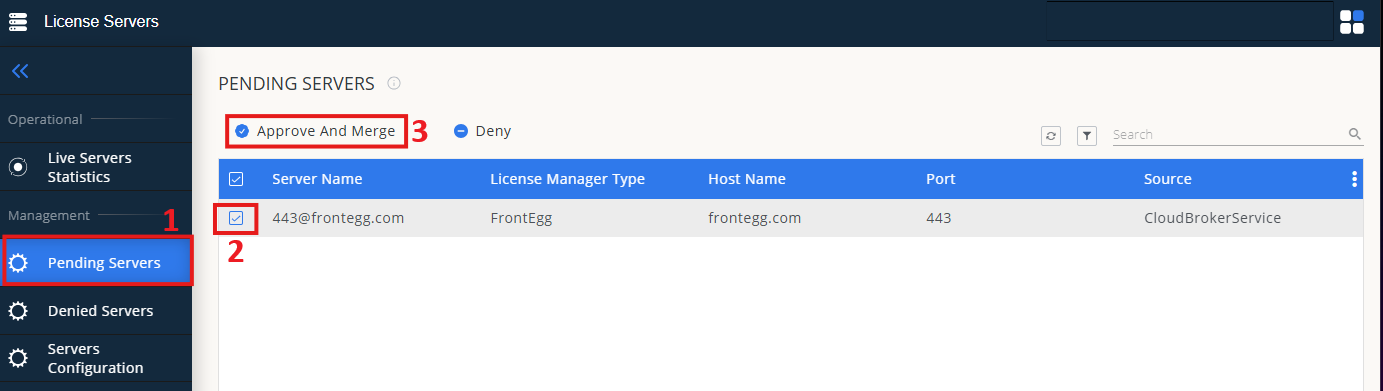
Verifying the configuration
-
In OpenLM Web Interface -> Menu -> License Servers Live -> Server Statistics.
-
Ensure ELPAN appears in the list with a green status indicator.
Note: It can take up to 3 minutes for the status to update for new connections.