DSLS
Scope
OpenLM supports monitoring for many license managers. This guide explains how to configure OpenLM to interface with Dassault Systèmes License Server (DSLS), monitor usage, and collect license statistics.
Requirements
- OpenLM Platform
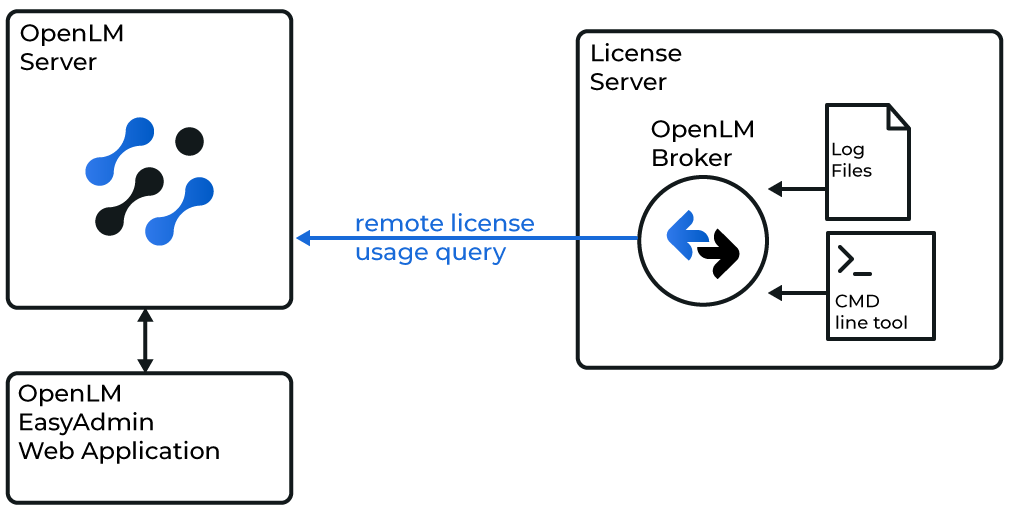
- OpenLM Broker v25.x or higher installed on the same machine as DSLS, and approve it in Broker Hub.
Configuring via Broker UI
-
Open Broker web UI: http://localhost:5090/.
-
Go to License Managers tab.
-
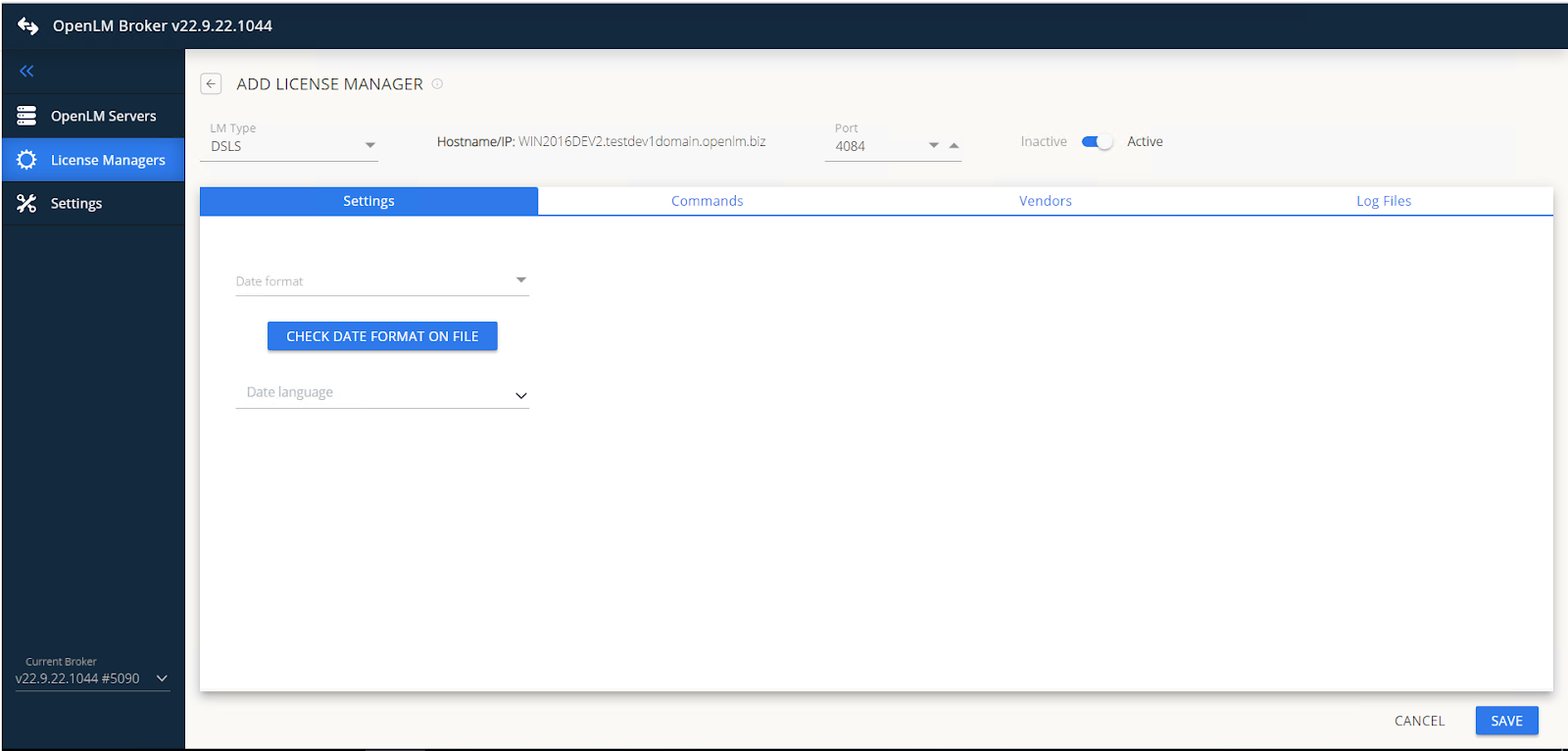
Use Detect to find DSLS automatically. If not detected, click Add License Manager, select DSLS, enter port, and click ADD.
-
Match Date format and Language to the license file.
-
Go to Commands tab -> enter path to DSLicSrv.exe. Run Execute to test.noteIf DSLS uses a password, add it in command syntax. Ensure a space before each semicolon.
-
Go to Vendors tab -> Add Vendor -> Dassault Systemes.
-
For multi-server setups, install Broker on each DSLS machine.
-
Ensure status, data_inquiry, and denial commands use locale en_US.
Configure DSLS log files
-
Go to Log files tab -> click Add Log File.
-
Select type Other.
-
Name the file (for example, DSLS log file).
-
Enter or browse to the file path (for example, C:\my_dsls_log.log).
-
Select vendor Dassault Systemes.
-
If logs rotate, check Watch files by pattern.
Configure OpenLM Platform
-
Log in to OpenLM Platform.
-
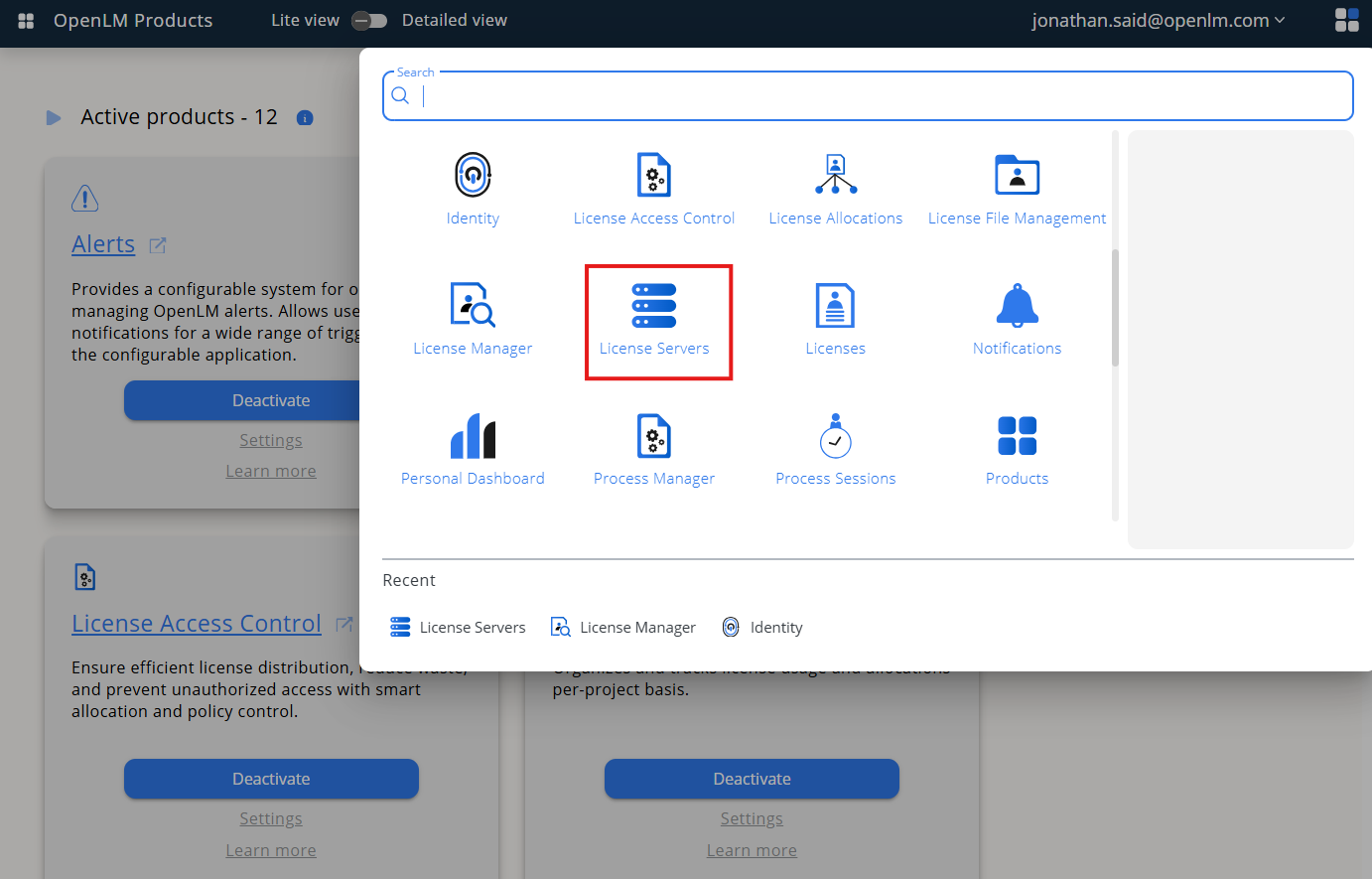
From Menu, go to License Servers.
-
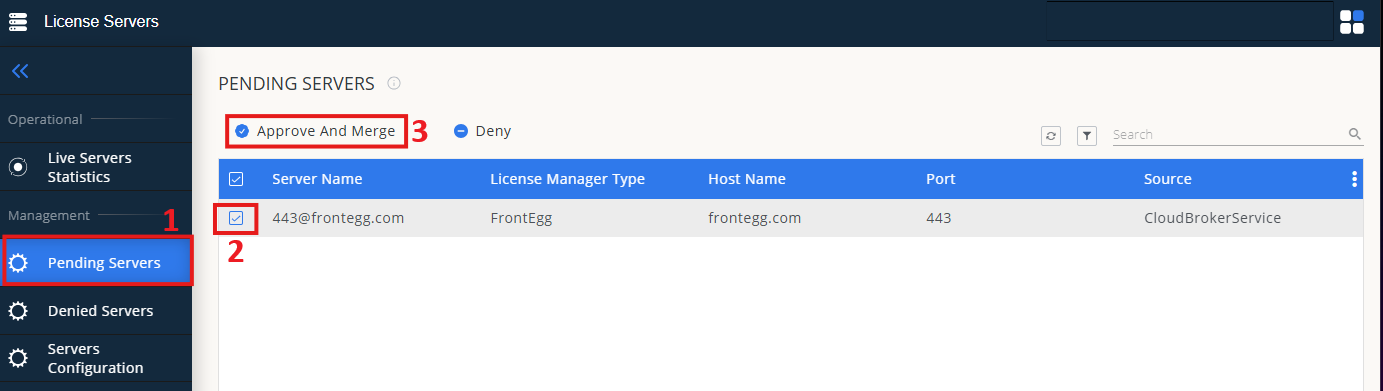
On left menu, select Pending Server
-
On the list, select the DSLS license manager and click on Approve and Merge
-
In OpenLM Web Interface -> Menu -> License Servers Live -> Server Statistics.
-
Ensure DSLS appears in the list with a green status indicator.
Note: It can take up to 3 minutes for the status to update for new connections.