Zoo License Manager
This guide describes how to configure OpenLM with McNeel's Zoo License Manager to monitor license usage and collect statistics.
Requirements
To monitor Zoo License Manager, ensure the following:
- OpenLM Platform
- OpenLM Broker v25.x or higher installed on the same machine as Zoo, and approve it in Broker Hub.
Monitoring capabilities
OpenLM collects the following from Zoo License Manager:
| Item | Value |
|---|---|
| Report resolution | By second |
| License totals | Yes |
| License usage | Yes |
| Denials reporting | Yes* |
| Borrowed license reporting | No |
| Expiration date reporting | No |
| Multiple server redundancy | No |
- Denials are classified as Limit Reached. Only denials with a readable Feature Name are recorded.
Since Zoo is queried through OpenLM Broker, you also get:
-
Buffered communication to OpenLM Server (tolerates network failures).
-
Ability to remotely start/stop the license service.
-
1-second resolution for usage reports.
Configuring OpenLM Broker
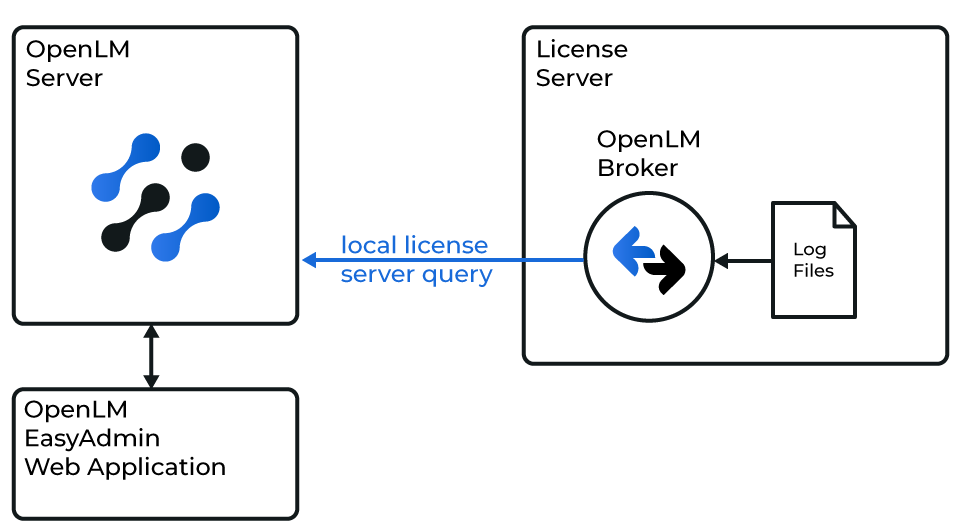
OpenLM Broker must be installed on the same machine as Zoo (installation guide) and connected to OpenLM Server (configuration guide).
Automatic Broker configuration
-
Open Broker UI at http://localhost:5090/.
-
Go to License Managers -> Detect
-
Zoo should appears
-
Validate and save
Configuring via Broker UI
If autodetect fails:
-
Open Broker UI at http://localhost:5090/.
-
Go to License Managers -> Add License Manager.
-
From License Manager Type, select Zoo -> Apply.
-
If OpenLM Web Interface shows invalid dates or language:
- Zoo Output Language: Match OS system locale.
- Zoo Date Time Format: Match Zoo output date format. You can also set a custom format.
-
Under Vendors, replace Vendor Name to Be Filled with McNeel -> Apply.
-
Add a log file: Log Files -> Add Log File -> Other.
-
Point to the CSV Zoo log file (default: C:\ProgramData\McNeel\Zoo#.#\Usage, where #.# is version, e.g., 6.0).
-
In Advanced, check Watch Files by Pattern.
-
Apply -> Restart Broker.
-
Continue with OpenLM Server configuration.
Configure OpenLM Platform
-
Log in to OpenLM Platform.
-
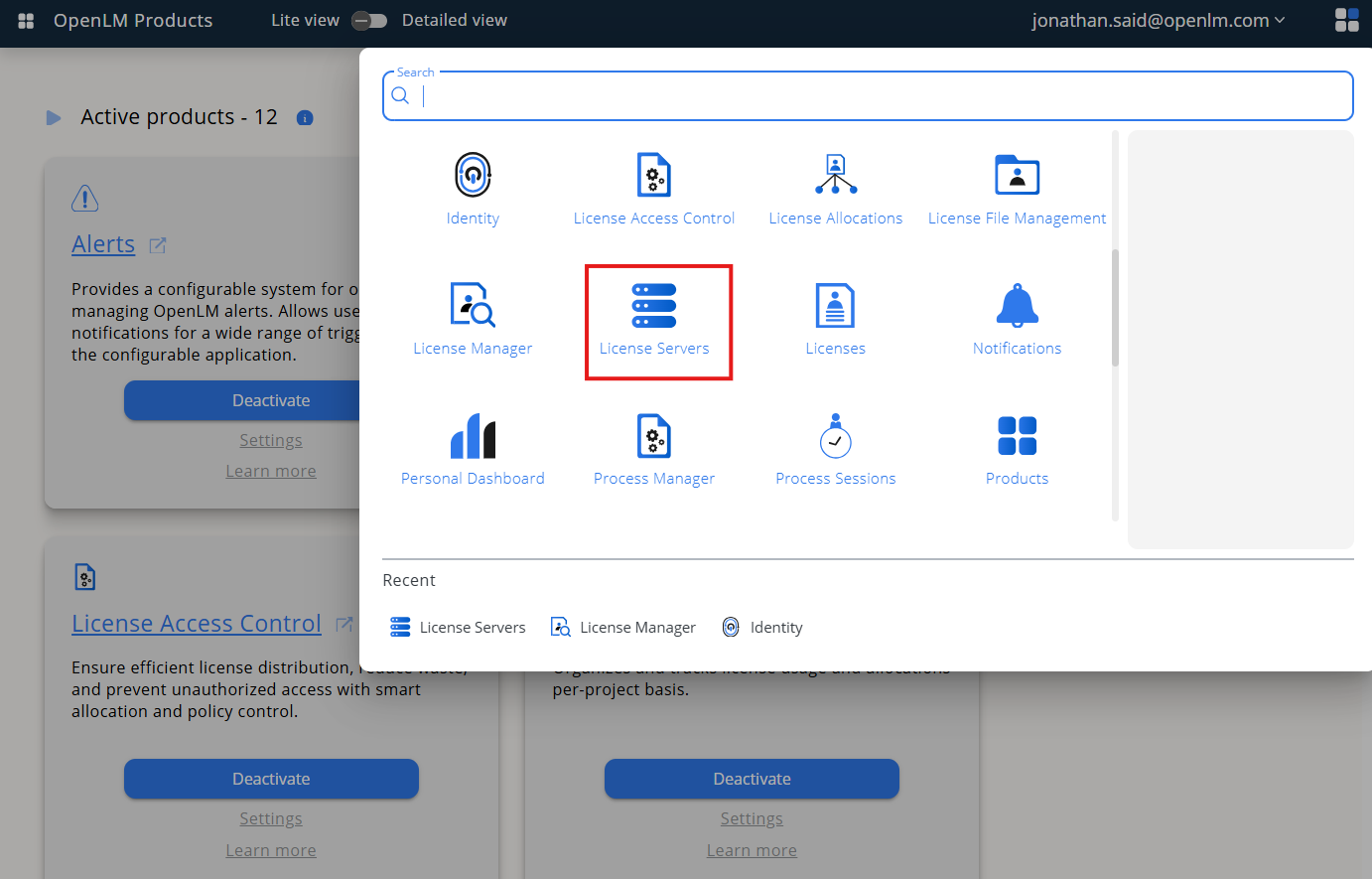
From Menu, go to License Servers.
-
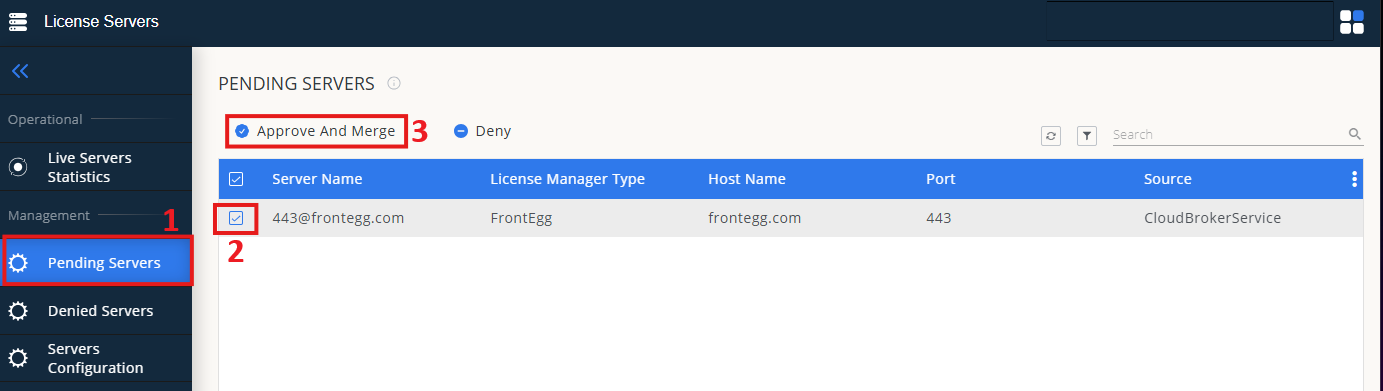
On left menu, select Pending Server
-
On the list, select the Zoo license manager and click on Approve and Merge
-
In OpenLM Web Interface -> Menu -> License Servers Live -> Server Statistics.
-
Ensure Zoo appears in the list with a green status indicator.
Note: It can take up to 3 minutes for the status to update for new connections.