Venturis
This document describes how to configure OpenLM to monitor Venturis License Manager and obtain license statistics.
Requirements
To query Venturis License Manager, install:
- OpenLM Platform
- OpenLM Broker v25.x or higher installed on the same machine as Venturis, and approve it in Broker Hub.
Monitoring capabilities and features
Current monitoring capabilities through OpenLM Broker:
| Item | Value |
|---|---|
| Report resolution | By second |
| License totals | Yes |
| License usage | Yes |
| Denials reporting | No |
| Borrowed license reporting | No |
| Expiration date reporting | No |
| Multiple server redundancy | No |
OpenLM Broker configuration
OpenLM Broker reads the Venturis log file. Data is compiled and sent to OpenLM Server. License files are configured manually in Broker. Broker reads the log file and tracks session changes. The license file and options file are monitored for updates based on the configured Watch interval.
Configuring via Broker UI
-
Open a browser and go to http://localhost:5090/.
-
Go to License Managers -> Add license manager.
-
Select Venturis as the license manager type, enter the port (for example, 2679), and click Add.
-
In Settings, choose one of:
- Detect license file path automatically
- Set license file manually
- Allow license file sorting
- Watch license file
-
In Commands, set Executable path to the i4blt executable on the IBM LUM license server.
-
In Vendors, enter the correct vendor name.
-
Click Save.
Configure OpenLM Platform
-
Log in to OpenLM Platform.
-
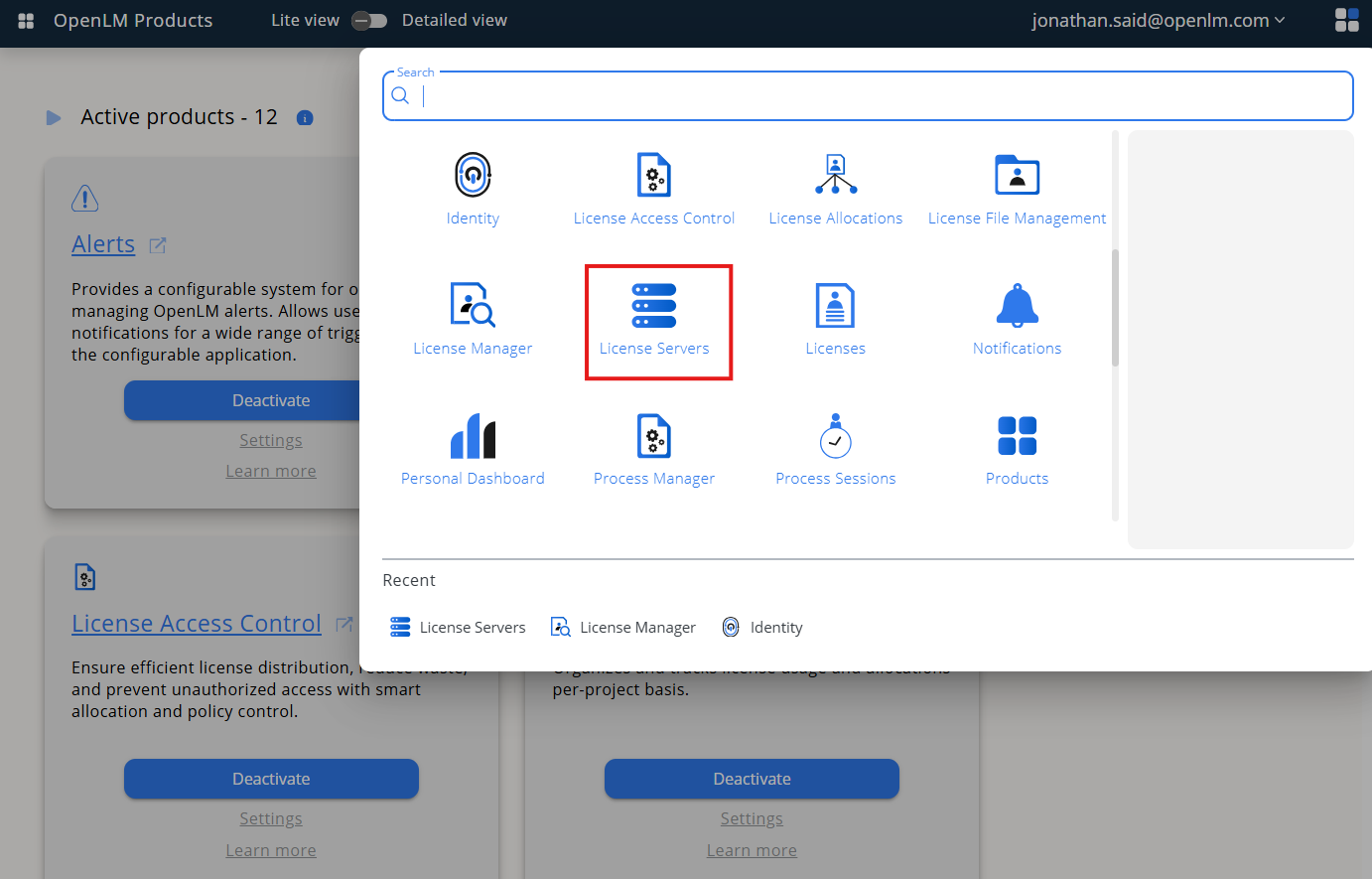
From Menu, go to License Servers.
-
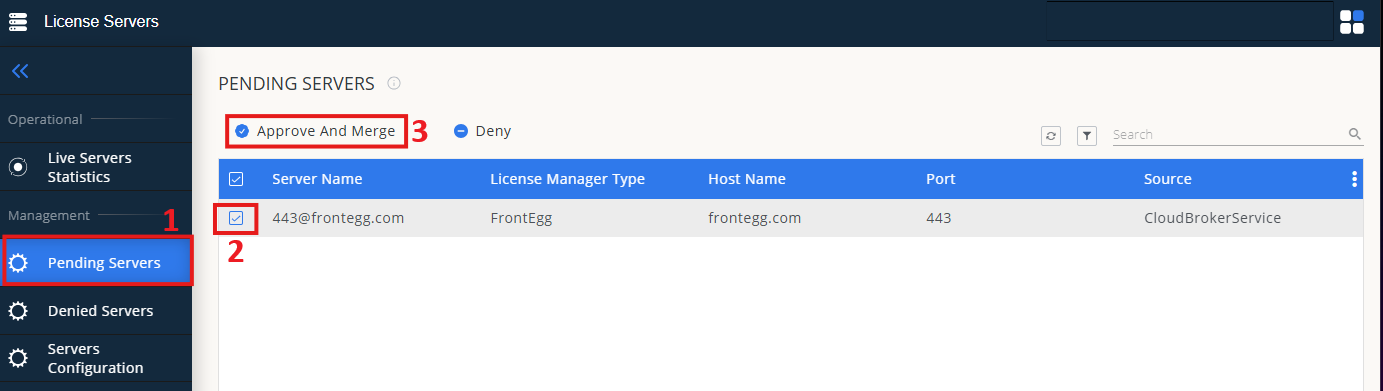
On left menu, select Pending Server
-
On the list, select the Venturis license manager and click on Approve and Merge
-
In OpenLM Web Interface -> Menu -> License Servers Live -> Server Statistics.
-
Ensure Venturis appears in the list with a green status indicator.
Note: It can take up to 3 minutes for the status to update for new connections.