ProgeCAD
ProgeCAD is a 2D and 3D design software for CAD and concept sketching. It is compatible with AutoCAD and supports Direct Modeling in native .dwg format.
OpenLM supports monitoring the ProgeCAD Network License Manager (NLM) for versions 13.0.18 onward. The license server creates a periodic XML file, which OpenLM parses to present usage results in the OpenLM Web Interface interface.
Prerequisites
Monitoring ProgeCAD requires:
-
OpenLM Platform
-
OpenLM Broker v25.x or higher installed on the same machine as ProgeCAD, and approve it in Broker Hub.
Configuring via Broker UI
Alternatively, use the Broker web UI:
-
Open http://localhost:5090/.
-
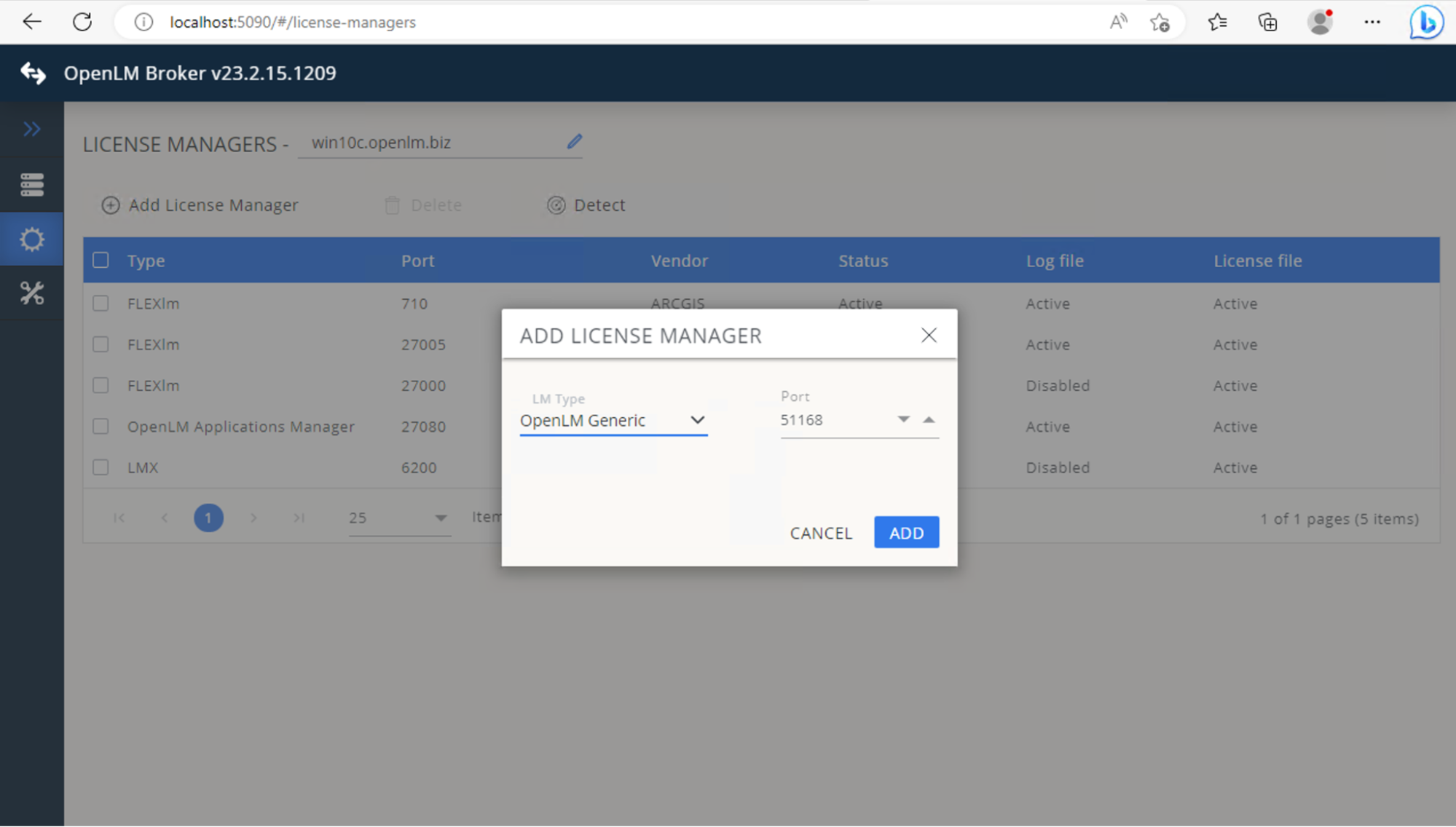
Go to License Managers -> Add License Manager.
-
From Type, select OpenLM Generic. Enter the port (for example, 51168) and click Add.
-
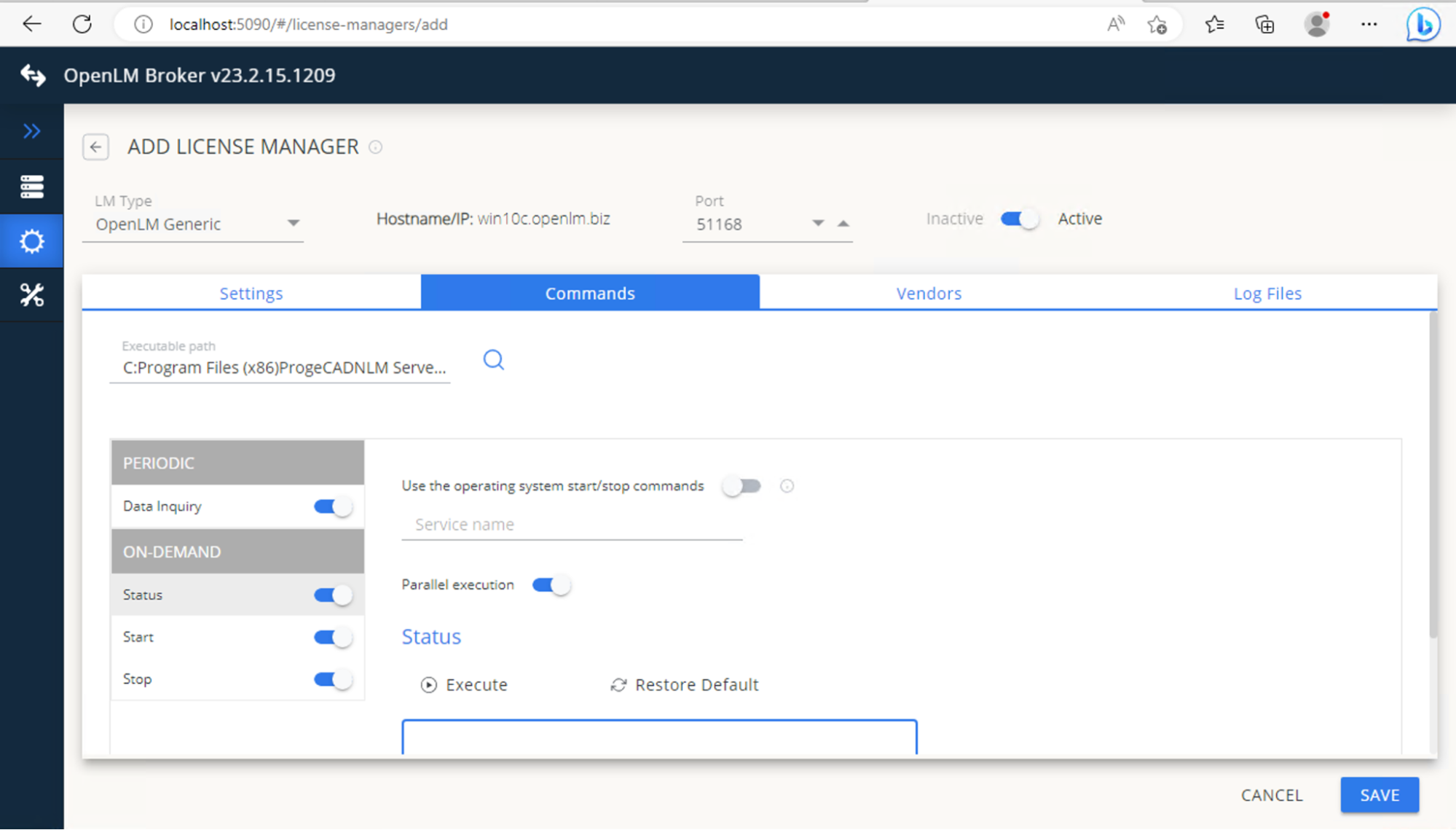
Go to the Commands tab. In Executable path, enter:
"<Full path to NLMServerMonitor.exe>" /xml -
Click Save, then Execute to validate the output.
-
Go to the Vendors tab. Click Add Vendor. Enter ProgeCAD (or another free-text name). Click Continue -> Save.
Configure OpenLM Platform
-
Log in to OpenLM Platform.
-
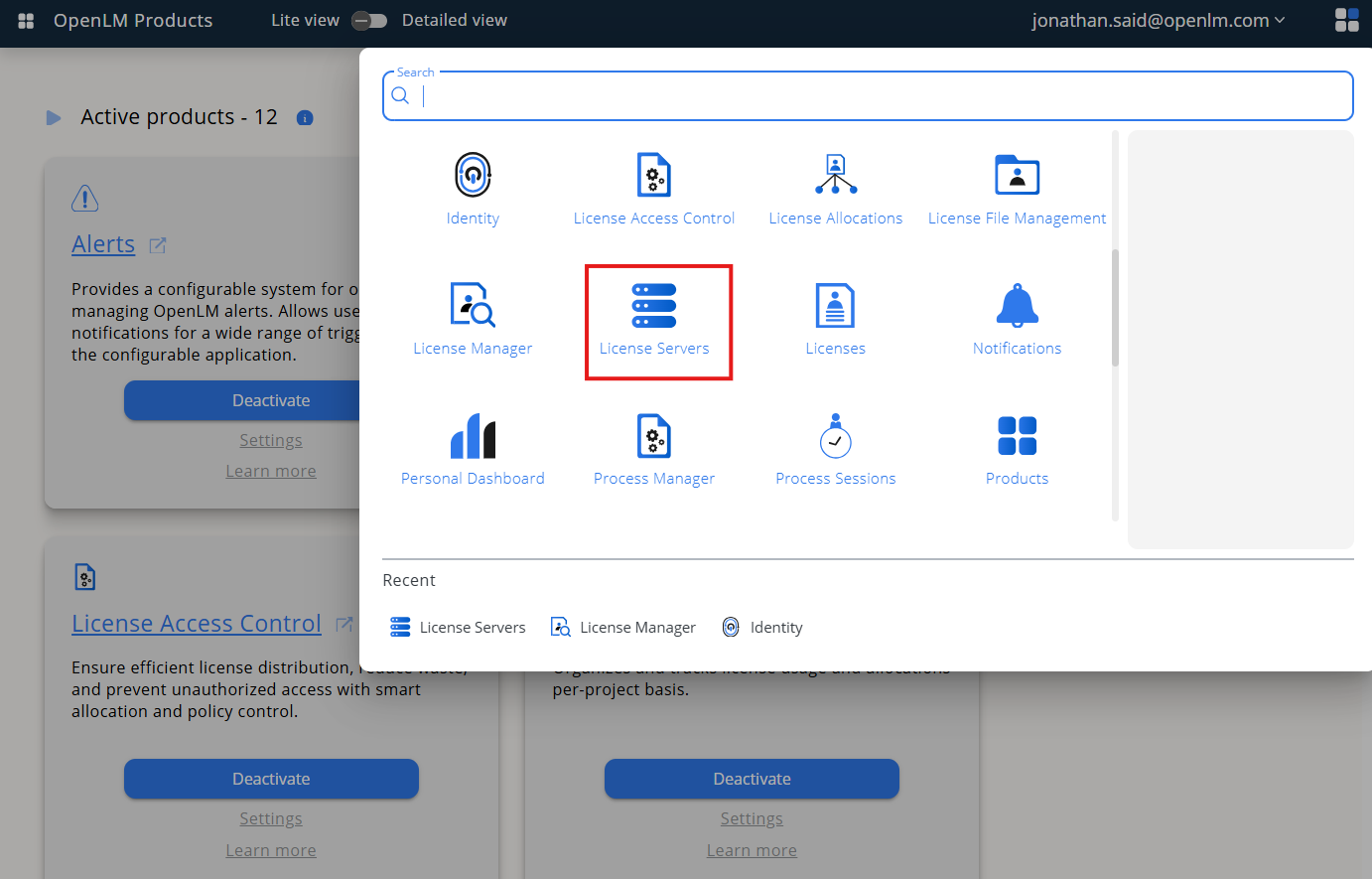
From Menu, go to License Servers.
-
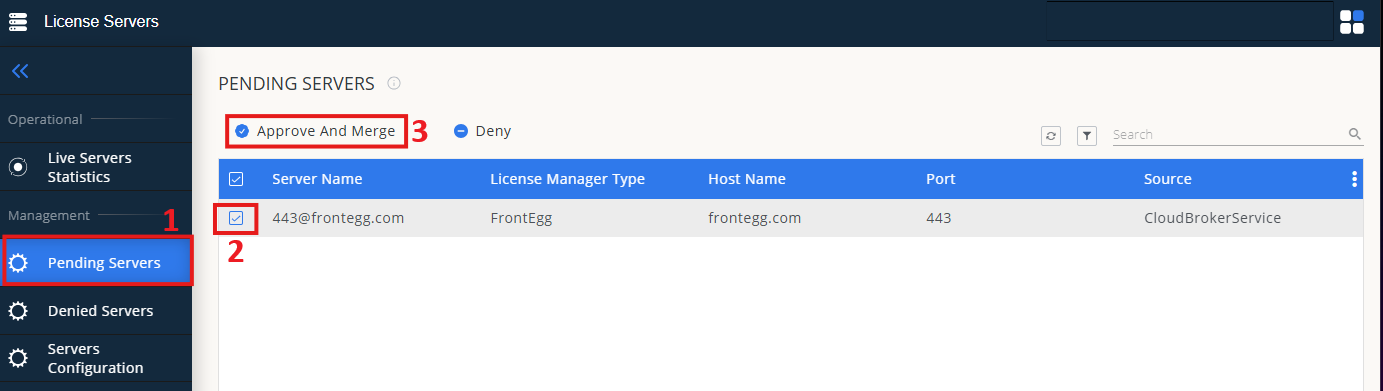
On left menu, select Pending Server
-
On the list, select the ProgeCAD license manager and click on Approve and Merge
-
In OpenLM Web Interface -> Menu -> License Servers Live -> Server Statistics.
-
Ensure ProgeCAD appears in the list with a green status indicator.
Note: It can take up to 3 minutes for the status to update for new connections.