Kisters VSLM
Follow these steps to configure OpenLM to monitor license usage and retrieve statistics from the Kisters VSLM License Manager.
Requirements
Before starting, install:
- OpenLM Platform
- OpenLM Broker v25.x or higher installed on the same machine as VSLM, and approve it in Broker Hub.
Monitoring capabilities
| Item | Value |
|---|---|
| LM Type in the Broker | VSLM |
| License totals | No |
| License usage | No |
| Denials | No |
| Borrowing | Yes |
| Expiration date | Yes |
| Redundancy | No |
| Report resolution | Seconds |
Using the Broker also enables buffered communication and allows remote start and stop of the license manager service.
OpenLM Broker configuration
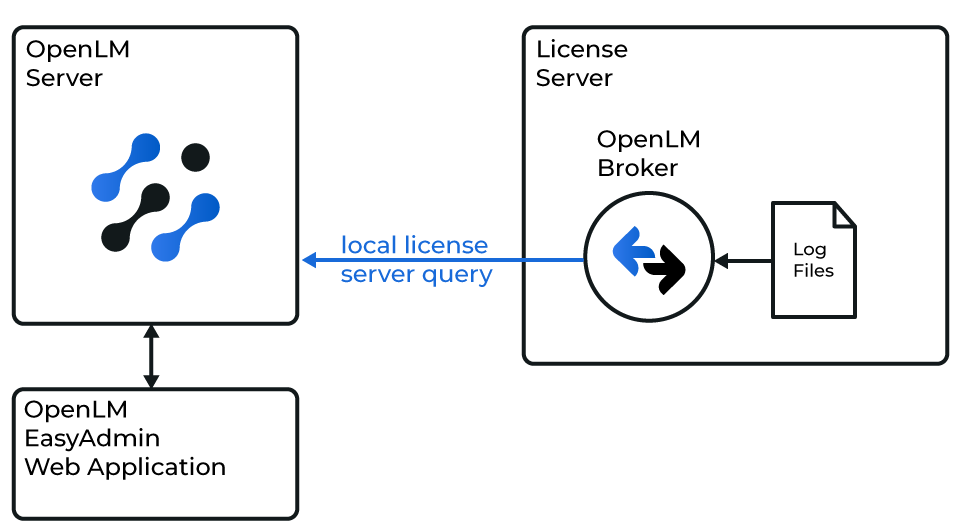
OpenLM Broker must be installed and configured to report to OpenLM before proceeding.
Configuring via Broker UI
-
Open the Broker web UI at http://localhost:5090. If the default port is in use, try 5091 or 5092. You can also click Detect to automatically detect the license manager.
-
Go to License Managers -> Add License Manager.
-
Select VSLM from the drop-down list, enter the port number (e.g., 888), and click Add.
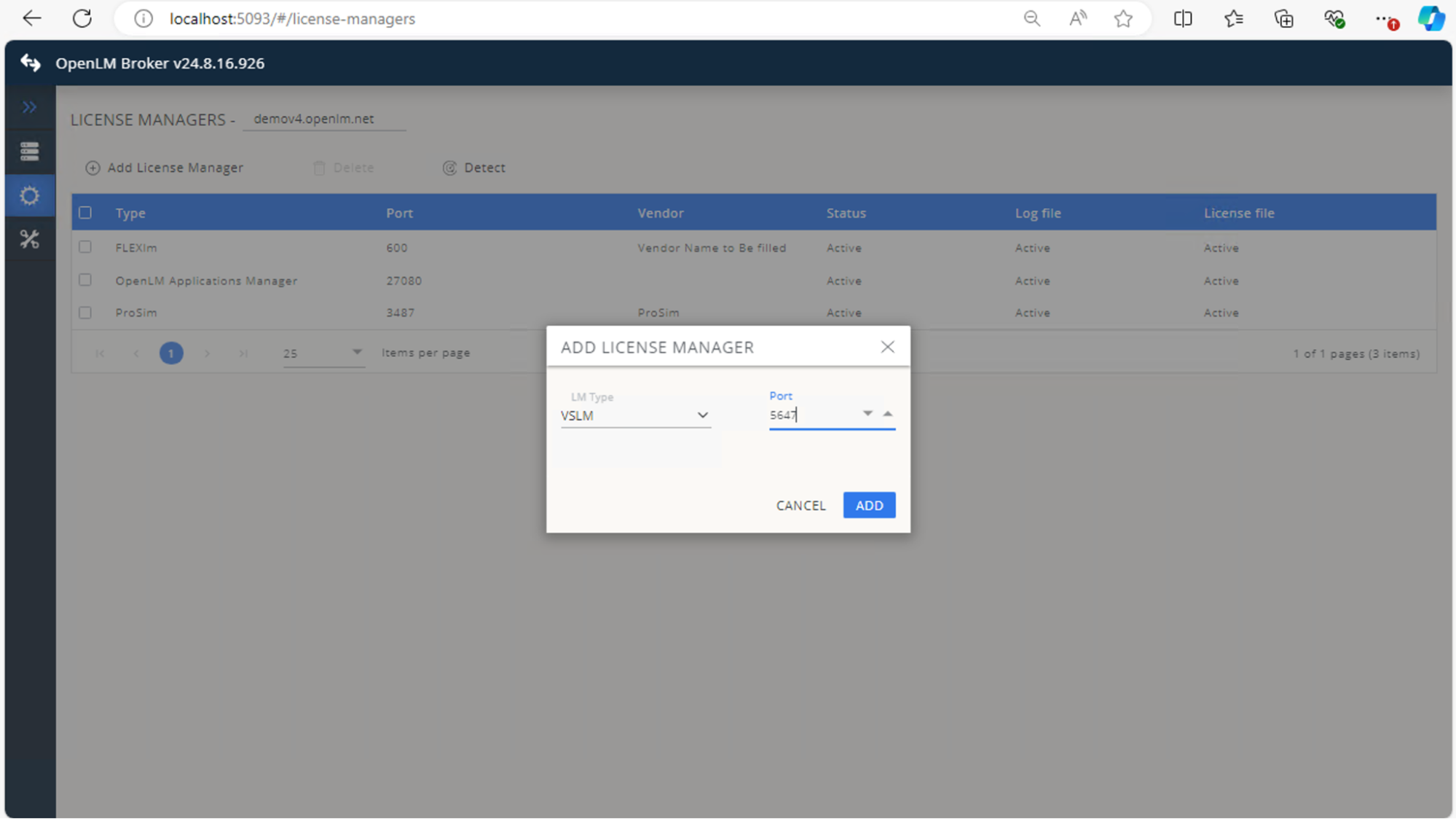
-
In Commands, confirm settings or adjust as needed.
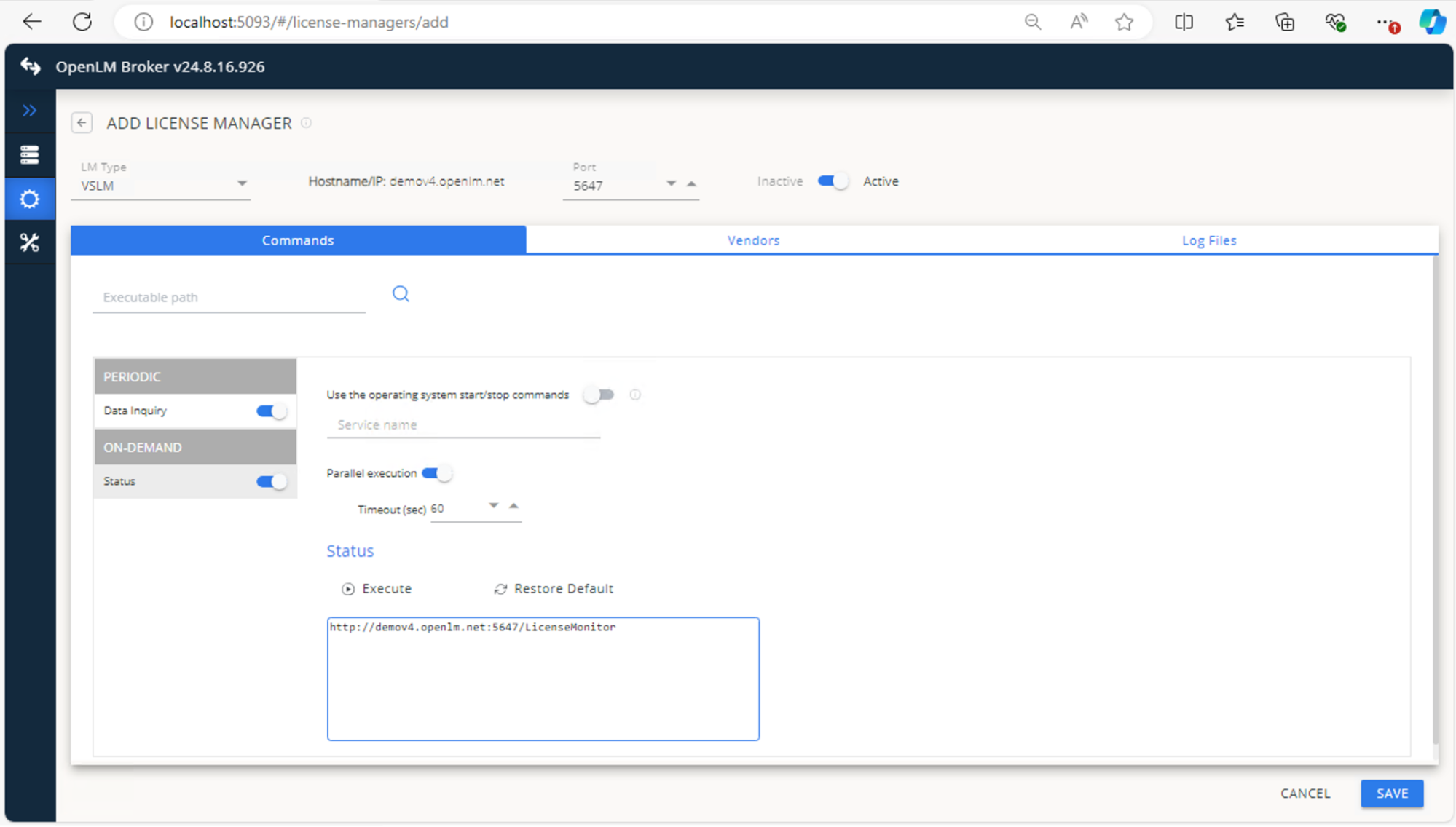
-
In Vendors, click Add Vendor, enter VSLM, and click Continue.
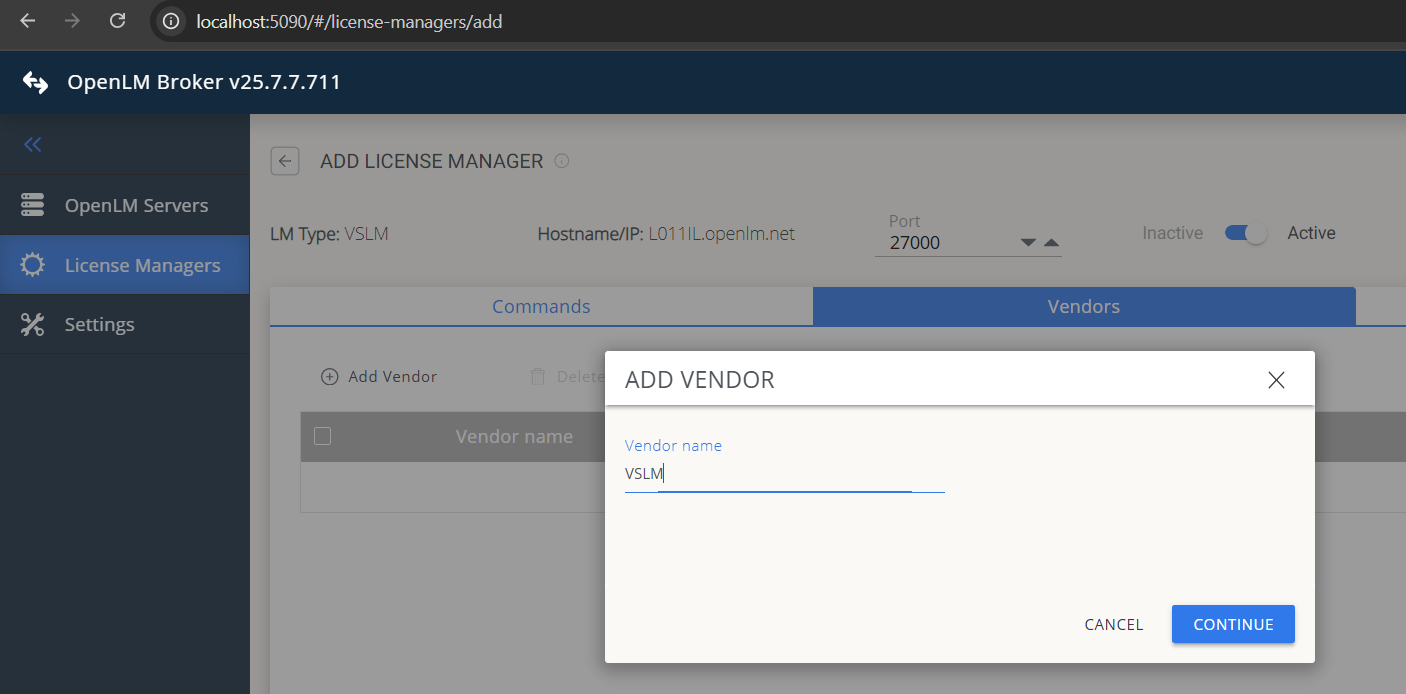
-
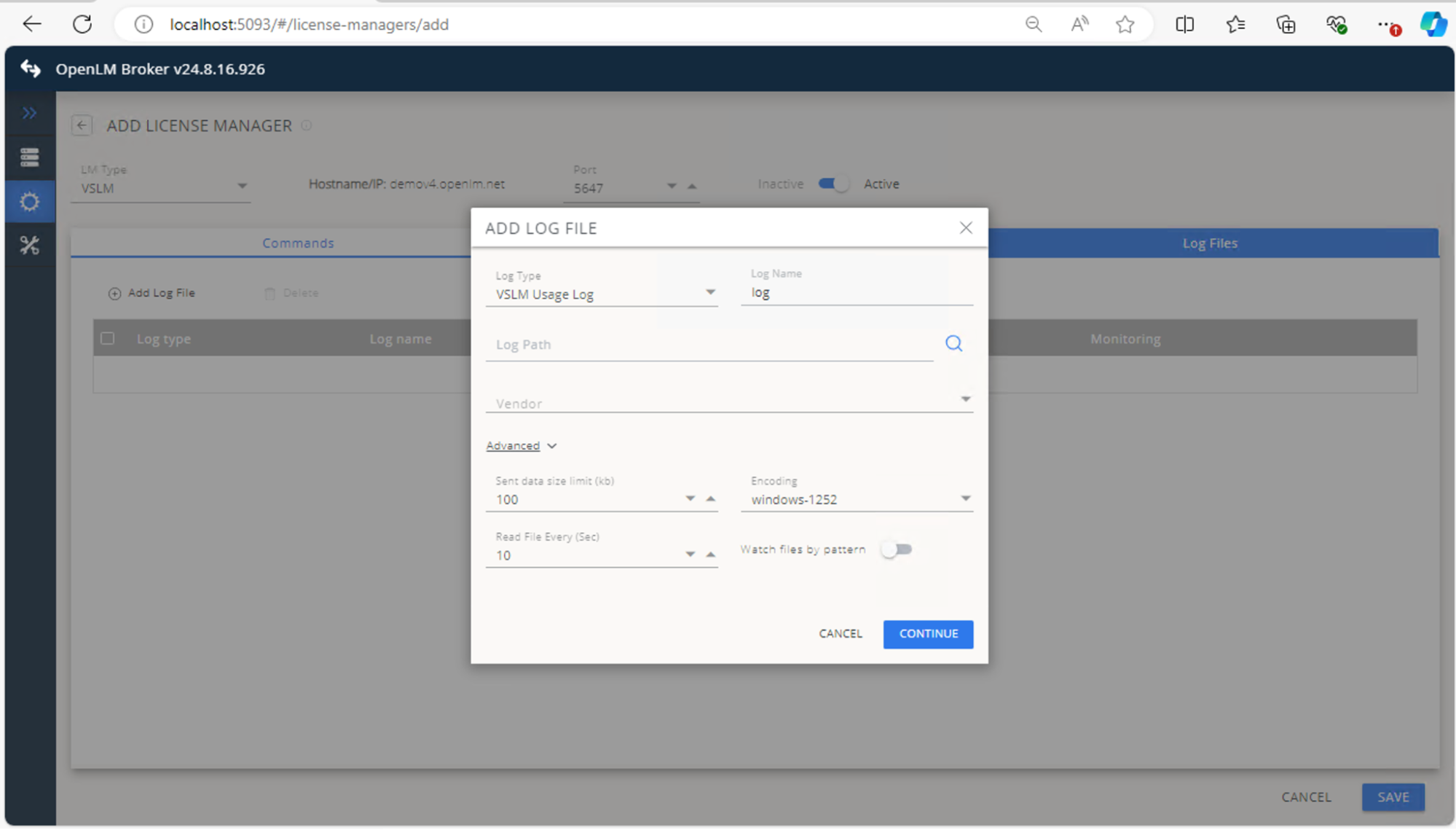
In Log Files, click Add Log File, browse to the VSLM log location, and ensure Watch file by pattern is off.
-
Click Save.
Configure OpenLM Platform
-
Log in to OpenLM Platform.
-
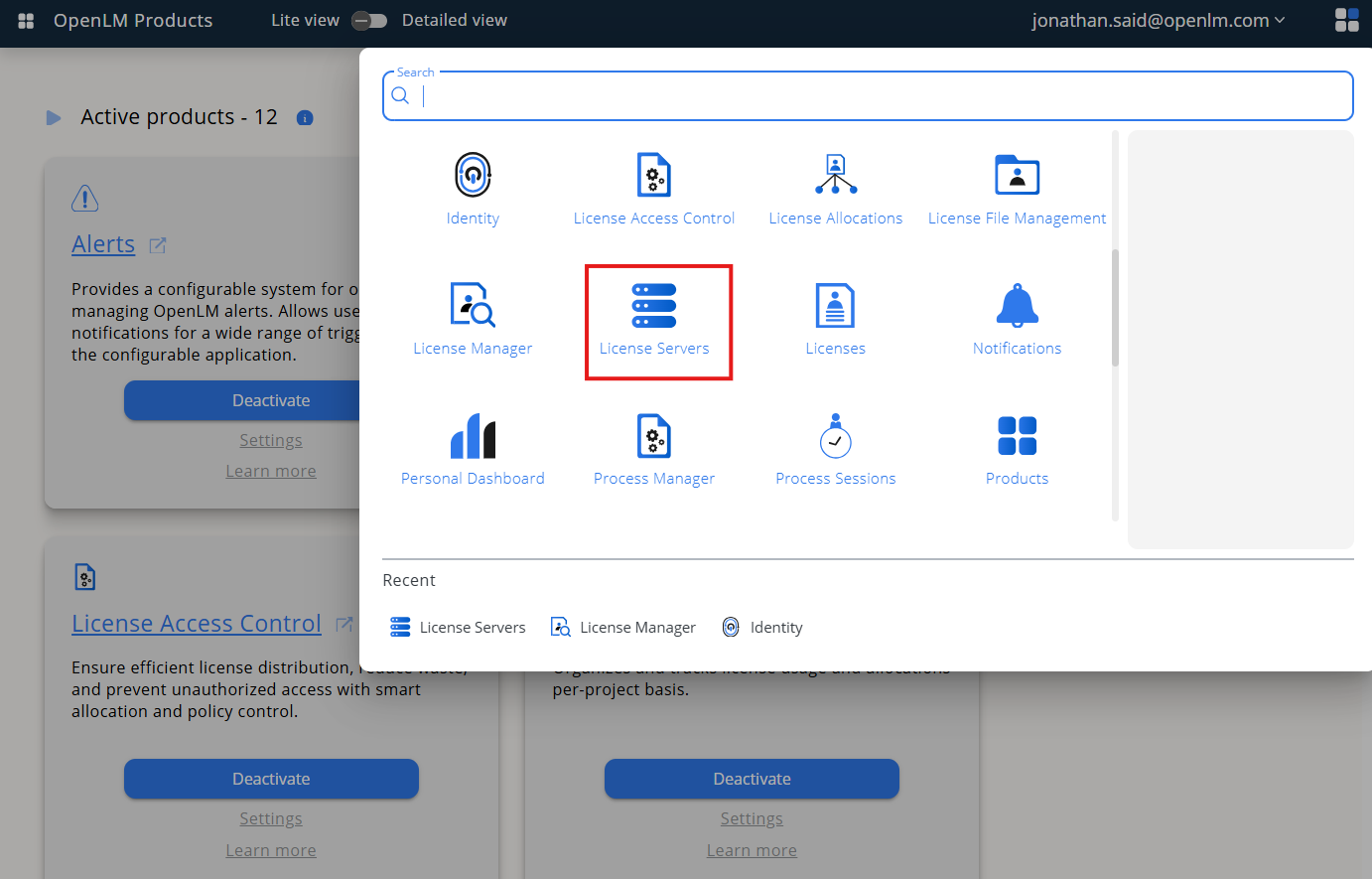
From Menu, go to License Servers.
-
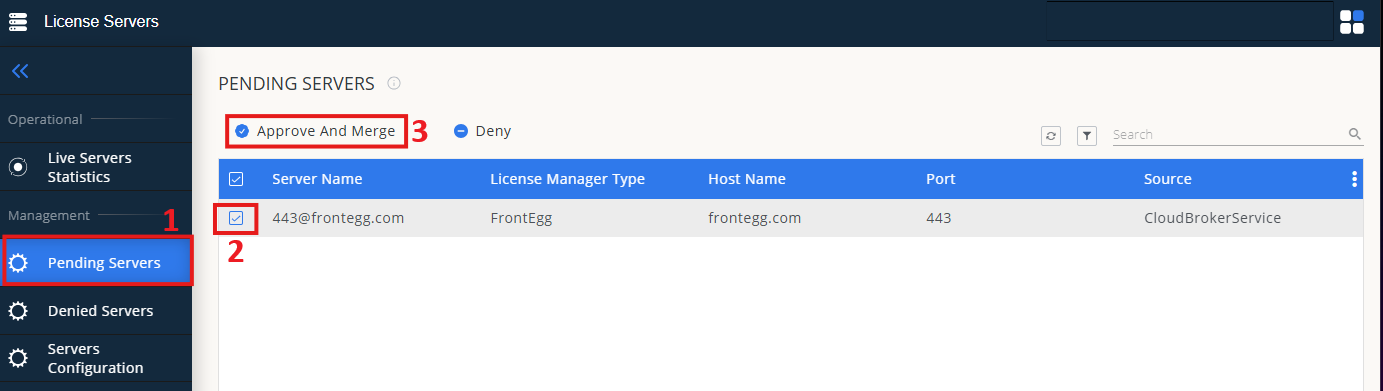
On left menu, select Pending Server
-
On the list, select the VSLM license manager and click on Approve and Merge
-
In OpenLM Web Interface -> Menu -> License Servers Live -> Server Statistics.
-
Ensure VSLM appears in the list with a green status indicator.
Note: It can take up to 3 minutes for the status to update for new connections.