COSCOM
OpenLM can interface with COSCOM LicenseMonitor via OpenLM Broker to monitor license usage, expirations, and other statistics.
Requirements
- OpenLM Platform
- OpenLM Broker v25.x or higher installed on the same machine as COSCOM, and approve it in Broker Hub.
Monitoring capabilities and features
| Item | Value |
|---|---|
| Report resolution | By second |
| License totals | Yes |
| License usage | Yes |
| Denials reporting | No |
| Borrowed license reporting | No |
| Expiration date reporting | Yes |
| Multiple server redundancy | No |
Broker also enables buffered communication with the license server.
Configuring via Broker UI
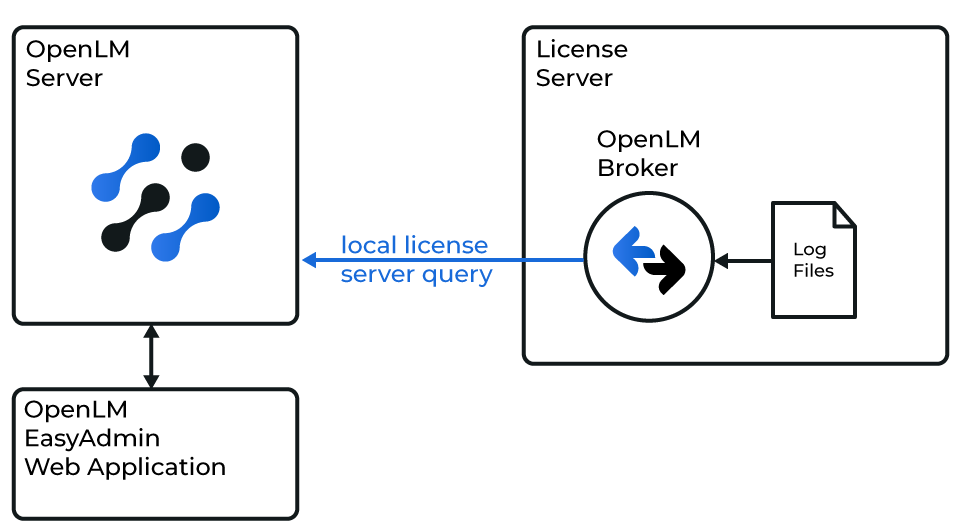
The Broker reads the COSCOM LicenseMonitor log file, compiles the data, and sends it to OpenLM Server.
-
In OpenLM Broker, click Add Port.
-
Enter any port number (e.g., 888).
-
Select COSCOM from the License Manager Type list and click Apply.
-
In Vendors, set the vendor name to COSCOM and click Apply.
-
In Log Files, click Add Log File.
-
Select the newly created log node, browse to the path of the COSCOM LicenseMonitor .log file (typically the CLS Data path from installation), and click Apply.
-
Click Restart Broker.
Configure OpenLM Platform#
-
Log in to OpenLM Platform.
-
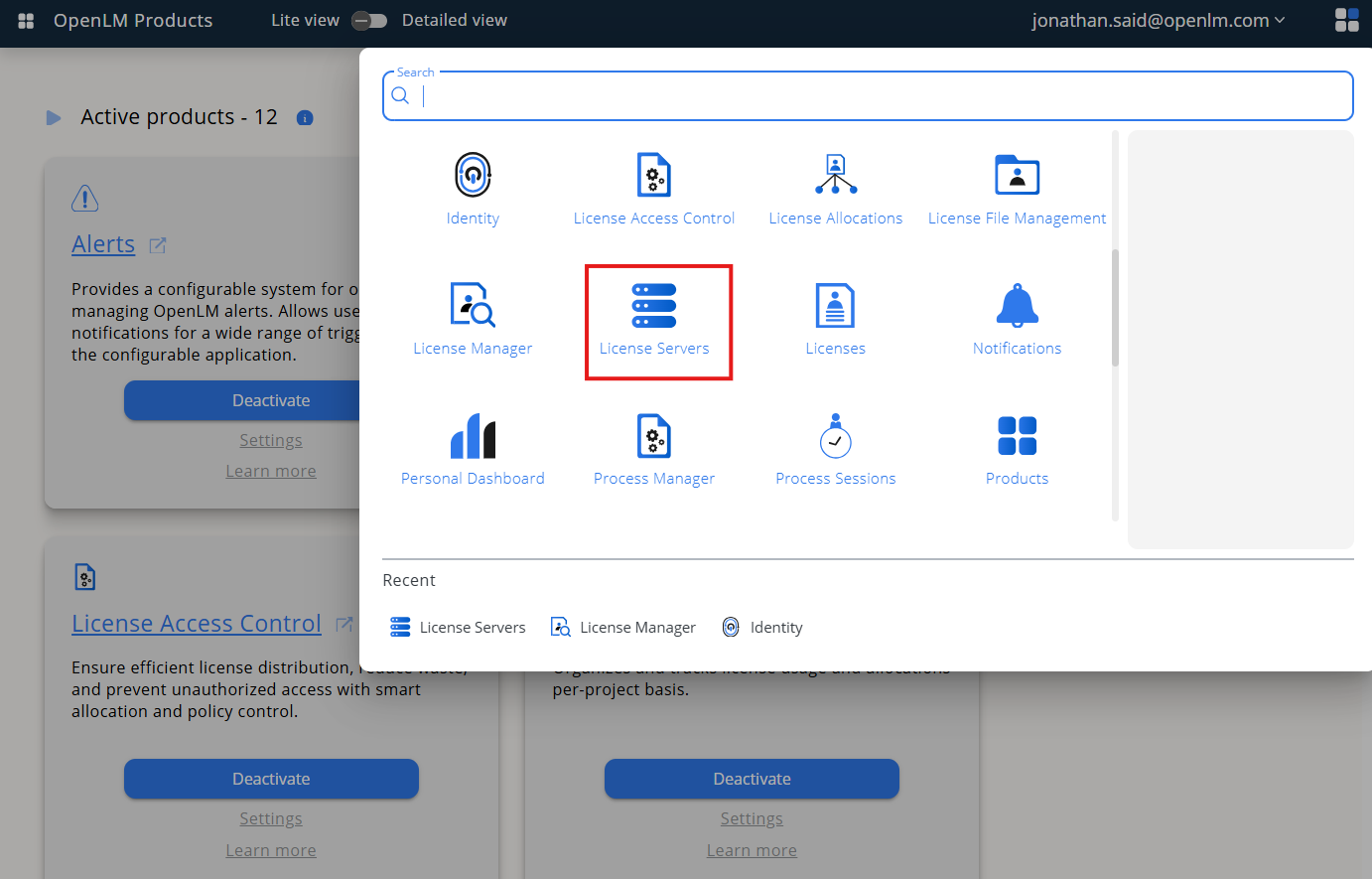
From Menu, go to License Servers.
-
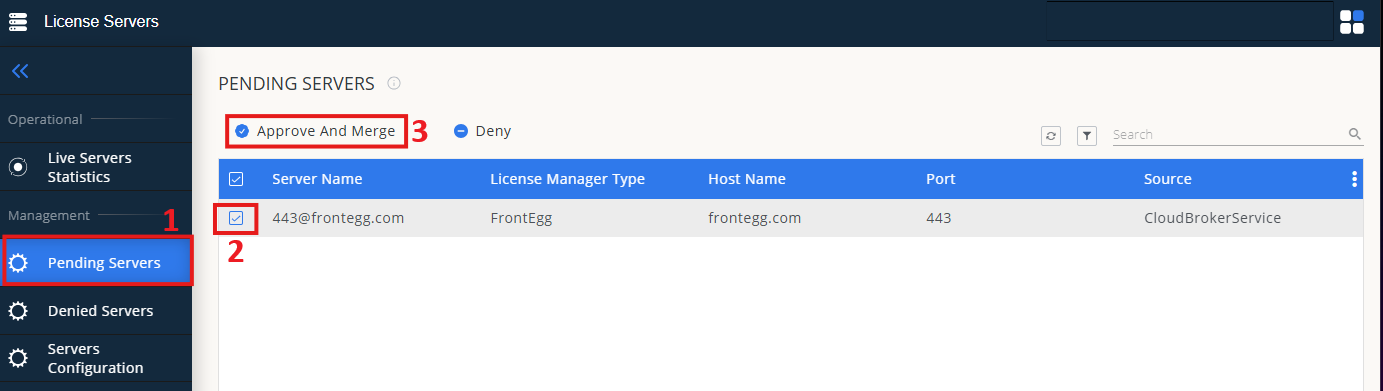
On left menu, select Pending Server
-
On the list, select the COSCOM license manager and click on Approve and Merge
-
In OpenLM Web Interface -> Menu -> License Servers Live -> Server Statistics.
-
Ensure COSCOM appears in the list with a green status indicator.
Note: It can take up to 3 minutes for the status to update for new connections.