Moldex3D
This guide explains how to monitor the Moldex3D License Manager with OpenLM to obtain license usage and statistics.
Requirements
Install the following:
- OpenLM Platform
- OpenLM Broker v25.x or higher installed on the same machine as Moldex3D, and approve it in Broker Hub.
Monitoring capabilities
The table below shows the monitoring capabilities available through OpenLM Broker:
| Item | Value |
|---|---|
| Report resolution | By second |
| License totals | Yes |
| License usage | Yes |
| Denials | Yes |
| Borrowed licenses | Yes |
| Expiration dates | Yes |
| Redundancy | No |
Using Broker also enables:
-
Buffered communication with OpenLM Server
-
Remote start/stop of the license manager service
OpenLM Broker configuration
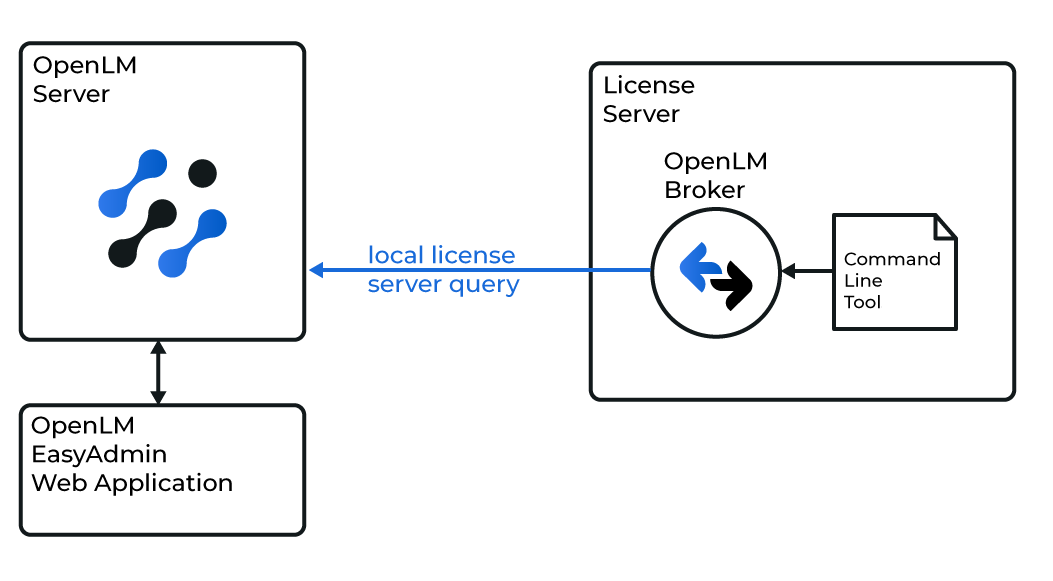
Broker queries Moldex3D License Manager locally using the MDX3DLMUtil utility. Data is then sent to OpenLM Server for processing.
note
Ensure Broker is installed and configured to report to OpenLM Server before proceeding.
Automatic Broker configuration
-
In Broker, click Detect.

-
If the Moldex3D service (for example, Moldex3D-LM Service) is running, Broker detects and configures it automatically.
-
After configuration, select Restart Broker.
-
It is recommended to also run data_inquiry -> Execute to confirm valid output.
Configuring via Broker UI
-
Install the latest Broker.
-
Open http://localhost:5090/.
-
Go to License Managers.
- If the Moldex3D service is running, click Detect.
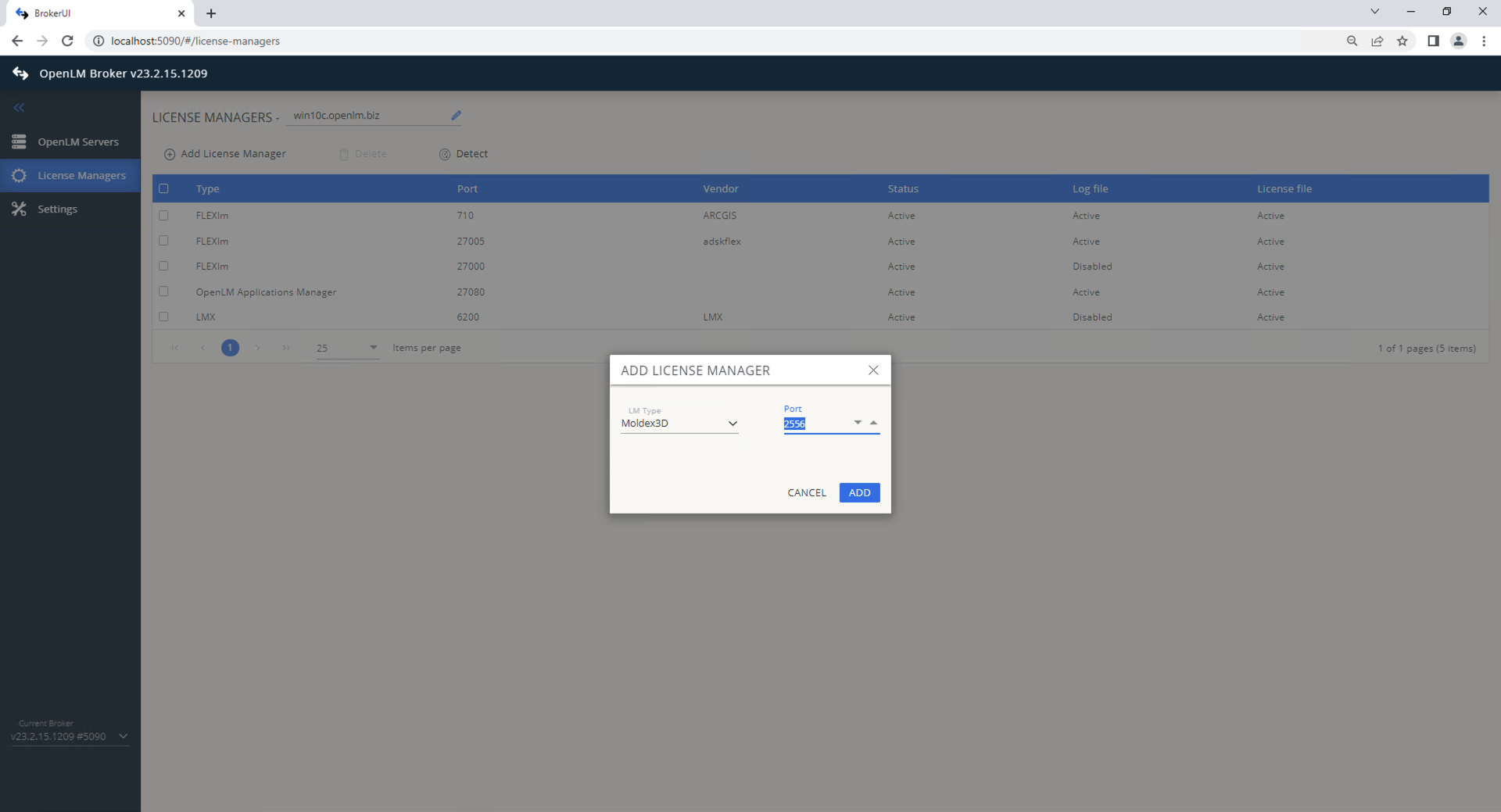
- If autodetect fails, click Add License Manager. From Type, select Moldex3D. Enter the port and click Add.
-
In Commands, set the path to MDX3DLMUtil.exe. Click Execute to confirm.
-
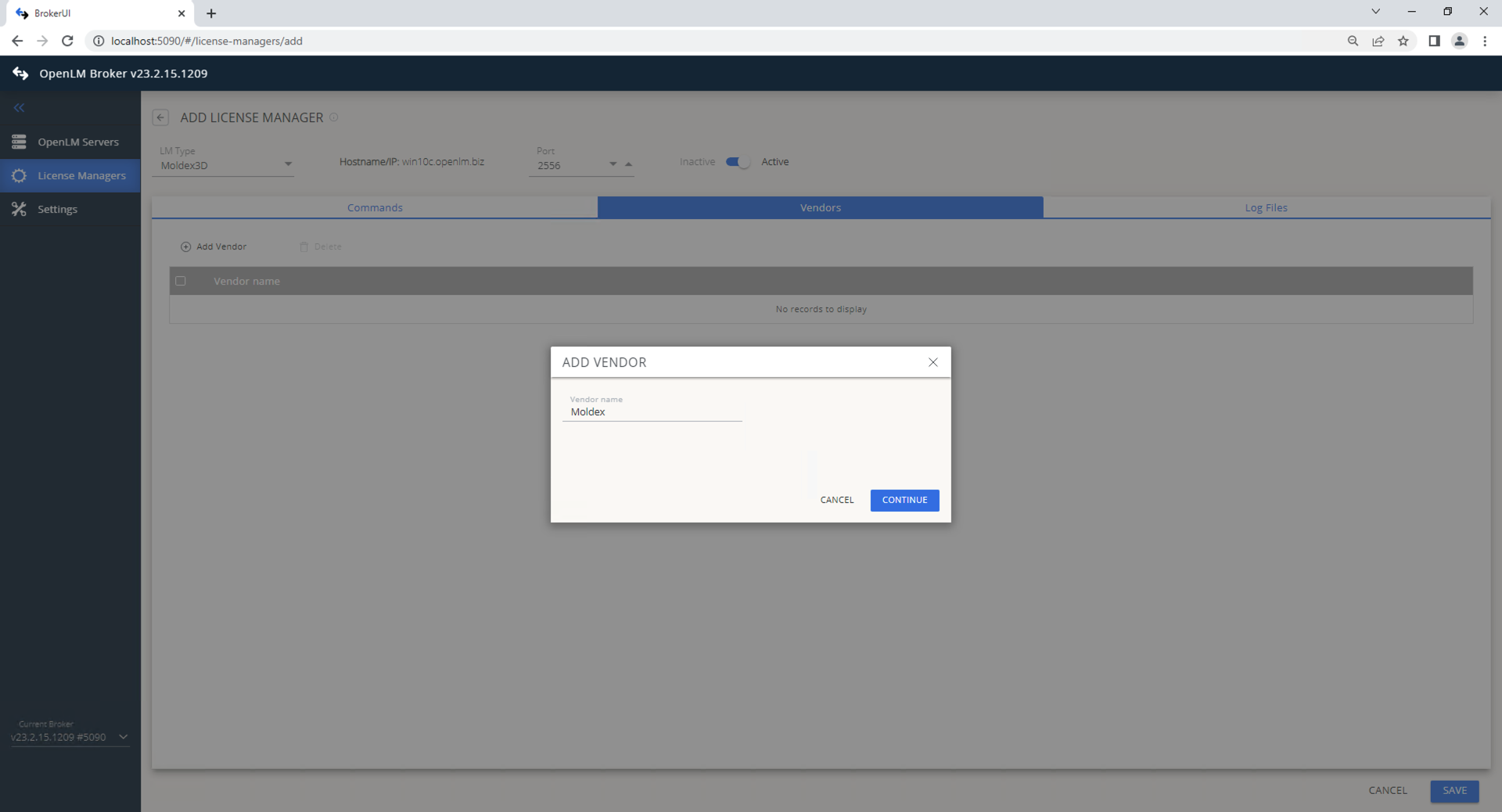
In Vendors, click Add Vendor, enter Moldex3D, and click Continue.
-
Click Save.
Configure OpenLM Platform
-
Log in to OpenLM Platform.
-
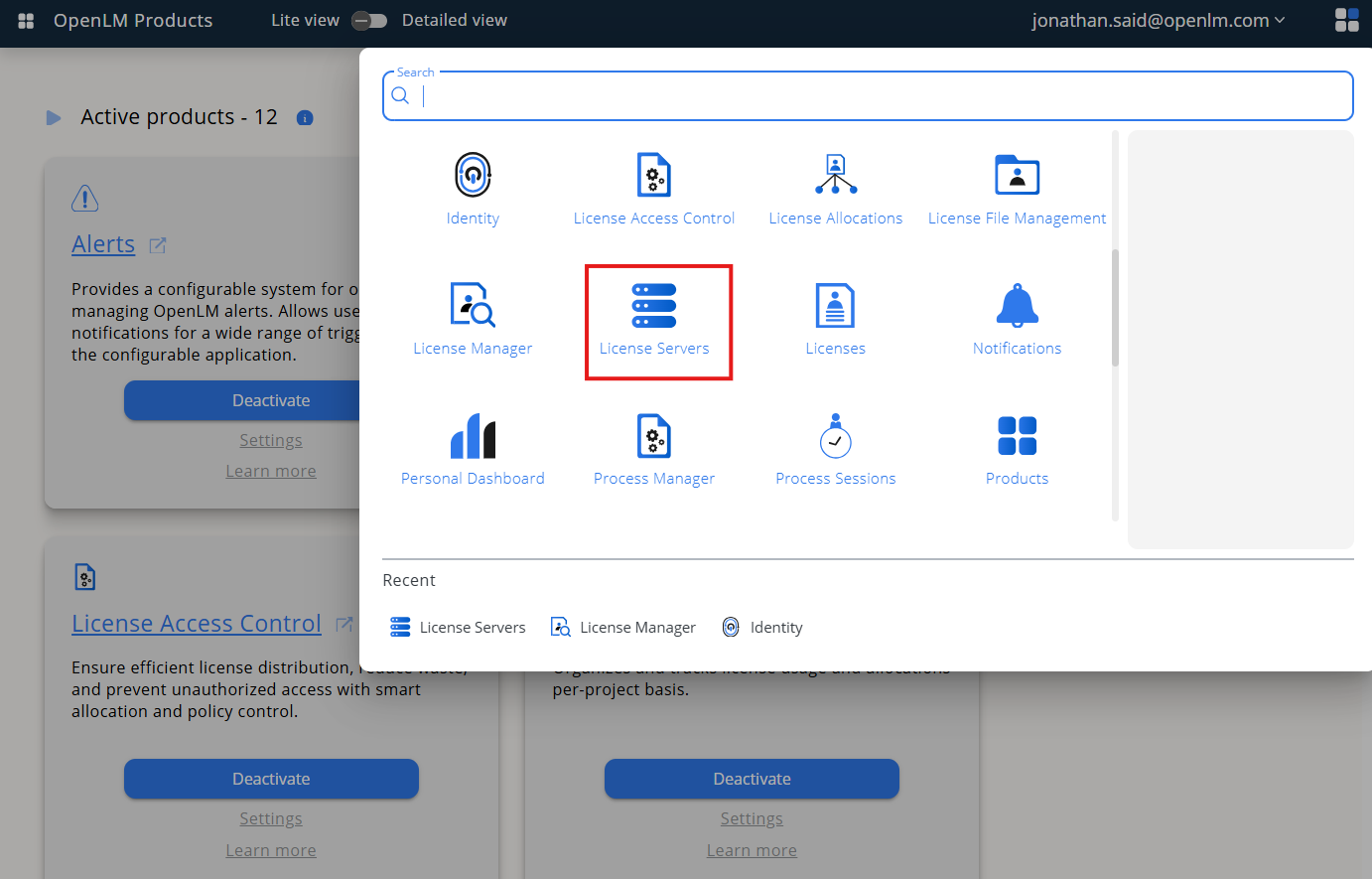
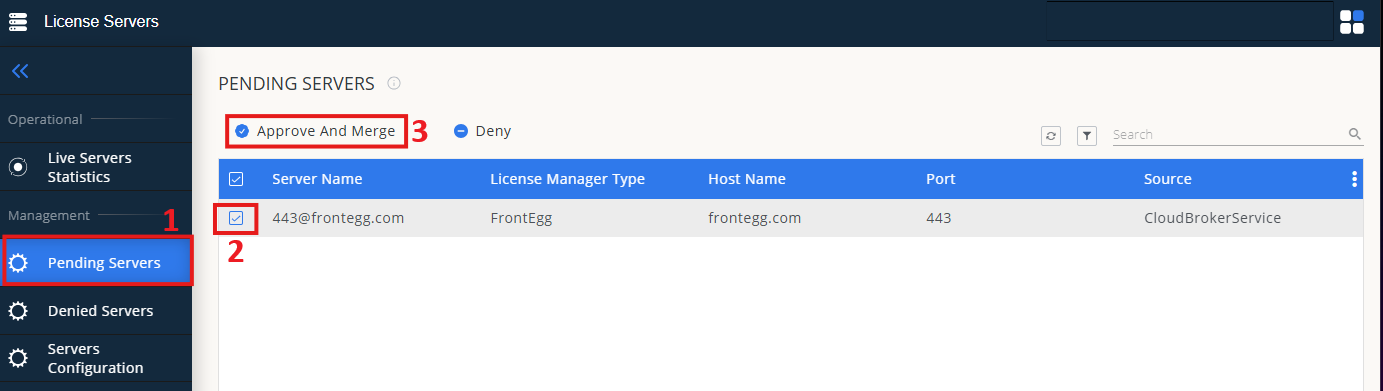
From Menu, go to License Servers.
-
On left menu, select Pending Server
-
On the list, select the Modelex3D license manager and click on Approve and Merge
-
In OpenLM Web Interface -> Menu -> License Servers Live -> Server Statistics.
-
Ensure Modelex3D appears in the list with a green status indicator.
Note: It can take up to 3 minutes for the status to update for new connections.