BetaLM
Requirements
- OpenLM Platform
- OpenLM Broker v25.x or higher installed on the same machine as BetaLM, and approve it in Broker Hub.
Configure via Broker UI
Follow these steps on the machine where BetaLM is installed:
- Open the Broker UI at http://localhost:5090/
- Navigate to License Managers -> Add License Manager
- Enter a descriptive Display name
- From Type, select BetaLM
- Enter the Hostname and Port (default: 6007)
- Select the correct Time Zone for the license server
- (Optional) Enable Triad Configuration if using a redundant setup (only if supported)
- Set "Use Broker" to On
- Click Save
Configure OpenLM Platform
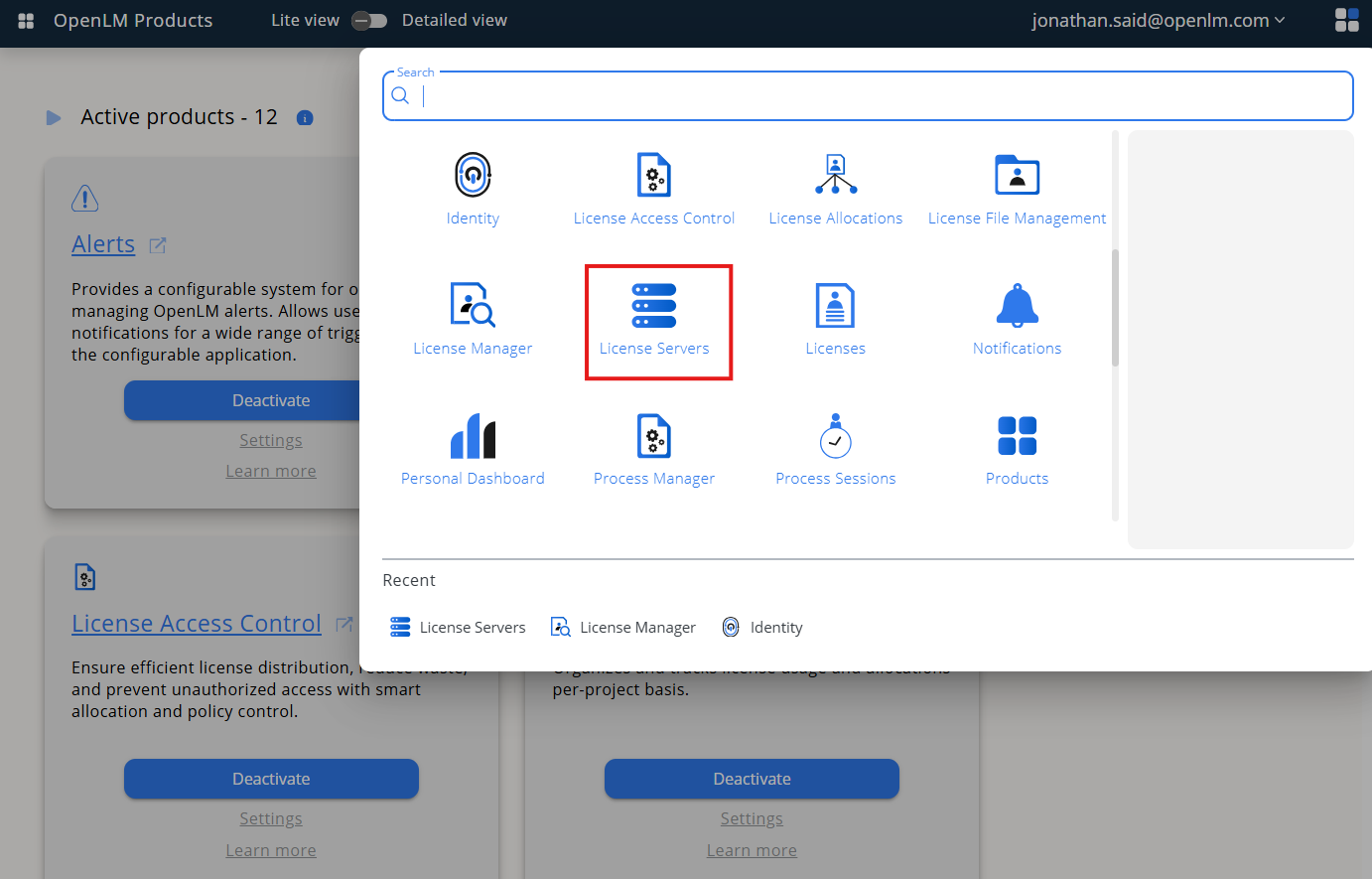
- Log in to OpenLM Platform
- From the main menu, go to License Servers
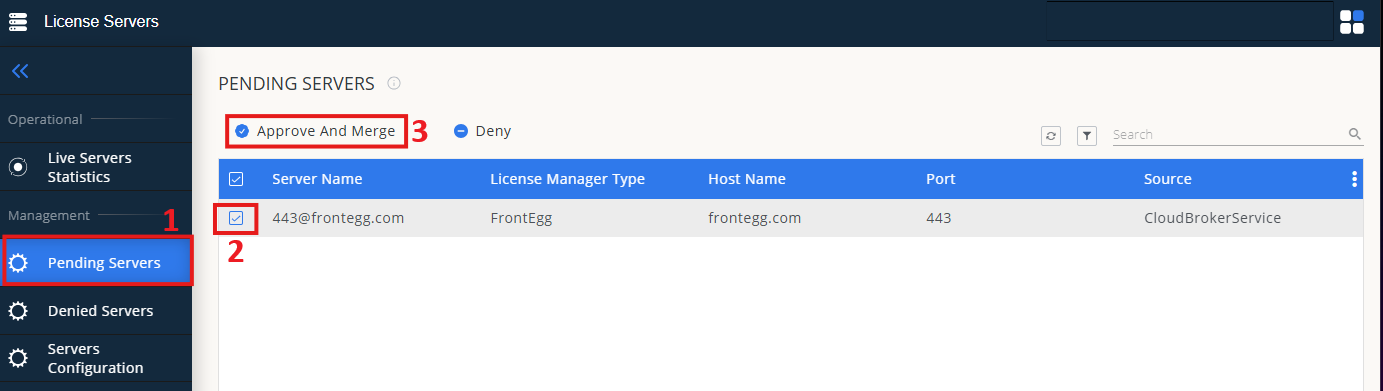
- In the left menu, select Pending Server
- In the list, select the BetaLM license manager and click Approve and Merge
- Navigate to License Servers Live -> Server Statistics
- Confirm BetaLM appears with a green status indicator
Note: It can take up to 3 minutes for a new connection status to update.