

OpenLM SAM : Workspace Overview (After Installation)
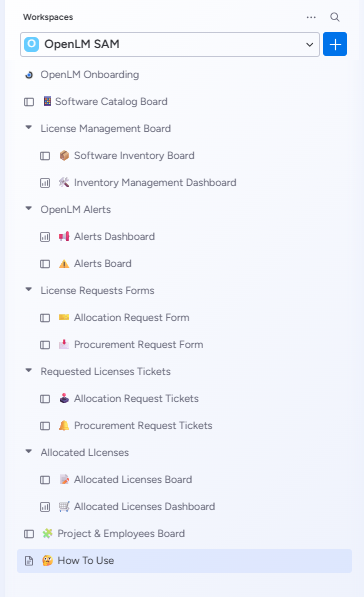
Once App is Installed, the OpenLM SAM application provides a workspace that includes forms, boards, and automation workflows to support software asset management activities.
Forms:
- License Allocation Request Form – Allows users to request allocation of an existing license.
- License Procurement Request Form – Enables users to submit requests for procuring new licenses.
Boards:
- Requested License Allocations Board – Displays all license allocation requests for administrators to review and take action.
- Requested License Procurement Board – Lists procurement requests for administrators to evaluate and approve.
- Allocated License Board – Tracks licenses that have already been allocated to users.
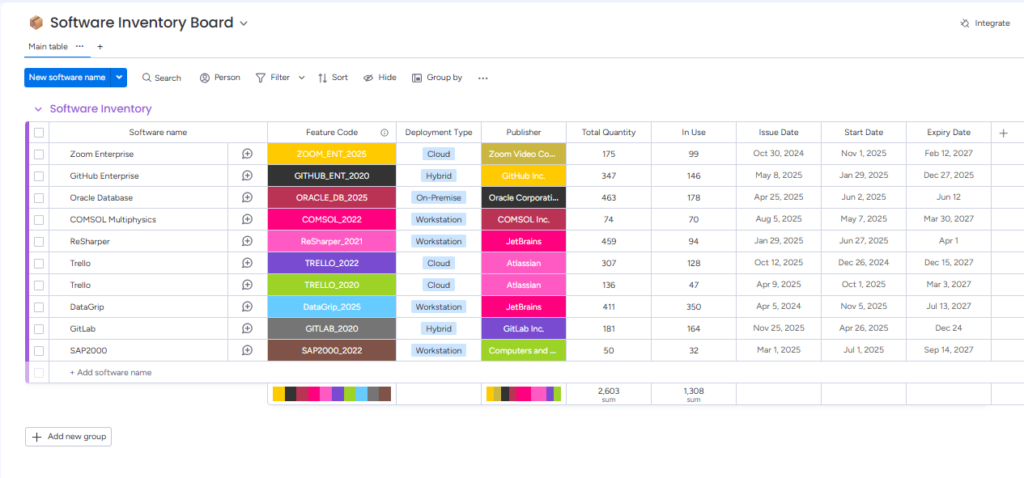
- License Inventory Board – Maintains a record of all available licenses, serving as a central inventory.
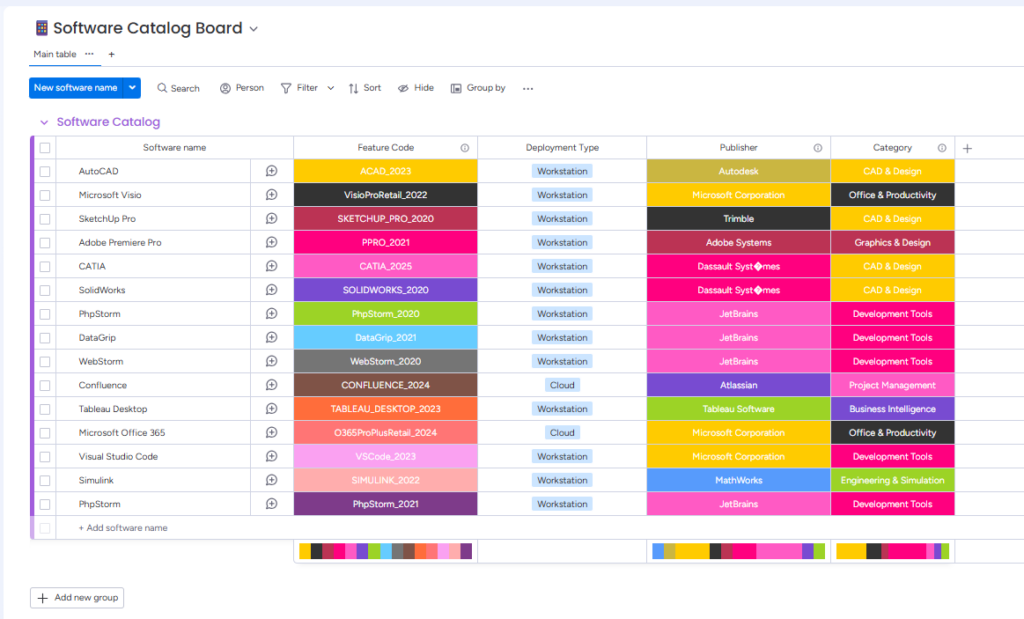
- Software catalog board – Catalog of software.
- Alerts Board – Captures alerts or notifications related to license events.
Dashboards:
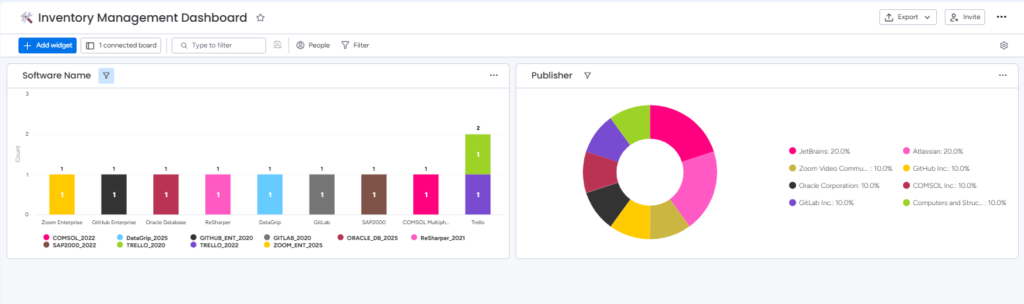
- Inventory Management Dashboard – For Visualizing Software Inventory Board data, Publisher & Software wise.
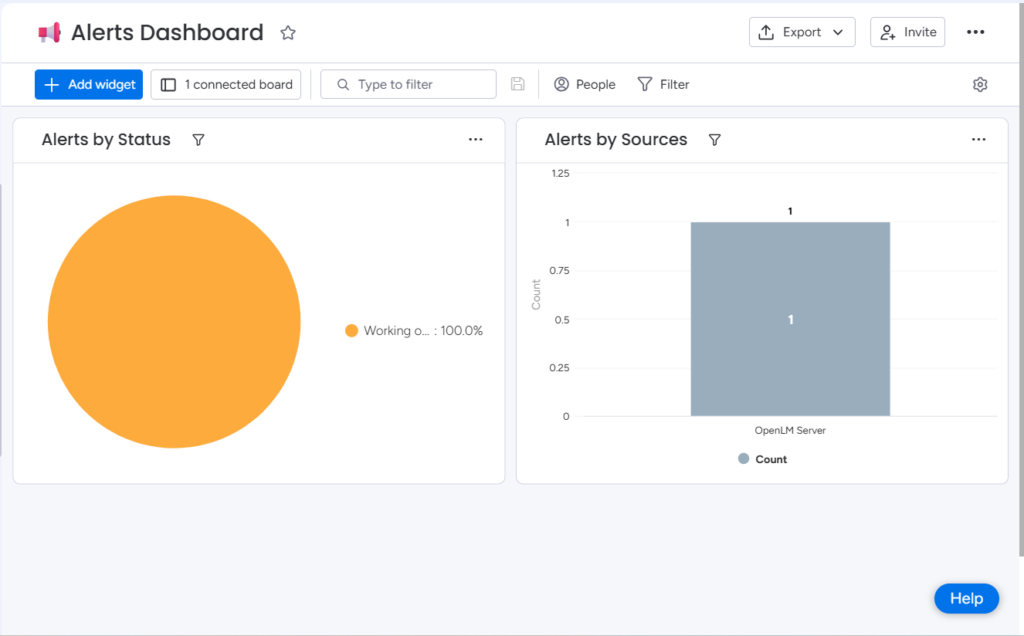
- Alerts Dashboard – For Visualizing Alerts Board data Source & Status wise.
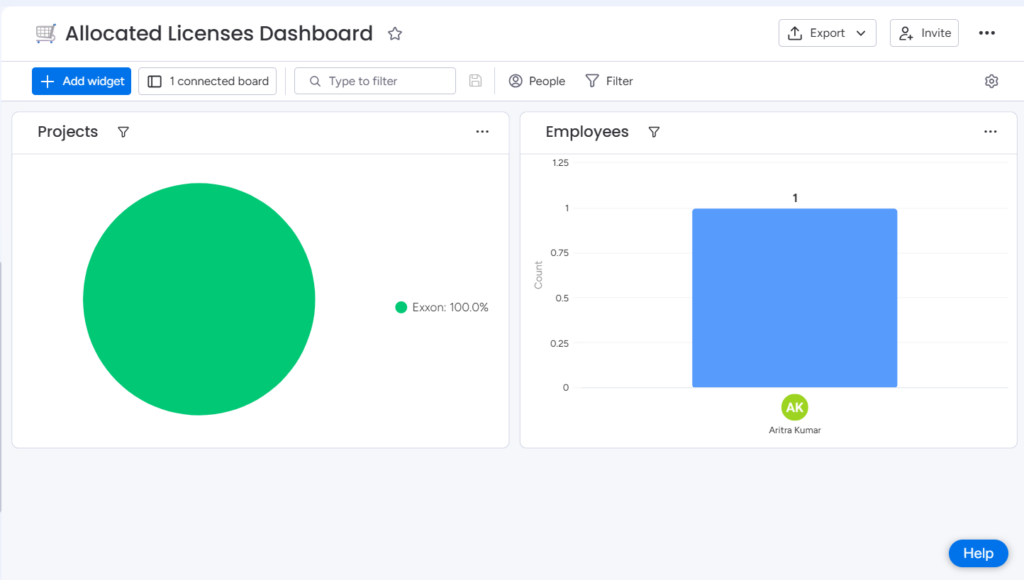
- Allocated License Dashboard – For Visualizing Allocated Licenses Board data, Project & Employee wise.
Software Catalog Board
Software Inventory Board
Inventory Management Dashboard – Displays an overview of items in software inventory board
License Allocation: Request Forms and Boards
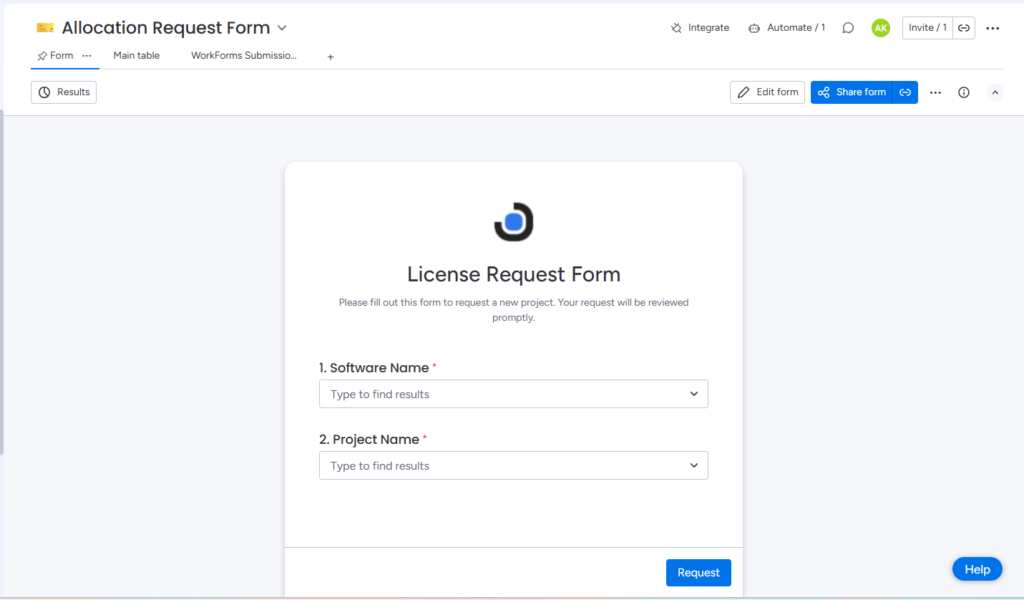
License Allocation Request Form – Empty State
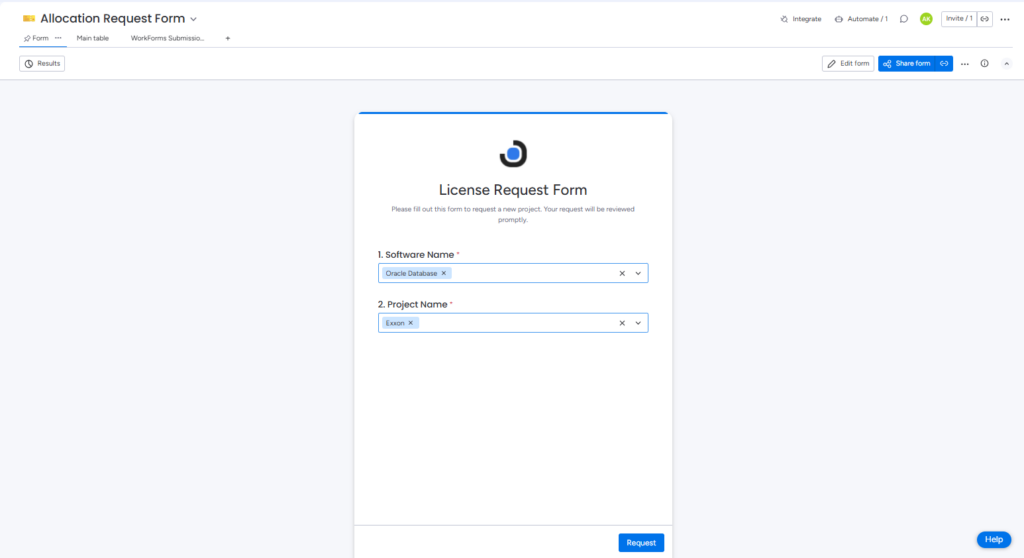
License Allocation Request Form – Filled State
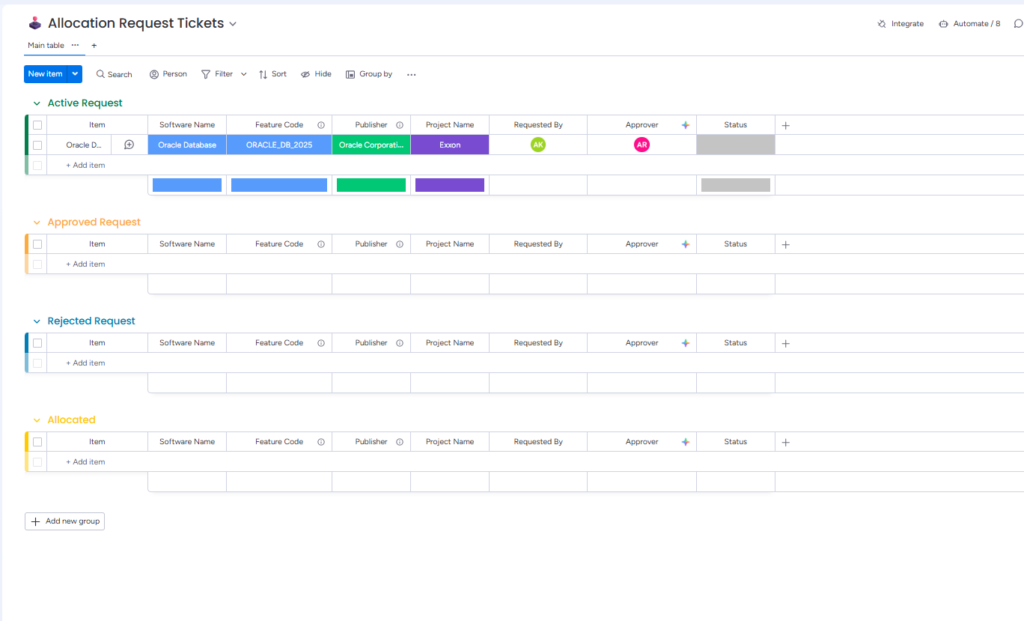
License Allocation Request Board(Tickets): This board displays all license allocation requests. Administrators can take actions such as approve or reject requests, which will trigger the corresponding automations.
Default State
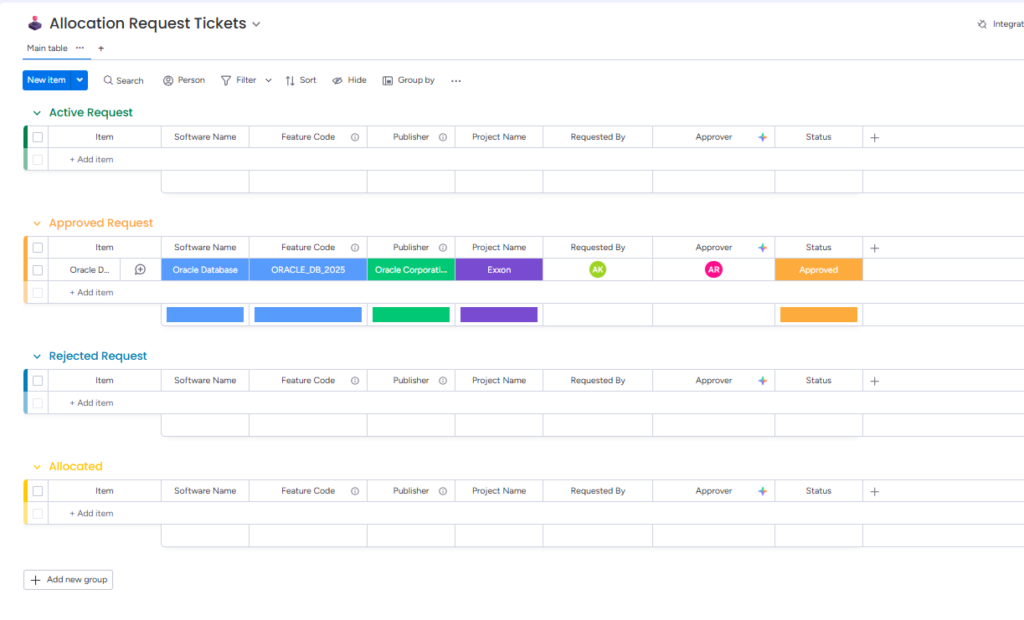
Approved State
Allocated State
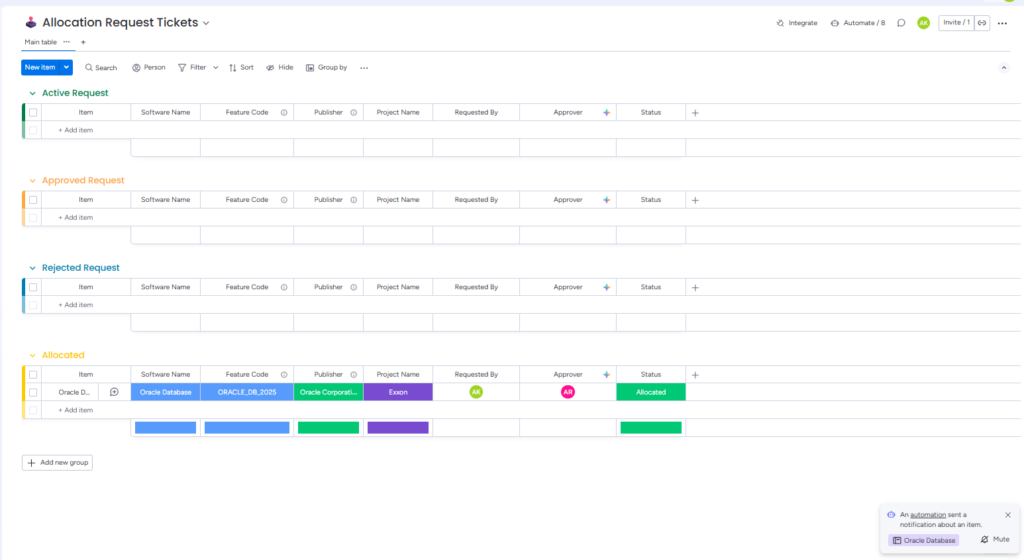
License Allocation Request Board (Tickets): The above images show a ticket being moved from Active Request group to approved group after it is marked as approved & allocated group after marked as allocated by the IT Admin.
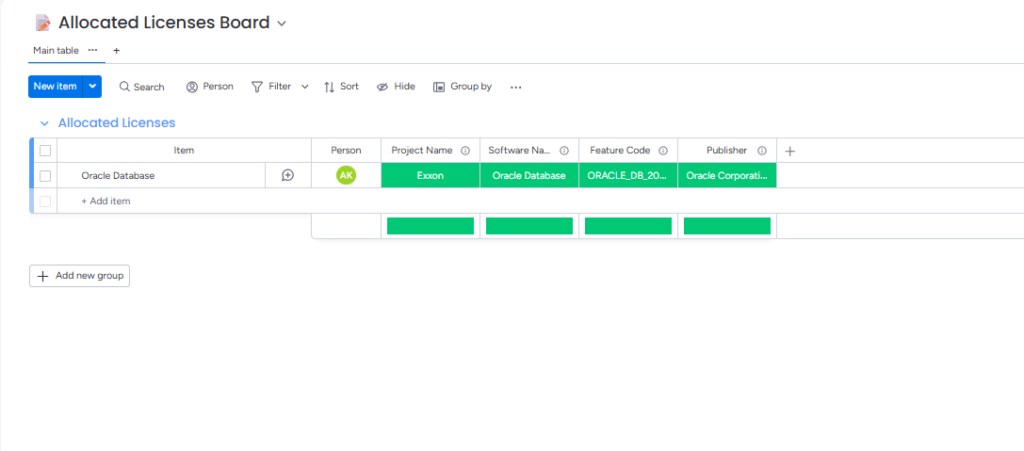
Allocated License Board: Displays all allocated licenses along with their details, providing a clear overview of current license assignments.
Allocated License Dashboard – Displays an overview of allocated licenses.
License Procurement: Request Forms and Boards
License Procurement Request Form – Empty State
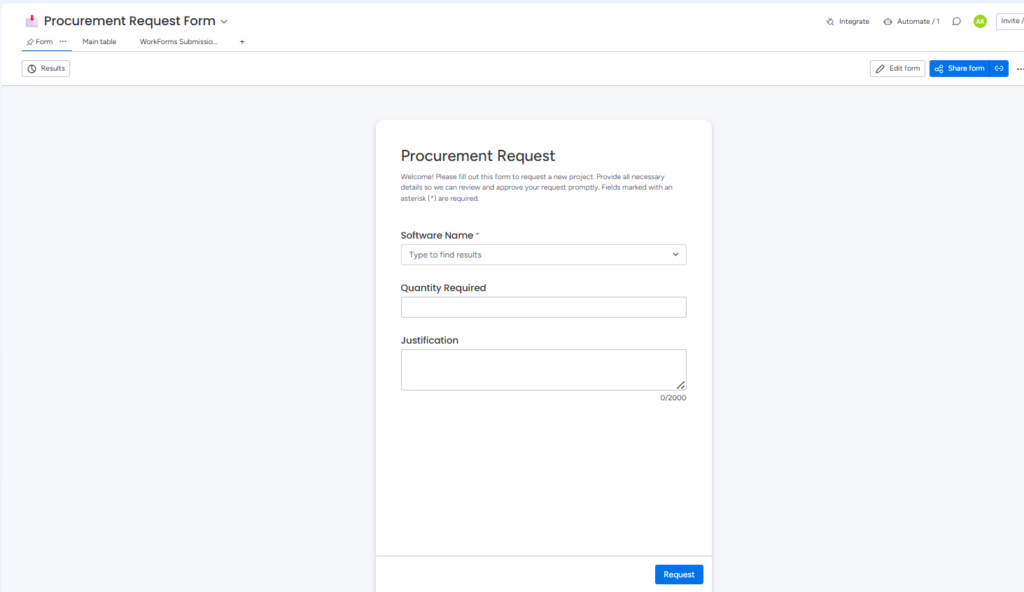
License Procurement Request Form – Filled State
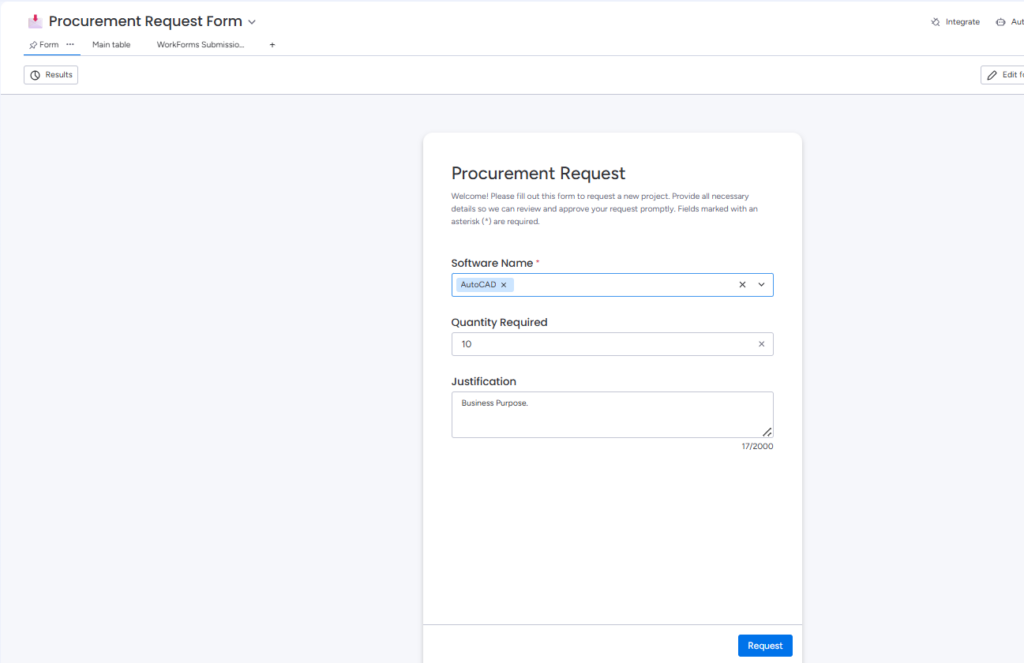
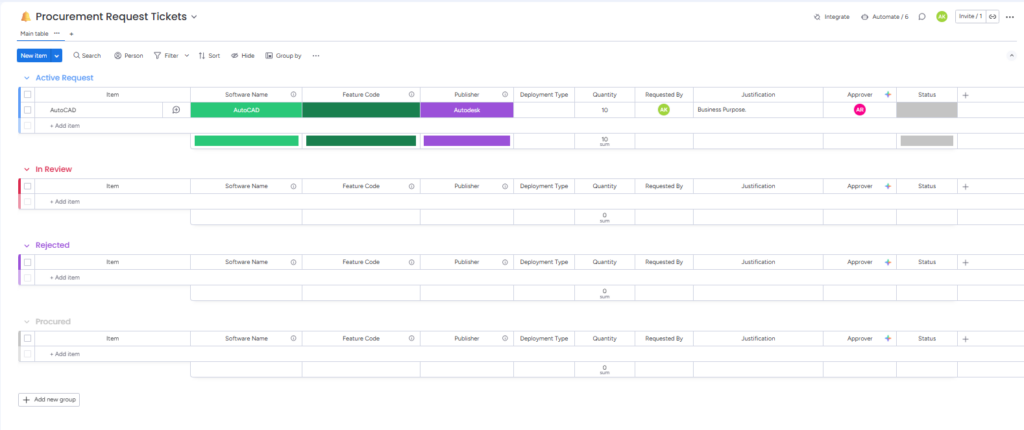
License Procurement Request Board (Tickets): Displays all license procurement requests submitted by users. Administrators can review and take actions such as approve or reject requests, triggering the corresponding automations.
Default State
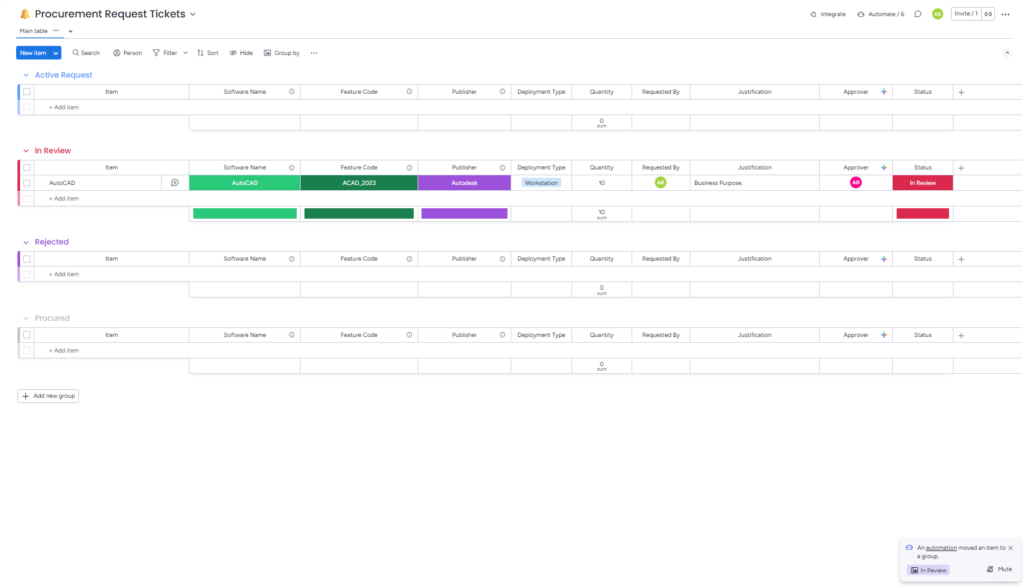
In review State
Procured state
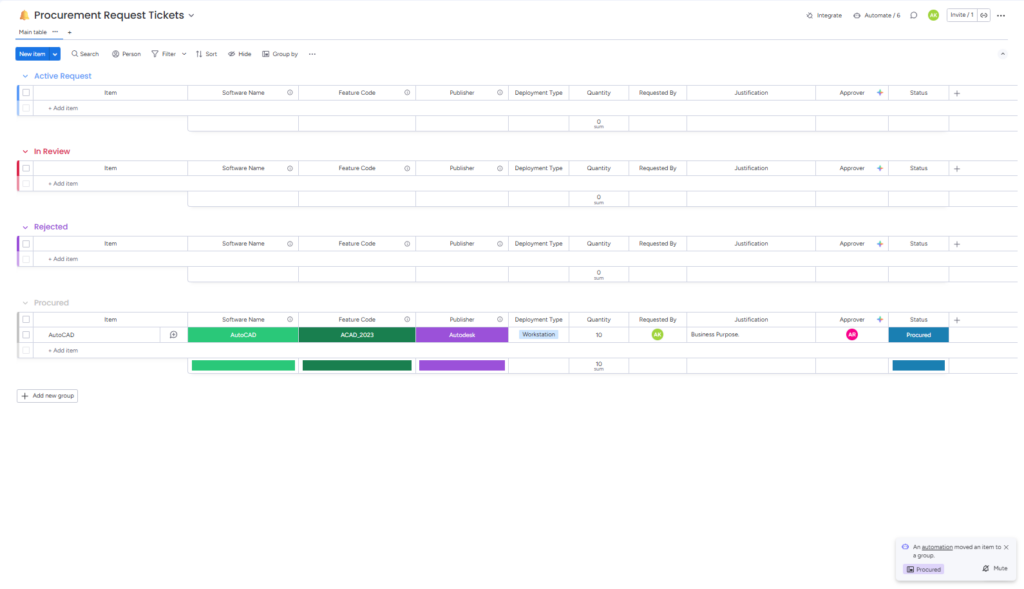
License Procurement Request Board (Tickets) : The above images show a ticket being moved from Active Request to In Review group after it is marked as approved & Procured group after marked as Procured by an administrator.
Real-time Alerts: Boards and Dashboards
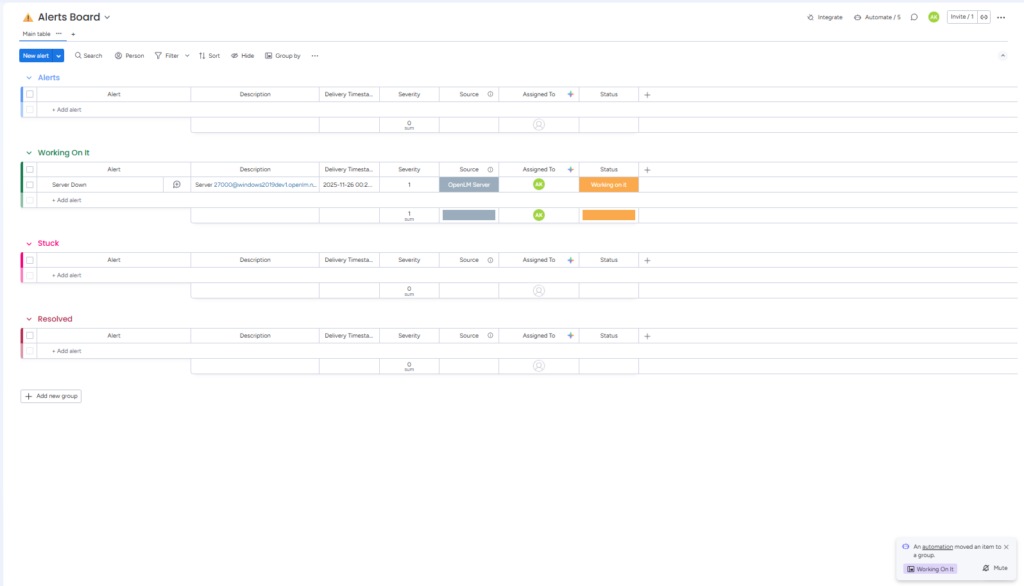
Alerts Board: Displays all the alerts.
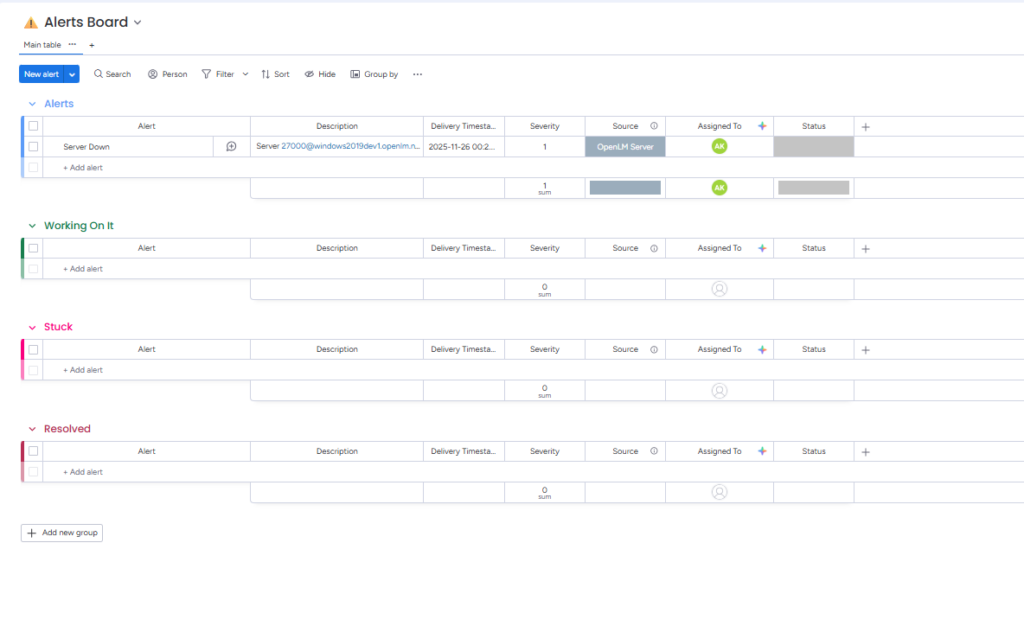
Alerts Board – Example Alert: The above images show a alert being moved from default state to Working on it group after it is marked as Working on it
Alerts Dashboard: Displays an overview of alerts
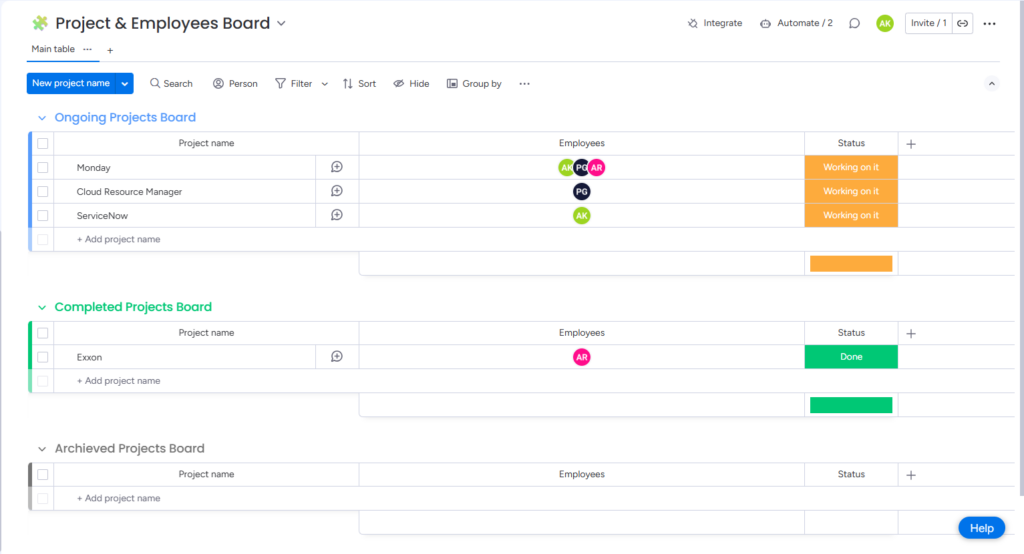
Project & Employee Mapping Board
OpenLM Onboarding Page – Examples
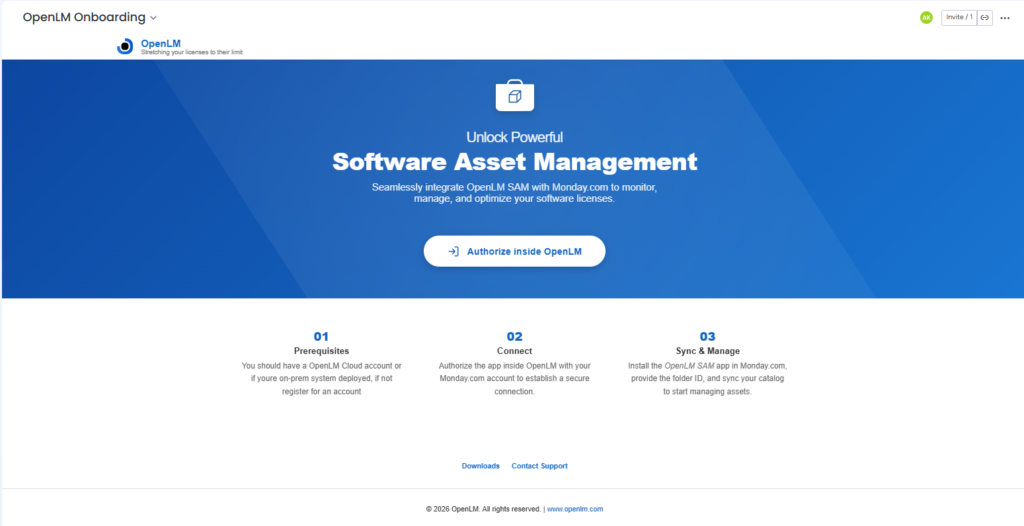
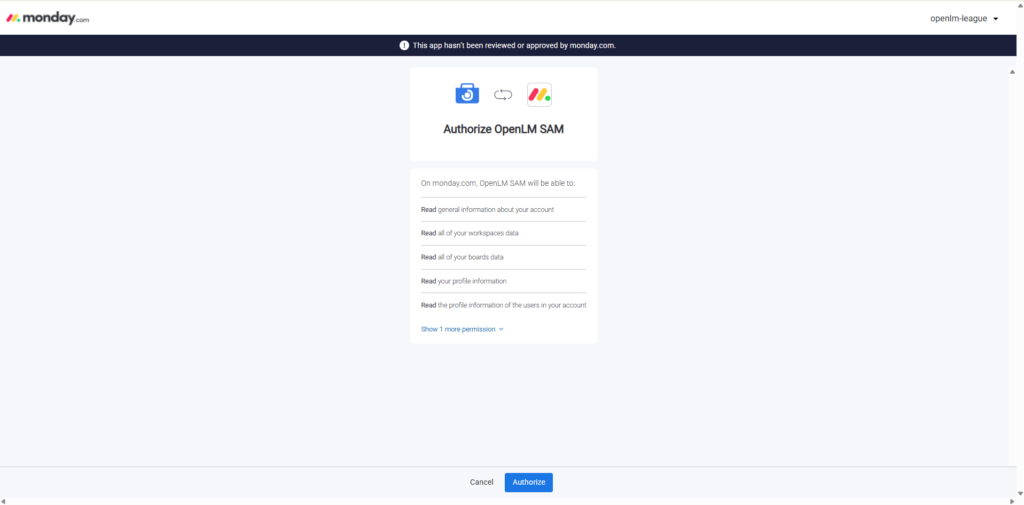
After installing the application and opening the onboarding page, users must authorize & configure the application so that OpenLM can verify their account, and allow them to start using the application.
Onboarding Page: Displays the initial screen after installation, guiding users to begin the setup process and redirection to OpenLM UI for authorization & configuration.
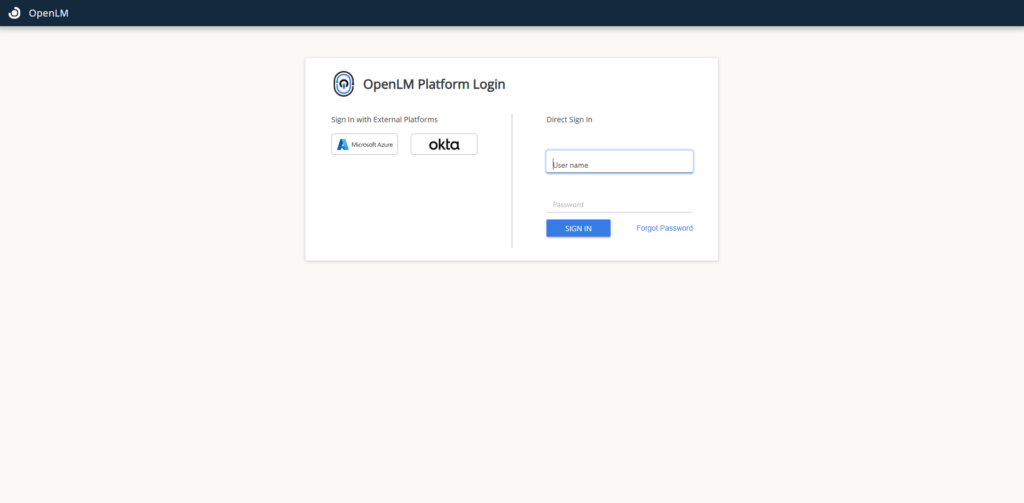
OpenLM sign up/ login page
Authorization Page: Users authorize the application so OpenLM can verify their account and allow access to the workspace.
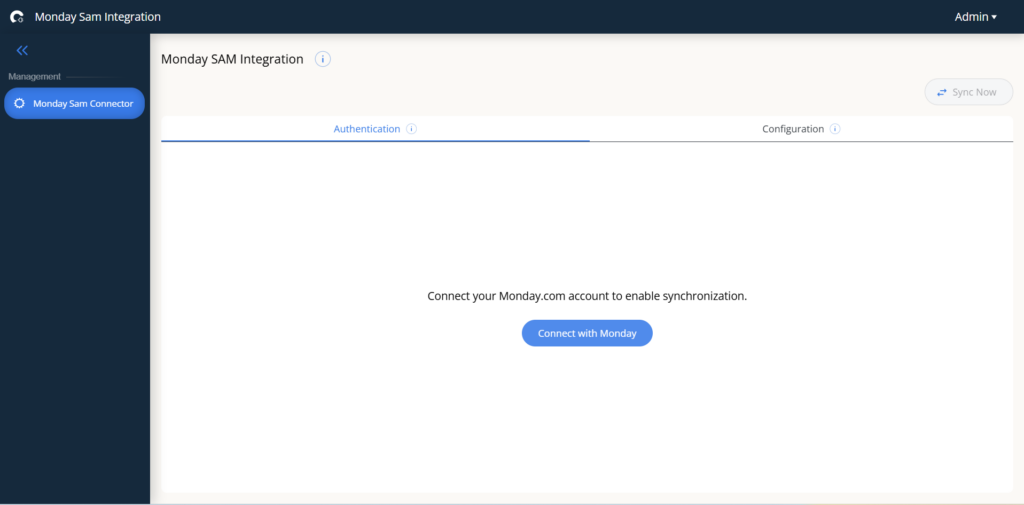
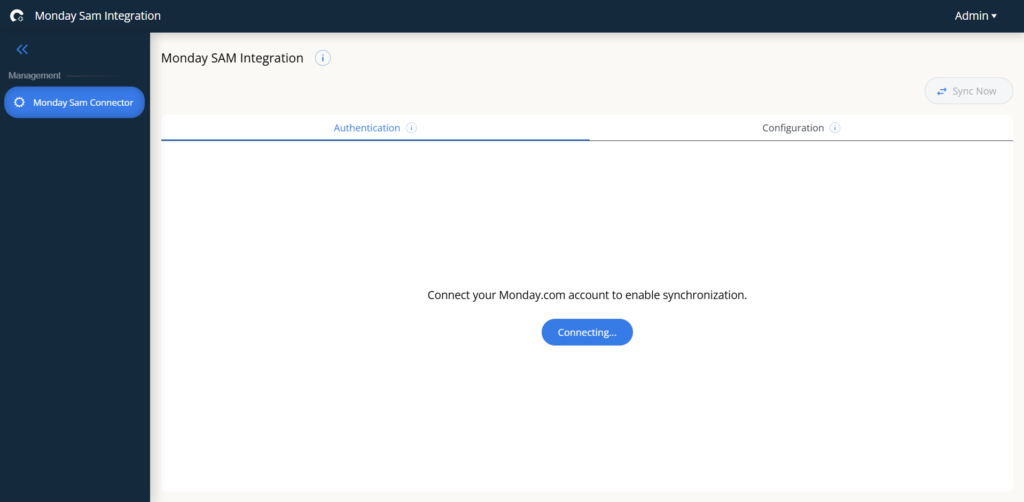
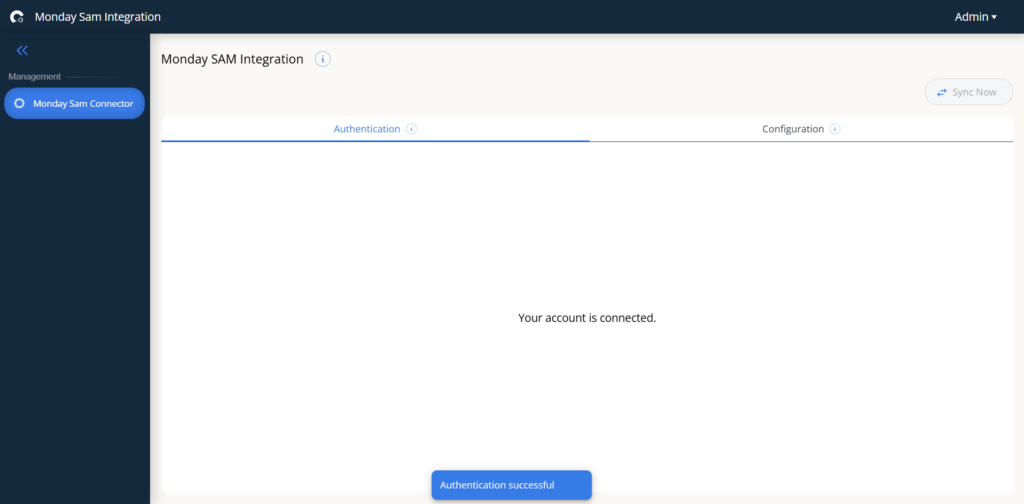
Configuration Page: Configure your workspace setup by providing a unique folder ID to push the SAM data from OpenLM to this app.
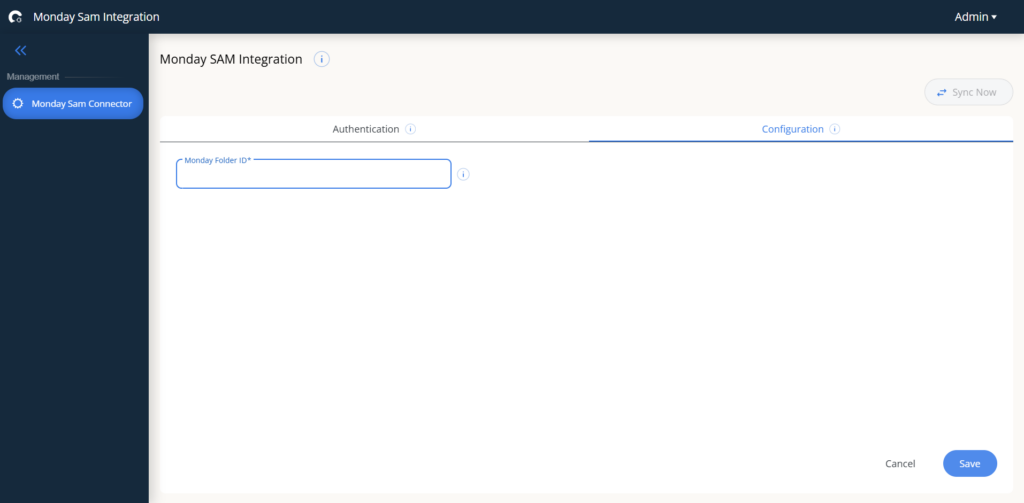
Provide app folder / template id after app installation inside any workspace for configuration
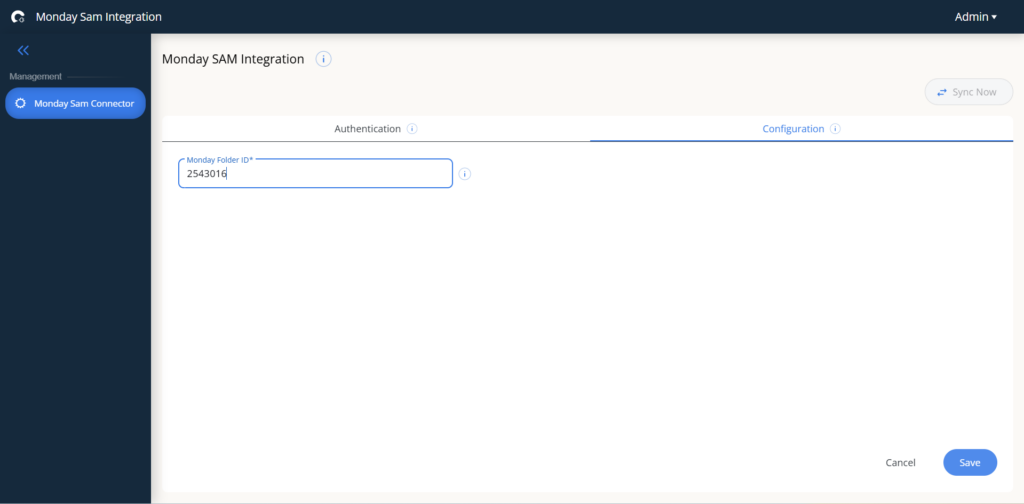
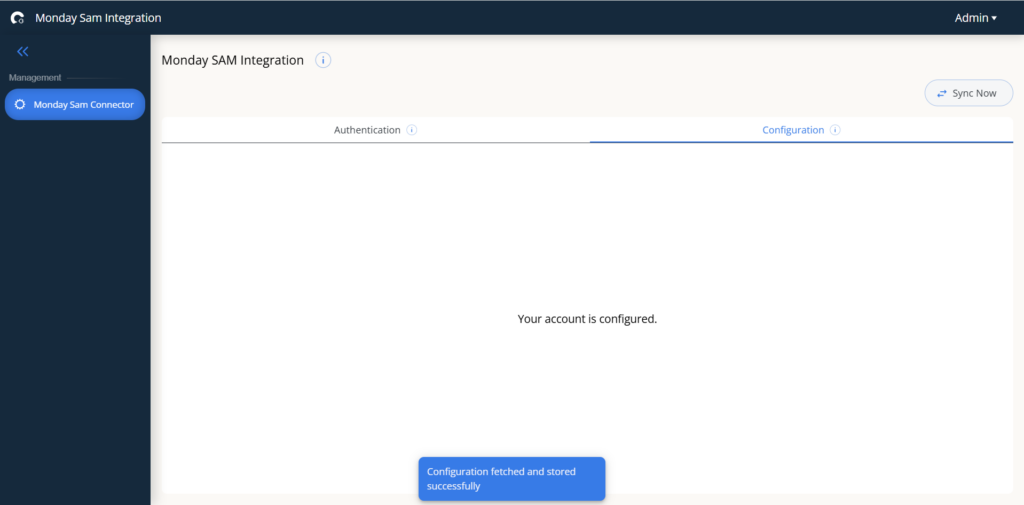
Click Sync Now button : For syncing customer’s Catalog & Inventory data from OpenLM to monday.com
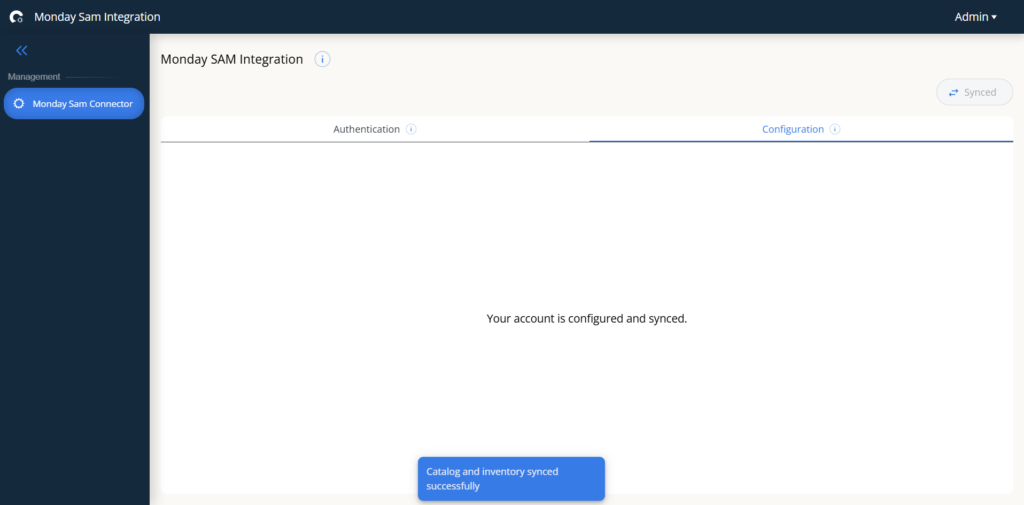
Synced customer’s Catalog & Inventory data from OpenLM to monday.com successfully
OpenLM SAM : User Experience Flow
A typical end-to-end scenario:
- Authorize the Connection: Start at the OpenLM Onboarding page, where you are redirected to the OpenLM UI to authorize the integration, allowing SAM data to flow securely into your monday.com instance inside OpenLM SAM app.
- Configure Workspace: Upon installation, a pre-built workspace template containing all necessary boards, dashboards, forms & automations gets added to your workspace. Configure the setup by providing your unique ID to push the SAM data from OpenLM to this app.
- Sync Primary Data: Trigger a synchronization to pull your full Software Catalog and current Inventory data from OpenLM into your monday.com boards for centralized tracking.
- Allocation Requests: Employees can request specific software licenses via the Allocation Request Form. This automatically creates a ticket in the Allocation Request Ticket Board, tagging and notifying the IT Admin via email. (Note: Companies must manually configure IT Admin profiles within this board to enable tagging).
- Review & Approve Allocation: Once IT Admins review the request by cross-referencing live data in the Inventory Board. The Admin then approves or rejects the request based on current inventory stock.
- Finalize Allocation: Once the Admin manually allocates the license to the employee & change the status from “Approved” to “Allocated.” This triggers an automated email to the employee, updates the Allocated License Board with the new assignee info, and automatically reduces the stock in the Inventory Board.
- Initiate Procurement: When new licenses are needed, IT Admins use the Procurement Request Form. A ticket is instantly created in the Procurement Request Ticket Board, notifying the CAD/CAM Manager via email. (Note: Companies must manually configure CAD/CAM Manager profiles within this board).
- Approve Procurement: The CAD/CAM Manager reviews the request against current inventory needs and approves or rejects it. Once the licenses are manually purchased, the manager updates the status to “Procured.”
- Update Inventory Stock: After procurement, the IT Admin receives an email notification. The Inventory Board is automatically updated with a new entry or increased stock; the Admin simply fills in the new issue, start, and expiry dates of the newly purchased license.
- Manage Real-Time Alerts: All OpenLM system alerts are pushed to the Alerts Board, automatically tagging and emailing the default assignee. From there, alerts can be re-assigned and managed by the concerned one through organized statuses: “Working on it,” “Stuck,” or “Resolved.”
- Project & Employee Mapping: Use the built-in Projects & Employees Board to maintain your organization’s specific data for ongoing, completed, or halted projects with employees. While this board is maintained manually by the customer, it unlocks powerful insights by automatically tracking license usage and allocation on an employee-by-employee and project-by-project basis.
- Visualize with Integrated Dashboards: Gain immediate high-level insights through specialized dashboards. These provide real-time visualizations of your current Inventory levels, a status-wise view of System Alerts, and detailed tracking of License Usage on both an employee and project basis.